Registering LDAP Connection
LDAP (Lightweight Directory Access Protocol) is a standard protocol that allows managing directories, that is, accessing information banks about the users of a network through TCP/IP protocols.
You can configure 4biz to query available user bases in a directory service (Microsoft Active Directory or open-LDAP), which allows these users to authenticate at 4biz by using their credentials without having to manually enroll them (at 4biz).
Today, the reading of data from an AD/LDAP server boils down to the "user" object. That way you can use filters to bring them to 4biz.
Moreover, you can use the "Field Mapping" option to upload attribute information (e.g.: e-mail, phone, location, and others).
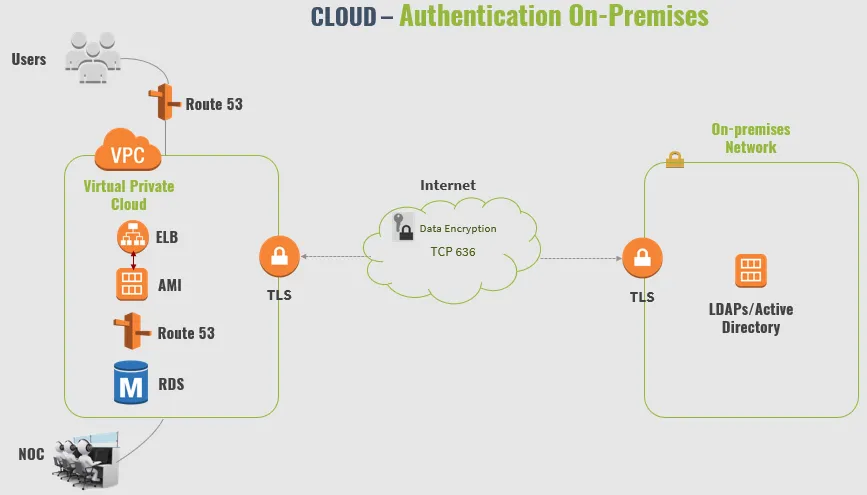
Below is an authentication model for 4biz Cloud customers who want to use their on-premises directory base.
Before getting started
If you want to set up and synchronize automatically the users, it is necessary to create a CRON for this purpose (e.g.: synchronize users every day at 12:00 AM).
To create a schedule go to Processes > Event Management > Time.
Procedure
Configuring connection
- Access the menu Parametrization > LDAP Configuration;
- Click on the "New" button;
- Complete all the fields available;
Field | Description | Example |
|---|---|---|
Implementation | Type of directory server | AD/OpenLDAP |
URL Conexão | Access address to the directory database. Note that you can use an unencrypted (port 389) or encrypted (port 636) connection | ldaps://auth.domain.com:636 |
DN Base | DN Base is used to search user entries. | dc=domain,dc=com |
DN Alias | Domain/Connection name, this name will be visible on the login screen | domain.com |
Filter | Filter for the query of objects in directories | (&(objectCategory=person)(objectClass=user)) |
DN Manager | User with permission to search the directory. In this case, enter the value according to the "distinguishedName" attribute of the AD | CN=Service User,OU=COMPANY,DC=domain,DC=com |
Pwd Manager | DN Password Manager | ***** |
Default Setting | If the connection is available on the login screen | Yes/No |
📌 IMPORTANT!
If there are no DN Groups, fill in the "DN Group" field only with an asterisk. This will cause the system to check the entire domain.
4. Check connectivity with the base by clicking on "Test Connection", if all data is correct, you will receive the message "Connection successful";
5. Click on "Save".
⚠ Attention!
Before asking to test, you must click the "Save" button to save the setting; otherwise, the test will use the data prior to the changes made on the screen.
Configuring DN Group and Appointments
After you have successfully configured a connection, you must add preferences for user synchronization, in which case you must enter LDAP Groups and Field Mapping. For "LDAP Groups" you have the possibility to create customizations where certain users will automatically inherit permissions in 4biz via linkage with the Access Profile or Group.
For the "Field Mapping" item, you can configure the application to read AD/LDAP attribute information and bring it into the employee record (e.g.: read the "mail" attribute and feed the "email" field of employee).
- To link new groups, click on "Add" in the LDAP Groups area and enter the data:
Field | Description | Example |
|---|---|---|
DN Group | Path to the DN Group | OU=Users,OU=Company |
Filter | Filter for object search. Leave blank to use the one defined on the connection | (&(objectCategory=person)(objectClass=user)) |
Attribute for Name | Enter attribute to read name (e.g., CN, SamAccountName, etc.) | CN |
Update links | The Frequency with which the fields "Access Profile" and "Group" will be updated when performing a synchronization (Options: Always, Never, or Only when creating) | Always |
Access Profile | System profile that users will inherit | Administrator |
Group | System group that users will be inserted | Managers |
Schedule | The Period when automatic synchronization will be performed | [Every day]* |
2. To link attributes to fields, click on "Add" in the Field Mapping area, enter the name of the LDAP field and select the corresponding field in 4biz;
The Field in the LDAP | The Field in the system |
|---|---|
TelephoneNumber | Telephone |
localeID | Locality |
3. Click on "Save".
🖊 Note: When there is an authentication request on the system identification screen (login and password), a correct connection search cycle is executed based on this configuration, that is, there is an authentication attempt for each domain registered here (if there is more than one).
To use LDAP protocol
Using the LDAPS protocol in 4biz requires the AD/LDAP server public certificate in the JAVA CA certificate store (on your Wildfly server). Therefore, you must export it from the AD/LDAP server and import it into your instance. If you have questions about importing certificates on the application server, see the installation document.
What to do next
To use AD/LDAP authentication effectively, after registering the connection, change parameter 22 and enter a value equal to "2", that is, indicate that the default authentication method in 4biz is AD/LDAP. However, manual authentication will continue to function normally.