Image
On the Image screen, all the images referenced in the HTML, JavaScript, and CSS files registered in the system will be displayed, along with their respective identifying information divided into columns.
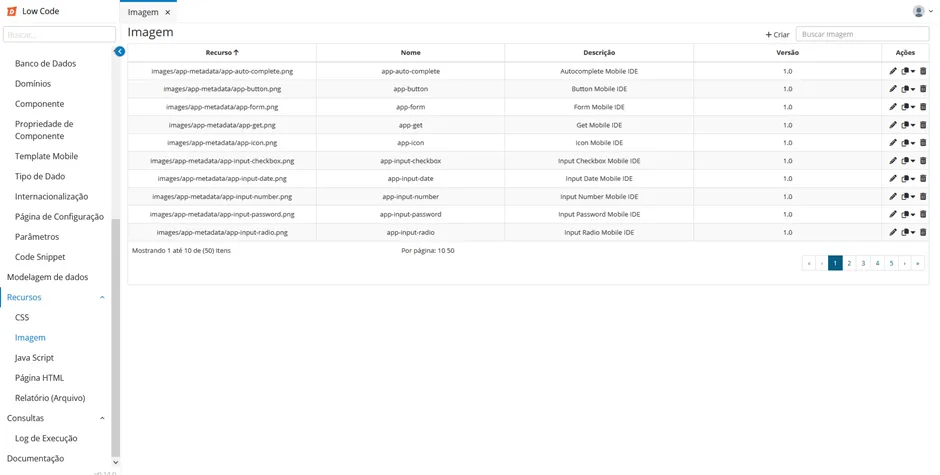
Column | Description |
|---|---|
Resource (Resource) | Provides the path of the image used by the system. You can click on the column title to organize the resources in ascending or descending order according to the editing date. |
Name (Name) | Unique identifier of the image |
Description (Description) | Image description |
Version (Version) | Number of the version of the resource in question |
Actions (Actions) | In this column, you can click on one of the icons to Edit the resource, view Previous Versions, and Delete the resource. |
In the top right corner of the page, you can find the button to create a new image. Next to it is the search bar to search for an image in the list.
At the bottom of the page, you can find information about the total number of registered resources, the number of resources per page, and the number of pages. The system allows you to view 10 or 50 resources per page.
In the Actions column, when selecting the Edit or Edit Previous Versions icon, you will be redirected to the following screen:
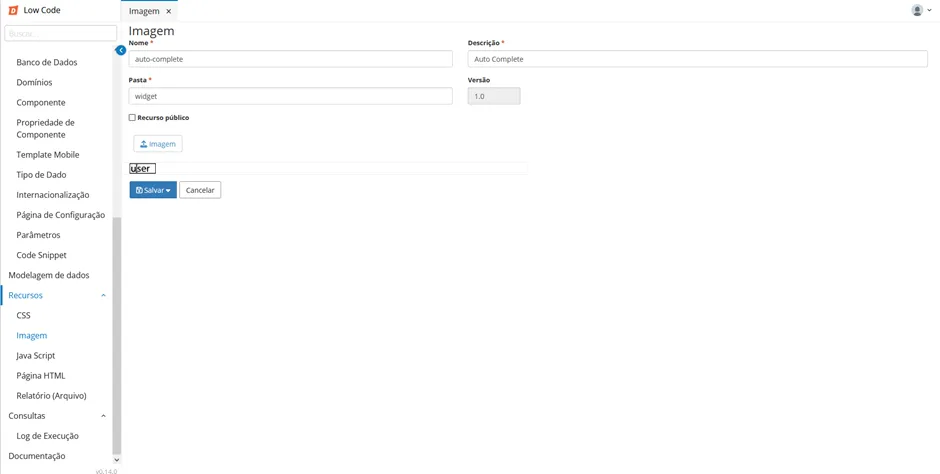
The first screen presents the following fields:
Field | Description |
|---|---|
Name (Name) (*) | The name is a unique identifier of the selected image. This field does not accept spaces, and it is not possible to have two images with the same name. |
Description (Description) (*) | |
Folders (Folders) (*) | Tool used for hierarchical organization of elements in the page's code. |
Version (Version) | This field shows the version of the image currently being viewed. Any changes made can be saved as a new version, and the system keeps older versions available. |
Public Resource (Public Resource) | Checkable field indicating whether the image is public domain |
URL | Location where the image is hosted |
Upload | Button to select and upload a new image |
Content | This field presents the view of the image saved in the system |
Save (Save) | Saves the changes made. It is possible to save as a new version or save in the same version being edited. The changes will be saved in a file used by the browser. |
Cancel (Cancel) | Cancels the changes and returns to the list of images |
The information with an asterisk (*) is mandatory.