Business Object
Business Objects are Builder abstractions to application Data Entities. Each Business Object represents the data model, which is linked to a table in a relational database and may have one or more Forms associated with it.
Before getting started
In order to create a Business Object, you must have configured the Database Connection and the Builder Application.
General Data
- Access the Business Object configuration through the menu Builder > Management > Business Object;
- Click on the "New" button;
- Fill in the fields on the "Identification" tab.
- Select the Application for which the Business Object is being created, giving it a Name and a Description, and informing the purpose of the Business Object.
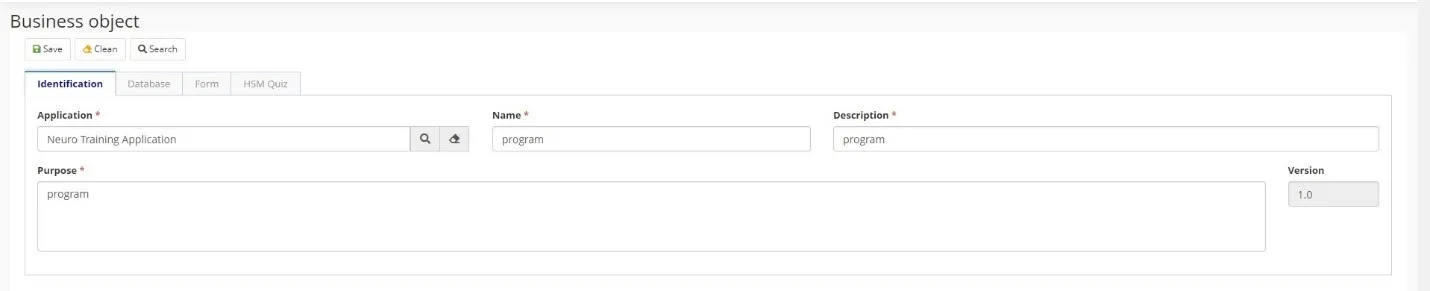
Database Information
The "Database" tab contains the reference to the application database structures. Since each Business Object represents a database table, the information in this tab defines table columns, relationships among tables, business rules, and SQL commands (if necessary).
- Fill in the information with:
- Database Connection to be used for the Business Object;
- Database Scheme name;
- Type of database element, being Table or View;
- Name of the table/view to which the business object is linked.
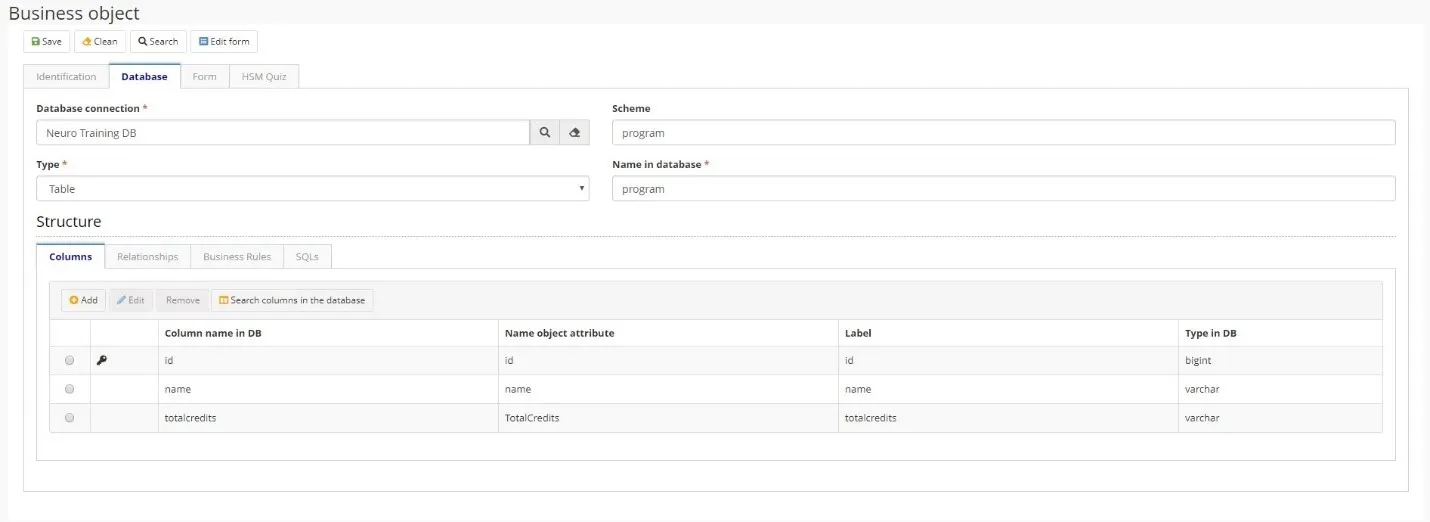
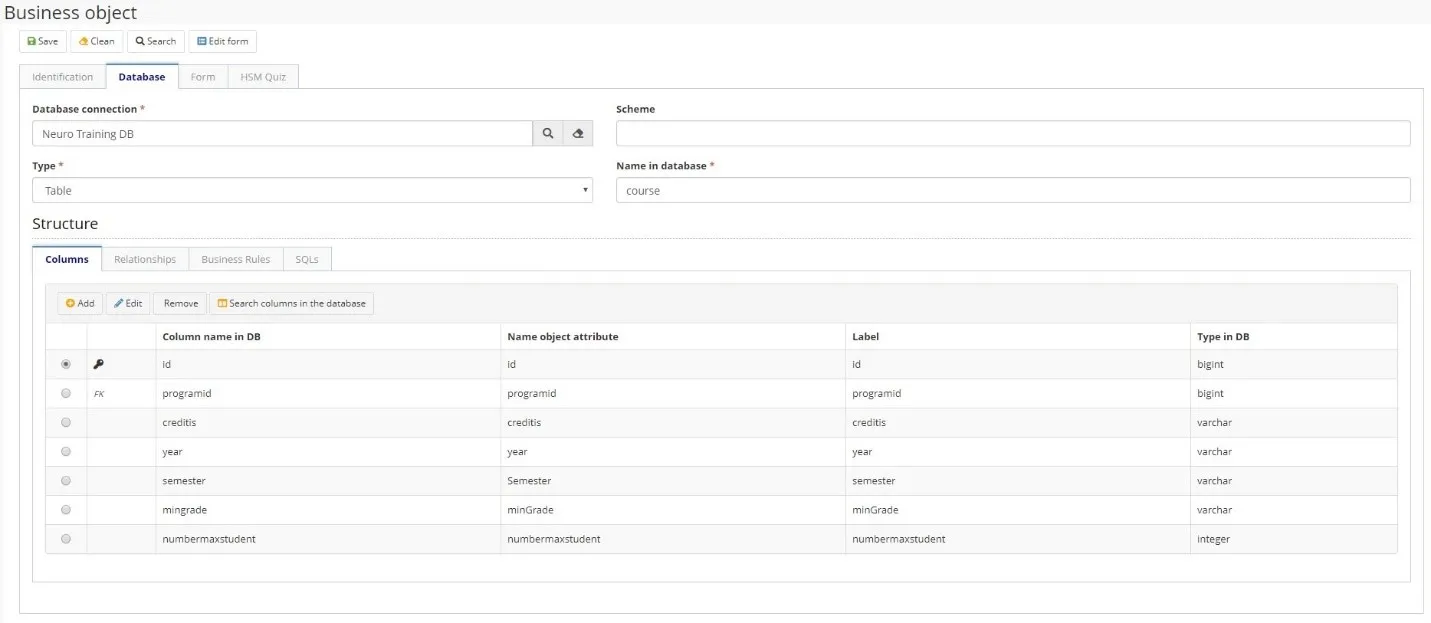
Columns
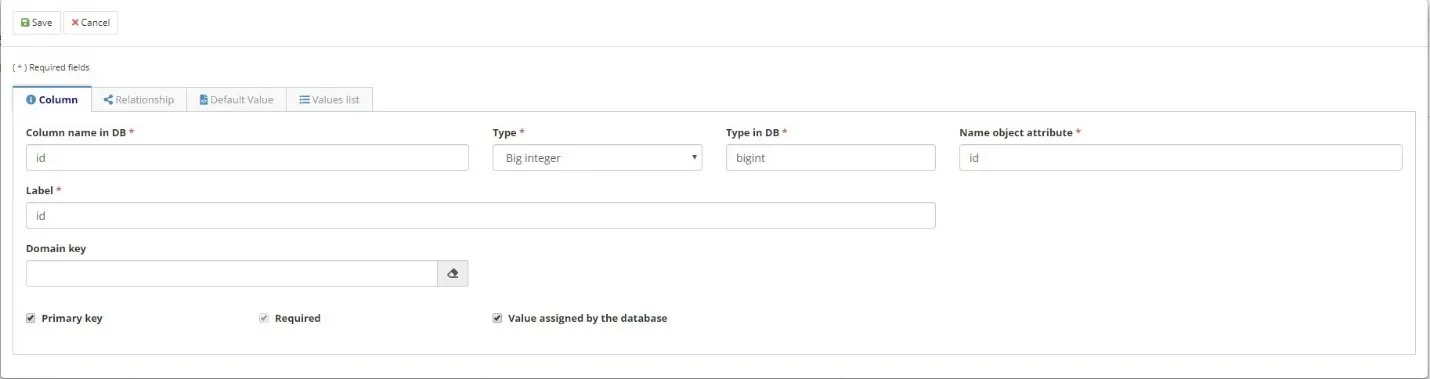
- Add business object/table columns, informing for each of them:
- Column name in DB;
- Type of the column (the system will automatically correlate to the corresponding type in the database;);
- Object attribute name (it defaults to the column name in the table);
- Label for the column to be shown in forms and grids;
- If the column is part of the Primary Key for the table;
- If the column is Required (mandatory).
- Click on the "Save” button.
🖊Note: After saving you will be able to inform Domain key and assign Relationships if it is needed.
🖊Note: For each change in the information in the database/table or when creating the Business Object, you must execute the corresponding DDL to reflect the creation/changes in the database.
Relationship
If necessary, use the Relationships tab to create relationships between Business Objects.
- Provide the following information:
- Whether the relationship type is One to Many (1 x N) or Many to One (N x 1);
- The Relationship name and the Label as it should appear on the form;
- The Referenced object that will be linked to the column being edited;
- Column for auto-complete which is the column in the referenced object that must be presented in the form instead of the value of the column being edited;
- If it is required (mandatory) field;
- If it is to use Delegation, that is to use Generalization/Specialization concepts for the Relationship;
- Set the Object column in the edition that will be part of the relationship.

Business Rules
Select the Business Rule to be executed when insert, change or delete actions are triggered on the Business Object.

SQLs
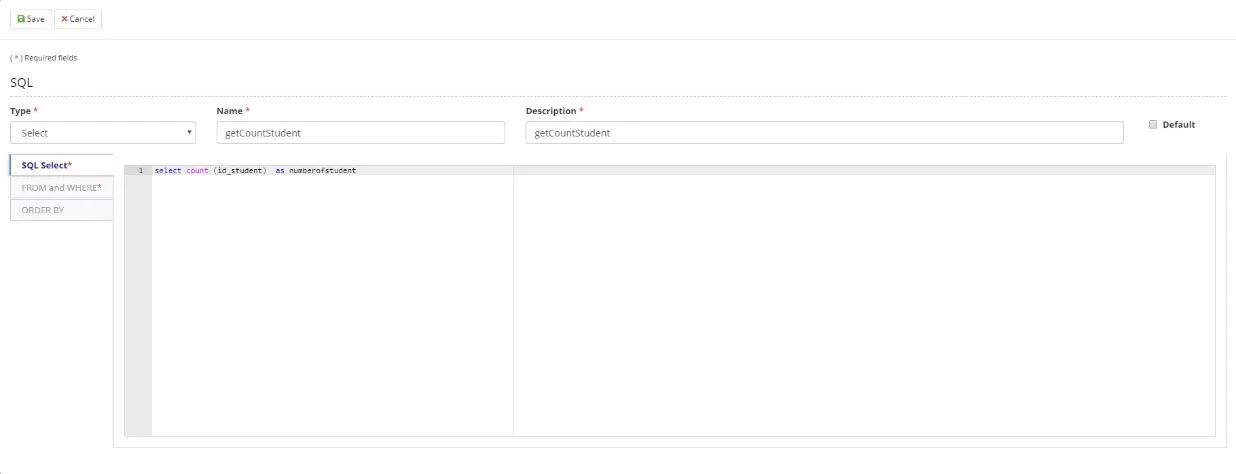
You can create SQLs queries for the Business Object to be run on specific situations according to your process/business needs. For example:
- In an ITSM service request flow for enrolling in a particular course, an SQL query can be used to obtain the number of students already enrolled in that course and make an automatic decision to allow or not the application for enrollment, or send the request to a waiting list.
- During the registration of an item in the Business Object table, an SQL query, which joins several tables, can be executed to validate information being input in the form.
Form (CRUD & Custom)
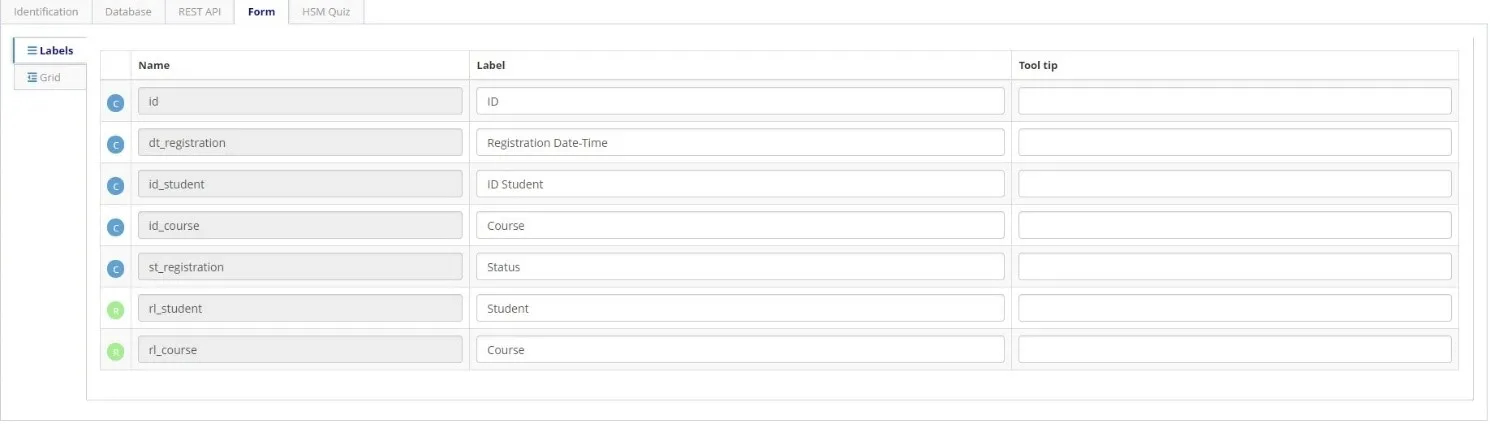
It is possible to change labels names using the Labels tab, and edit the grid fields using the Grid tab.
When you click Edit Form in the screen header, a form for that Business Object will be generated and the Fields sidebar will be displayed. If there is already a registered form previously linked to this Business Object, the Design View tab for this form will open.