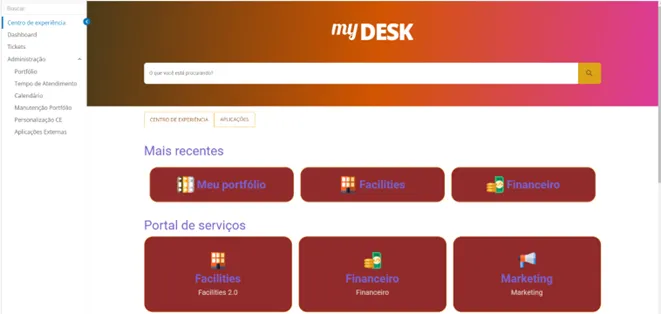
Experience Center
Step by Step
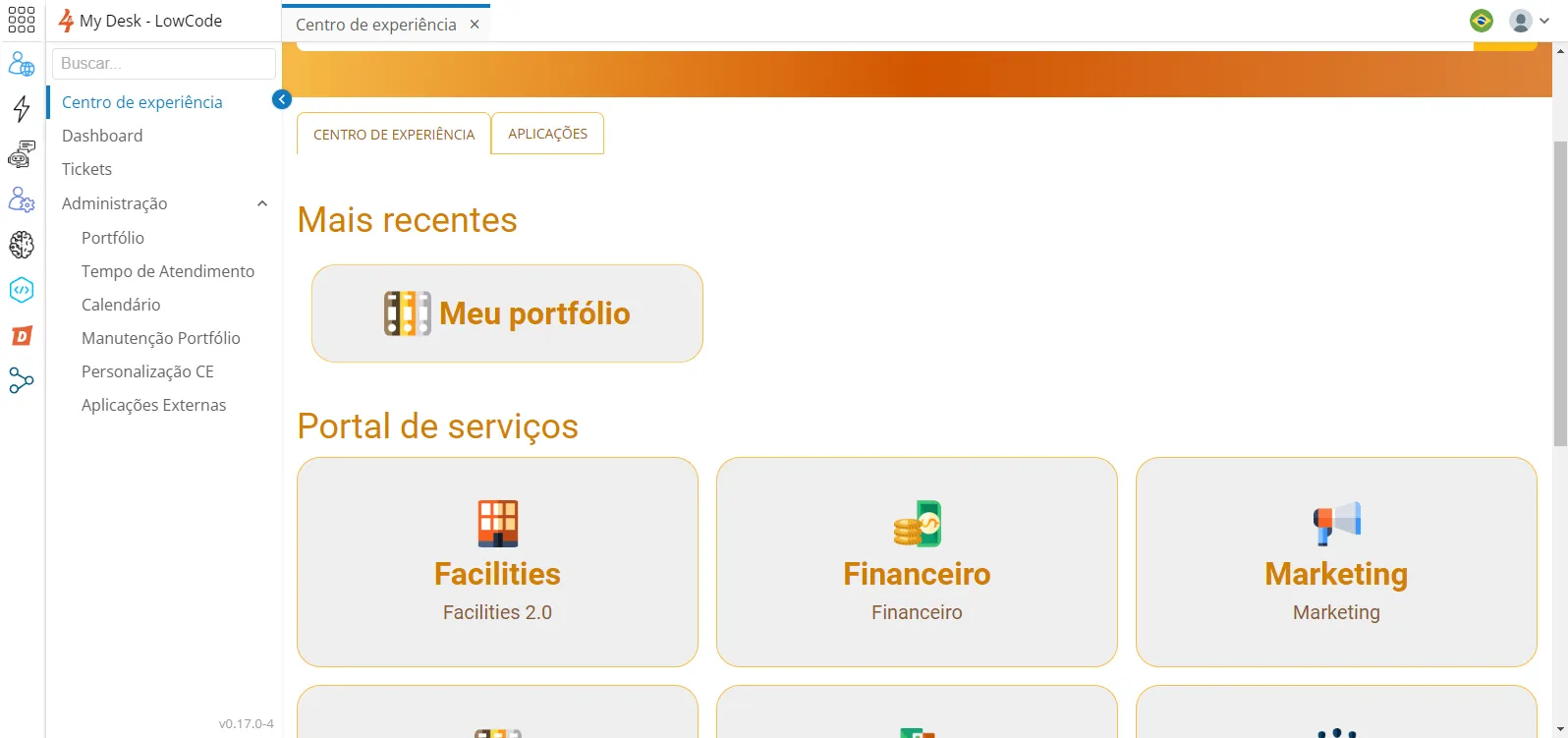
Open the Experience Center in the Side Menu. Here, you will find the search bar where you can enter the name of the portfolio, service, or activity you want to find, as well as the list of portfolios displayed.
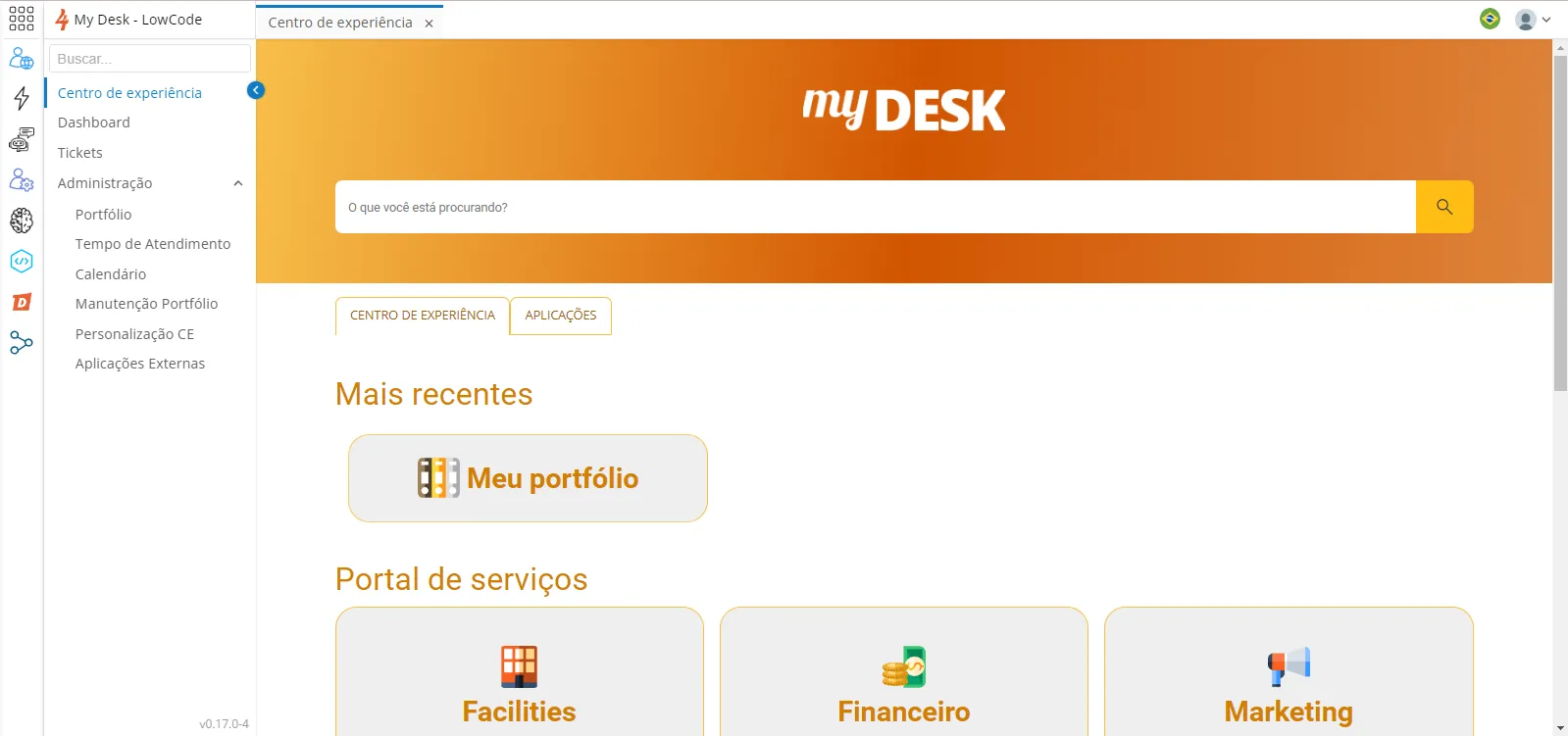
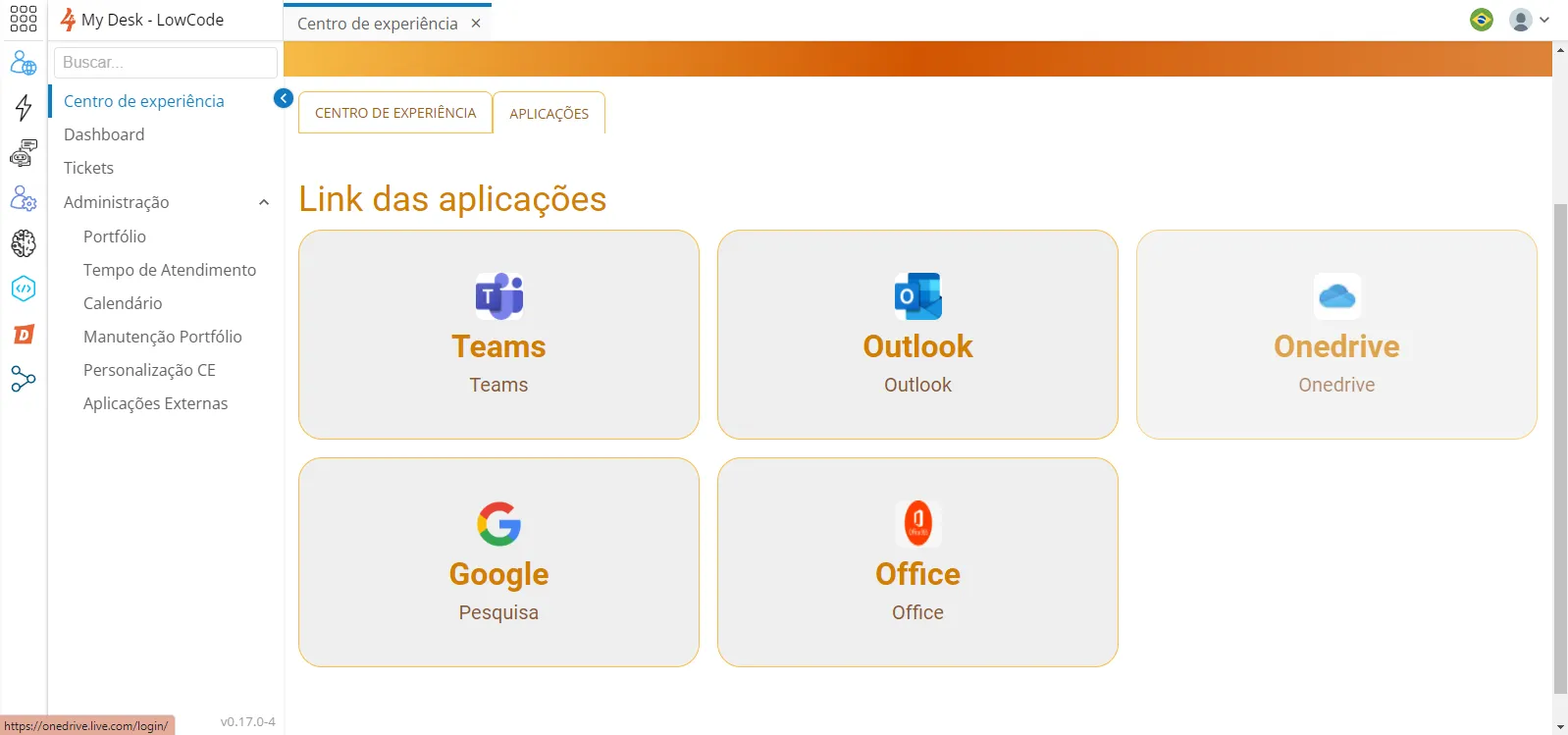
The same screen also displays two tabs, one for the Experience Center and another for applications.
Opening a Ticket
In the Experience Center, select the desired portfolio.
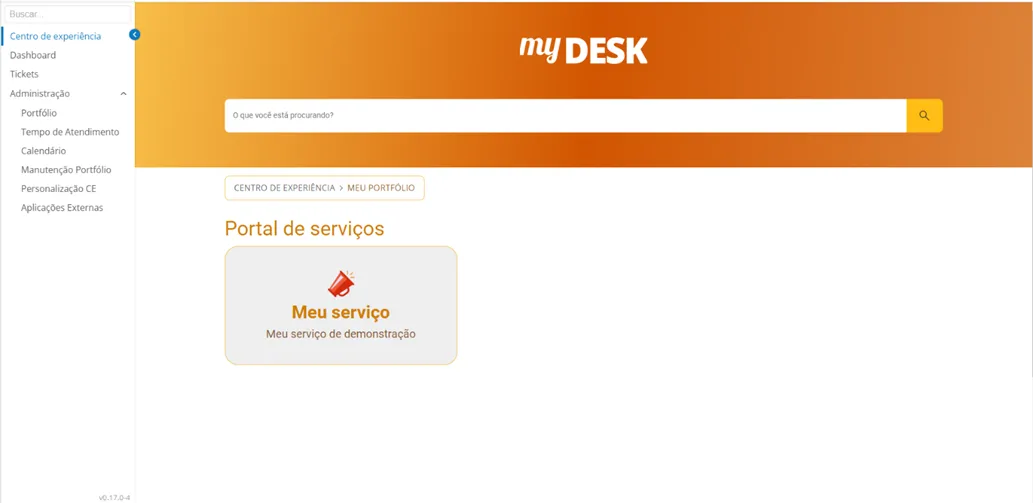
Within the portfolio, the screen with the activities contained in the service will appear. Select the desired activity.
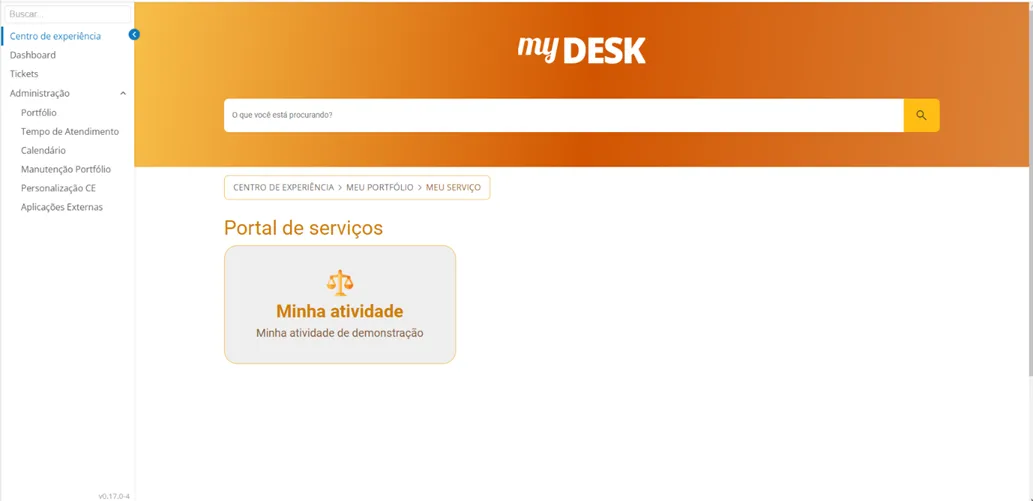
By clicking on the desired service, the screen below will be displayed. Fill in the fields with your request. Remember that the clearer and more detailed the request, the easier it is to understand and resolve.
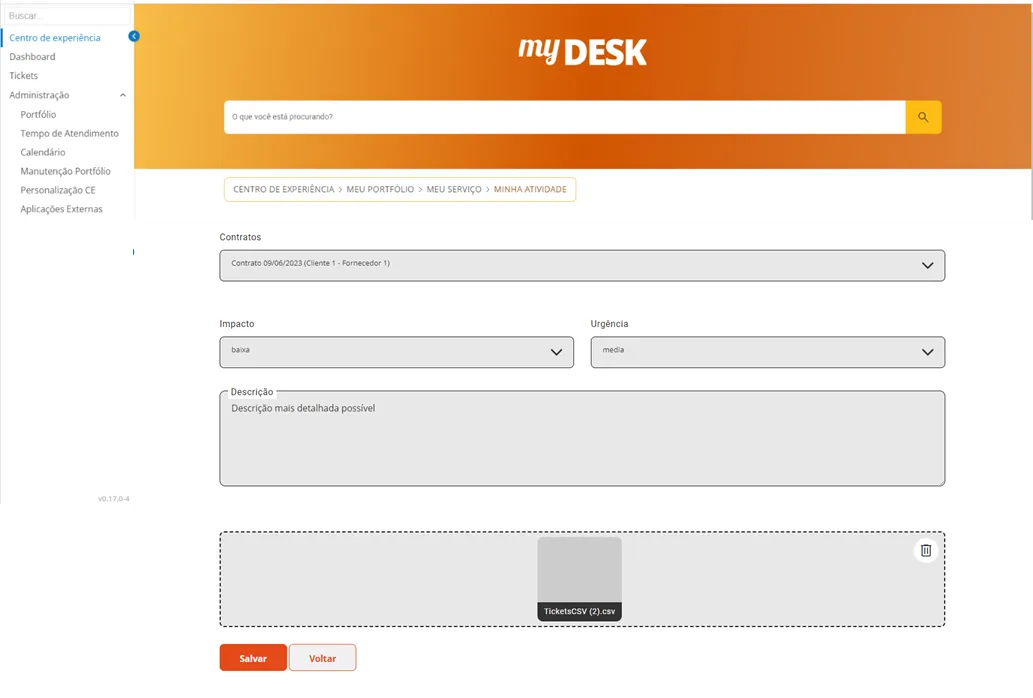
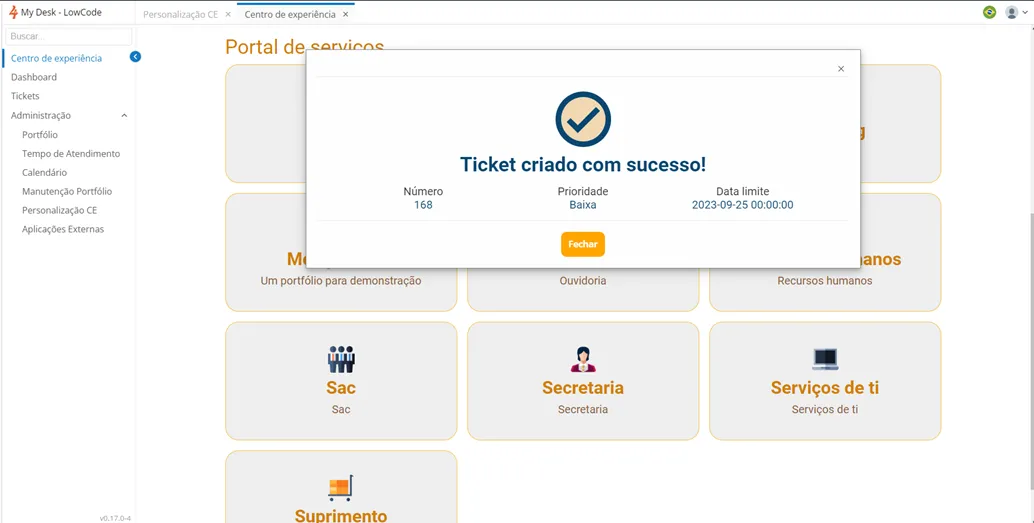
Save and the screen confirming the creation and ticket number will appear.
Click Save, and the creation and ticket number will be confirmed.
Experience Center Customization
Access Side Menu > Administration > Experience Center Customization
You can upload a custom image (company logo, for example).
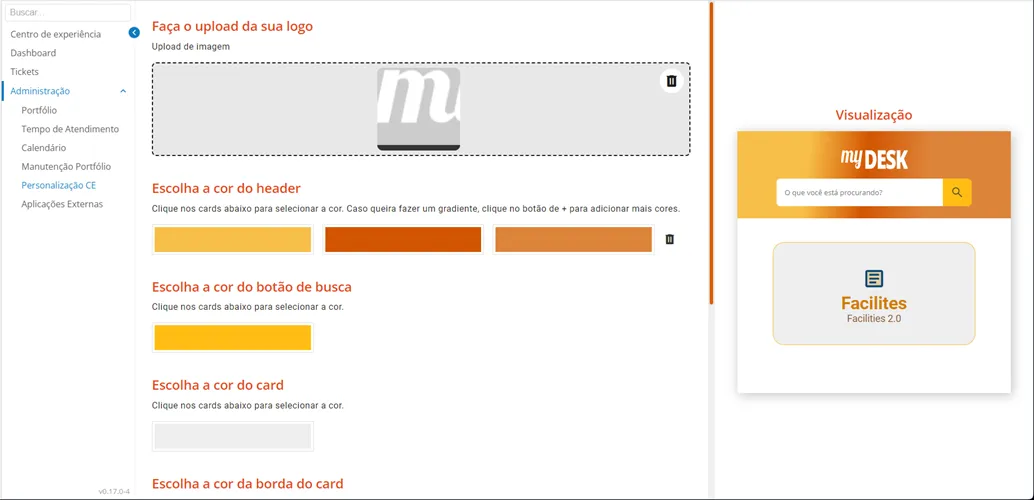
To customize the My Desk colors, click on the color palette and choose the desired color.
The changes will be reflected in the preview panel in real time. When you are satisfied with the changes, click Save Style.
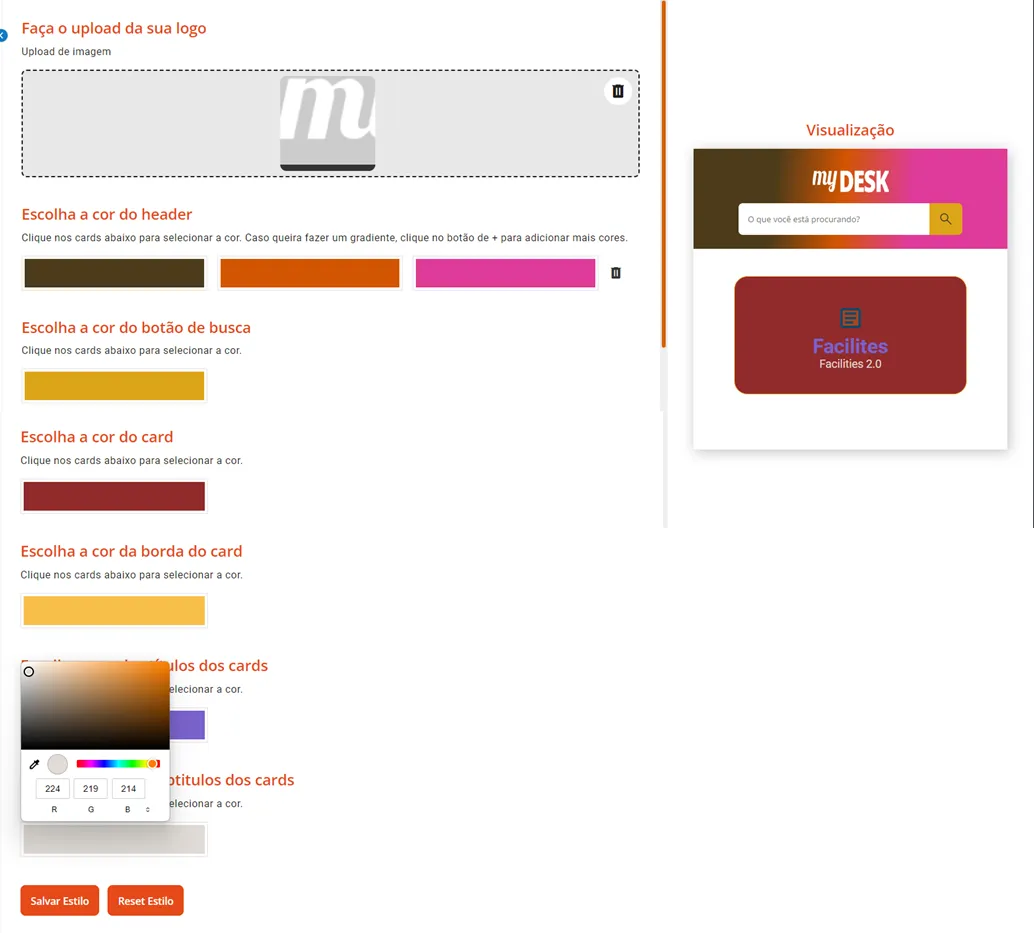
When you want to confirm the changes, click Save Style. Or if you do not wish to keep them, click Reset Style.
After clicking Save, it will be confirmed that the Experience Center has been saved successfully.
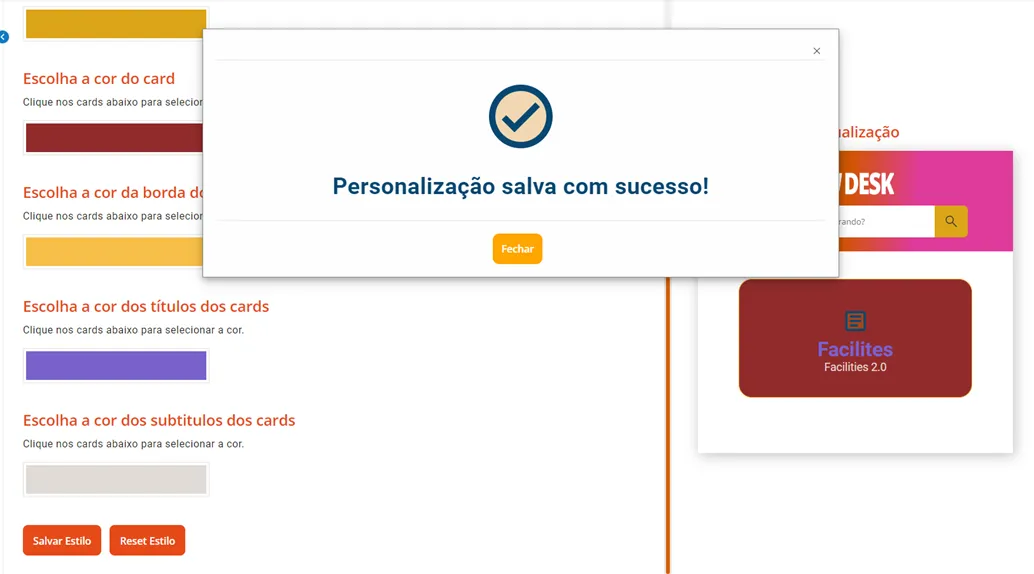
The change will be reflected in the Experience Center, as shown below.