Portfolio Maintenance
Before You Begin
Ensure that you have the following items registered:
Contract;
Calendar
Email Templates;
Service Flow;
Step by Step
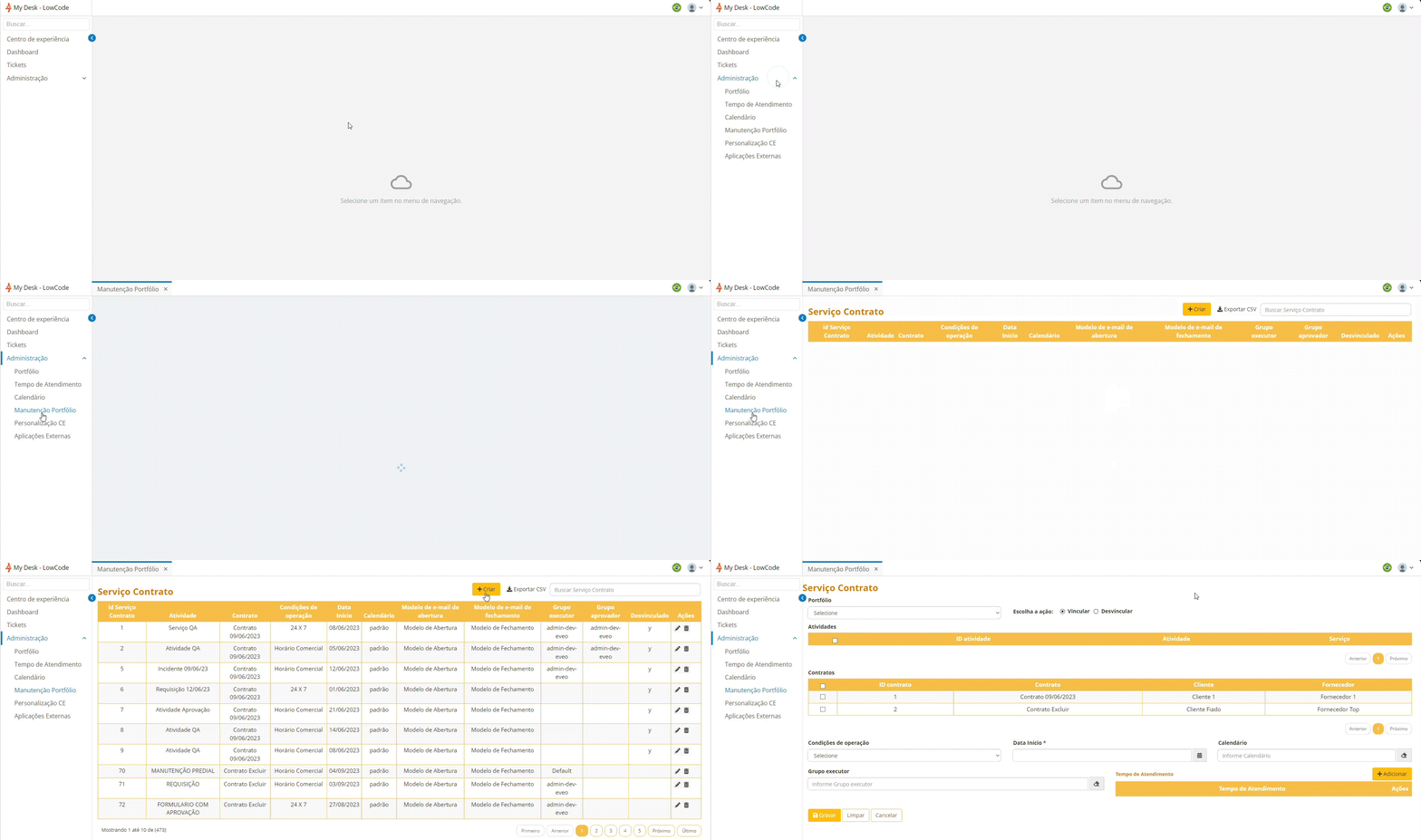
Access the Side Menu > Administration > Portfolio Maintenance and click Create.
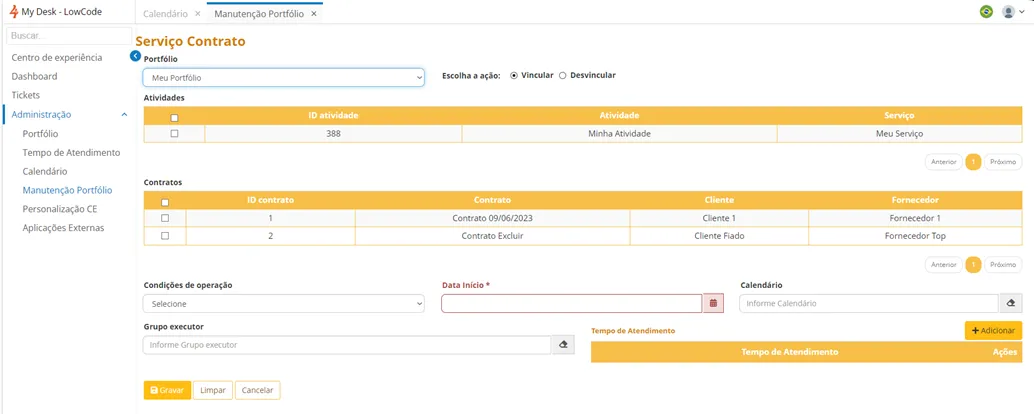
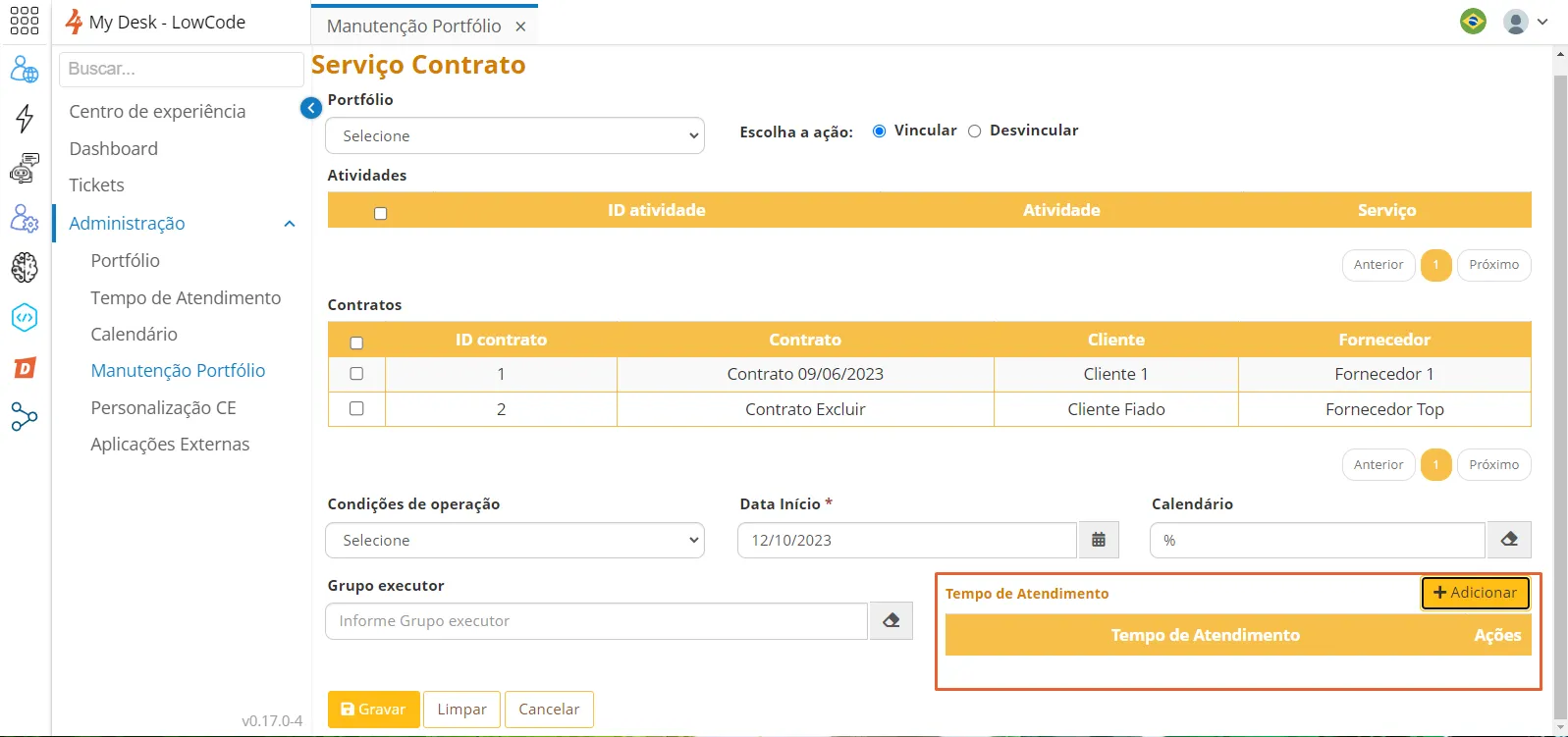
In this part of the form, each Portfolio, Service, and Activity (minimum requirements for linking) will be displayed.
Portfolio
By clicking on Portfolio, the ones that were pre-registered will be displayed when clicking the down arrow in the field. Select the Link or Unlink option.
Activities and Contracts
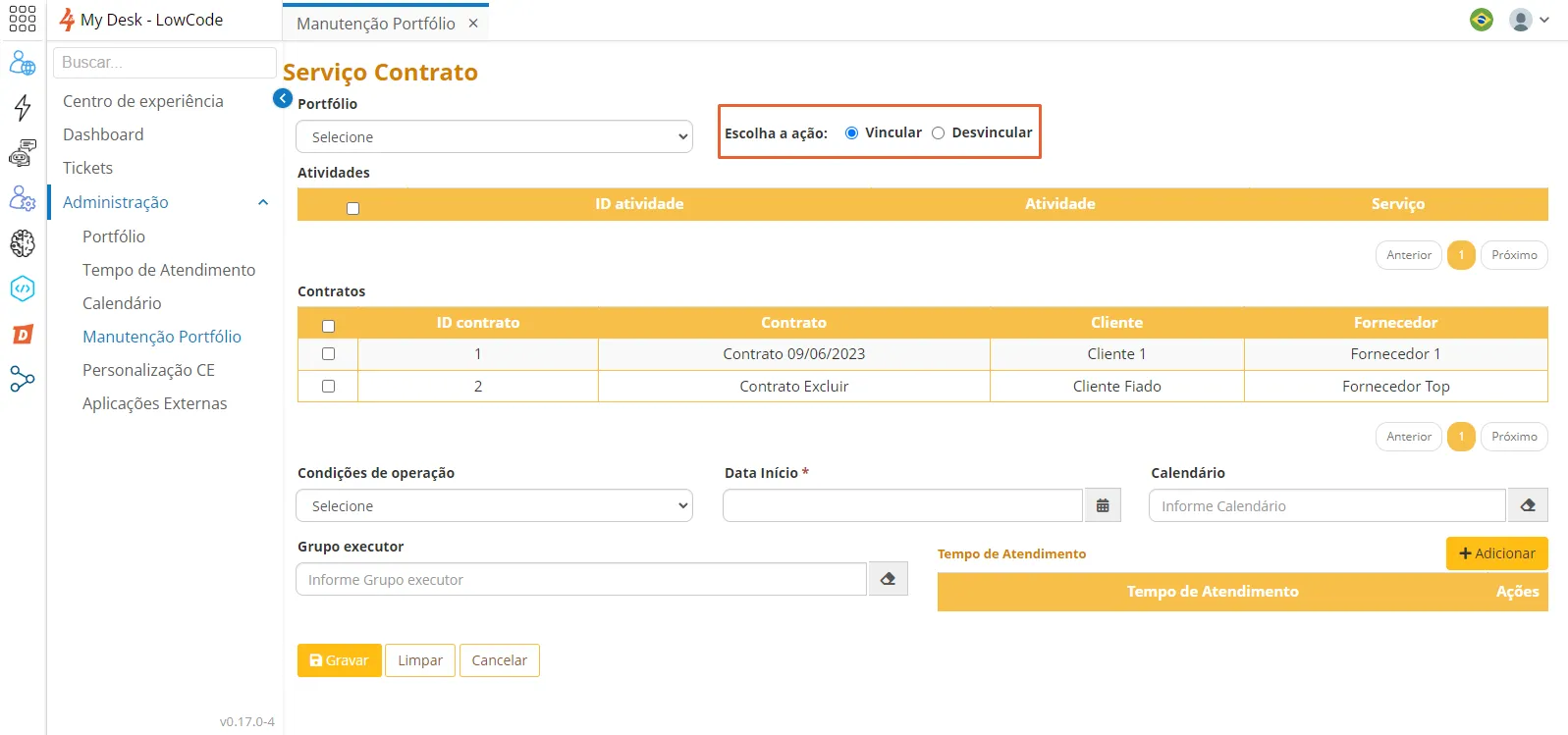
In the Activity and Contracts fields, the pre-registered items are listed in their respective forms. Select the checkbox for the desired activity and contract to choose them.
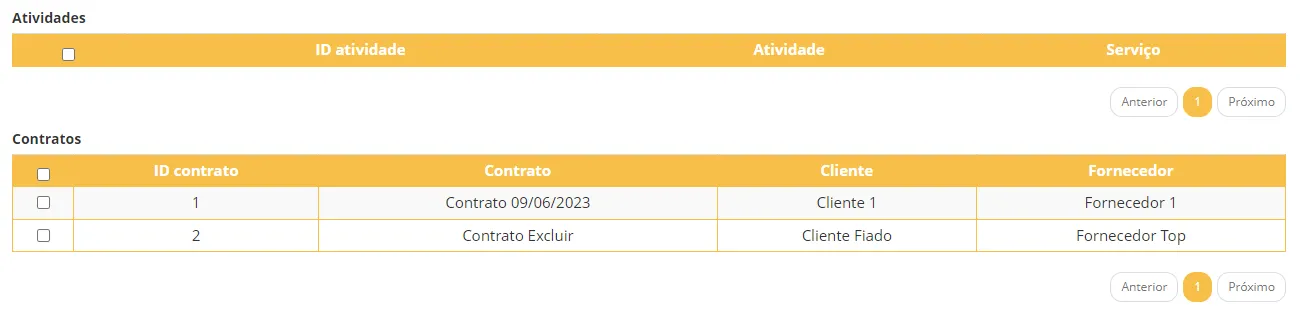
✏️ Note: By clicking on the checkbox to the left of the ID, you can select all items that will appear in the respective grids. If you wish to select only a specific item, click on the checkbox corresponding to the pre-registered item.
Operating Conditions
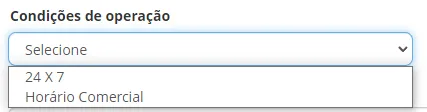
This concerns the working hours. There are two options when clicking the arrow in the field: 24x7 and Business Hours.
Start Date
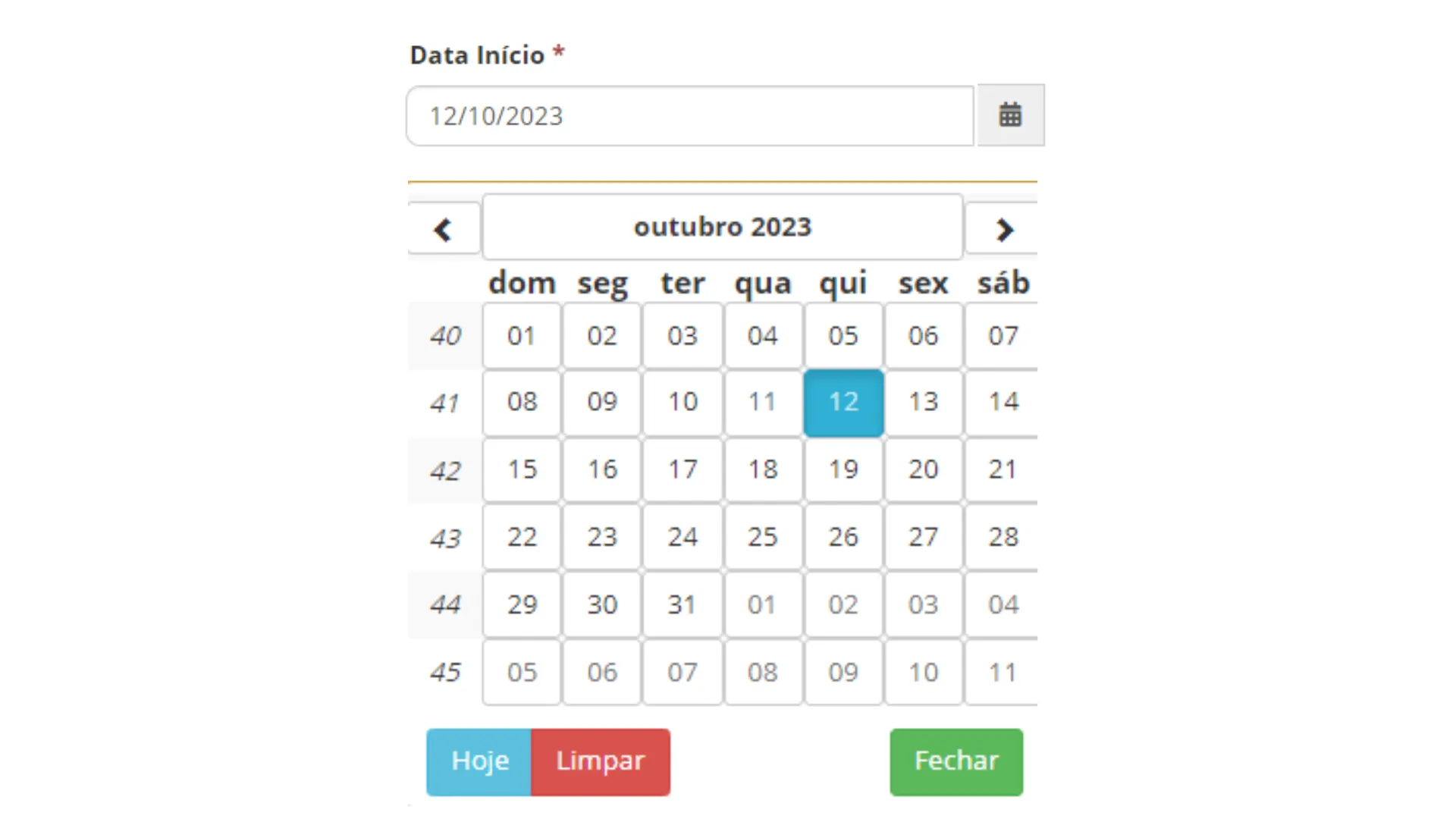
In the Start Date field, it is mandatory to set a date to begin.
Calendar
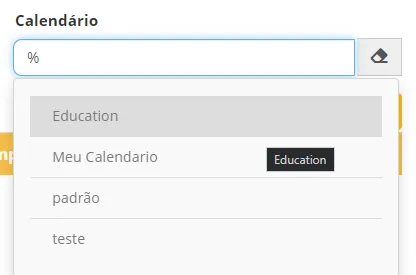
In the calendar field, either type the first letter of the pre-registered calendar or use the symbol % to display all registered calendars.
Response Time
To add a Response Time, click the Add button. The response time field will open, and its operation is the same as the calendar.
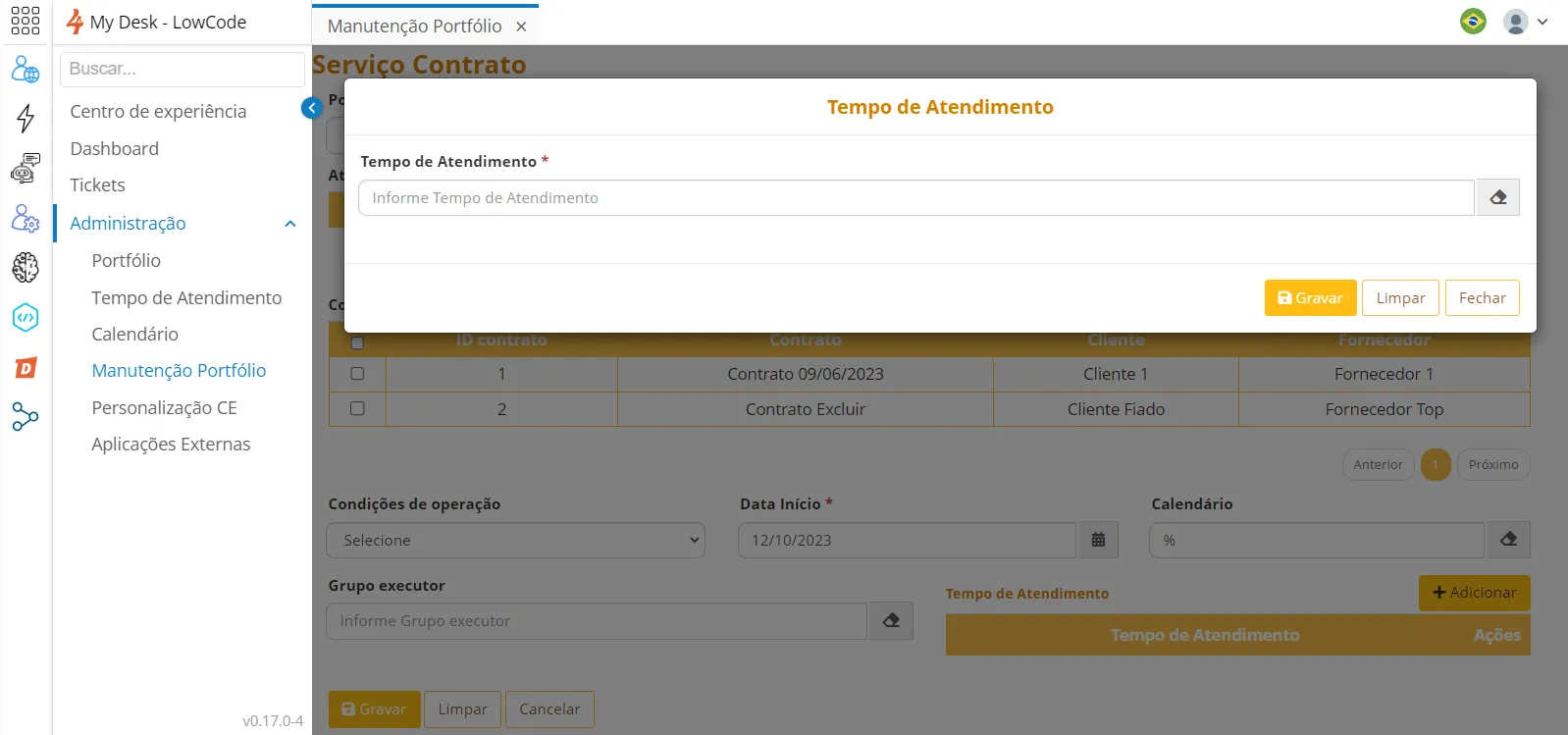
Save all information.
Unlink Option
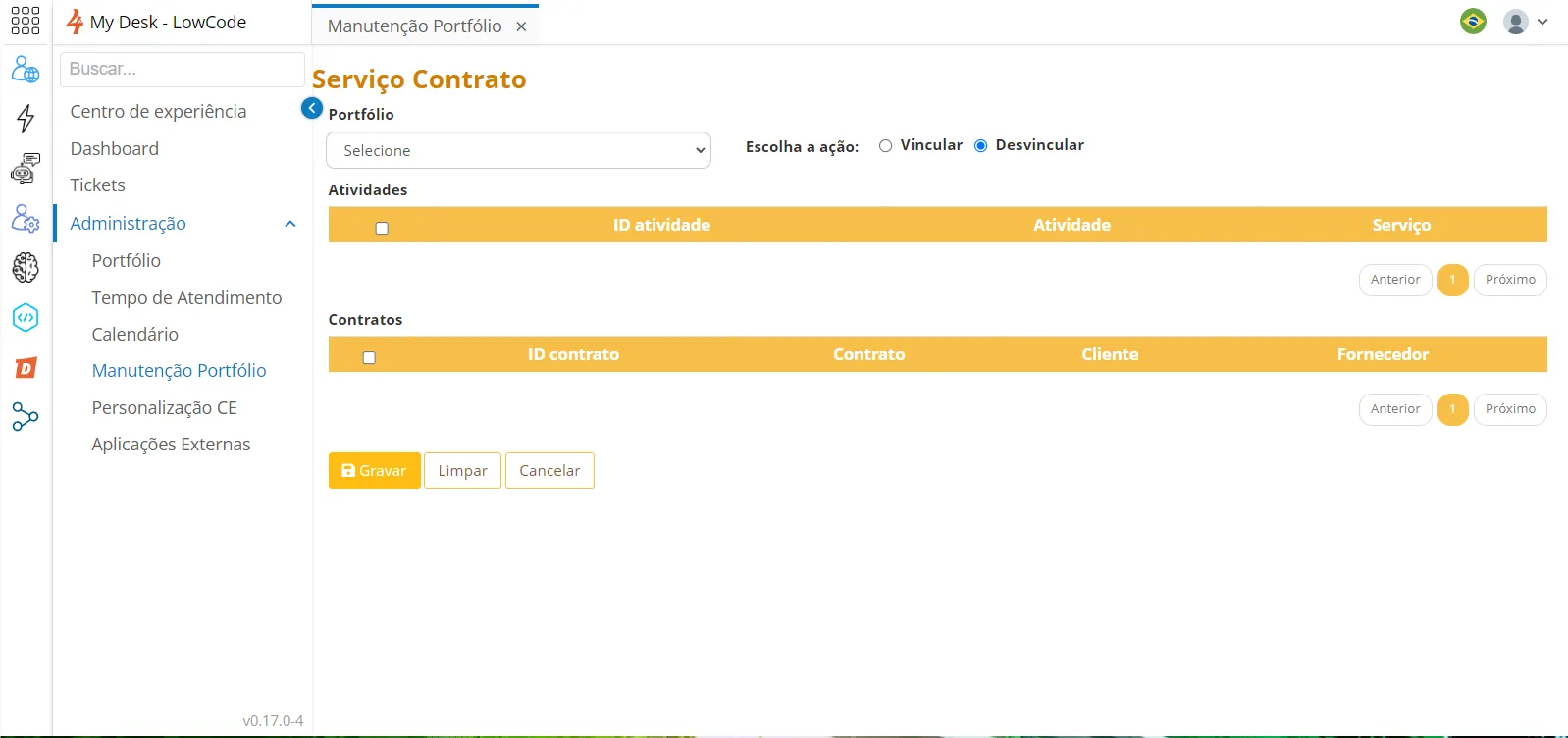
With the Unlink option selected, the only fields available are the mandatory ones for this action. (Activities and Contracts)