Access Management (users)

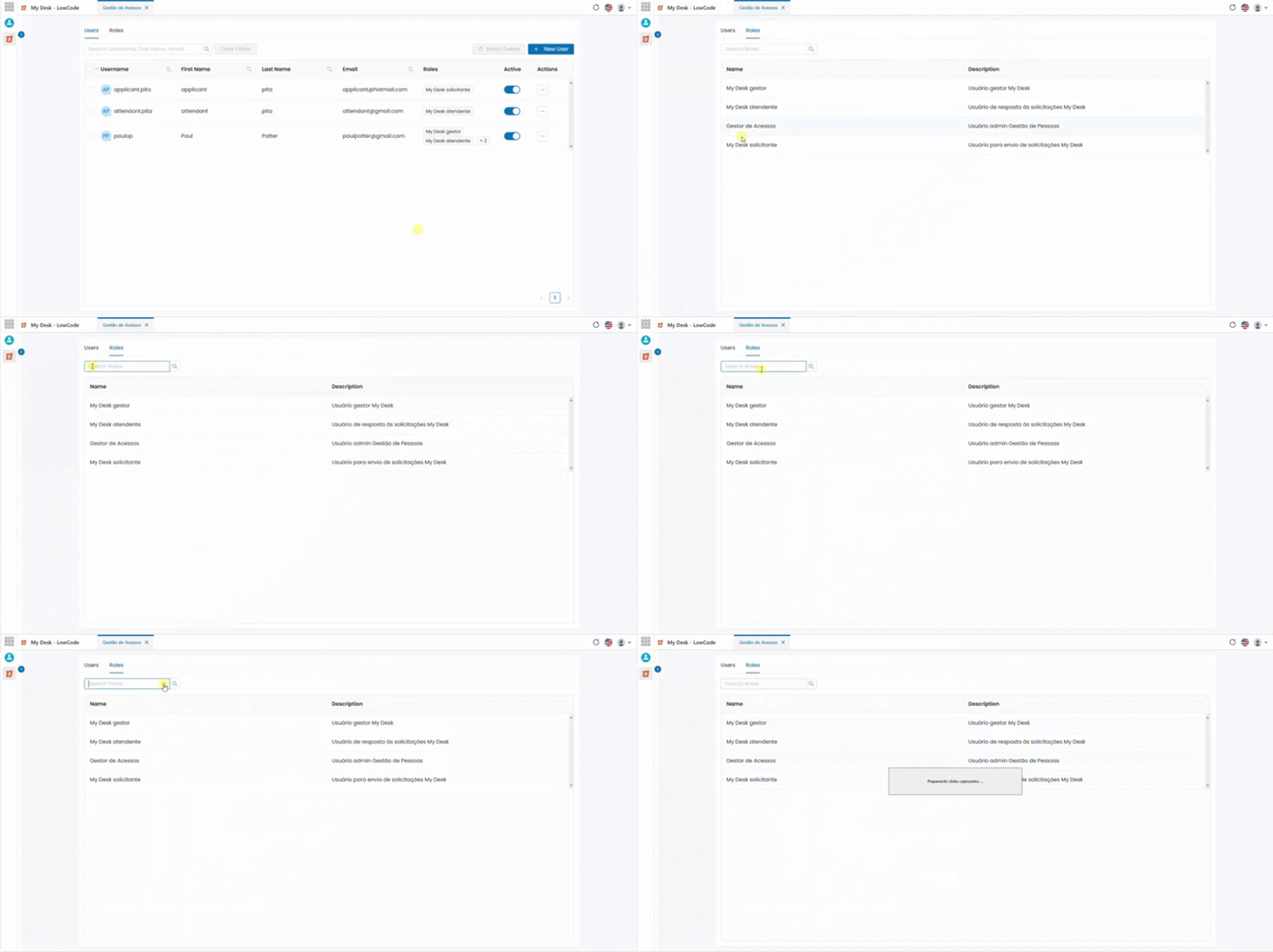
The Users page displays a list of system users and allows the creation of new users.
Users are the individuals who interact with the system, whether to submit or handle support tickets. For the ticket request and support functionalities to work correctly, users must be created and assigned to groups and roles. Groups and roles determine whether a user is a customer, an agent, or an administrator, with each group and role having different access permissions.
Accessing Users

To access this feature, follow the steps below:
- Select the People Management application from the applications menu.
- Click Users in the main navigation menu, located in the upper left corner.
A list of all users will be displayed, with columns containing the following attributes:
- User: User login.
- First Name: User’s primary name.
- Last Name: User’s last name.
- Email: User’s email address.
- Roles: Roles assigned for support or department allocation.
- Active: Status = Active or Inactive.
- Action Button […] (three dots):
- Edit;
- Switch Roles;
- Reset Password;
- Delete.
Below the menu, there is a search bar where you can search using any available attribute. To use it, simply type the name and press the "Enter" key on your keyboard or click the magnifying glass [ ] icon at the end of the search bar.
To return to the full list, click Clear Filters.
If there are many registered users, the list will be paginated. Use the arrows in the bottom right corner to navigate between pages.
Create a New User

To create a new user, follow the steps below:
- Select the People Management application from the applications menu.
- Click Users in the main navigation menu, located in the upper left corner.
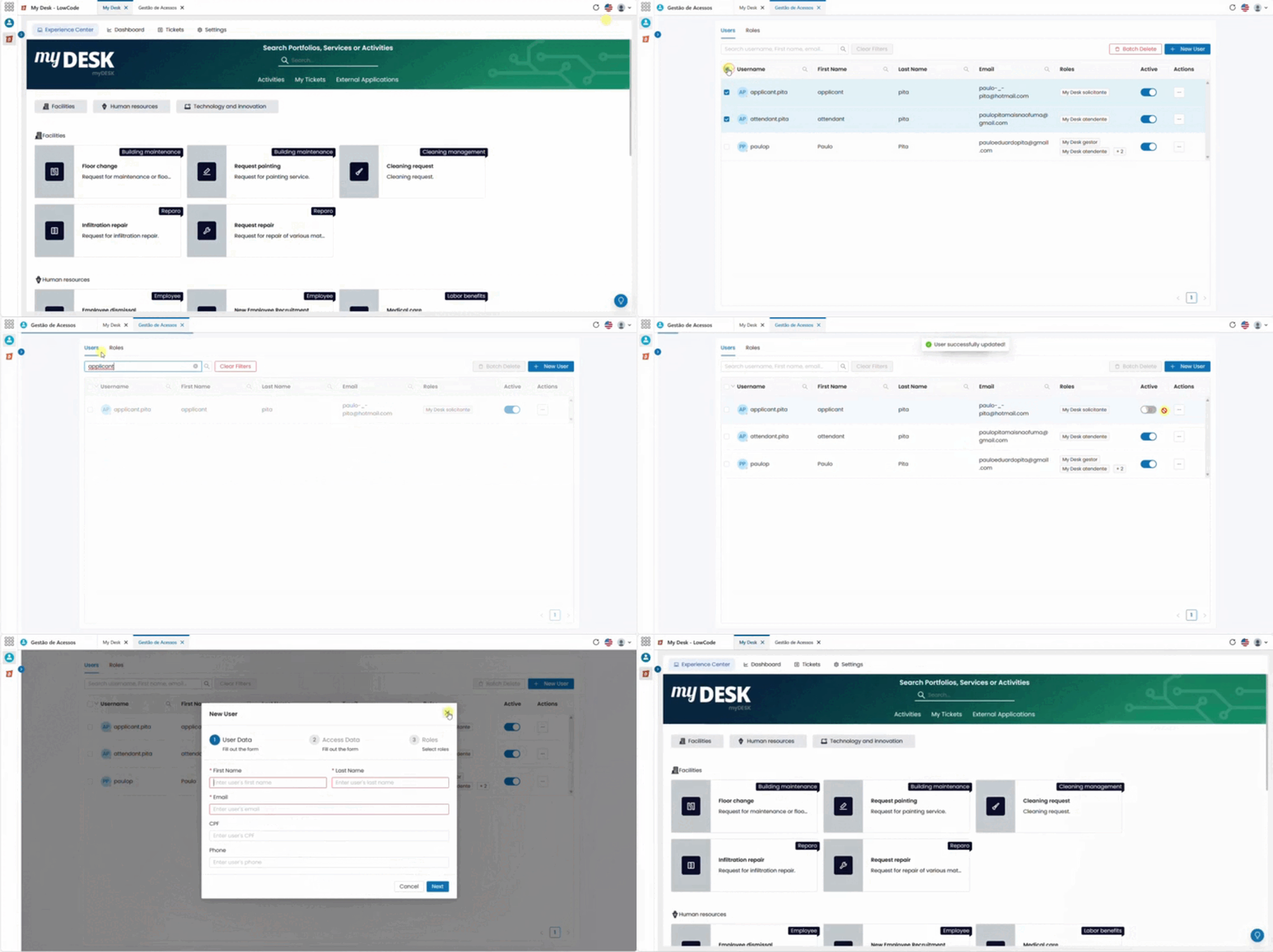
- Click the blue button: +New User, in the upper right corner of the page.
A new window will appear in the center of the page. Fill in all the required information. Fields marked in red and with an asterisk (*) are mandatory.
The fields to be filled out are divided into three steps.
Step 1 - User Information:
- First Name*
- Last Name*
- Email*
- CPF (Brazilian ID - optional)
- Phone (optional)
- Click the blue button: Next .
Step 2 - Access Credentials:
- Username
- Password: Choose the type of password:
- Default: A single password used for all users.
- The default password is "Change-123" and must be updated upon the user's first login.
- Custom: Enter any password in the text box. This password must also be updated upon the user’s first login.
- Click the blue button: Next .
Step 3 - Roles:
Select one or more roles to assign to the user, which will determine their system access:
- Manager: Full access.
- Requester: Access to the Experience Center only.
- Agent: Access to the Experience Center and Tickets.
Click the blue button: Create User, to finalize and save.
[...] Actions

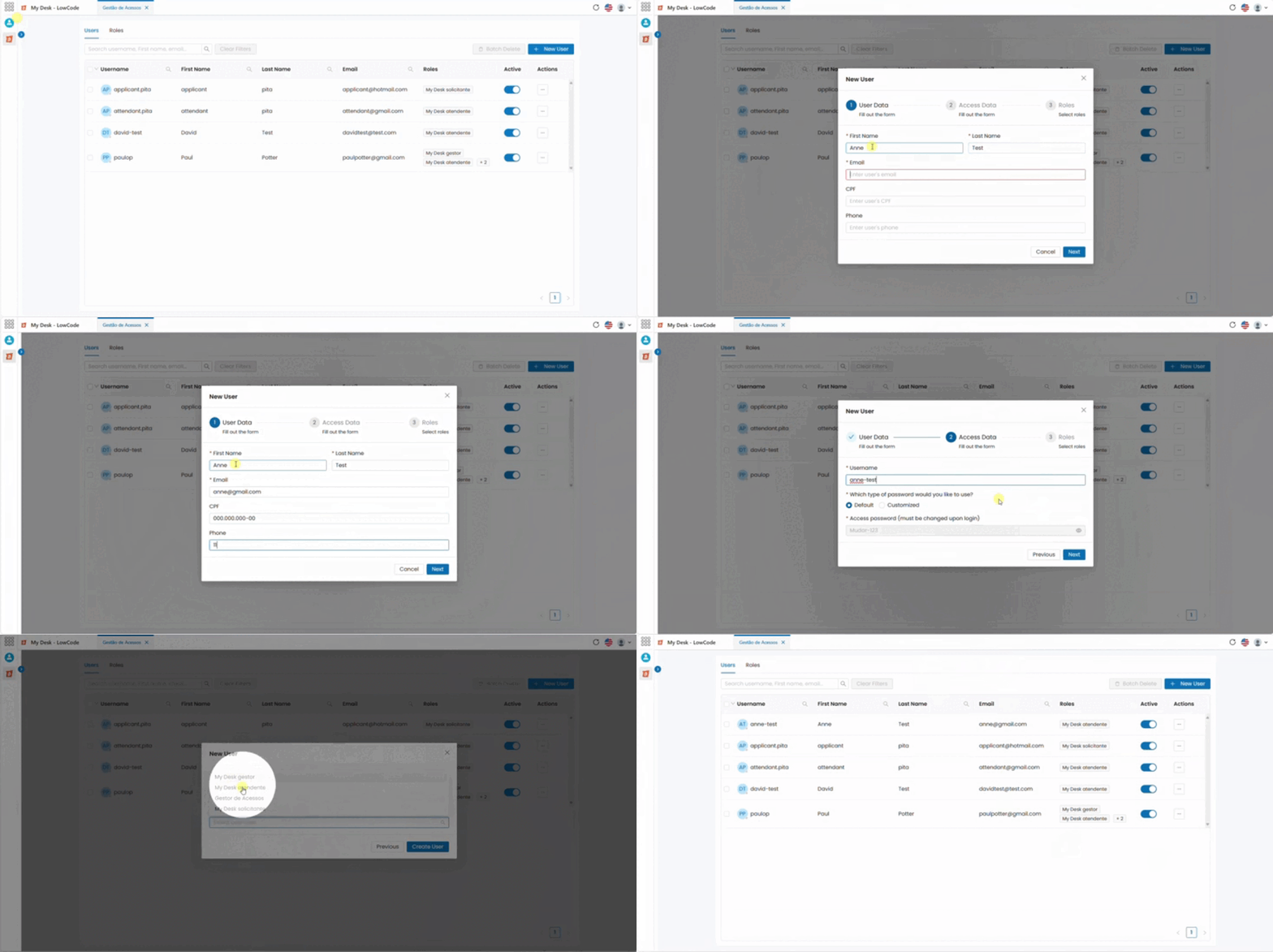
The action button, with three dots [...], is located at the end of each user's line and has the following functions:
- Edit;
- Change Roles;
- Reset Password;
- Delet.
See below for details on each action:
- Edit User
To edit any registered user, follow these steps:
- Click the action button […] (three dots) on the right side of the user's row that you want to edit.
- Select Edit.
A window will appear in the center of the screen, identical to the New User creation window.
- All fields are editable except for the username.
- Make the necessary changes to the desired fields.
- Click Next, Next, and finally, Update User.
A confirmation message will appear at the top of the screen, indicating that the update was successfully completed.
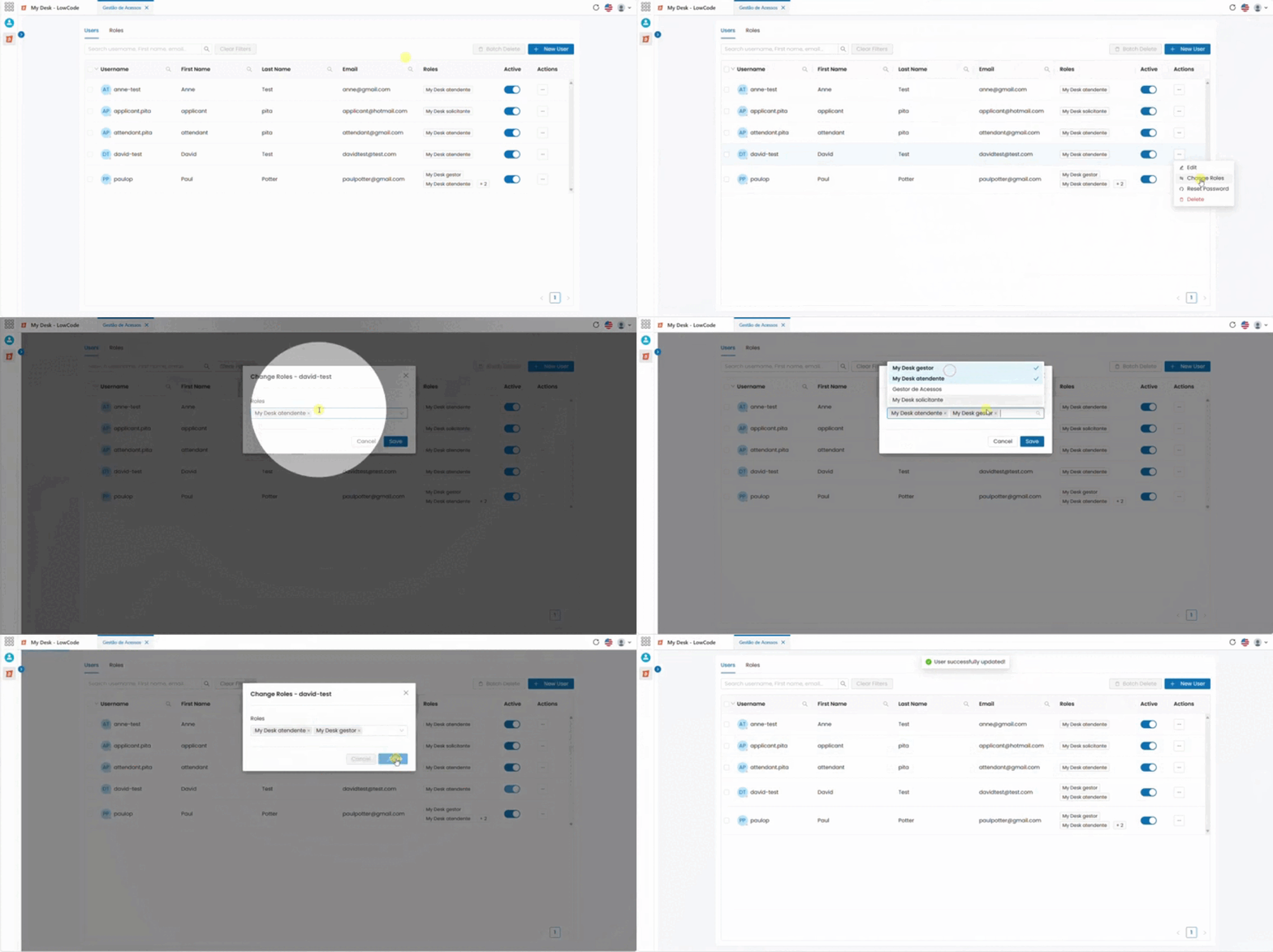
- Switch Roles
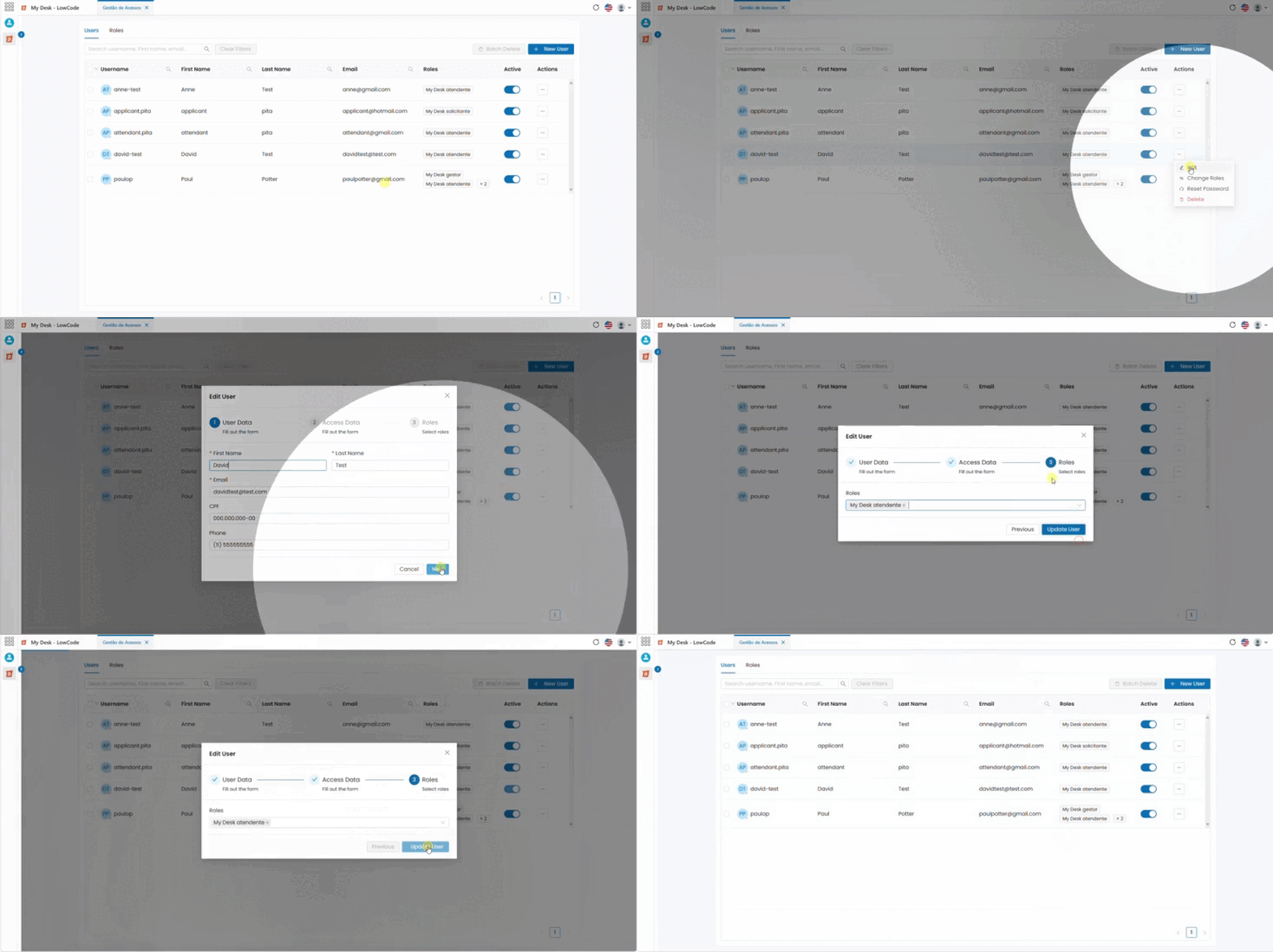
In addition to the Edit button, you can easily add or change a user's roles using this method. To modify roles, follow these steps:
- Click the action button […] (three dots).
- Select the first option, Switch Roles.
- Click the dropdown list and check or uncheck (x) the roles you want for the selected user.
- Click Save to complete the update.
A confirmation message will appear at the top of the screen, indicating that the user has been successfully updated.
- Reset Password
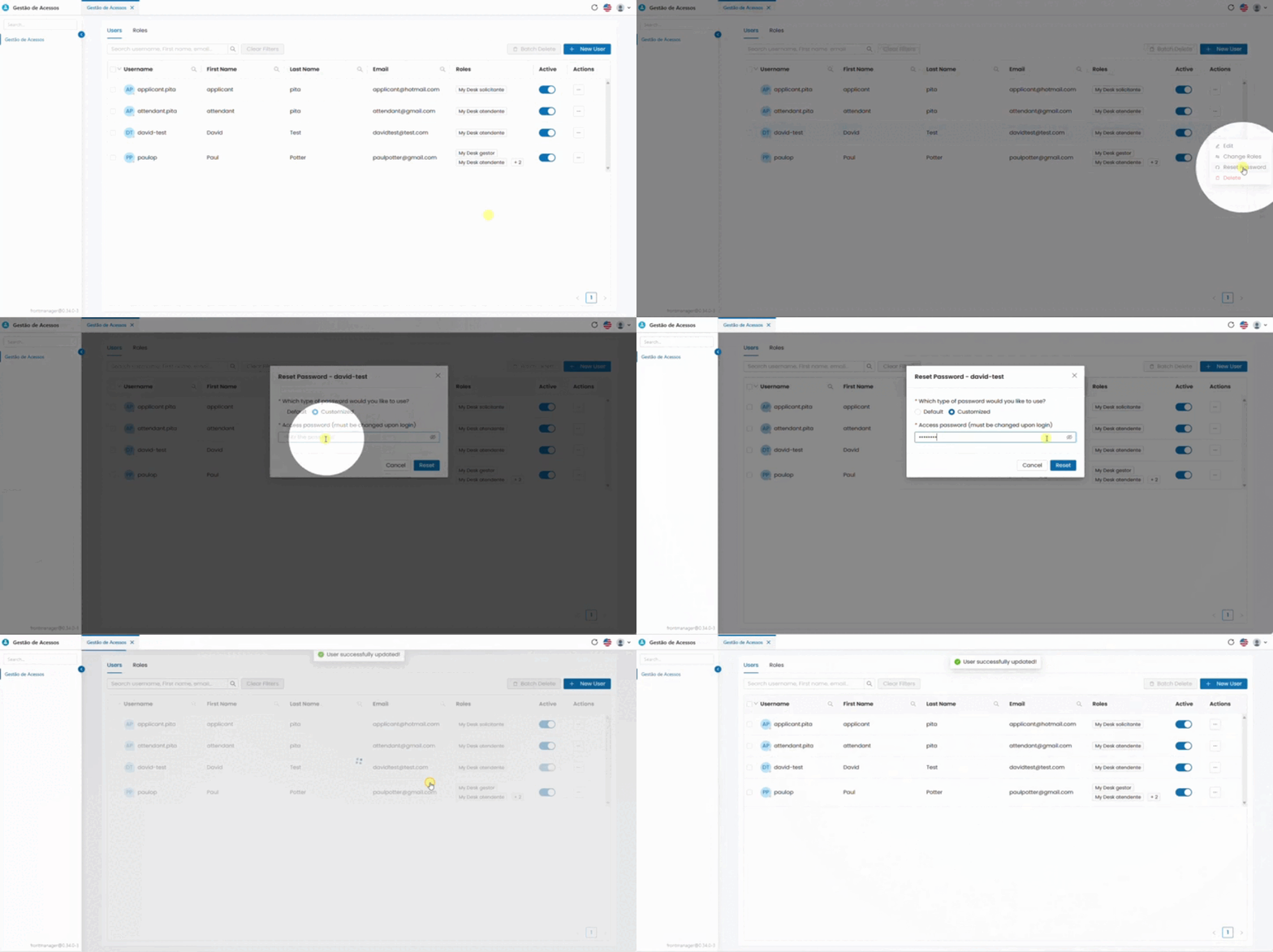
To reset a user's password, follow these steps:
- Click the action button […] (three dots).
- Select the option Reset Password.
A window will appear in the center of the screen.
Choose one of the available password options:
- Default Password: Automatically assigned. It will always be Change-123.
- Custom Password: Enter any password you want for the user, using any type of character.
- Click the blue button: Reset.
A confirmation message will appear at the top of the screen, indicating that the password has been successfully reset.
Note: Whether a Default or Custom password is used, the system will automatically require the user to change it upon first login.
- Delete User
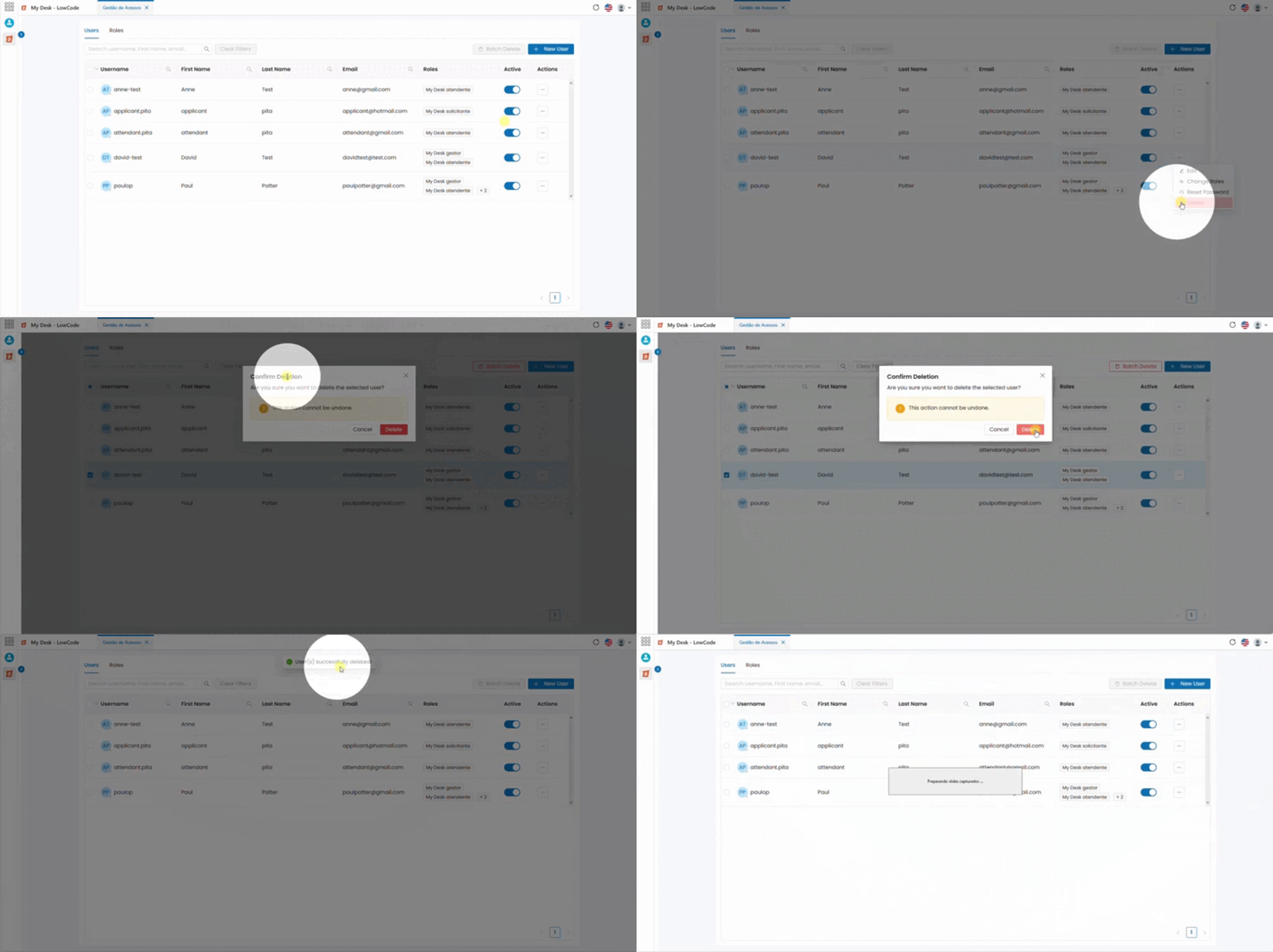
To delete a single user, follow these steps:
- Click the action button […] (three dots) on the right side of the user's row.
- Select Delete.
A confirmation window will appear in the center of the screen, asking if you are sure about deleting the user.
- Click Delete to confirm. This action cannot be undone.
- Click Cancel to return to the user list without making any changes.
Bulk Delete

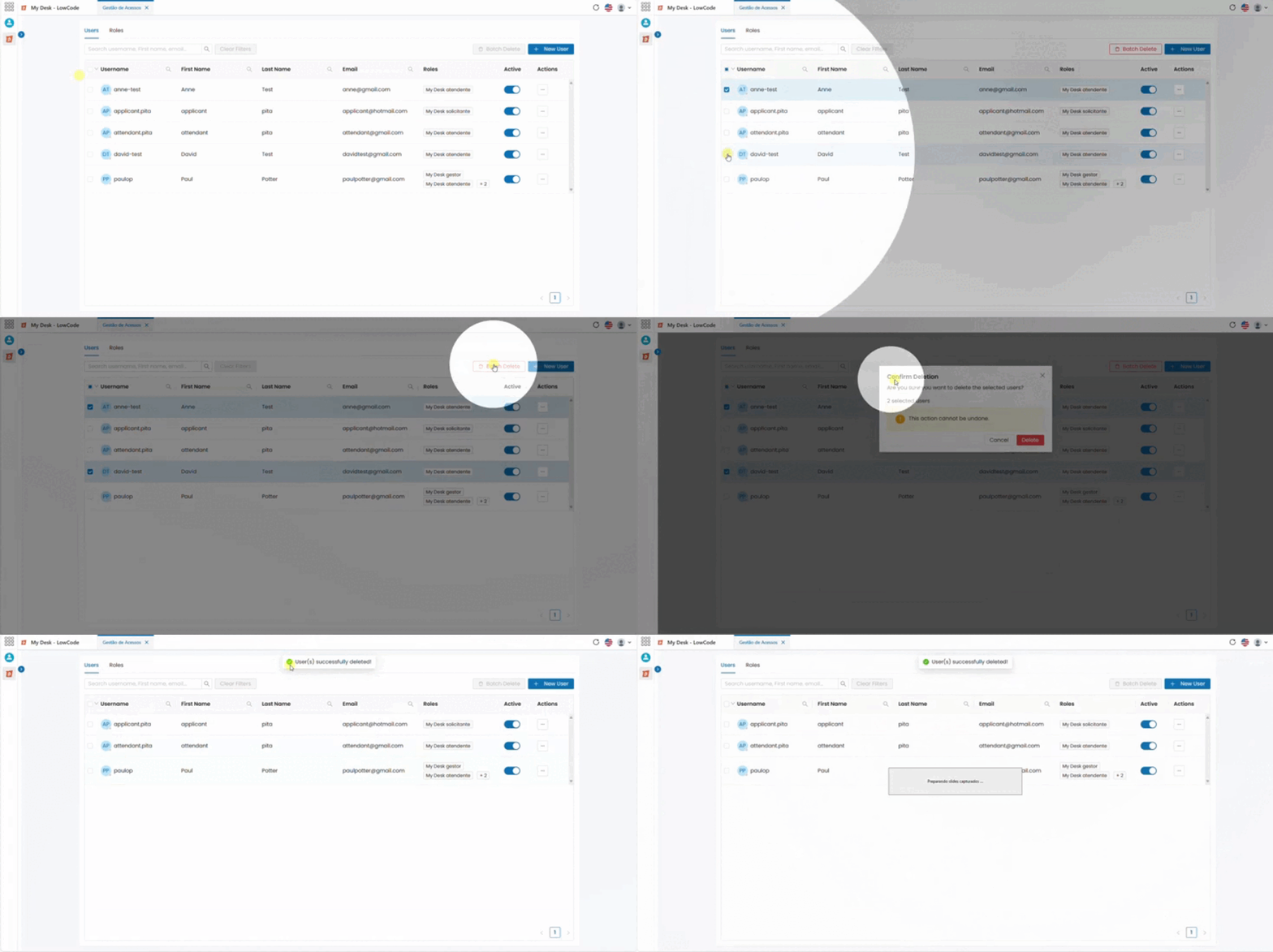
To delete multiple users at once, follow these steps:
- Select one or more users from the list.
- Click the Bulk Delete button (red text).
A confirmation window will appear in the center of the screen asking for confirmation.
- Cancel: Returns to the list without making any changes.
- Delete: Permanently deletes the selected users immediately. This action cannot be undone.
Roles

In the Roles menu at the top, you can see a list of all existing roles along with their descriptions.
Roles are a set of access permissions and responsibilities assigned to users in My Desk. These roles are system-native, meaning they have been pre-created with predefined functions.
This menu is for viewing only, it does not allow the creation, editing, or deletion of roles.