Experience Center
Getting to Know the Experience Center

The Experience Center is the main point of contact with the system for a standard user. It includes all the services and activities offered by your organization, allowing users to request these services.
When accessing My Desk, the Experience Center is the first screen displayed. If you are on another screen or it does not open automatically, follow the steps below.
If the user does not see one or more services, check the links, as they may not be linked to a Group.
How to Access the Experience Center:
Access My Desk
Click and select the My Desk application from the applications menu on the left.
Access the Experience Center
Click on Experience Center in the top menu, as highlighted in the image below.
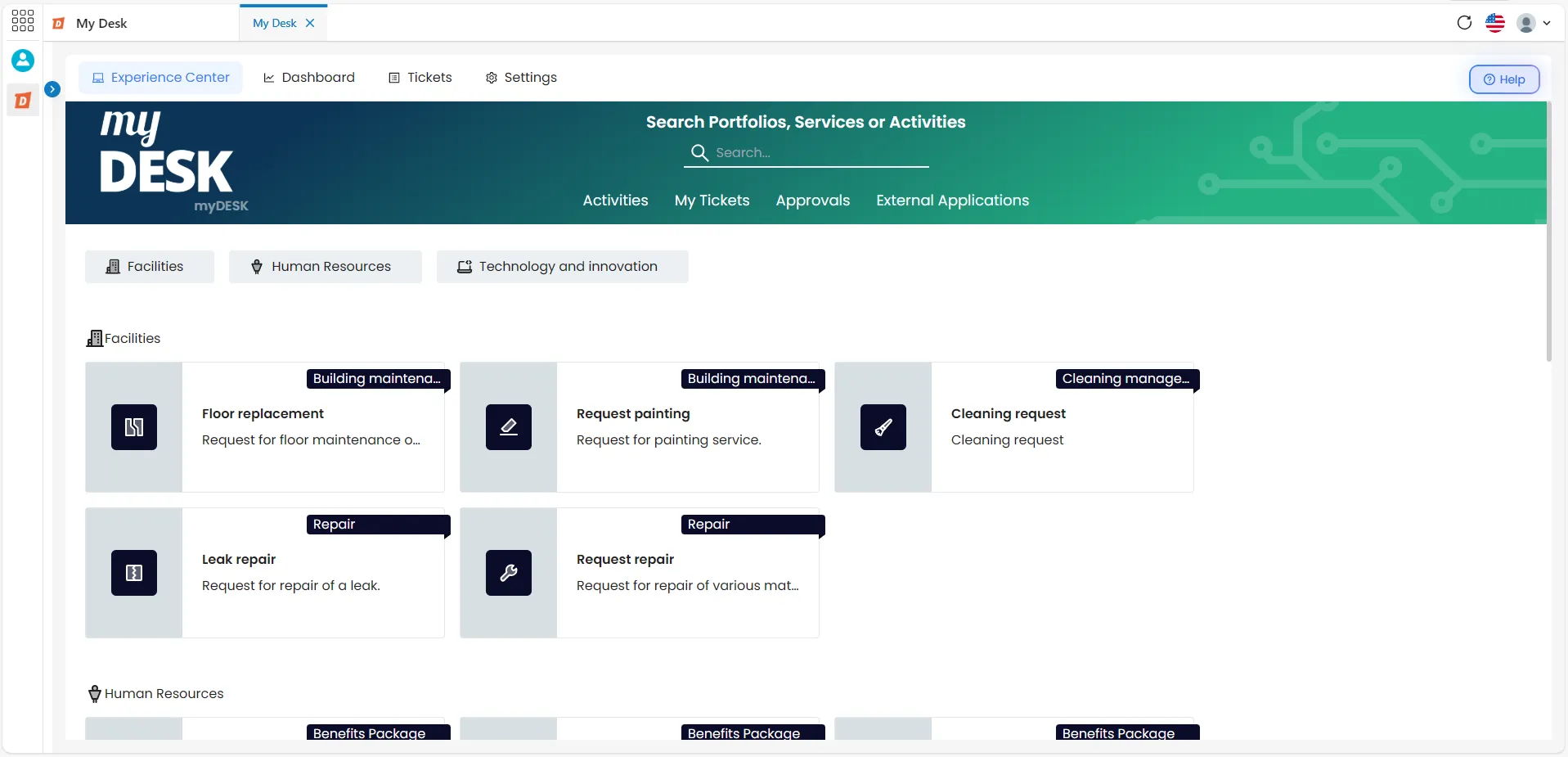
The Experience Center home screen provides a simple and practical way to check all available services, request an activity, and track the progress of existing requests.
Search and Tabs

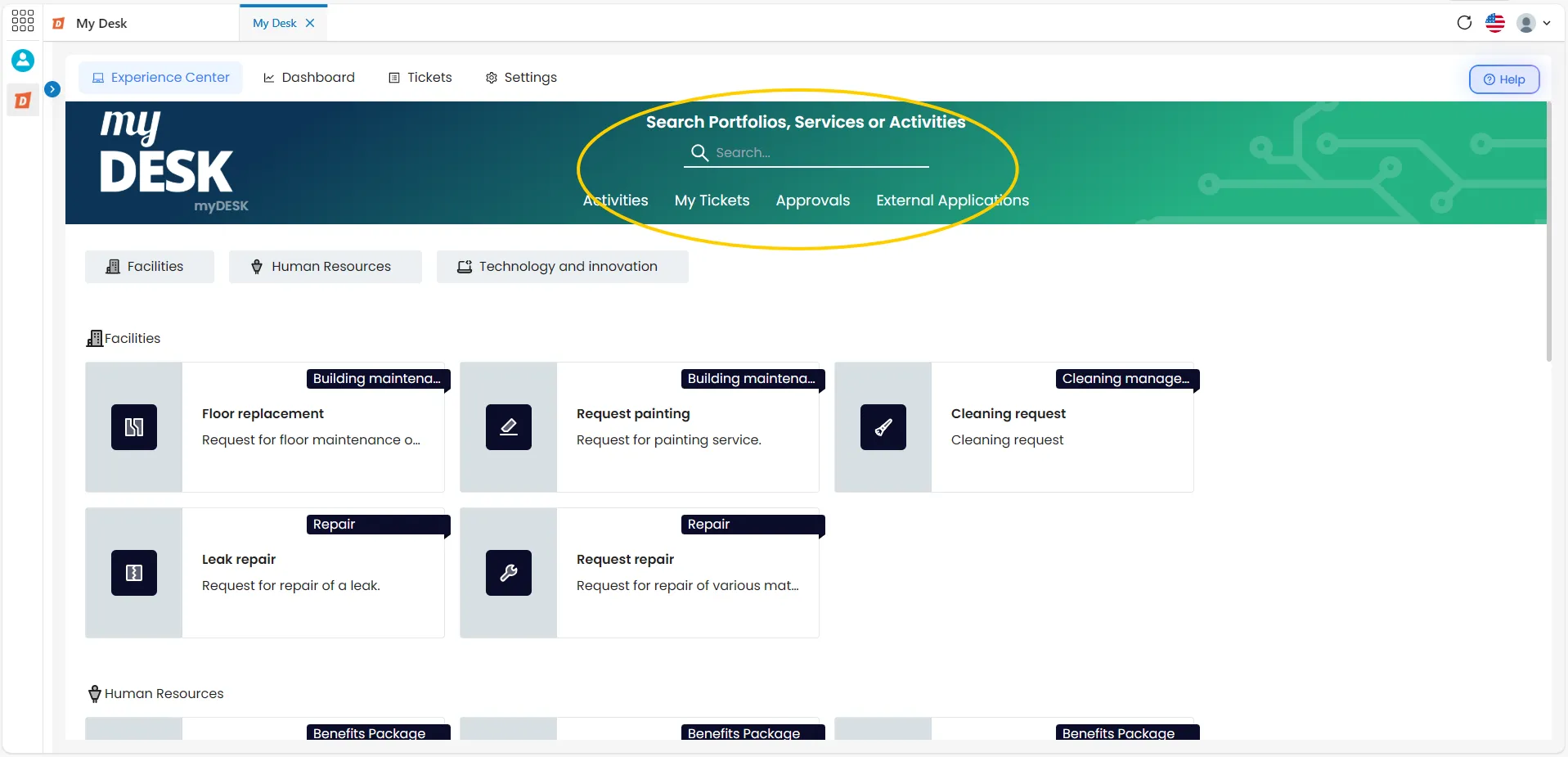
At the top of the page, you can search for Portfolios Services or Activities using the search bar, as well as switch between the tabs: Activities, My Tickets, and External Applications.
Activities Tab

This tab displays all available activities for the user, as registered in the organization's portfolio.
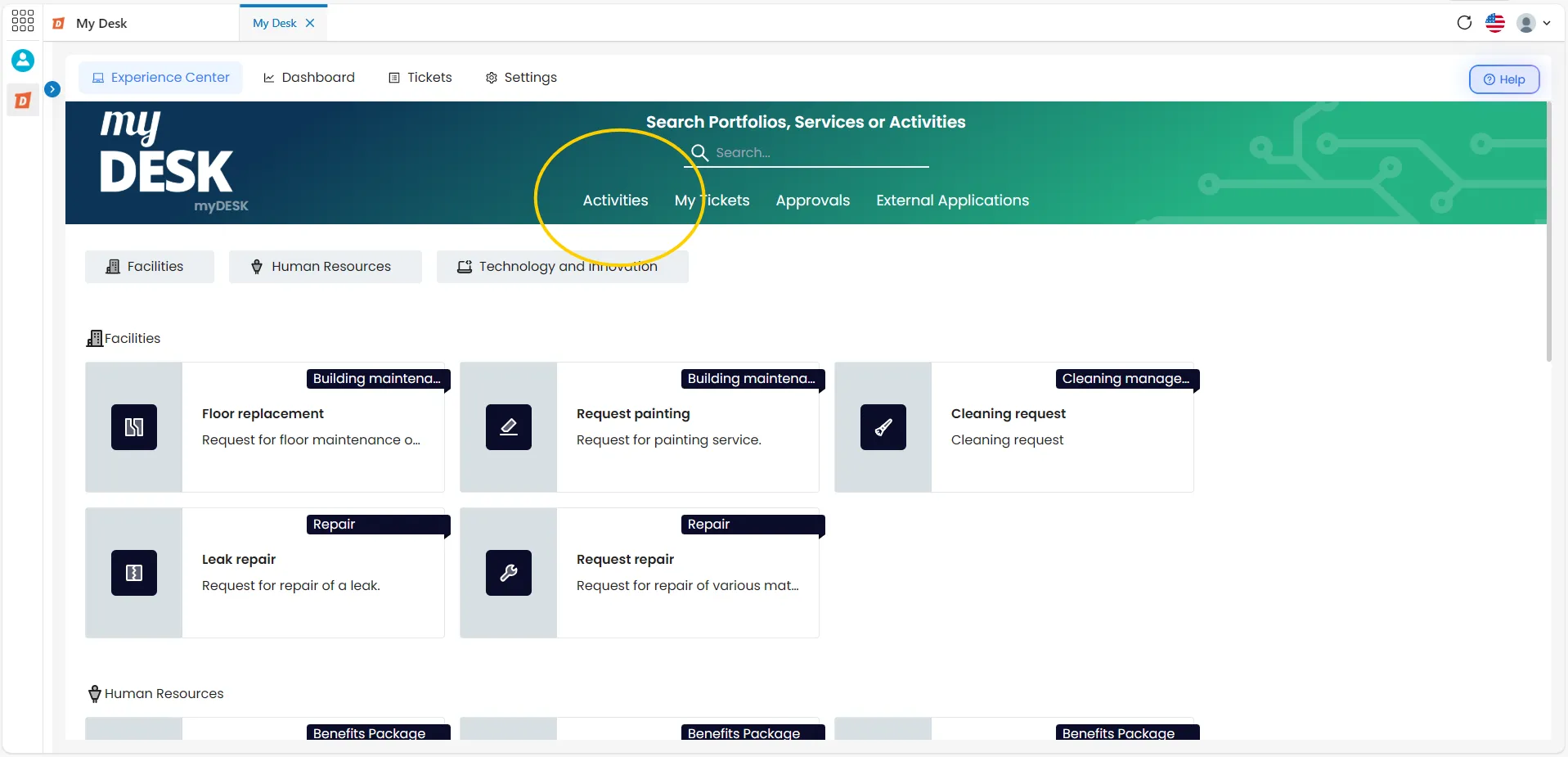
The available activities are divided into portfolios. At the top of the screen, below the tabs, you can quickly navigate between portfolios with a single click.
Each activity is displayed in a block alongside other activities from the same portfolio. Inside each block, you'll find a brief description of the activity and a small icon indicating the service.
My Tickets Tab

This tab will display all tickets opened by the user for tracking, as well as quick identification information for each ticket.
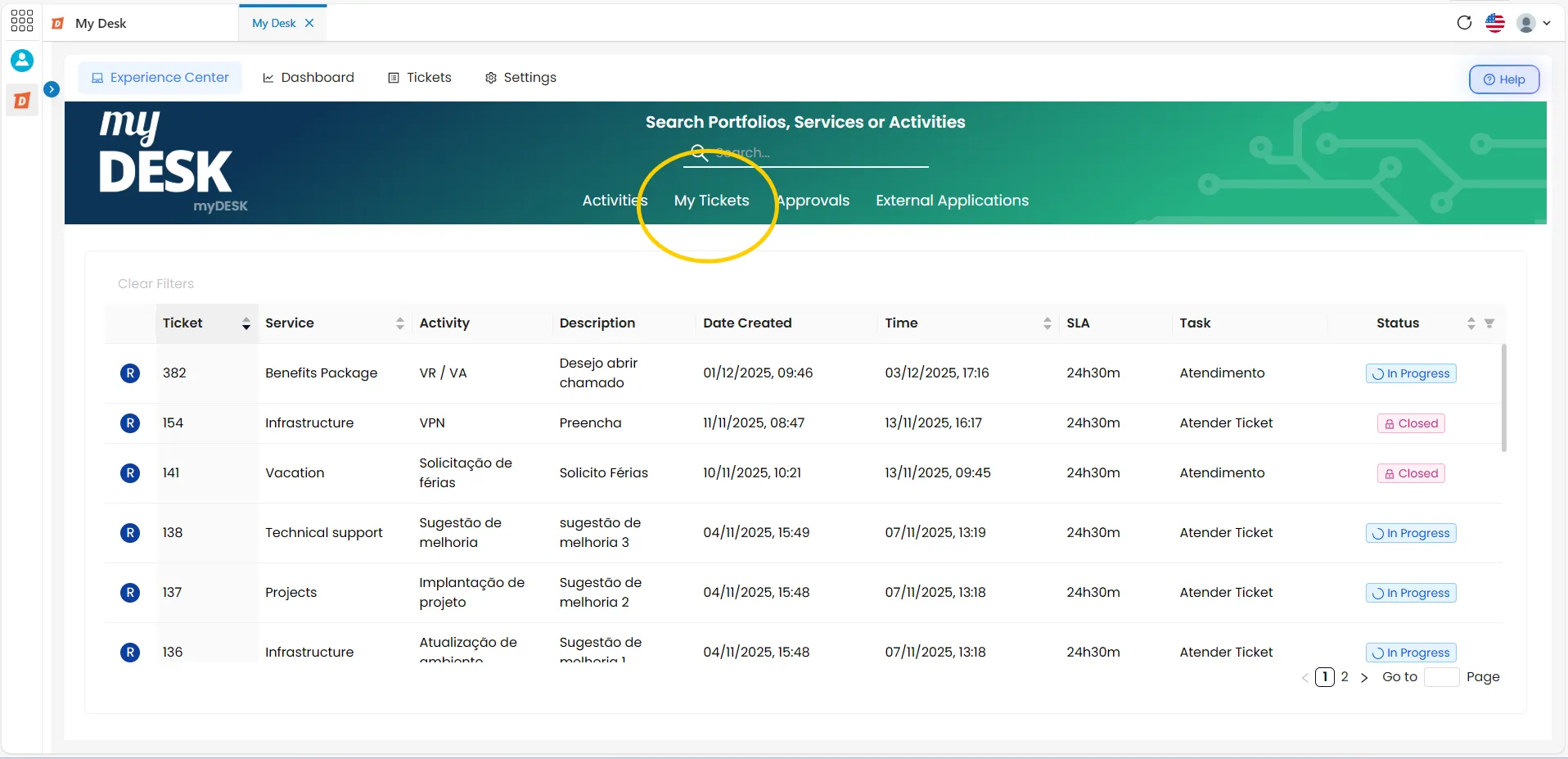
Below the menu, a list is displayed with all the user's open tickets based on the selected filters, along with quick identification details for each ticket. You can filter the list of tickets using the search box, filter by status, and change the display order in the central menu, as detailed below: In the Search bar, you can search using the search field at the top of the screen by:
- Ticket Number;
- Service;
- Description.
Sort: In some columns, it is possible to sort the tickets by:
- Ticket Number;
- Service;
- Deadline;
- Status.
Filter: There is a filter in the Status column where you can select tickets by:
- In Progress;
- Suspended;
- Cancelled;
- Resolved;
- Reopened;
- Closed.
For more information, see also: My tickets .
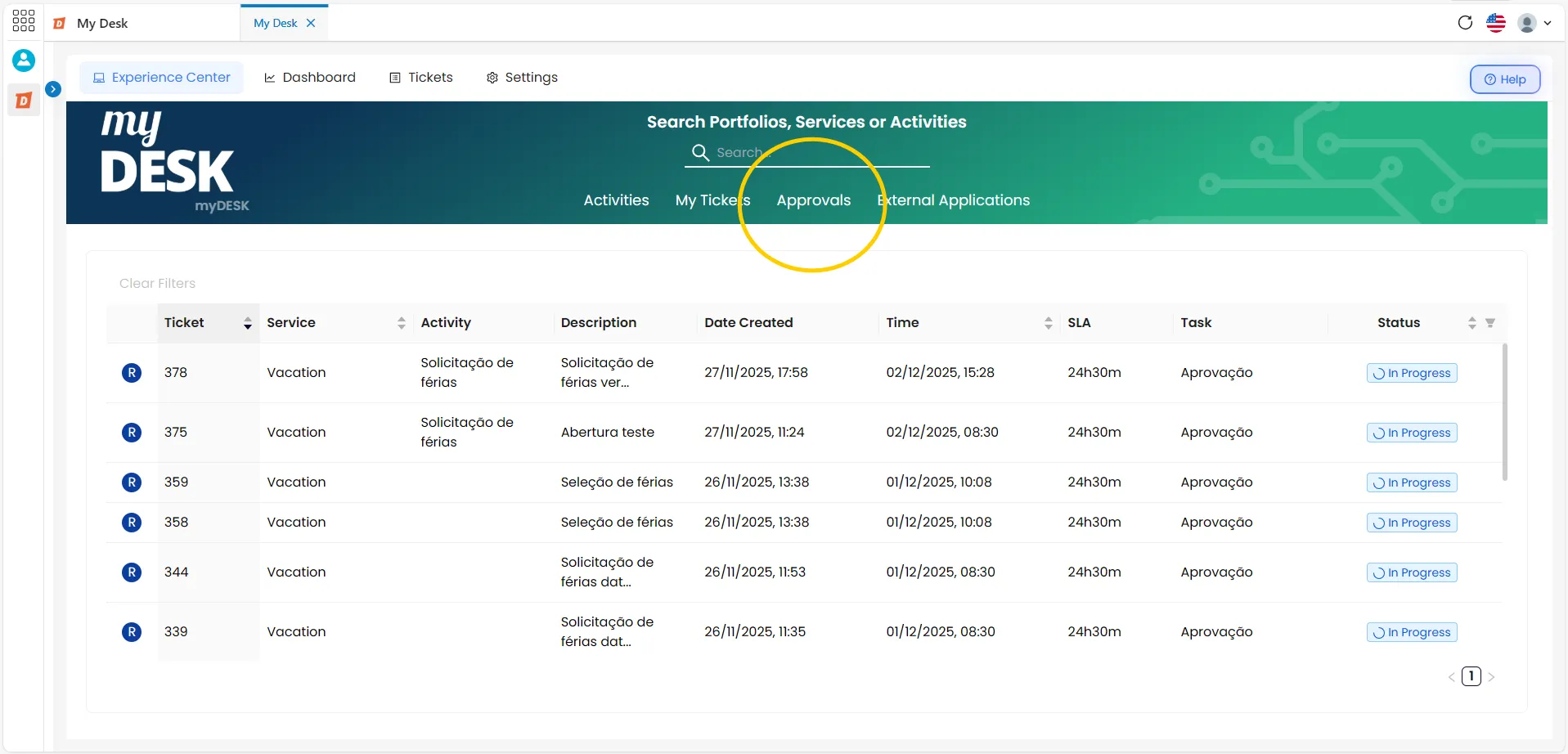
Approvals Tab

The Approvals tab contains a list of tickets that are awaiting approval to be processed.
External Applications Tab

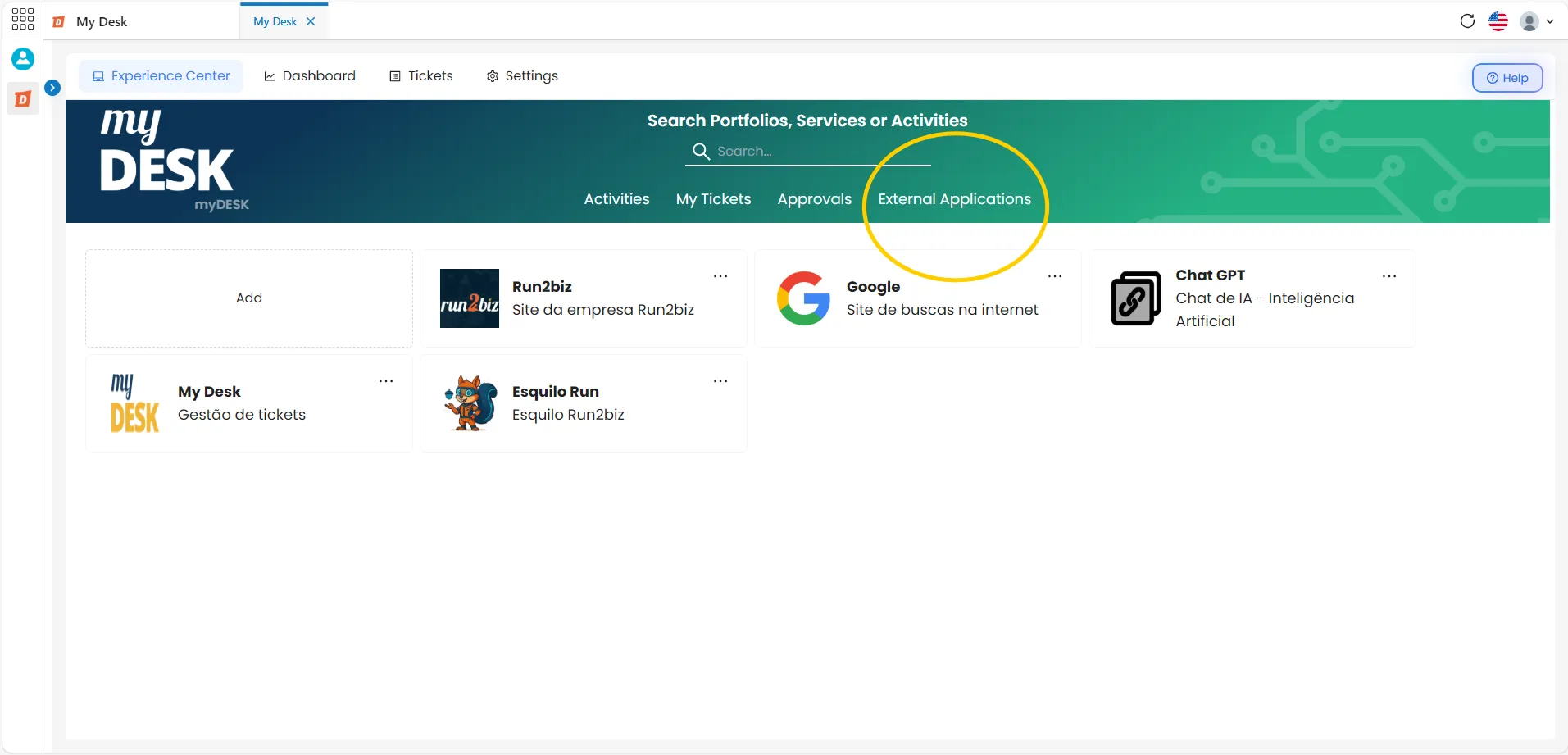
The External Applications tab displays links to other websites or tools outside of My Desk. These links can be modified based on the organization's needs.
When clicking on a link, the user will be redirected to the respective tool in a new browser tab
Customizing the Experience Center

To see how to customize your Experience Center, visit the page Personalization.