Home screen
✨New in this version Administrator Attendant Appicant (This indicator shows who will see this content.)
Welcome to My Desk
When you access My Desk, the first thing you see now is the home screen. It was created to give you a quick overview of what is pending and, for administrators, to guide you through the initial system setup.
The content displayed varies according to your user profile.
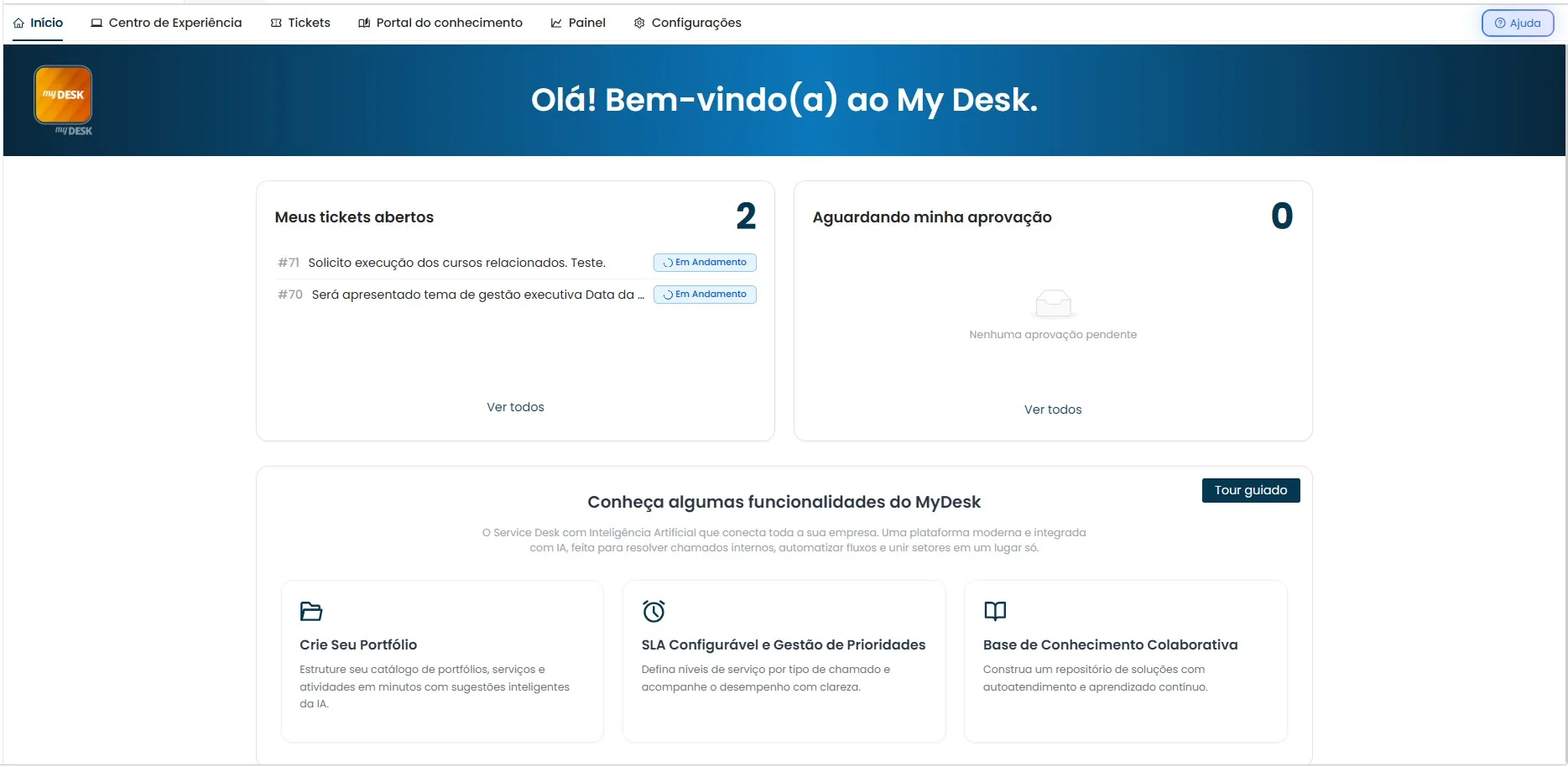
What you see on the home screen
Summary cards
All profiles will see two cards at the top of the screen, summarizing what is awaiting action:
My open tickets
Displays the number of your tickets that are still awaiting resolution. Clicking on it will take you to the My Tickets screen.
Awaiting my approval
Displays the number of items awaiting your approval. Clicking will take you to the My Approvals screen, if you have this feature enabled.
Initial setup guide
Administrator only
Below the cards, the administrator will find a guide with the 3 essential steps to get My Desk up and running. Everyone will have access to this content, but only the Administrator will have access to the links. Each step has a direct link to the corresponding configuration area.
First steps to using My Desk
- Create your portfolio. Organize the services offered by your company into portfolios and activities. This forms the basis for users to open support tickets. Go to PortfolioPortfolio
- Configure your SLA. Define response times for each type of call, ensuring your team meets service level agreements. Go to Service Time (SLA)SLA
- Configure the knowledge base. Create articles and documents that users can access and that AI can use to suggest solutions in support tickets. Go to Knowledge BaseKnowledge base
Tip
The initial setup guide remains visible on the home screen, even after completing these steps. Use it as a quick shortcut to access these areas whenever you need them.
Guided Tour
Administrator Attendant Applicant
When you access the homepage for the first time, a guided tour will begin, giving you a complete overview of all of My Dek.
You can choose:
- To start the tour, click the Start button;
- To cancel the tour, click the Cancel button;
- Check the option: I don't want to see this screen anymore.