Service Time (SLA)
Administrator
The SLA (Service Level Agreement) defines the maximum time for capturing and resolving a ticket. It is essential for the correct functioning of the portfolio and for calculating the deadlines displayed in the ticket listing.
It is possible to register multiple SLAs for different uses — according to urgency, task importance, or the contract with the client. For example, clients with premium contracts can have a shorter SLA, guaranteeing priority service.
📌 Calendar and work schedule dependency:
The deadline displayed in the ticket listing takes into account the calendar and schedule linked to the SLA. Ensure both are configured before creating an SLA.
1 - Accessing Service Time

To access the Service Time function:
Access My Desk
Select the My Desk application from the applications menu.
Click on Settings
In the application's top menu.
Click on Service Time
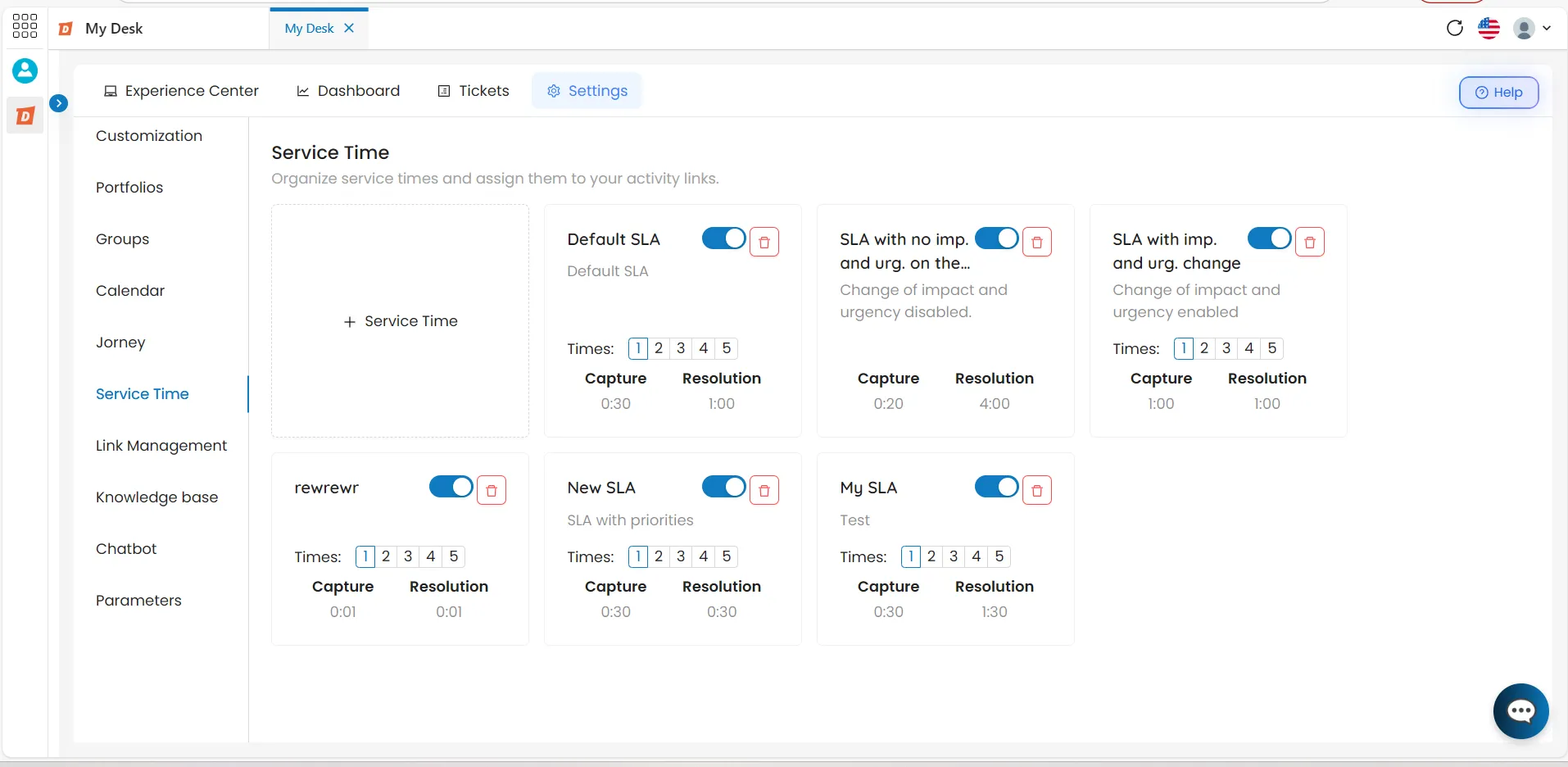
In the left-hand sidebar, a list of all registered SLAs will be displayed in blocks.
2 - List of Service Times

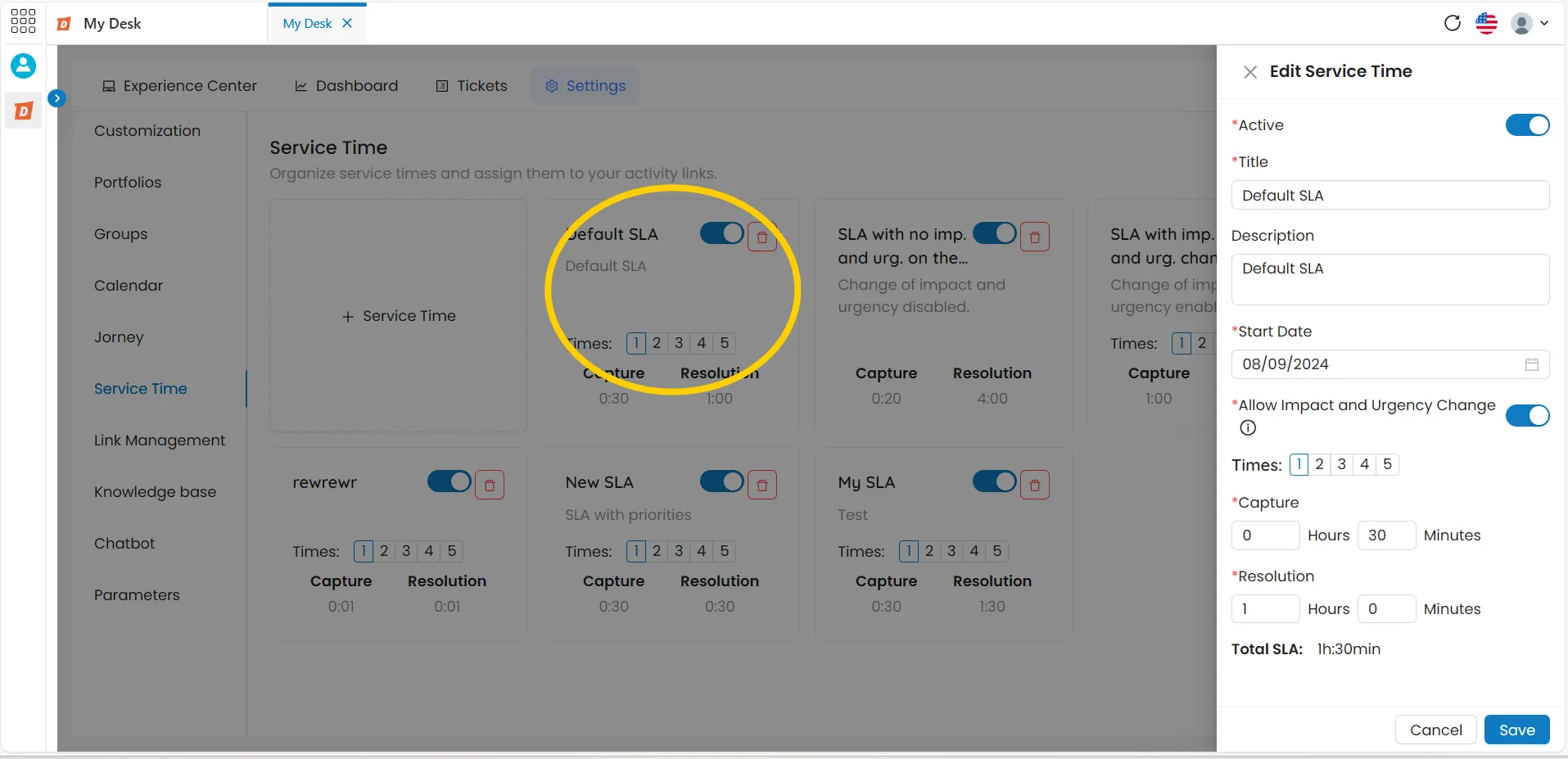
On the main Response Time screen, a block list will be displayed with the registered SLAs and key information, as shown in the image below:
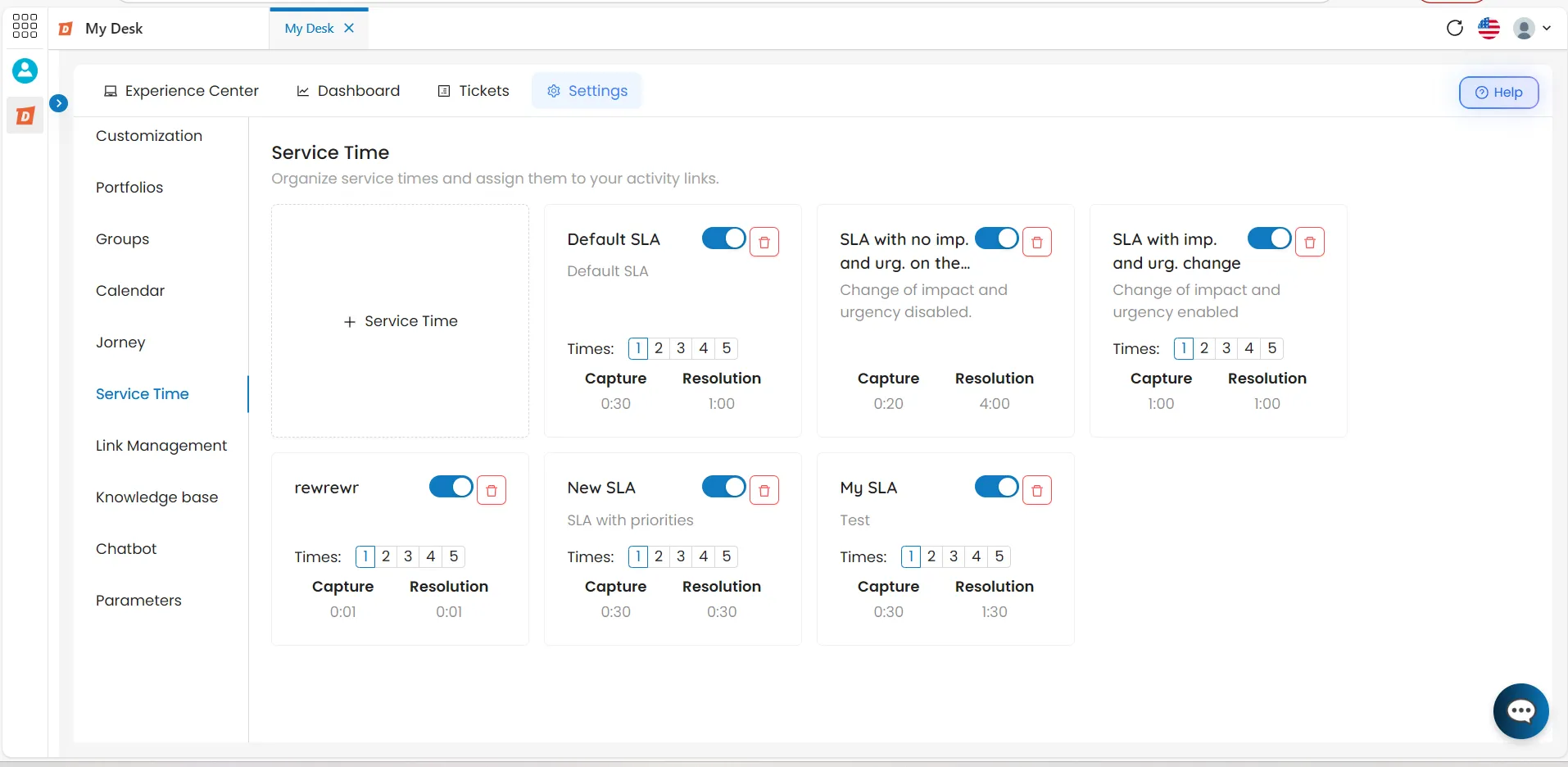
Each block displays the following SLA information:
Title
Name given to the SLA. Example: Standard SLA, Premium SLA.
Description
Brief description of the SLA.
Situation
Button to activate (Theme color) or deactivate (gray) the SLA.
Times from 1 to 5
Capture and resolution timeframe for each level of impact and urgency — when configured.
Capture
Displays the deadline for capturing the ticket, within the selected time frame:
- If no timeframes are configured, the single deadline of the SLA will be displayed.
Resolution
Shows the deadline for completing the ticket within the selected time:
- If no timeframes are configured, the single deadline of the SLA will be displayed.
Actions
Click on the block to edit.
Delete
Trash can icon to delete the service time.
3 - Create a New SLA

To create a new SLA, follow the steps below:
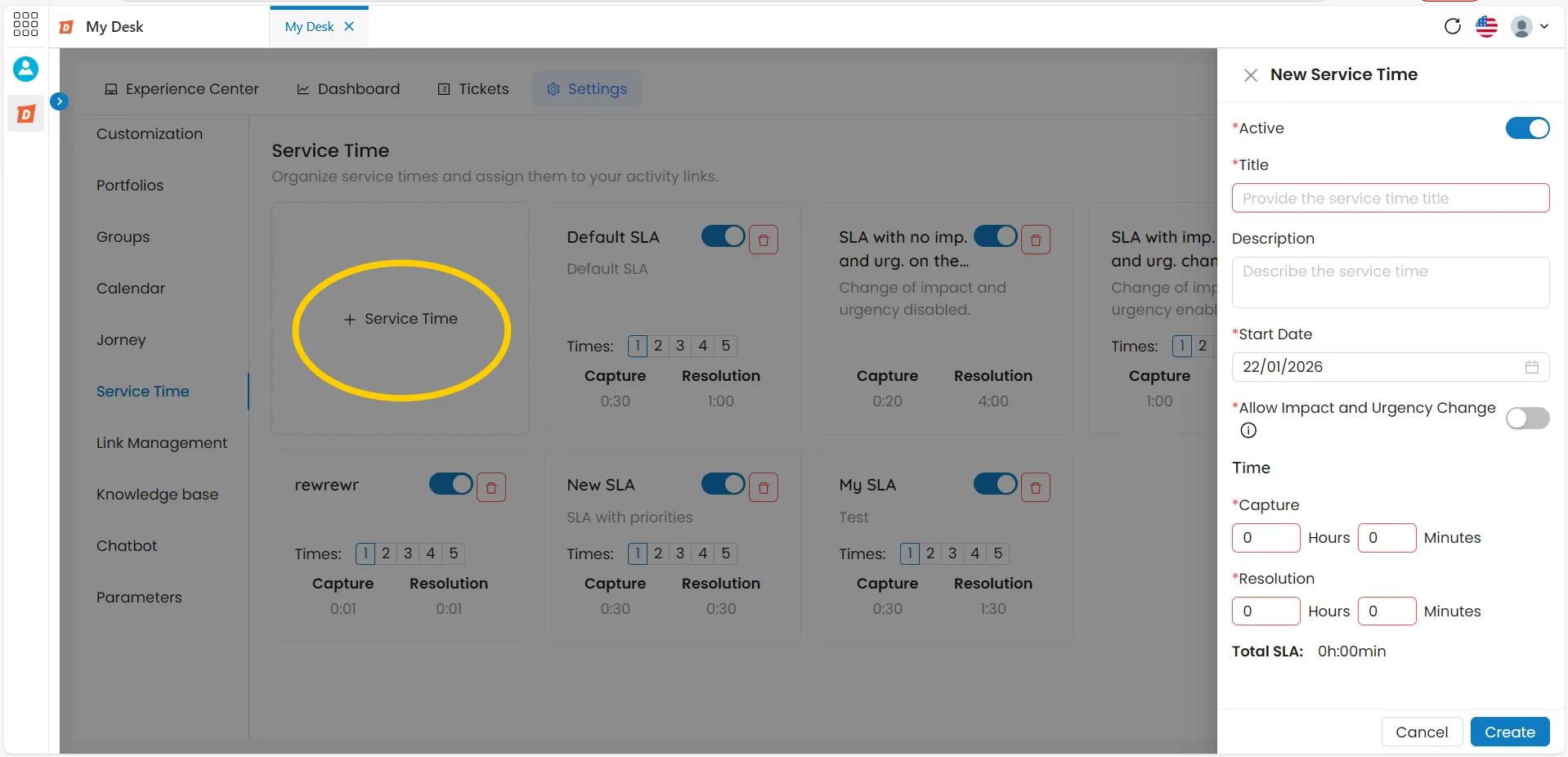
Click on + Service time
The button is located in the first block on the left of the list. A new creation window will appear on the right side of the screen.
+ Response time
Fill in the fields
Click on Create.
The SLA will be added to the list. Click Cancel to return without saving.
The maximum resolution time is directly linked to the times defined in Calendar and Journey Therefore, the deadline reflected in Listing Tickets considers all these factors when estimating a completion date for the ticket.
4 - Impact and urgency - 5 stages
By enabling the "Allow impact and urgency change" option, the SLA will have 5 configurable time levels. Each level represents a different combination of impact and urgency — from lowest to highest. The number 1 represents the shortest time (highest urgency) and the number 5 the longest time (lowest urgency).
🔵 Activated
Five time periods are available. It is mandatory to define a capture time and resolution for each of the 5 levels.
⚪ Disabled
Only one time frame is used — a capture timeframe and a resolution timeframe for all tickets in this activity.
Level | Description | Capture | Resolution |
|---|---|---|---|
1️⃣ | Less time — higher priority | Ex: 1h | Ex: 4h |
2️⃣ | High priority | Ex: 2h | Ex: 8h |
3️⃣ | Medium priority | Ex: 4h | Ex: 16h |
4️⃣ | Low priority | Ex: 8h | Ex: 24h |
5️⃣ | More time — lower priority | Ex: 16h | Ex: 48h |
💡 How it works in practice:
When opening a ticket, the agent or the system selects the level of impact and urgency. The SLA automatically applies the capture and resolution time corresponding to the chosen level.
5 - Editing an SLA

To edit an existing SLA, click directly on the desired block. An editing window will open on the right side of the screen with all the available fields for modification.
All actions can be changed:
- Activate/Deactivate Button;
- Title;
- Description;
- Start Date;
- Activate/Deactivate Impact and Urgency;
- Capture Time;
- Resolution Time.
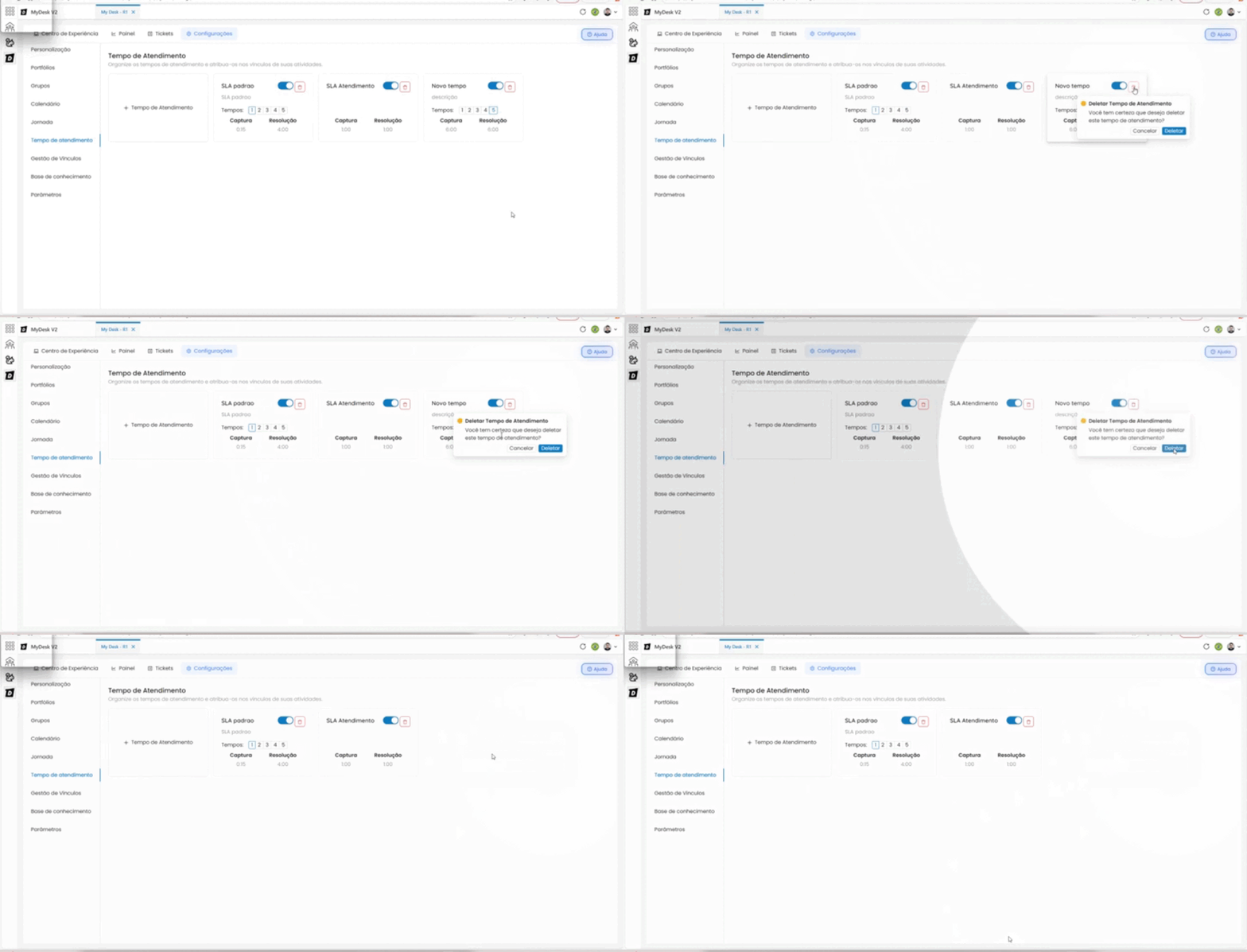
6 - Deleting an SLA

To delete a service time, follow the steps below:
Click on the trash can icon in the block
Located in the upper right corner of the desired SLA block.
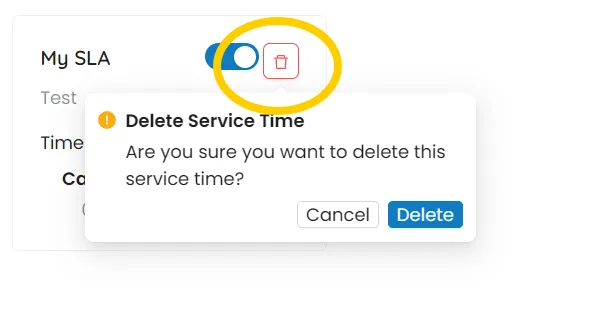
Read the confirmation message
"Are you sure you want to delete this service time? This action cannot be undone."
Click Delete to confirm
Or click Cancel to return without deleting.
⚠️ Attention:
Deleting an SLA is permanent. First, check if it's linked to any activity in Link ManagementLink Management. If so, replace it with the correct SLA before deleting—otherwise, the associated activities will have no defined response time.