Knowledge Portal
✨New in this version Administrator Attendant Appicant
The Knowledge Portal is the space where you can find, consult, and search articles published by your company. Here you can browse by category, search for specific content, and mark articles as favorites for quick access when needed.
📌 Administrator:
The creation, editing, and deletion of articles and folders is done in the Knowledge BaseKnowledge Base, not on this page. The Knowledge Portal is exclusively for consultation.
1 - How to access
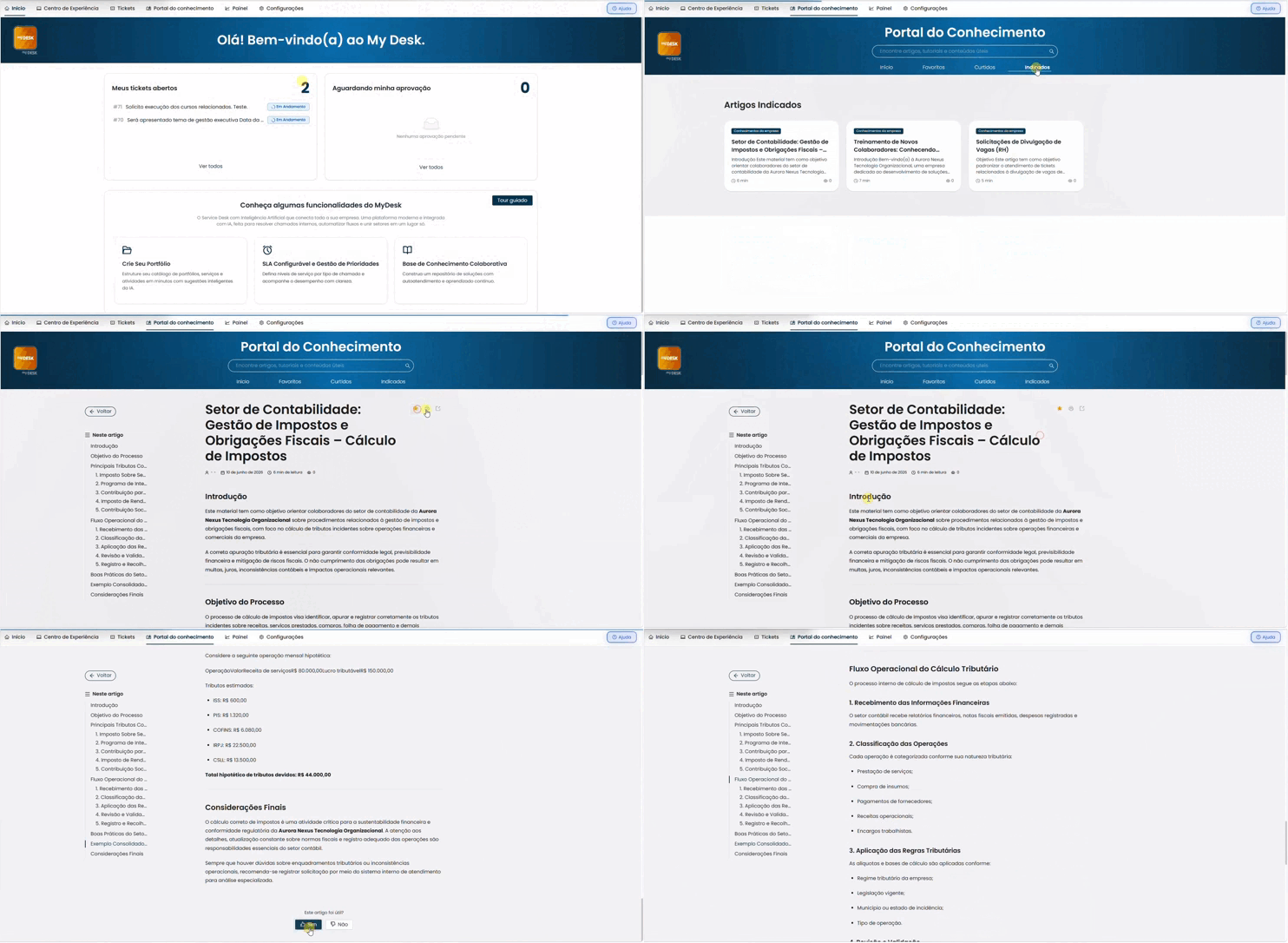
In the top menu, click on Knowledge Portal.
2 - The portal screen
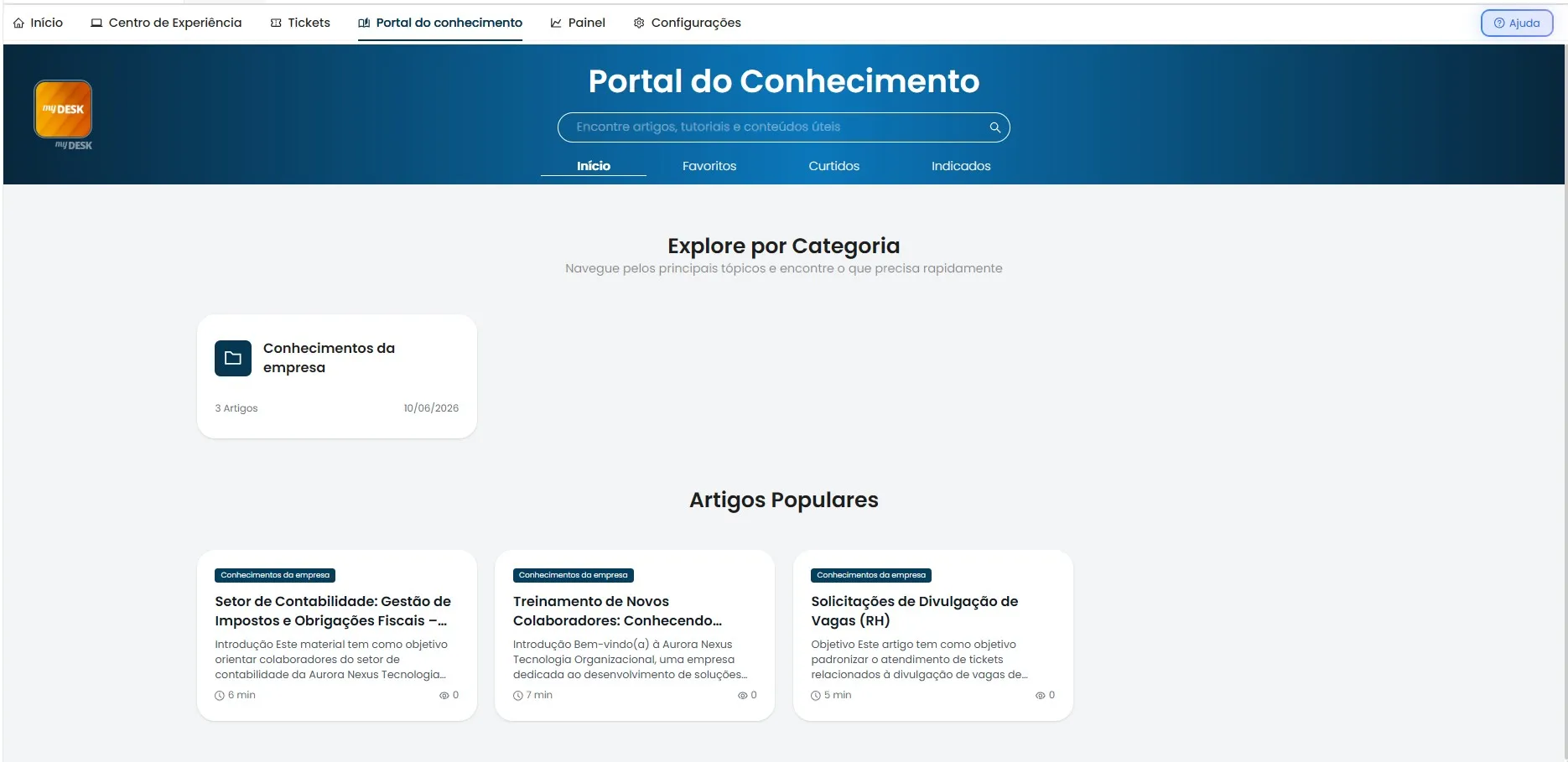
When you open the portal, you will see the title "Knowledge Portal" in the header, followed by a search bar and four navigation tabs: Home, Favorites, Liked, Recommended.
Use the search bar to find any available content by typing keywords from the title or text of the article.
 Start
Start
It displays all available content organized by categories — which are the folders created in the knowledge base. Below the categories, the most popular articles appear, ordered by the number of views and likes.
 Favorites
This tab gathers the articles you've marked with a star ⭐ within each article. Use it to quickly access the content you consult most frequently.
 Liked
Liked
It displays the articles you rated as helpful by clicking Yes to the question "Was this article helpful?" at the end of each article.
 Recommended
Displays articles that have been suggested to you. Articles appear here when they are recommended by other users or by the system.
3 - Reading an article
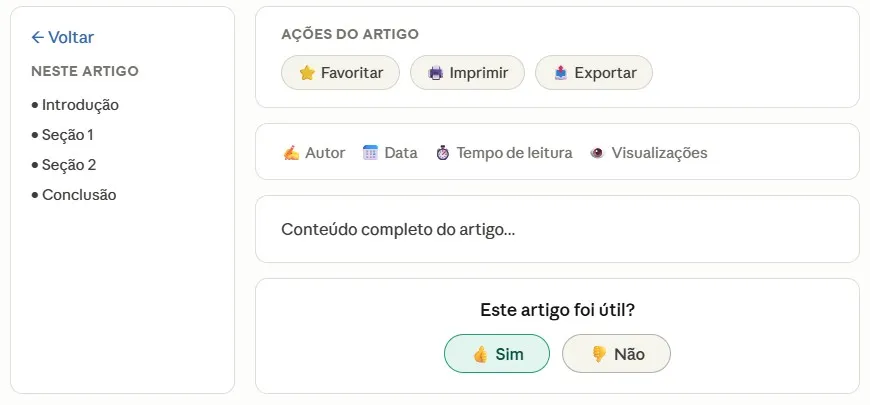
When you click on any article, you are directed to the reading page. See how it is organized:
3.1 - Sidebar menu — article glossary
On the left side of the screen, there is a Back button to return to the portal and, below it, a glossary with links to the article sections. Click on any link to go directly to that section of the content.
3.2 - Article Information
Acima do conteúdo você encontra o nome do autor, a data de publicação, o tempo estimado de leitura e a quantidade de visualizações que o artigo já recebeu.
3.3 - Action buttons
In the upper right corner, next to the title, are three buttons:
⭐ Add to favorites
Bookmark this article as a favorite. It will then appear in the Favorites tab of the portal.
Open the browser's print window to print the article.
📤Export
Allows you to download the article in different formats:
.txt .md .html .html for print .doc
3.4 Article Evaluation
Ao final de cada artigo, há a pergunta "Este artigo foi útil?" com dois botões de resposta:
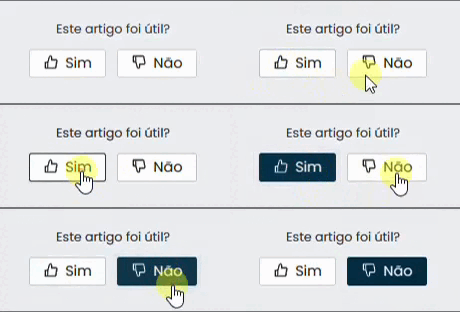
Yes — Mark the article as liked and it will appear in the Liked section of the portal. | No — This records that the content was not useful, helping the team identify articles that need improvement. |
|---|
💡 Tip:
Use the search bar at the top of the portal to quickly find any article. The search works by both title and text content.