Knowledge Base
Administrator
What is a Knowledge Base?

The Knowledge Base is the company's virtual library — the place where all important information about products, services, processes, and internal procedures is stored. It's here, in the settings, that you create and manage all this content.
🗂️ Organize everything in one place.
👥 Control who accesses each piece of content
🚀 Speed up customer service with readily available information.
🤖 Feed the AI with articles to suggest solutions in tickets.
1 - Setting up the Knowledge Base

1.1 - How to access
Open Settings
In the top menu, click on ⚙️ Settings.
Access the Knowledge Base
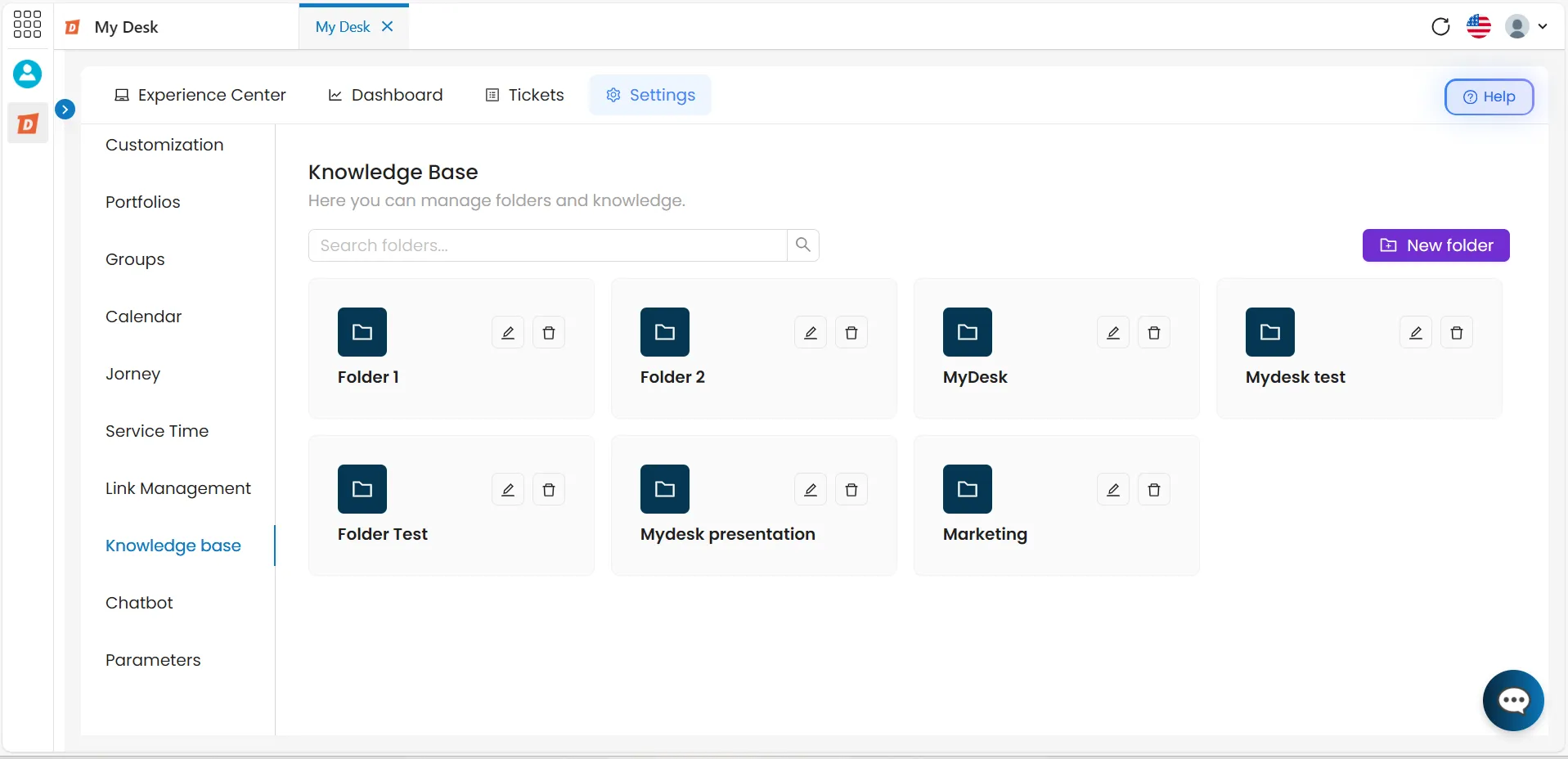
In the left-hand sidebar, click on Knowledge Base. A list of all created folders will be displayed.
💡 Tip:
Two folders are pre-created by default in My Desk. You can use them, edit them, or create new ones as needed for your company.
2 - Create new folder

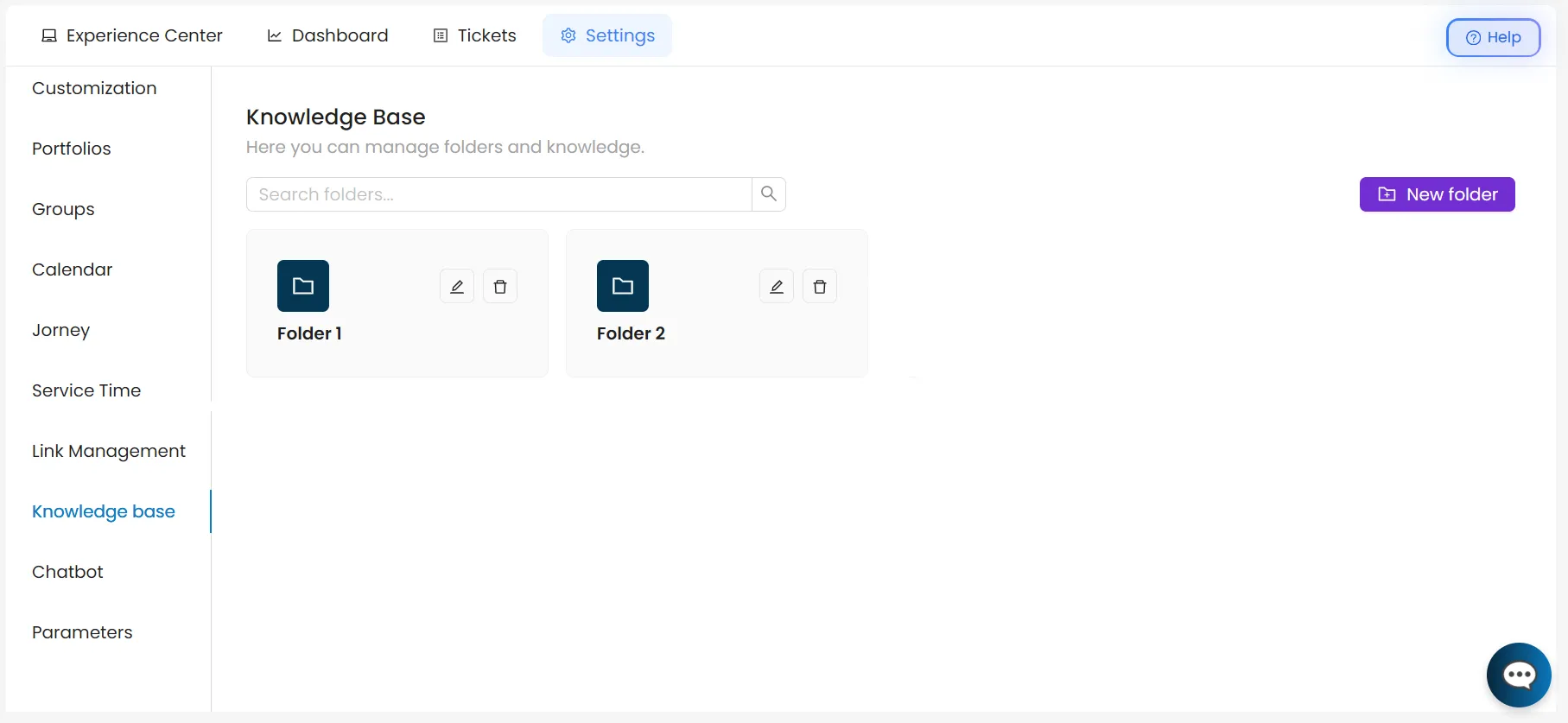
Folders organize knowledge base articles. Before adding knowledge, a folder must be created.
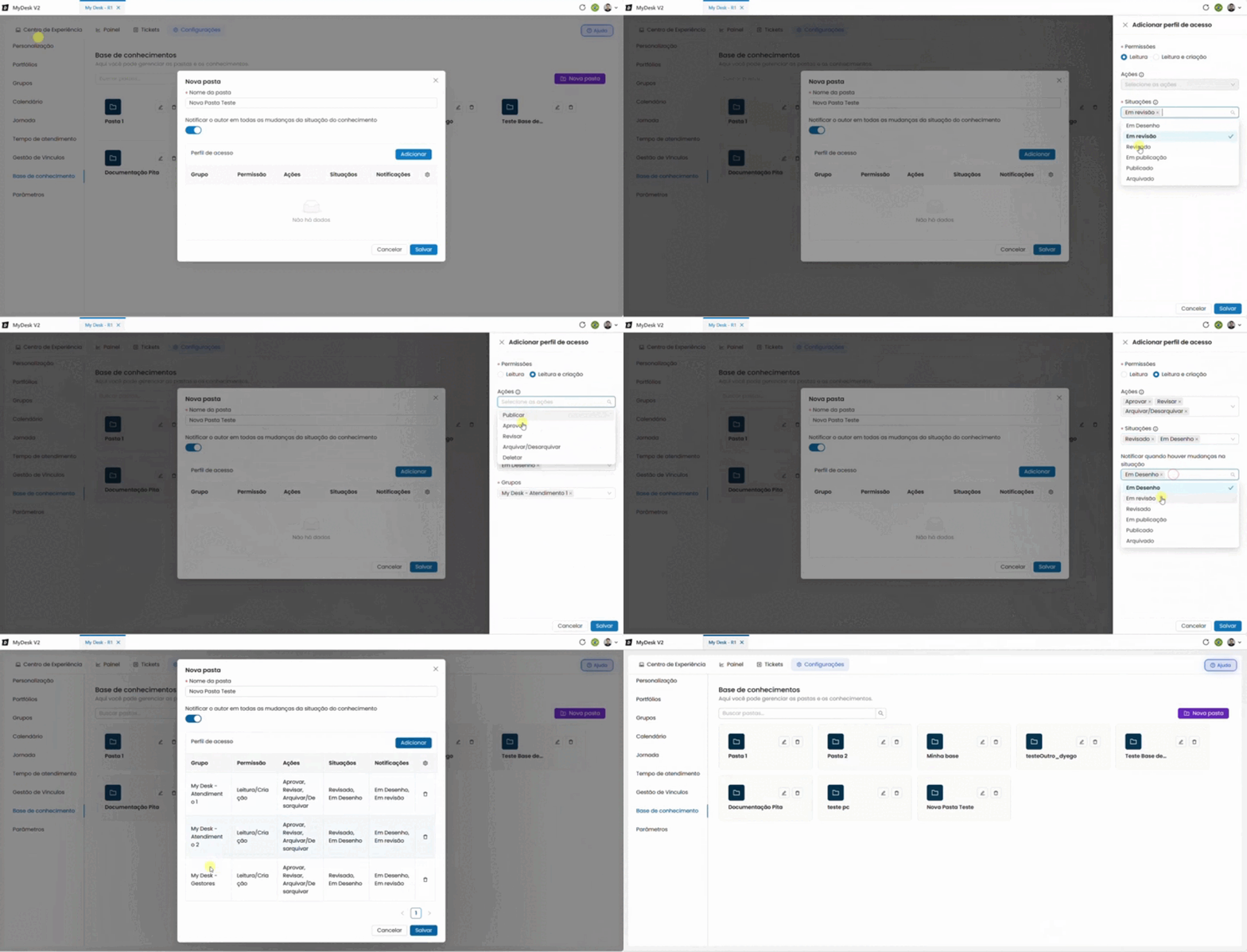
Click on + New folder
In the upper right corner of the screen, click the New Folder button. A window will open in the center of the screen.

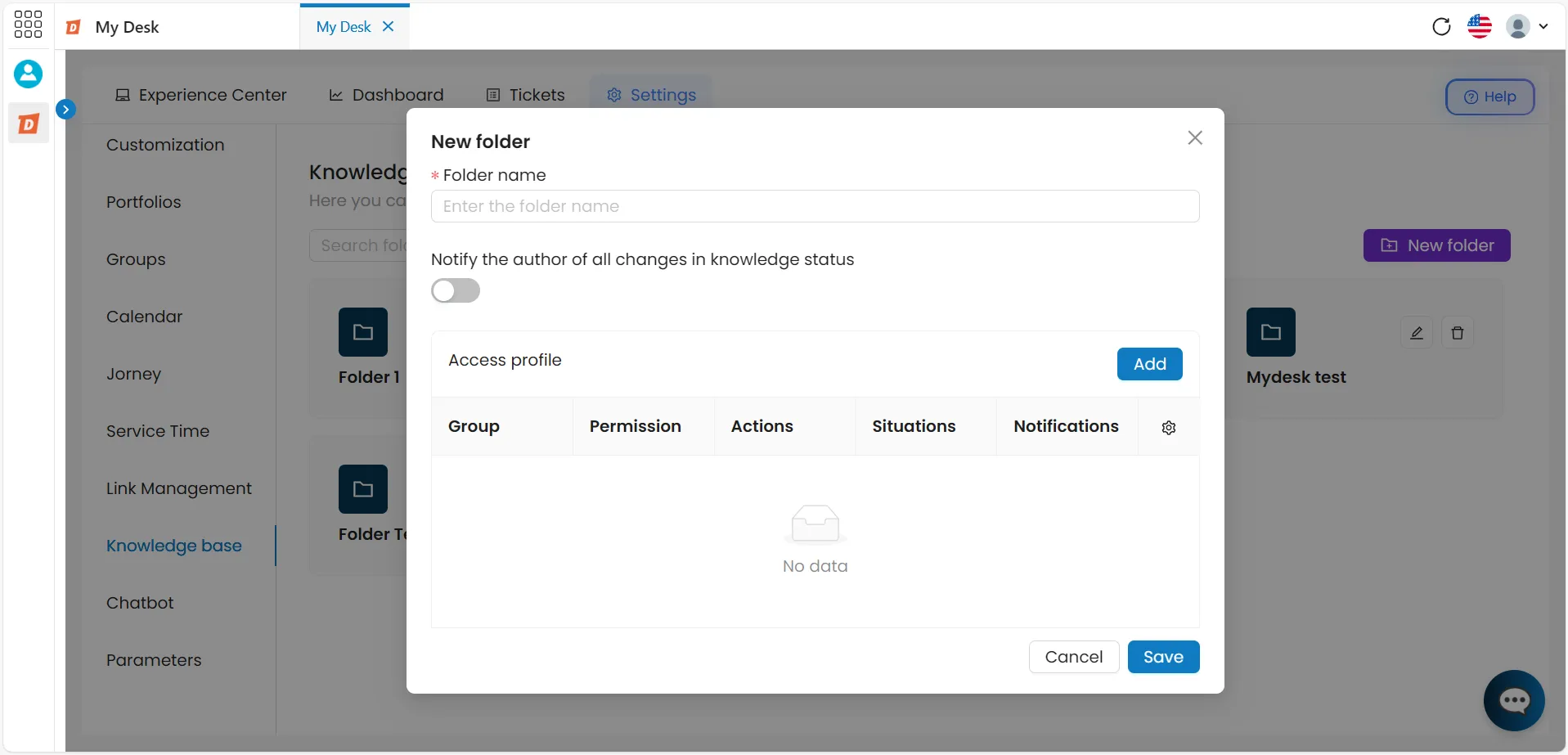
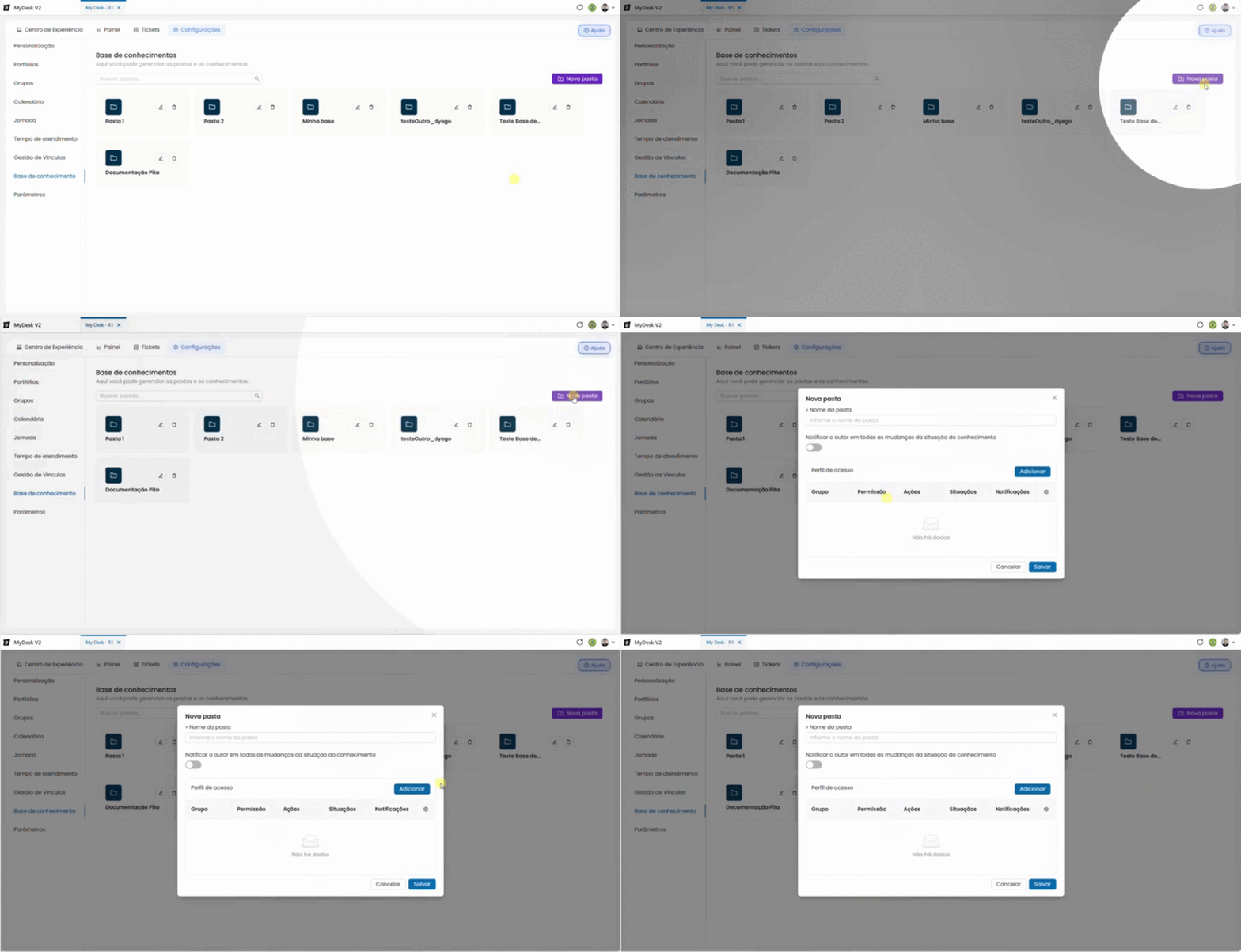
Enter the folder name
Enter a name that easily identifies the group of contents that will be contained within it.
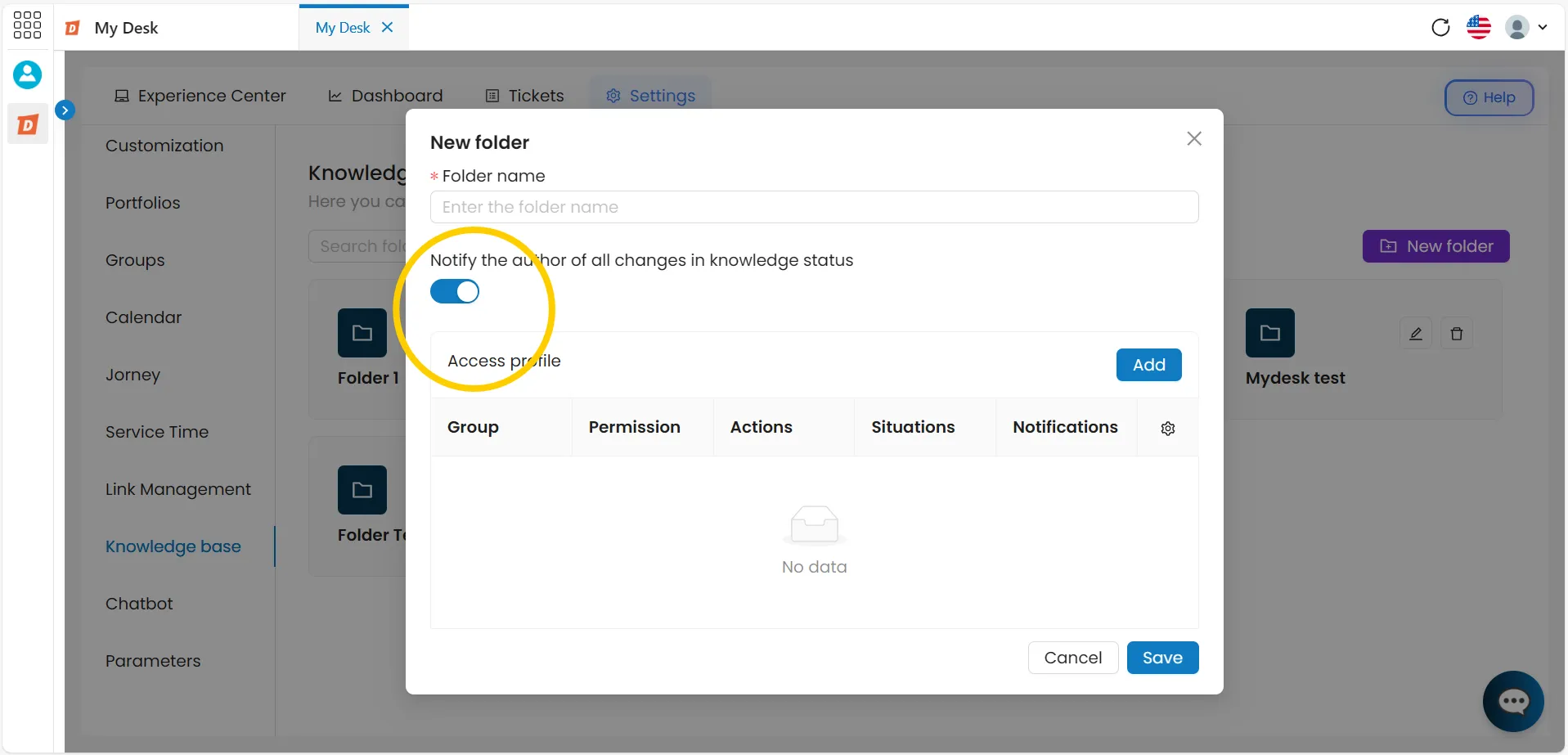
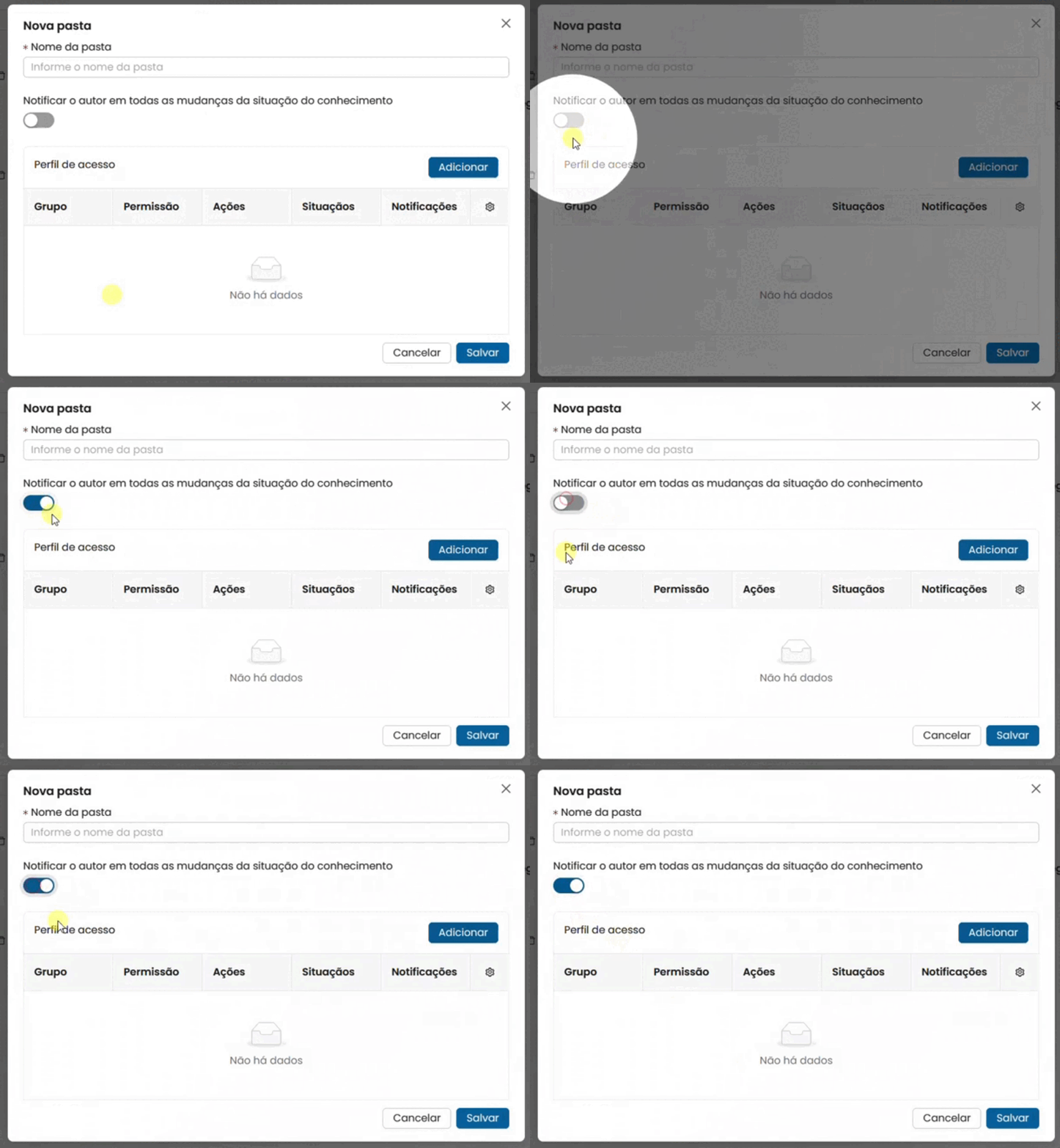
Configure notifications
Enable the option "Notify the author of all knowledge status changes" if you want the creator of each article to be notified every time the article's status changes.
Define the access profile
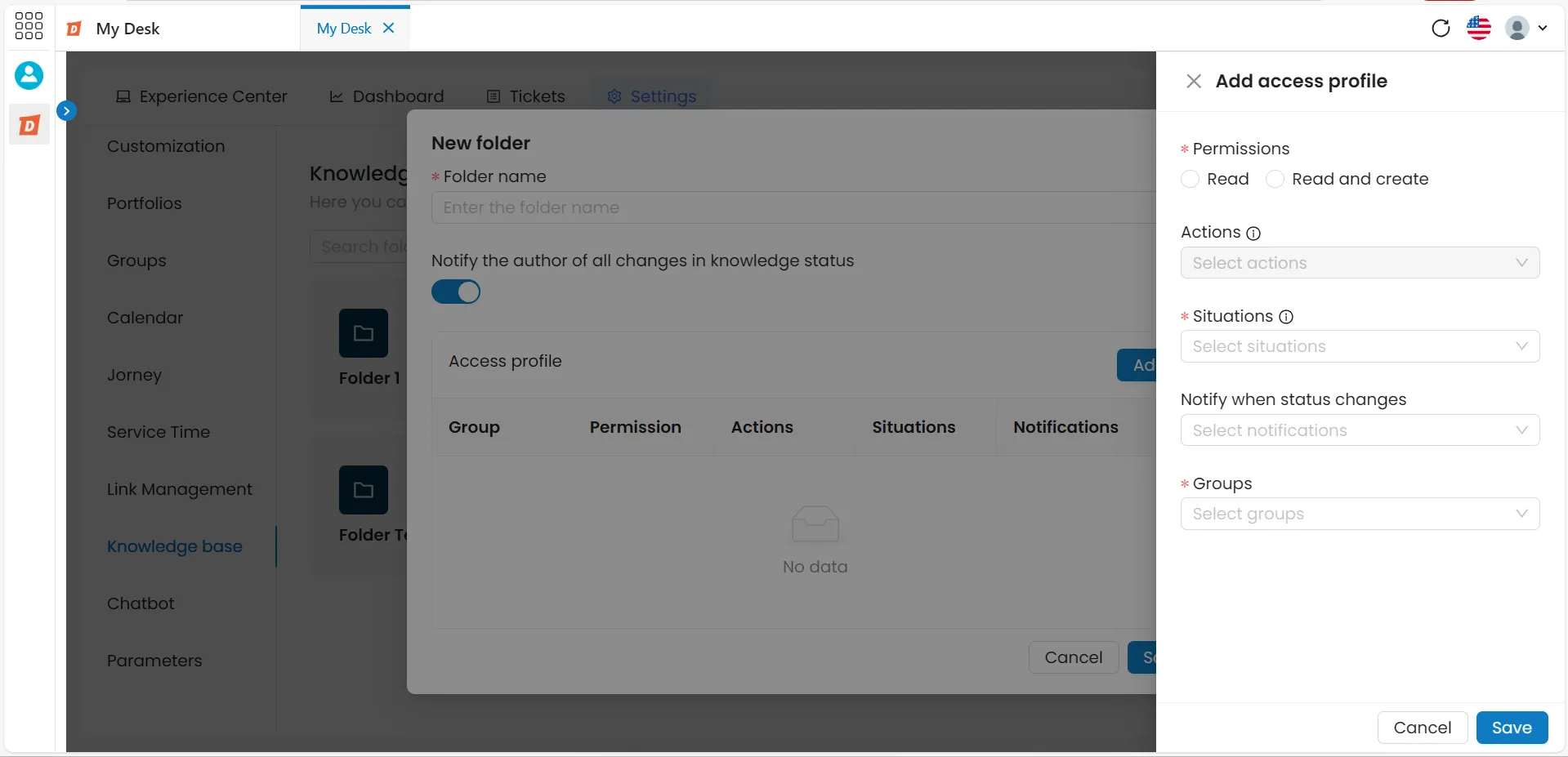
Click Add to define which groups will have access to the folder and with what permissions. There are two types of permissions:
🔵 Reading
The user can access and read the articles in the folder. They cannot create or edit content.
Visible situations:
In drawing Under review Reviewed
In publication Published Archived
Visible notifications:
In drawing Under review Reviewed
In publication Published Archived
🟢 Reading and creation
The user can access, read, and create new articles. They can also perform actions on existing articles.
Available actions:
Publish Approve Review
Archive/Unarchive Delete
Visible Situations and Notifications:
In drawing Under review Reviewed
In publication Published Archived
Groups
Select a group from the dropdown list to which the folder will be linked, thus distinguishing access to its content.
💡 Tip:
Each group can only be used once per profile configuration in each folder. It is not possible to edit a permission that has already been created—to change it, delete it and create a new one.
Items marked with a red asterisk are required. *
Save the folder
Click Save to create the folder with all the defined settings.
3 - Edit a folder

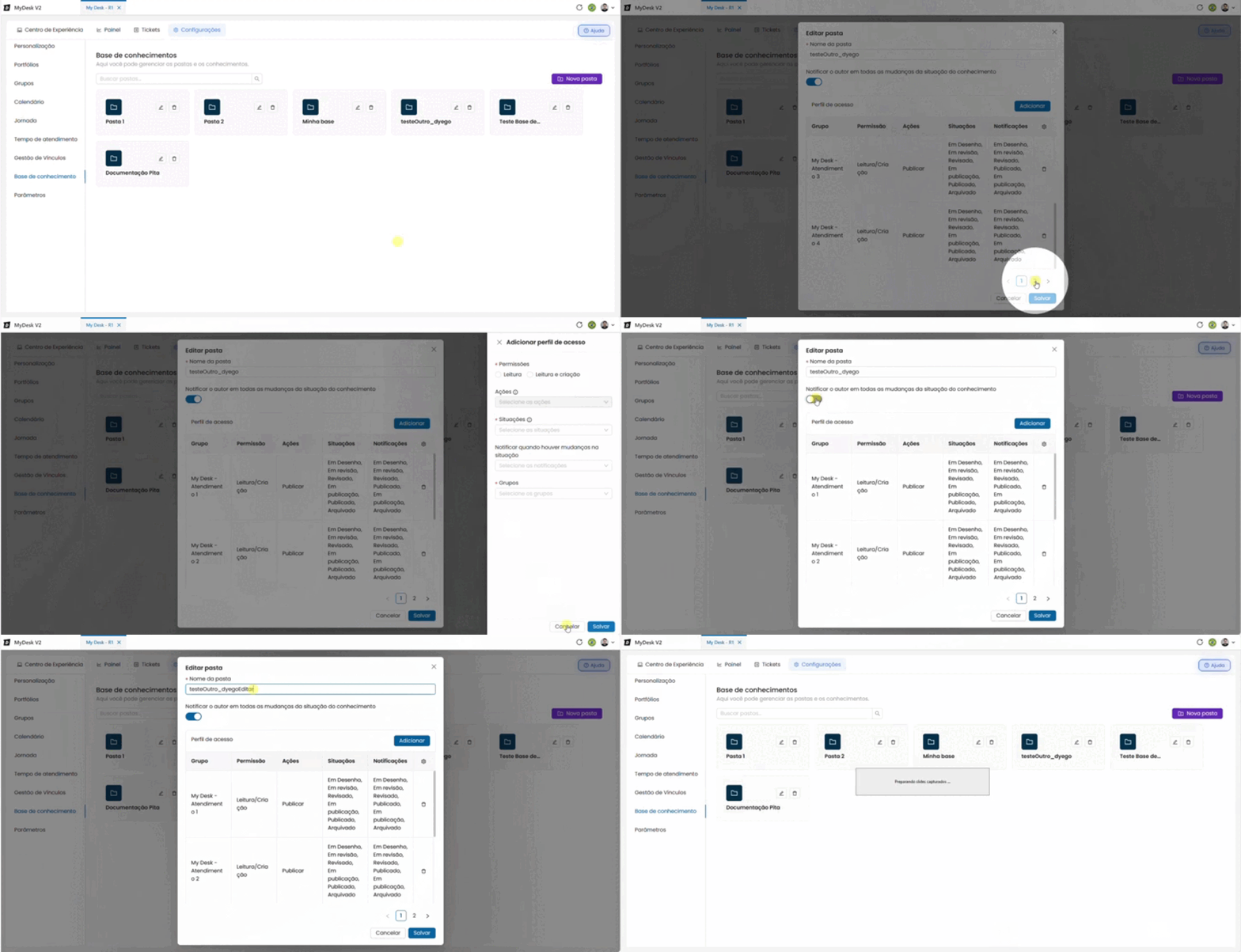
To edit a folder, follow the steps below:
Open the edition
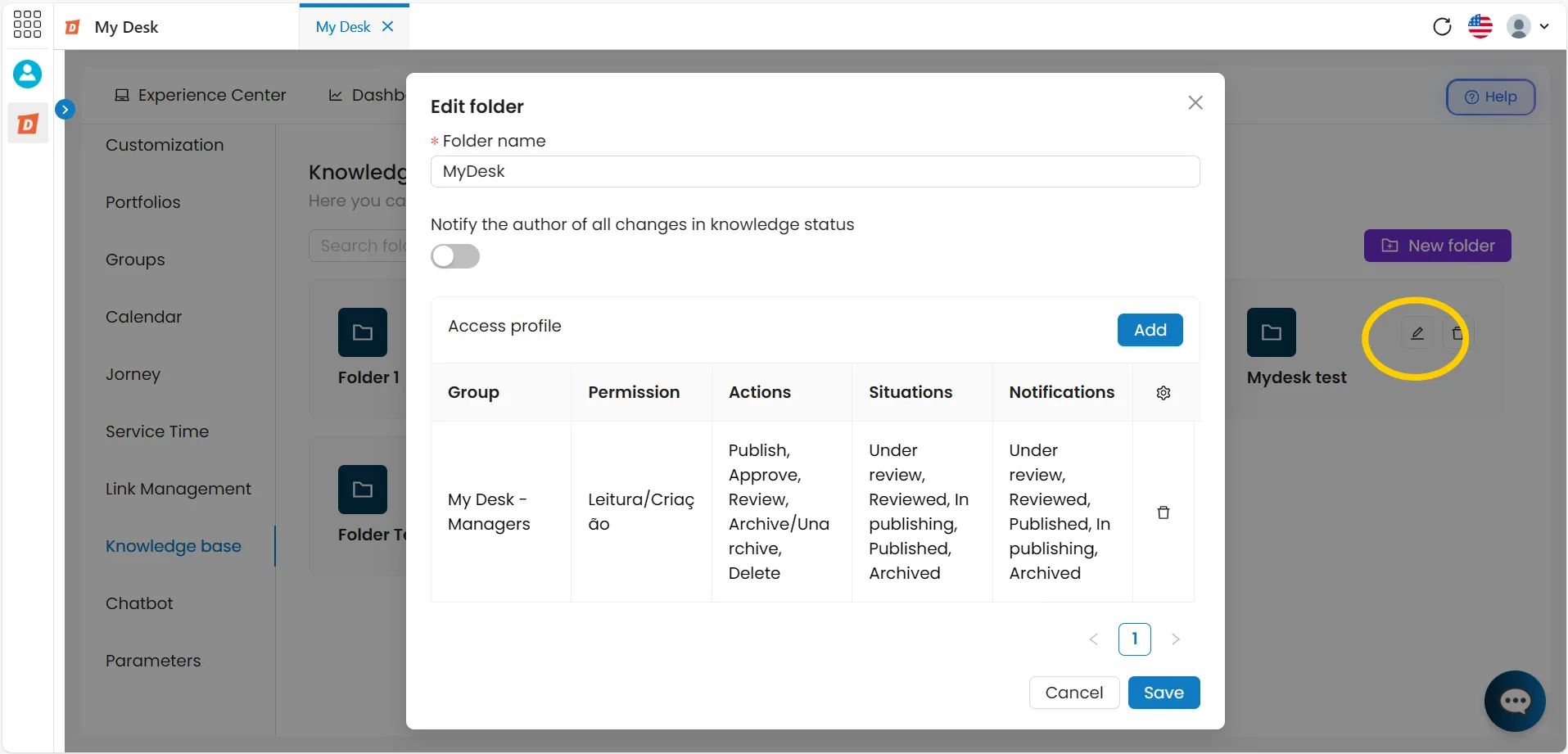
Click the pencil icon ✏️ inside the folder you want to edit. A window will open.
Make the changes
You can change:
- Folder name;
- Notification Settings;
- Access profiles:
- Viewing existing ones;
- Create new;
- Delete existing.
Save
Click Save to save the changes.
4 - Add knowledge

You can add articles of any size. Attached files can be of any type — image, video, PDF, and more.
To add knowledge, follow the steps below:
Open the folder
Click on the name of the folder where you want to add the article.
Click on + New knowledge
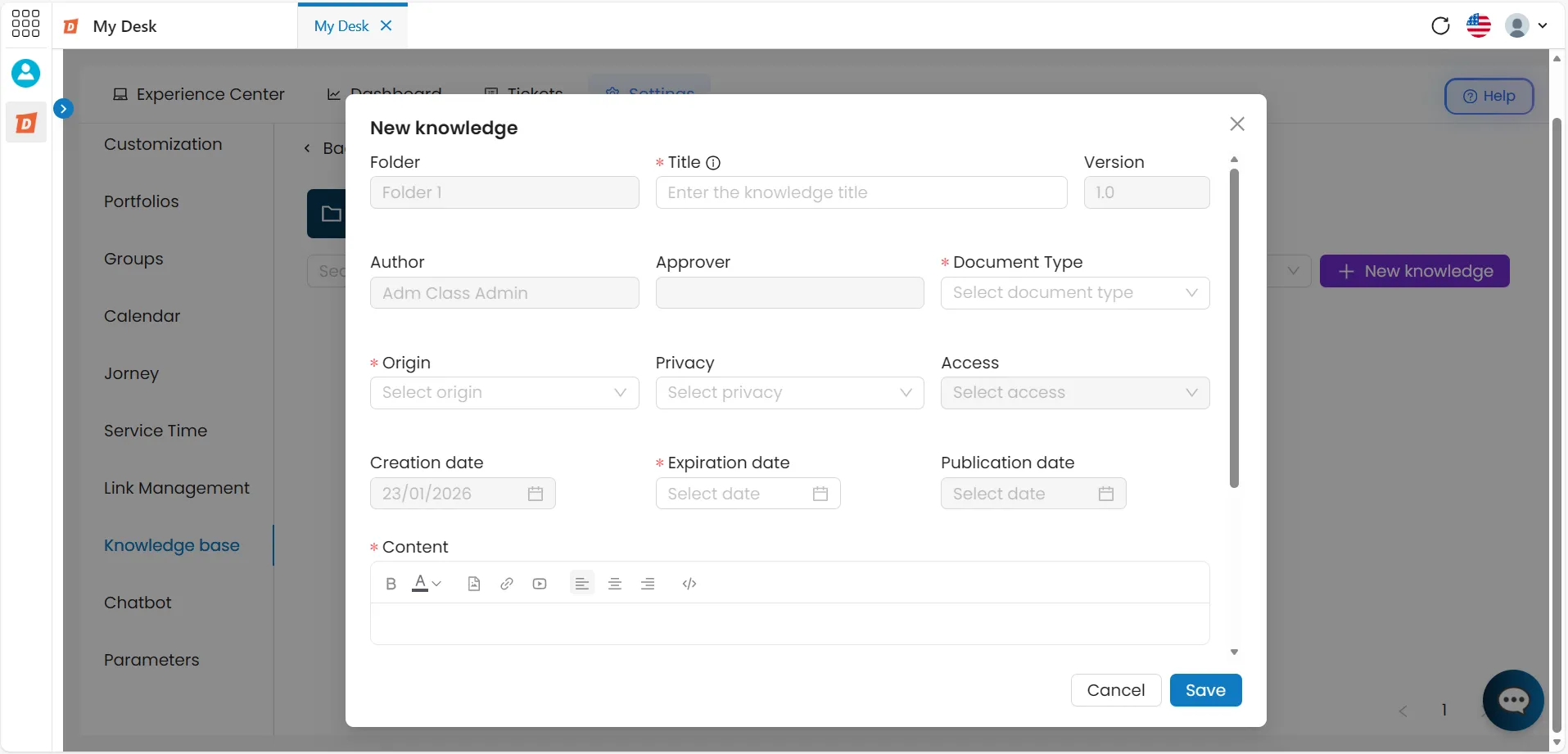
In the upper right corner, click the blue + New Knowledge button. A window will open.
Fill out the form
Fill in the fields below and click Save.
Folder autofilled
Displays the selected folder. Cannot be changed.
Title mandatory
Article title. Cannot be the same as another existing article. 250 character limit.
Version autofilled
It always starts at 1.0. Automatically updated with each new version saved.
Author autofilled
Filled with your username as the article creator.
Approver opional
Person responsible for approving the article before publication.
Document type mandatory
Classify the content. Available options:
Frequently Asked Questions (FAQ) News Document
Management and finance plan Communication plan
Origin mandatory
Indicates the origin of the need for the article. Options:
Knowledge Event Change Incident Problem
Privacy
Define who can view the article. Options: Public, Internal, or Confidential.
Access
Displayed only when privacy is set to Public. Define whether access will be Internal or External.
Creation date autofilled
Date of the day the article is being created. Cannot be changed.
Expiration date mandatory
Date on which the article will no longer be active. This option encourages frequent maintenance and updating of content. Select the date on the calendar.
Publication date optional
The date on which the article will be or has been published.
Content mandatory
Article body. Use the formatting bar to structure the text. No character limit.
Attach files optional
Upload one or more supplementary files to complement the article.
Actions optional
Defines the next step for the article in the publishing workflow. If saved without choosing an action, the article is automatically saved as "In Draft". Available options:
Enviar para revisão Enviar para aprovação Enviar para publicação Publicar Arquivar
💡 Regarding approval:
When an article is submitted for approval, the approver can approve or reject it. In case of rejection, a justification must be provided.
Save
Click Save to save the changes.
Note: Items marked with a red asterisk are required.


5 - View Knowledge

To view the knowledge within a folder, follow the steps below:
Open the folder
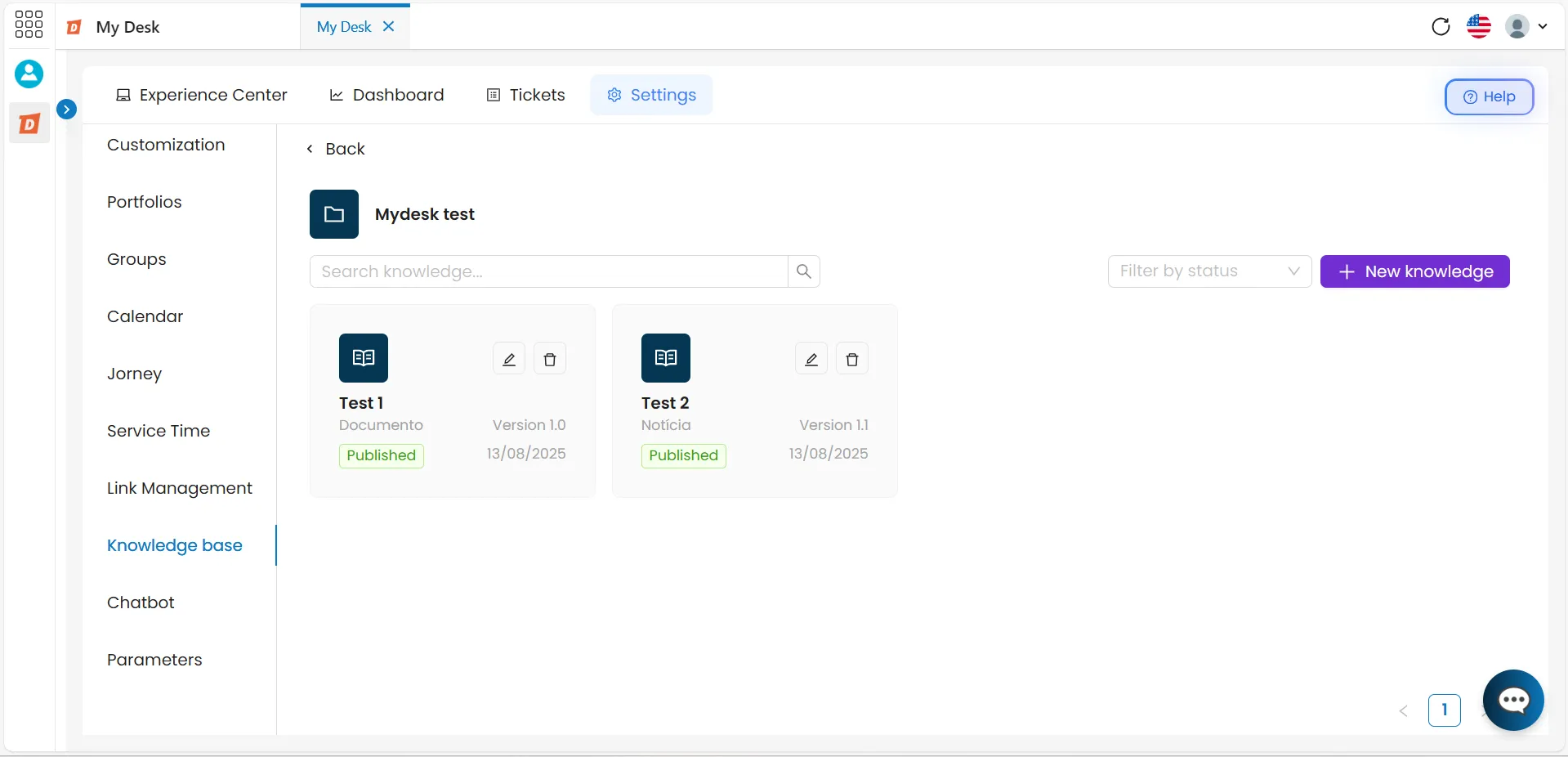
Click on the desired folder. All articles will be displayed in blocks.
Search or filter
Use the search bar to search by article name, or the filter to search by situation.
6 - Edit knowledge - Version control

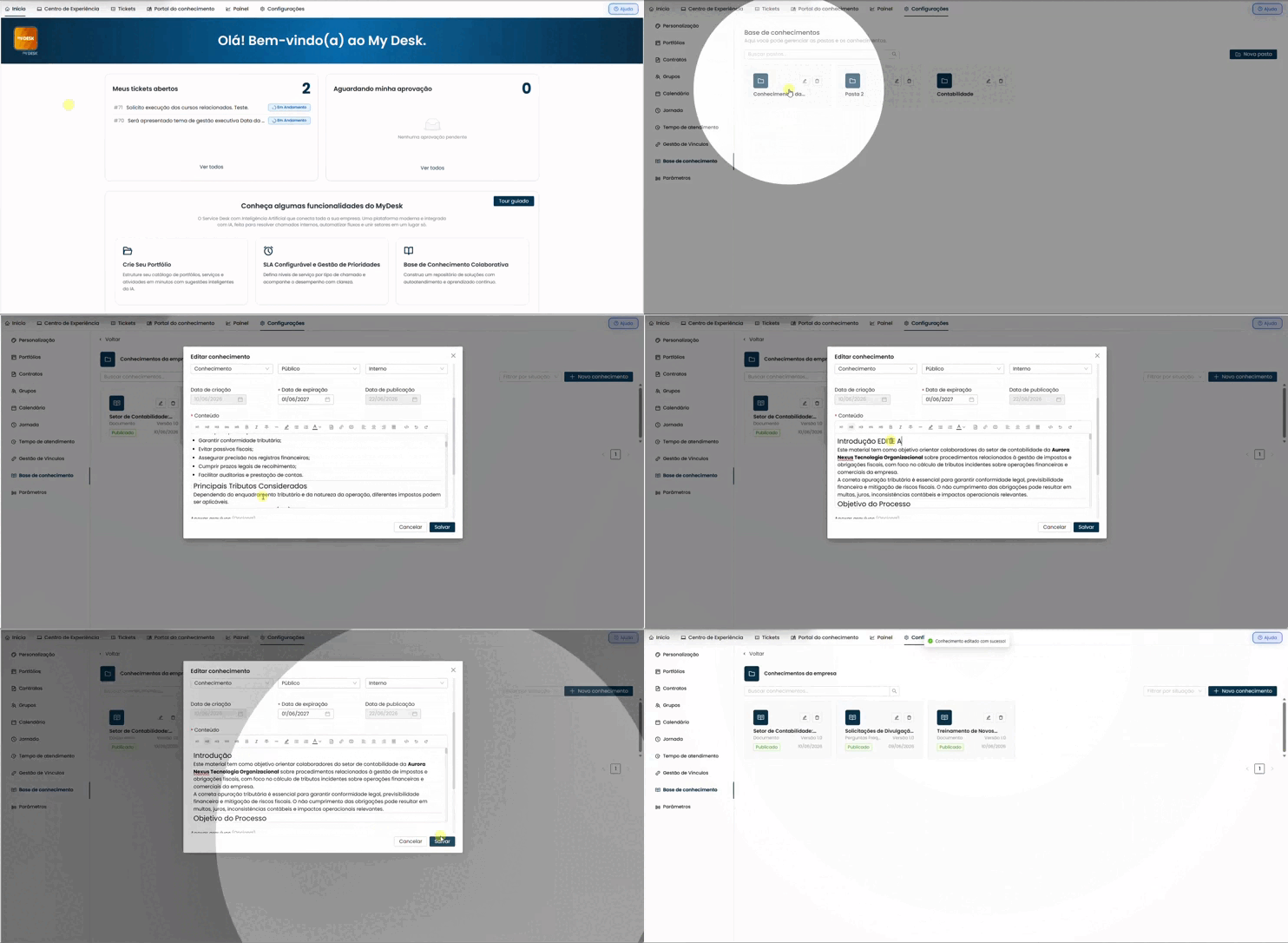
You can edit all documents, and in addition, during editing there are two new options: Version Knowledge and Archive Old Version.
You can edit the following options:
- Title;
- Document Type;
- Origin;
- Privacy;
- Access;
- Expiration Date;
- Content;
- Attach Files;
- Actions.
To edit the knowledge base of a folder, follow the steps below:
Open the folder
Click on the desired folder. All articles will be displayed in blocks.
Search or filter
Use the search bar to search by article name, or the filter to search by situation.
Click on the edit button for the knowledge you wish to edit.
A window will open in the center of the screen with all the available options.
Edit as desired.
Save
Click Save to save the changes.
6.1 - Share knowledge
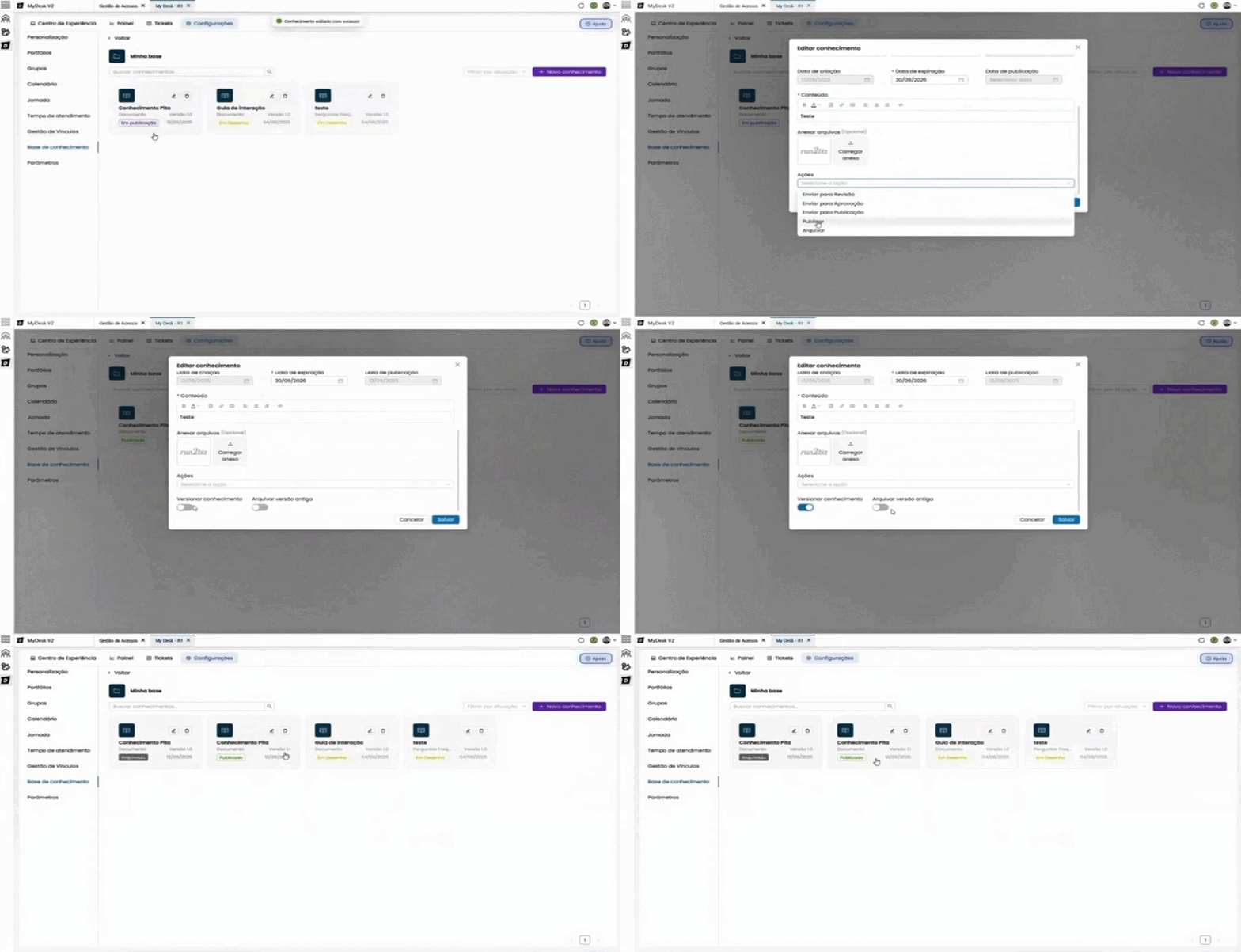
After the knowledge base is published, it's possible to version the document; that is, each saved change creates a new version of the document, with the previous version saved as it was created.
To version the knowledge base, simply click on the action key, as shown in the image below.

6.2 - Archive Older version
It's also possible to keep an older version alongside the new version of the knowledge.
To do this, simply click on the action key as shown in the image below.
It's possible to activate both keys and save, performing two actions at once.

7 - Delete knowledge

To delete a piece of knowledge, follow the steps below:
Open the folder
Click on the folder containing the article you want to delete.
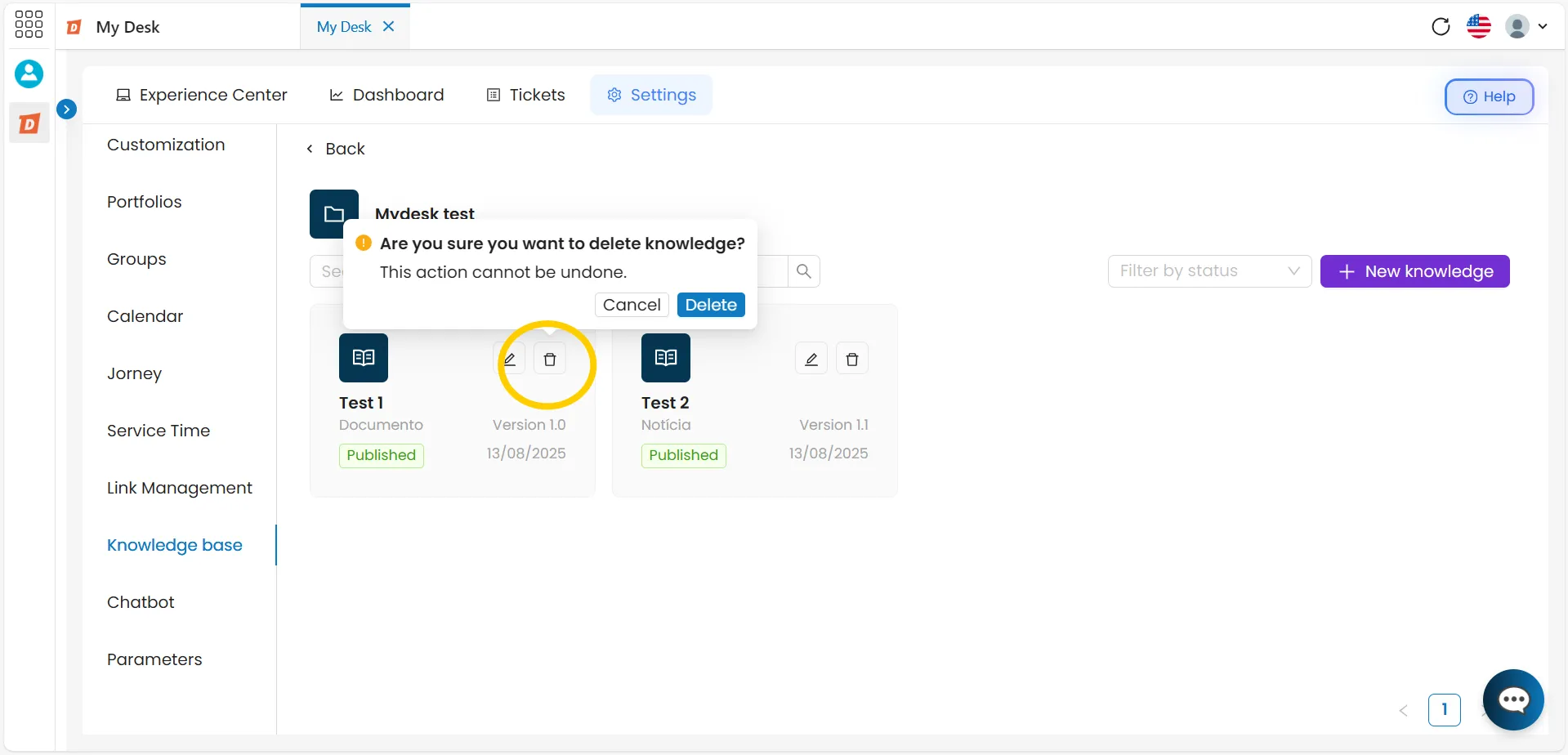
Click on the trash can icon
Locate the article and click the delete icon 🗑️.
Confirm the deletion
A confirmation message will appear: "Are you sure you want to delete this knowledge?". Click Delete to confirm or Cancel to return.
⚠️ Attention:
Deleting an item is permanent and cannot be undone. Please check before confirming.