MyEngage
Administrator
MyEngage is the chat module of My Desk. It can be used directly through the system interface or integrated with WhatsApp, allowing users to open tickets, check support requests, and interact with customer service without leaving the messaging app.
1 - Chat button

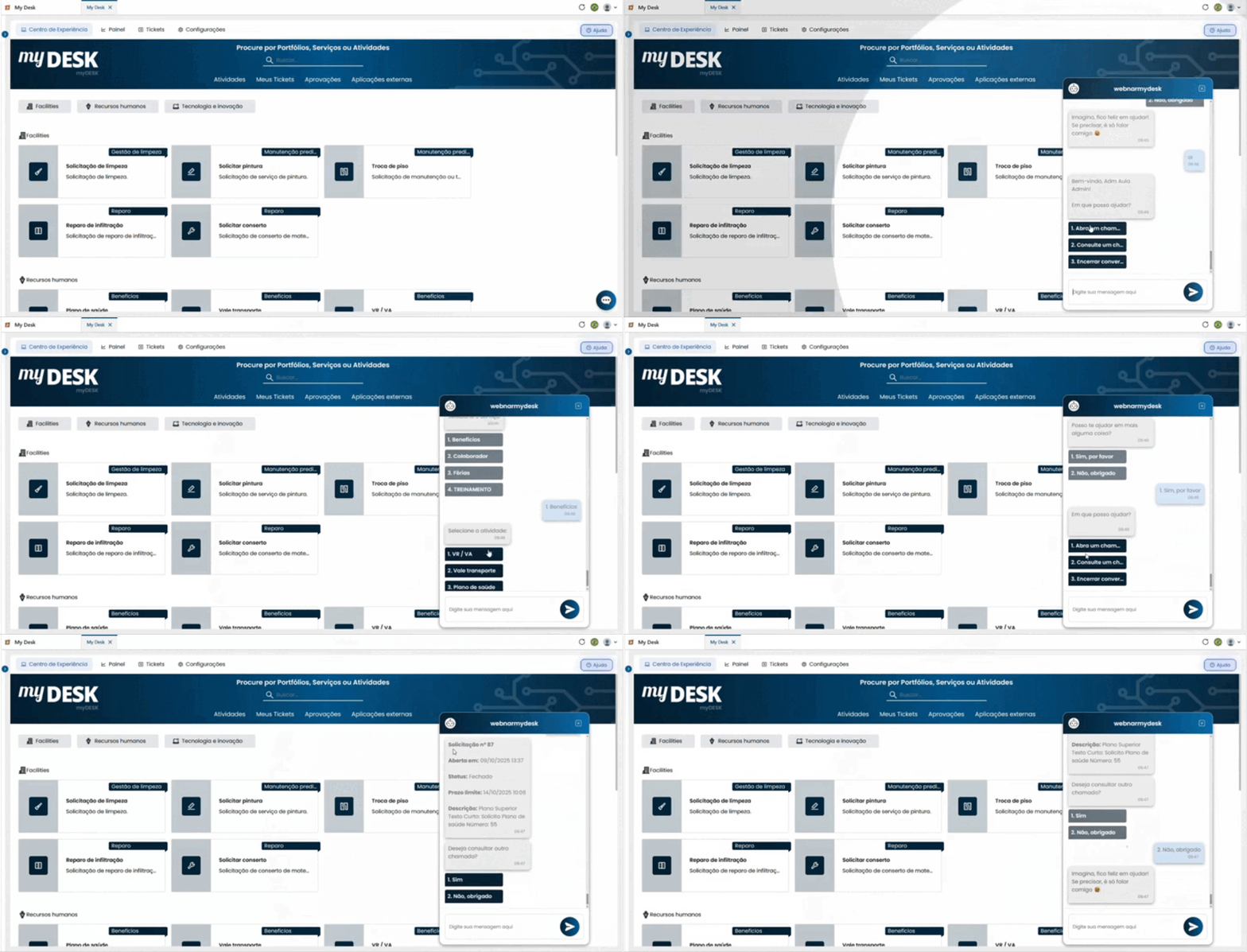
On every page of My Desk, you'll find a button in your theme color in the bottom right corner of the screen that provides a chat function. The chat has pre-programmed functions that help with opening a ticket, viewing the status of calls, and more.

The chat has pre-programmed functions that help with opening a ticket, viewing its status, and other functions.
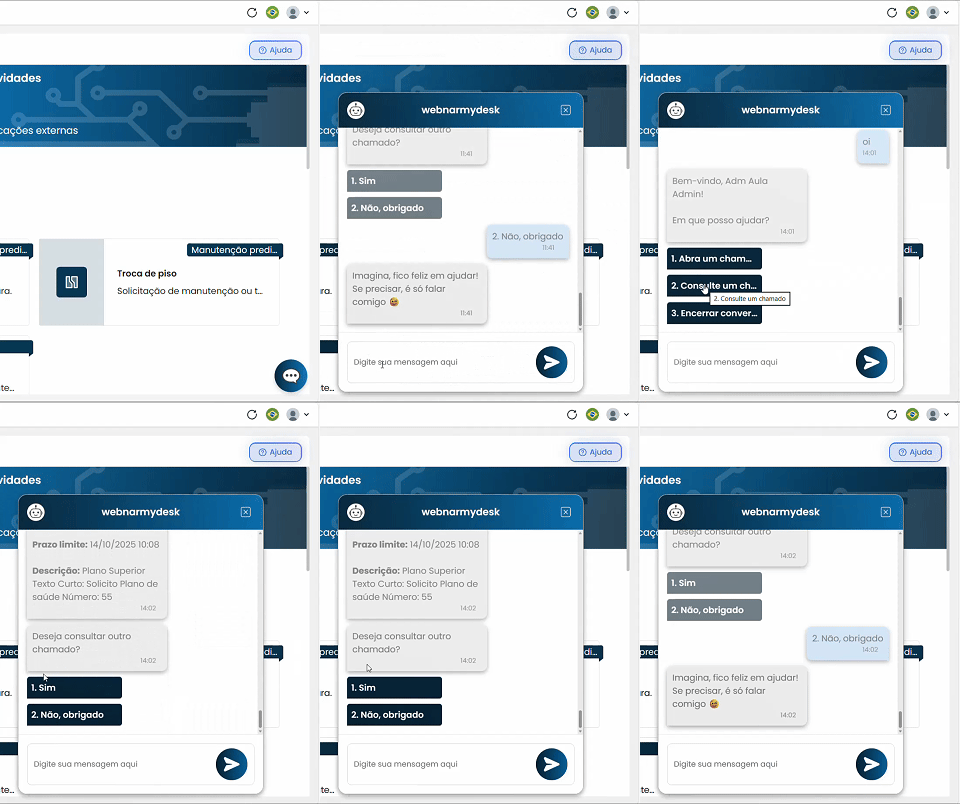
- Chat header
The header has the following functions:
Chat avatar
- Imagem de identificação do assistente de chat.
Close the chat window
- Botão para minimizar ou fechar o chat.

- Menu do Chat
When you open the Chat, any initial interaction will take you to the menu. Type "hi," for example, and after an initial greeting, the chat will present the following menu options:
- Open a ticket;
- This initiates the ticket opening process. The chat will present portfolio, service, and activity options for you to choose from.
- Check a ticket;
- Shows the numbers of open tickets. Click on them and the following information will be displayed:
- Request number;
- Opening date;
- Status;
- Deadline;
- Description.
- End Conversation;
- The chat conversation ends.
2 - WhatsApp - Setting it up in My Desk

MyEngage chat can be integrated with WhatsApp via the Botmaker platform. Setup involves creating a Botmaker account, obtaining API credentials, and configuring a webhook that connects WhatsApp to My Desk.
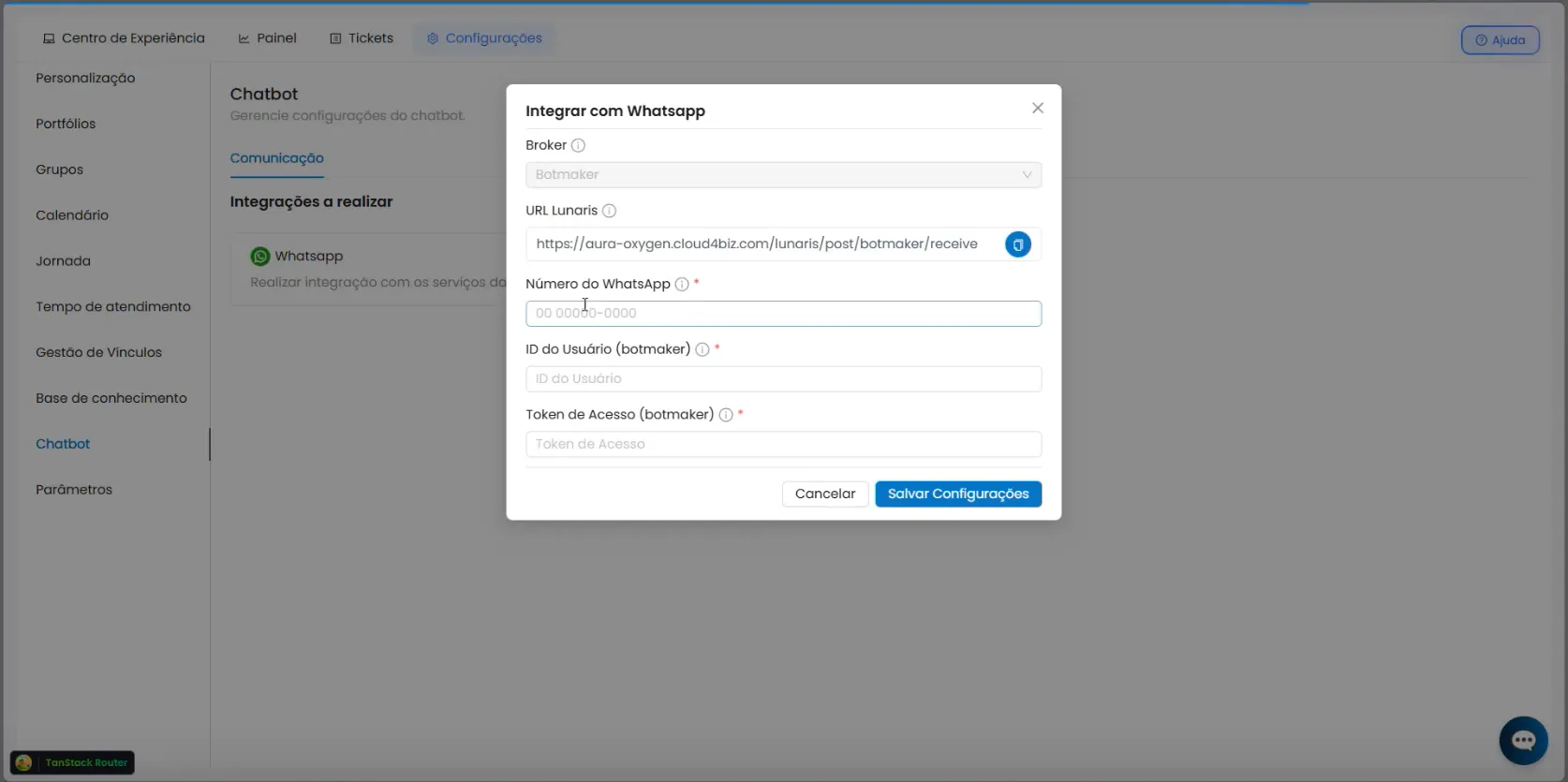
Go to Settings → MyEngage
In the top menu and then in the left sidebar menu.
Click on Configure integration
A small window will open in the center of the screen with the configuration fields.
Keep this window open
You will need it to paste the WhatsApp number, the Lunaris URL, the user ID, and the Botmaker token.
💡 Video lesson available:
We've prepared a video tutorial that teaches you all about setting up WhatsApp with MyEngage. Check it out below.
3 - Botmaker

The specification below serves as a manual for using the broker Botmaker.
3.1 - Create an account
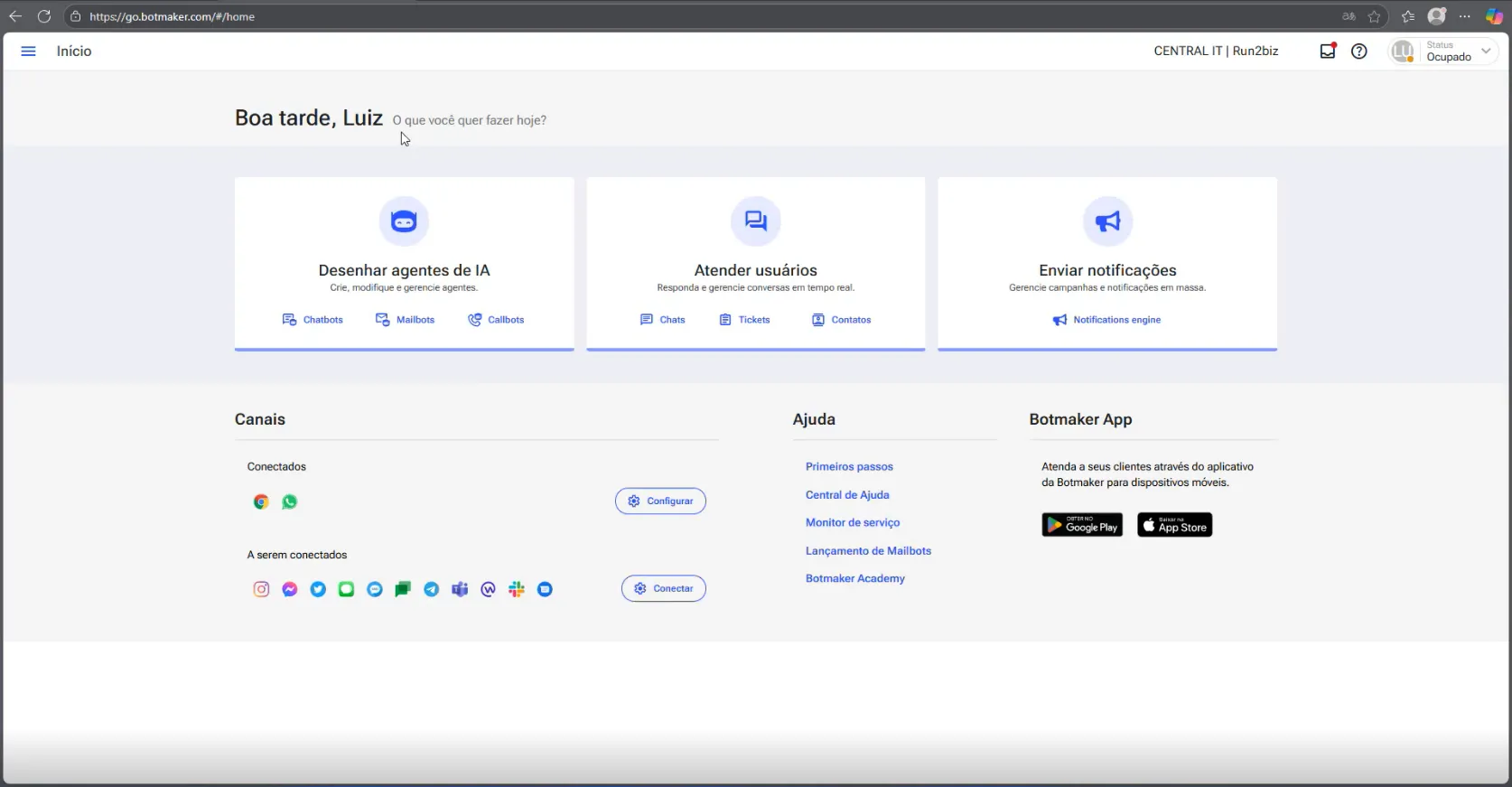
Através do link abaixo, se inscreva na Botmaker.
It's not possible to create a personal account. Therefore, you need to create a business account that has a WhatsApp number.
3.2 - Obtaining Botmaker API credentials
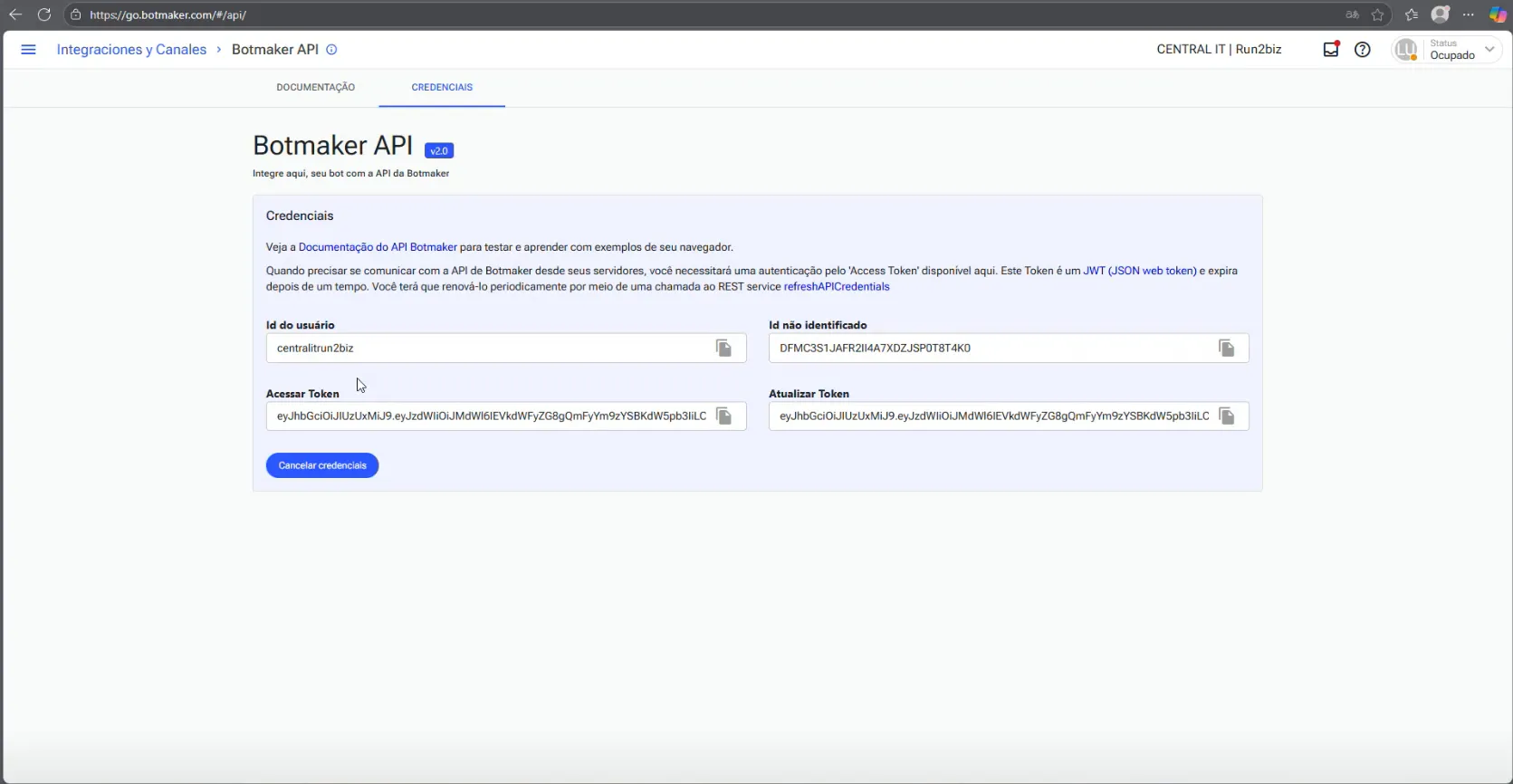
After creating the account, you need to obtain the user ID and access token to connect Botmaker to My Desk.
To obtain the user ID and token, follow the steps below:
Access Channels and Integrations
In the side menu, click the gear icon and then Channels and Integrations.
Access the Botmaker API
Within Channels and Integrations.
Click on the Credentials tab
Click on Generate credentials
Copy the user ID and the Access Token
You will need this information to set up the integration in My Desk.
3.3 - Setting up a webhook
The webhook is the channel that connects WhatsApp messages to My Desk. The setup involves copying information between My Desk and Botmaker.
To configure the webhook, follow the steps below:
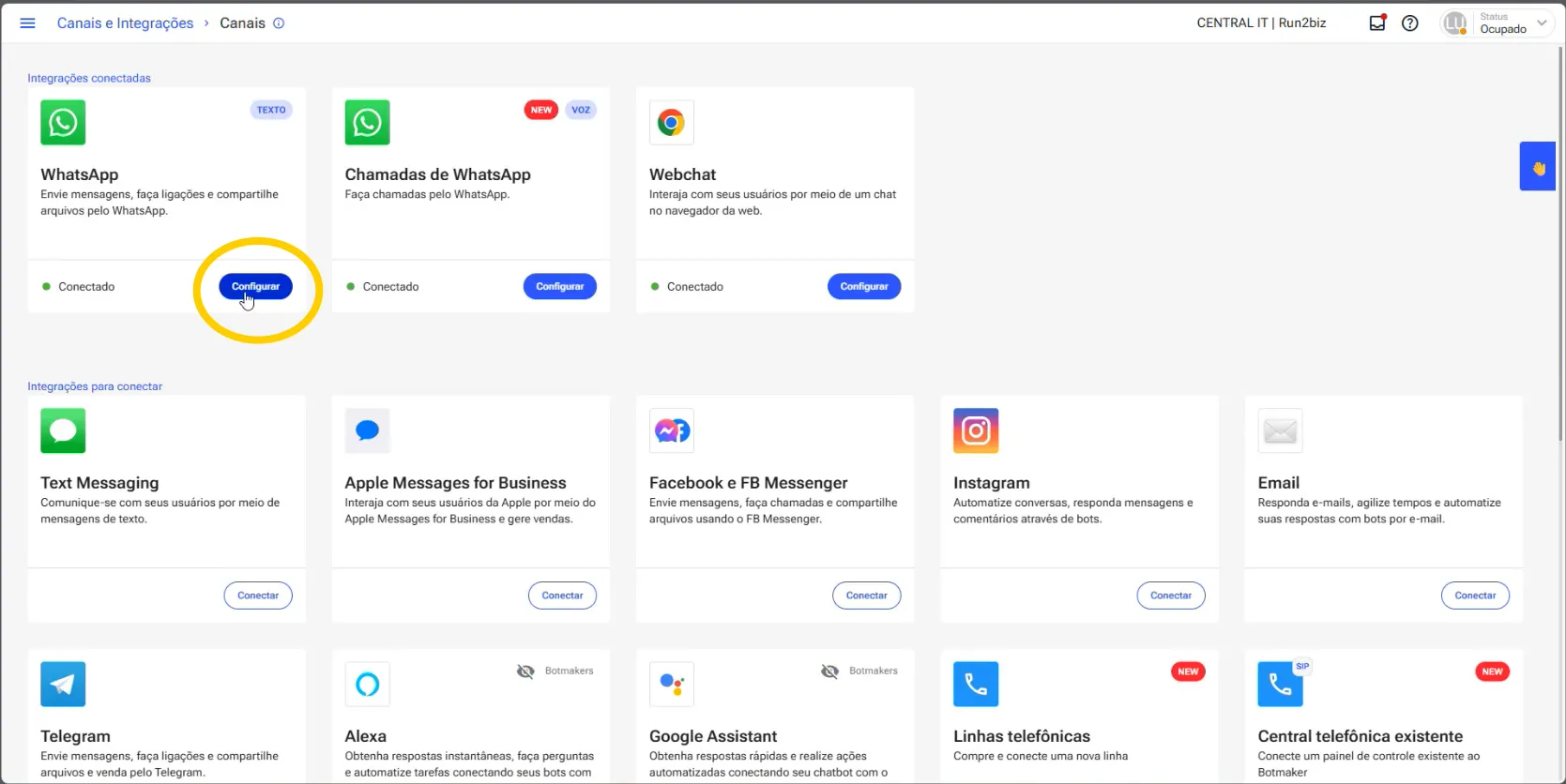
- In Botmaker, go to Channels and Integrations → Channels
- The connected integrations will be displaye
- Click on Configure integration in the first WhatsApp integration
- A small window will open in the center of the screen
- The WhatsApp number settings will be displayed
- Keep this screen open
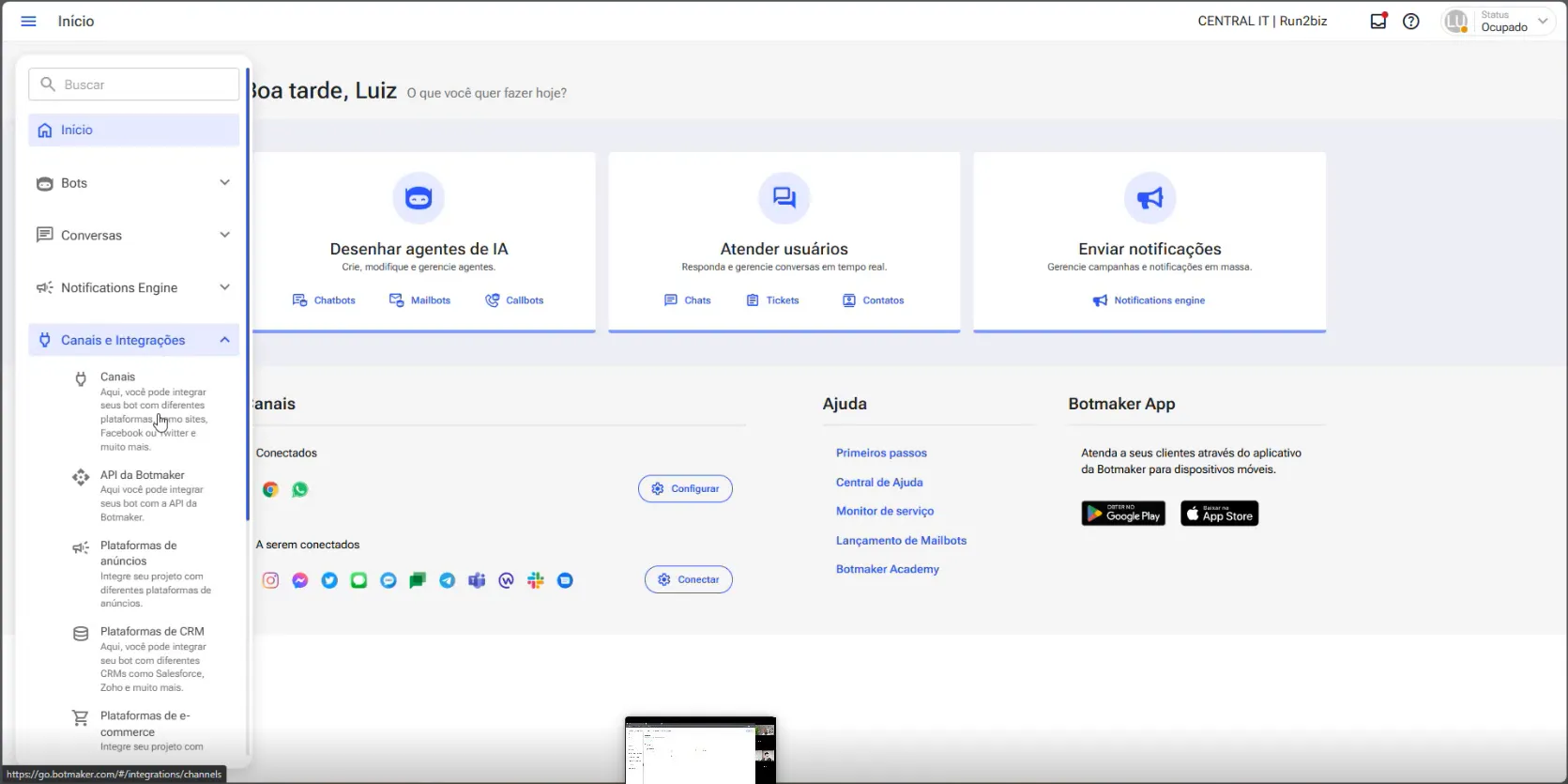
- Access go.botmaker.com/
- Click on the Channels and Integrations menu;
- Click on the Channels submenu;
- The connected integrations will open;
- Click on Configure, in the first integration: Whatsapp.
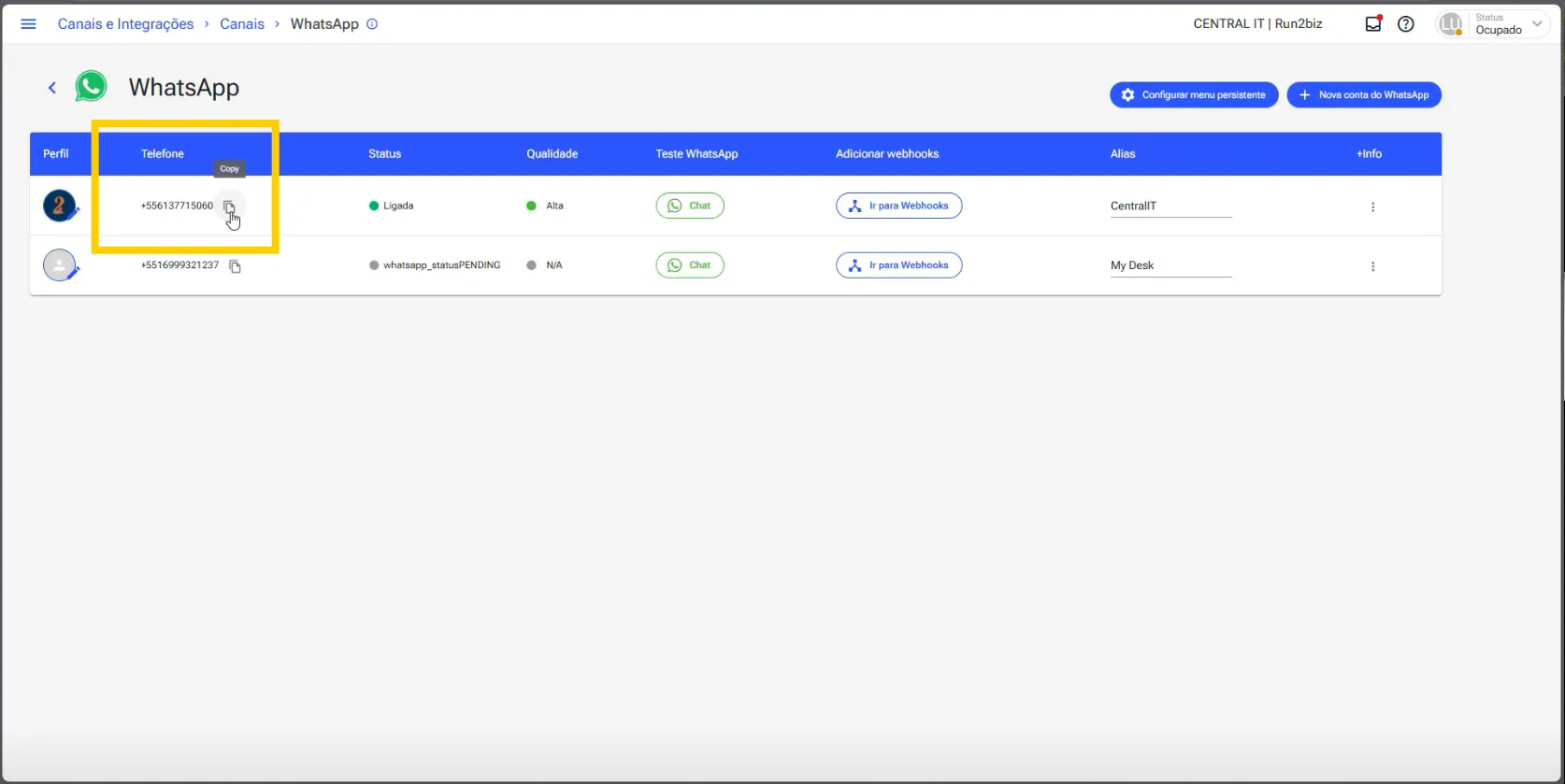
- Copy the phone number;
- Return to My Desk;
- Paste the phone number in the "Whatsapp number" field;
- Copy the Lunaris URL;
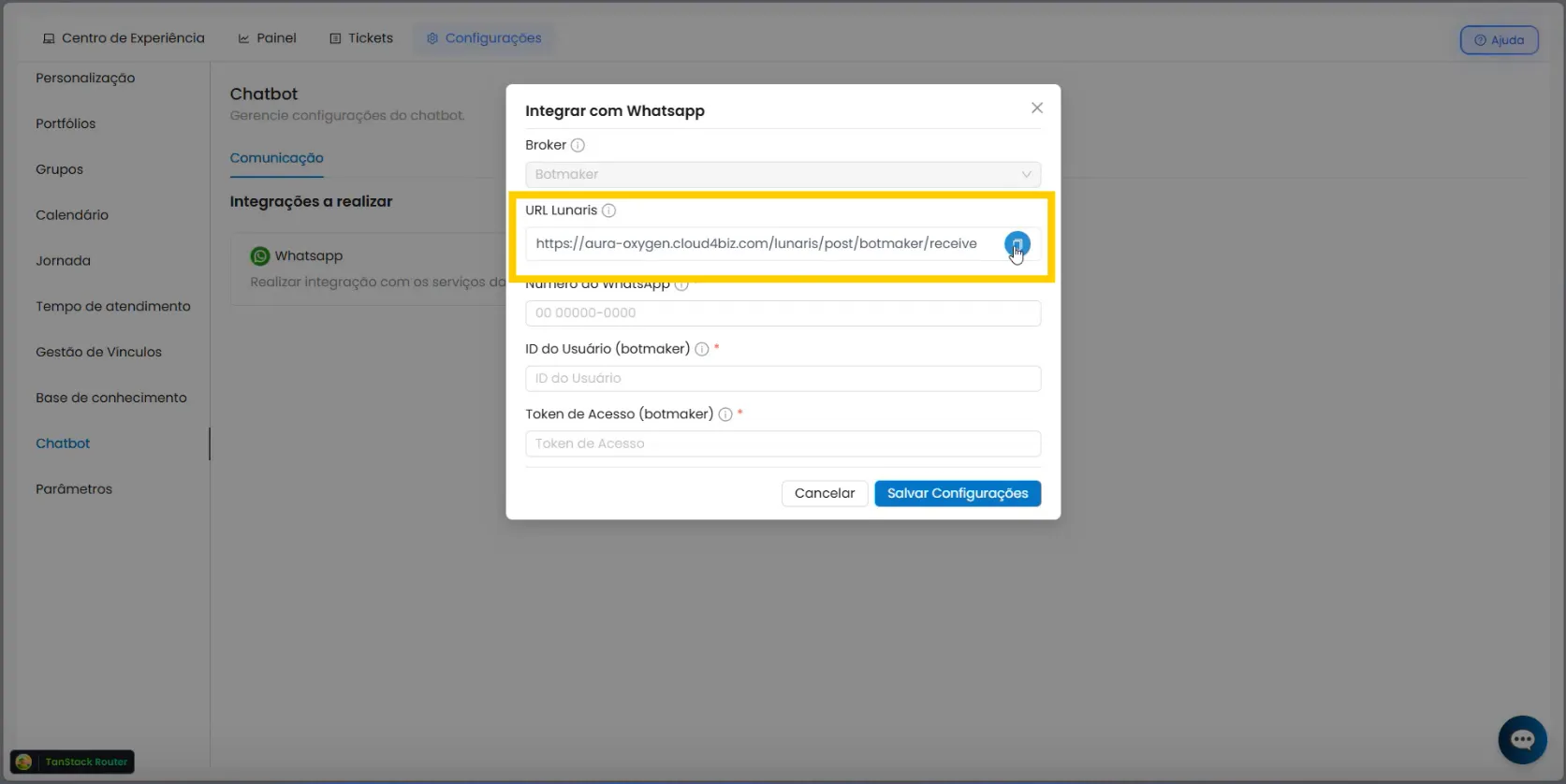
- Return to Botmaker;
- Click on the Channels and Integrations/Webhooks menu.
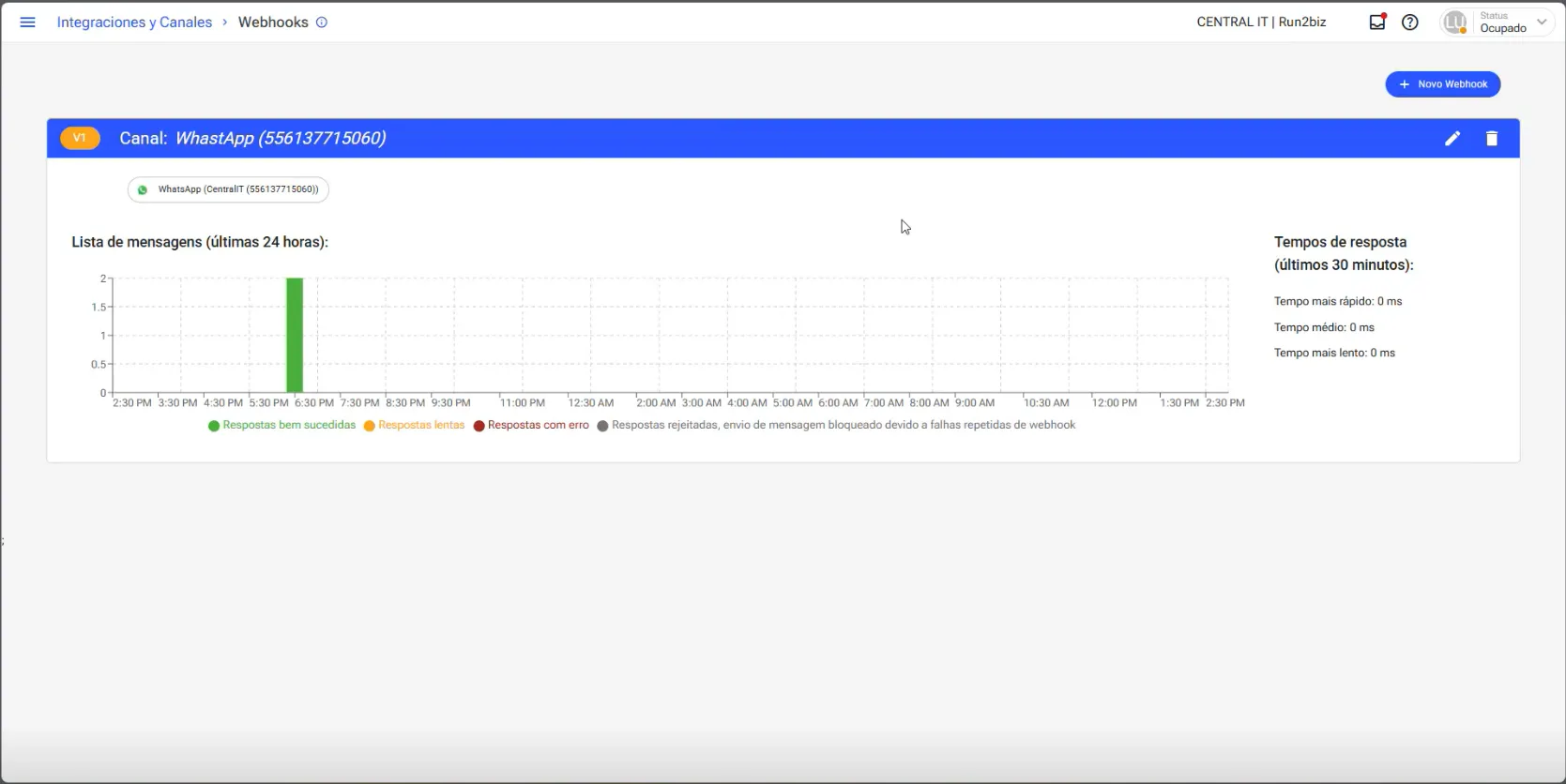
- Click on New Webhook
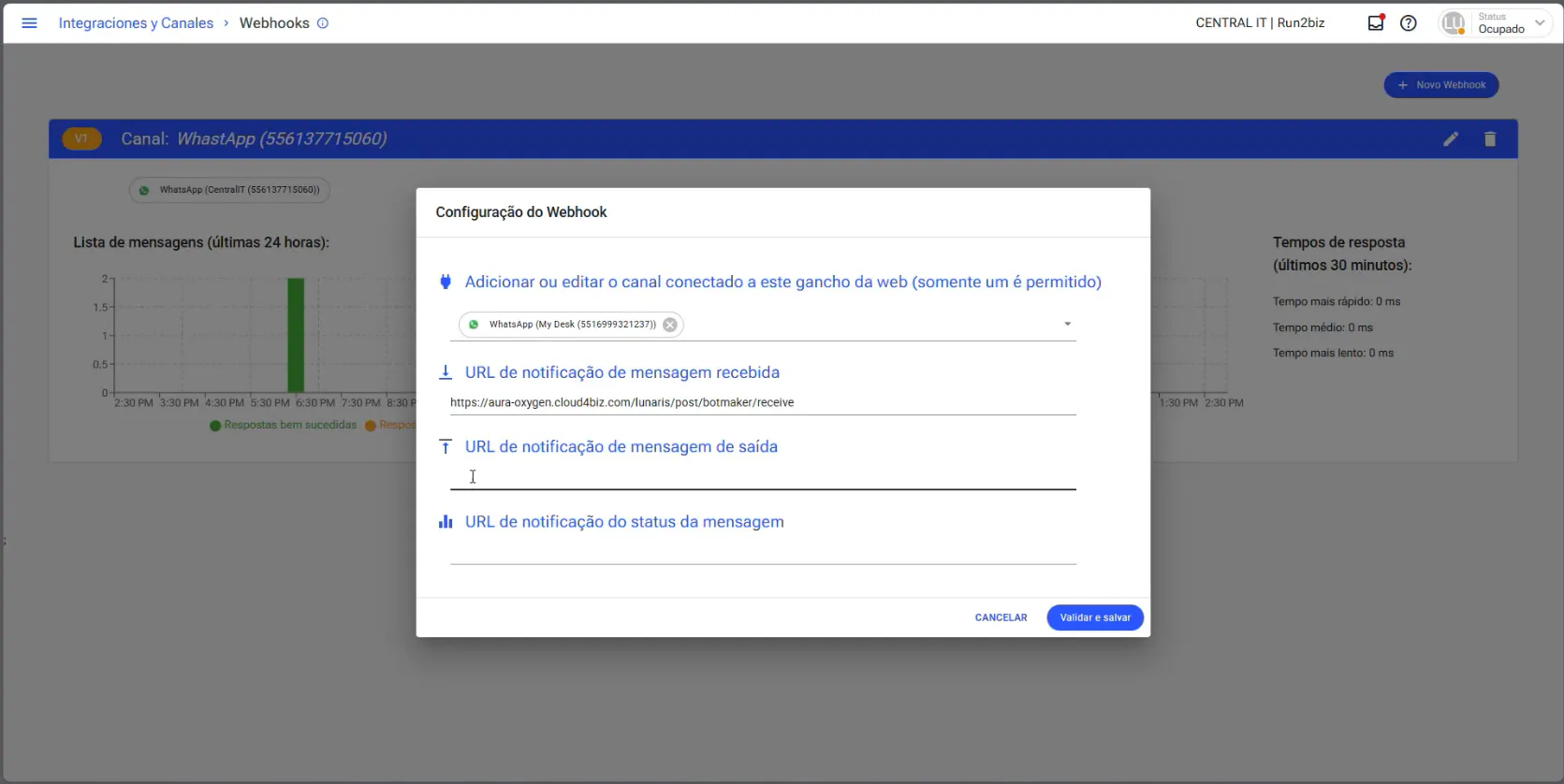
- A configuration window will appear in the center of the screen;
- Select the phone number;
- Paste the Lunaris link in "Incoming message notification URL";
- Click Validate and Save.
- Go back to the Bootmaker API page;
- Copy the User ID and Token;
- Paste them into the configuration window in My Desk;
- Click Save Settings.
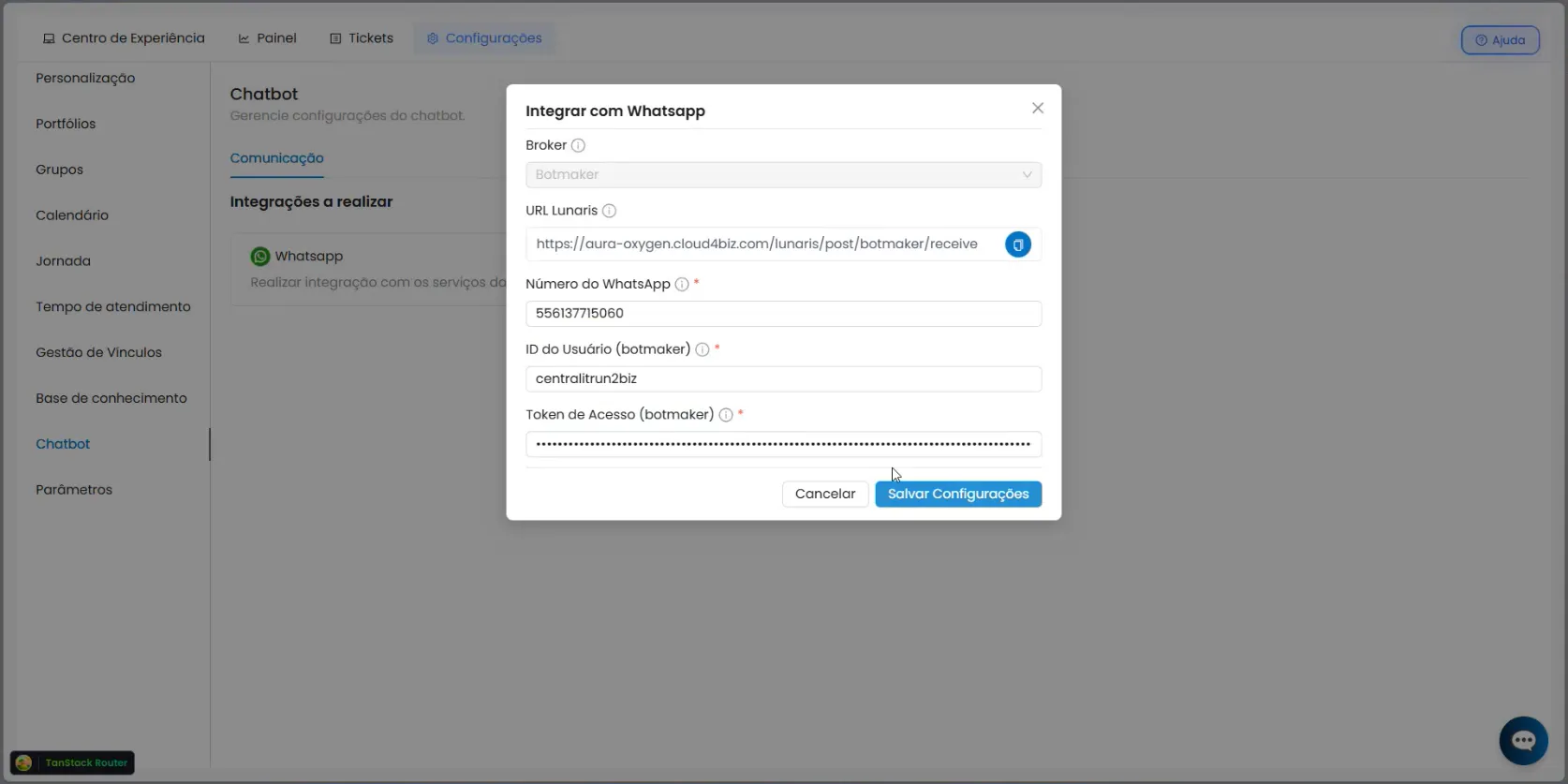
- The integration will be complete:
- Try sending a message to the configured WhatsApp number.