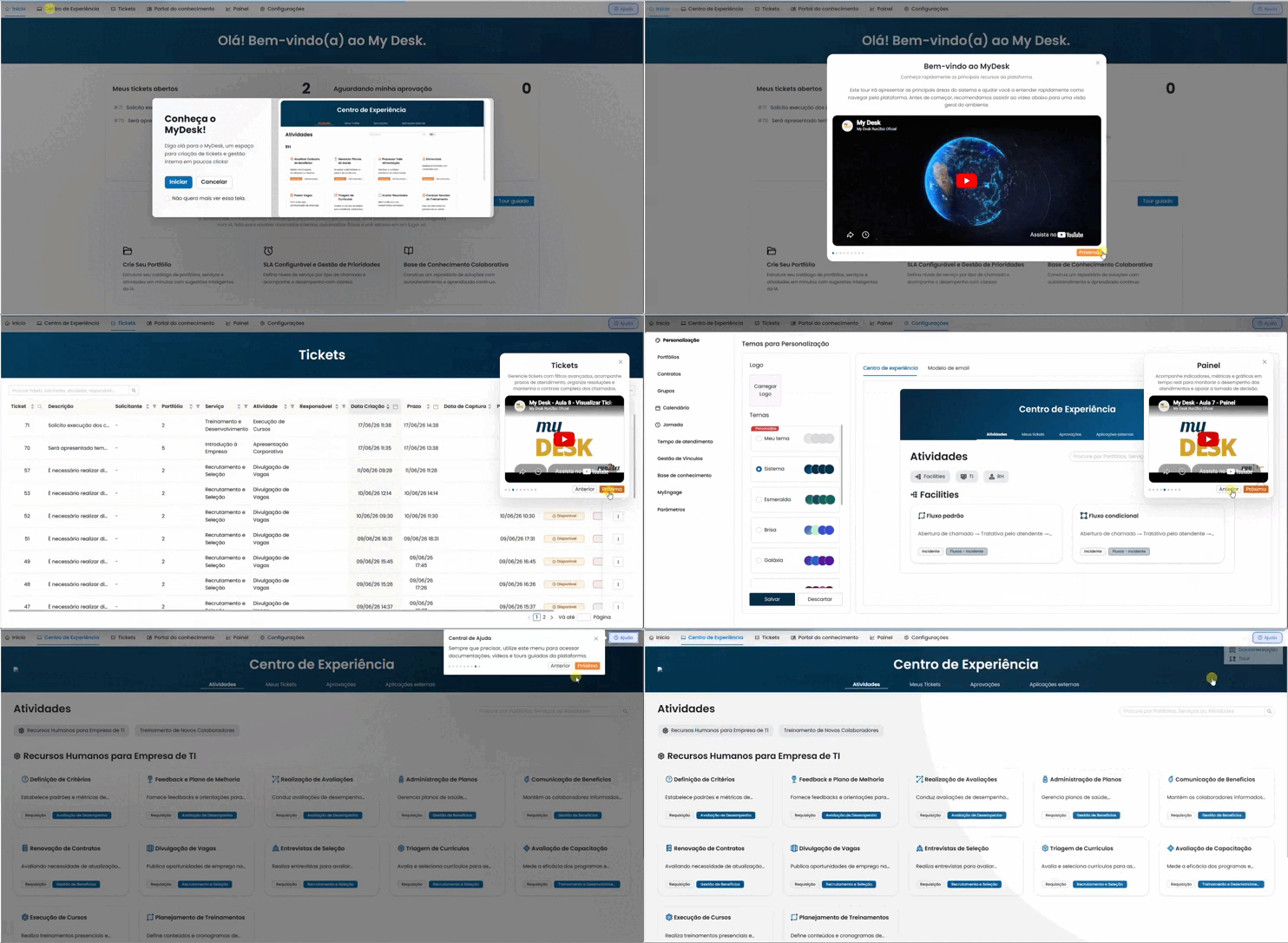
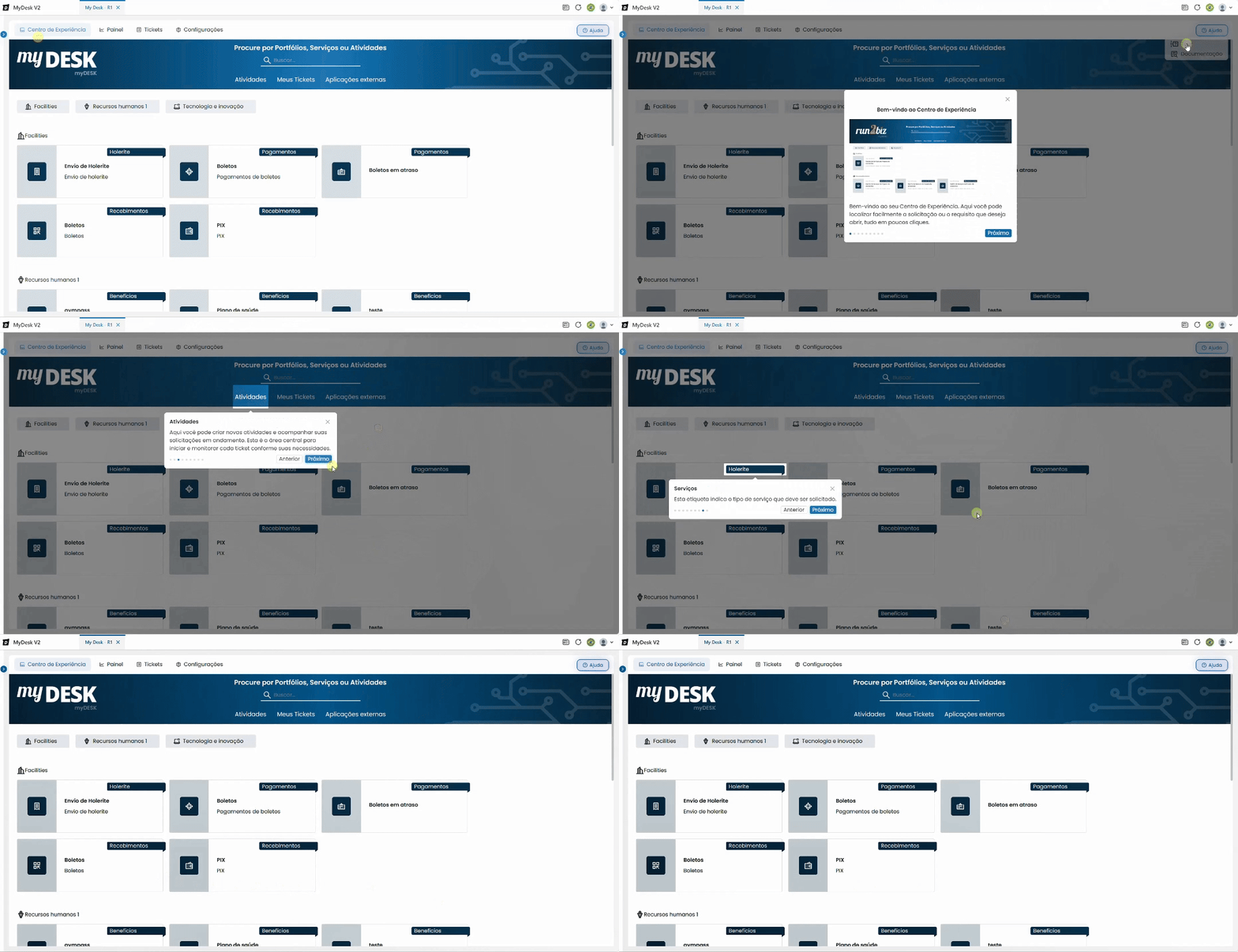
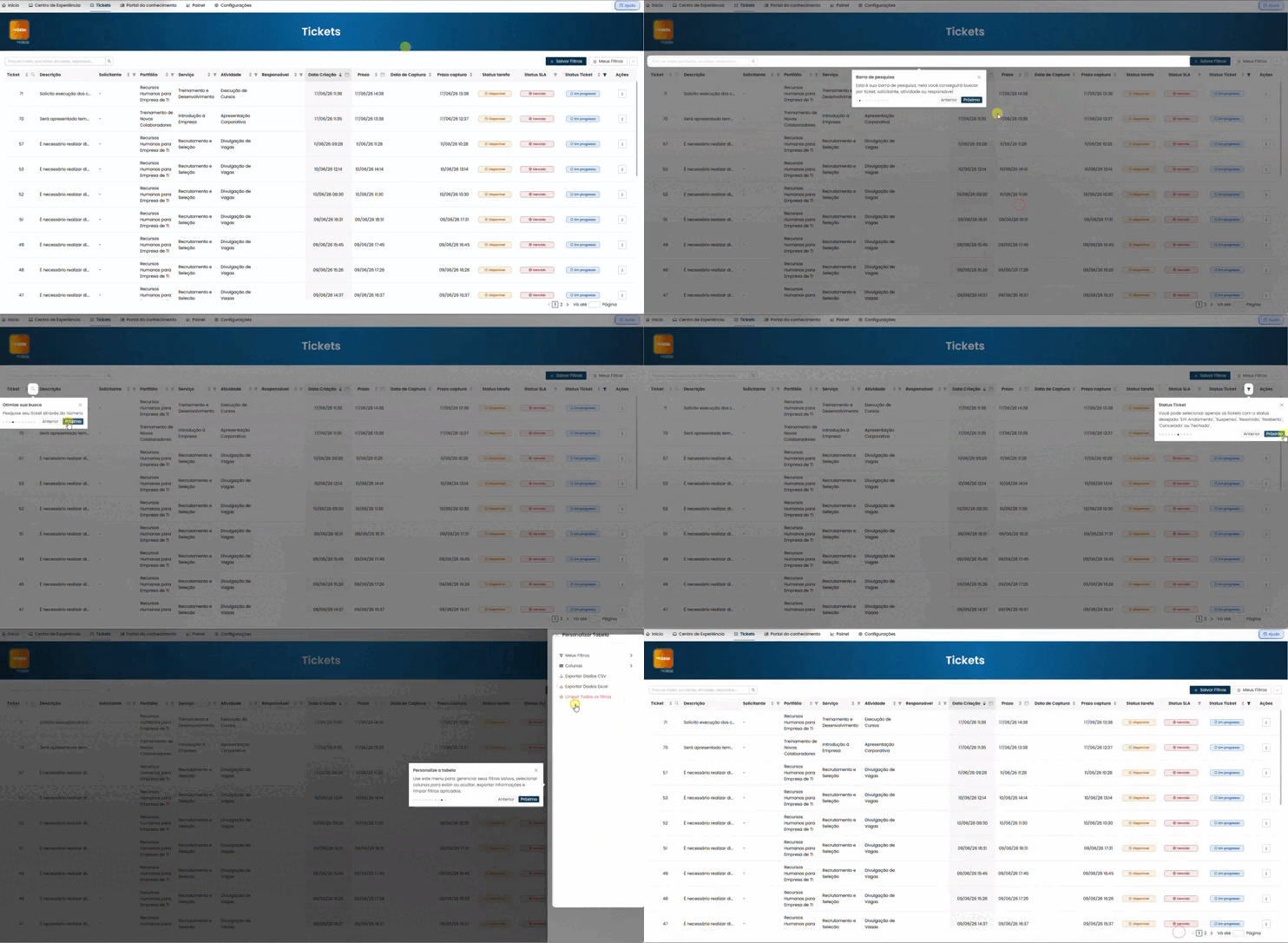
Help Button
Administrator Attendant Applicant
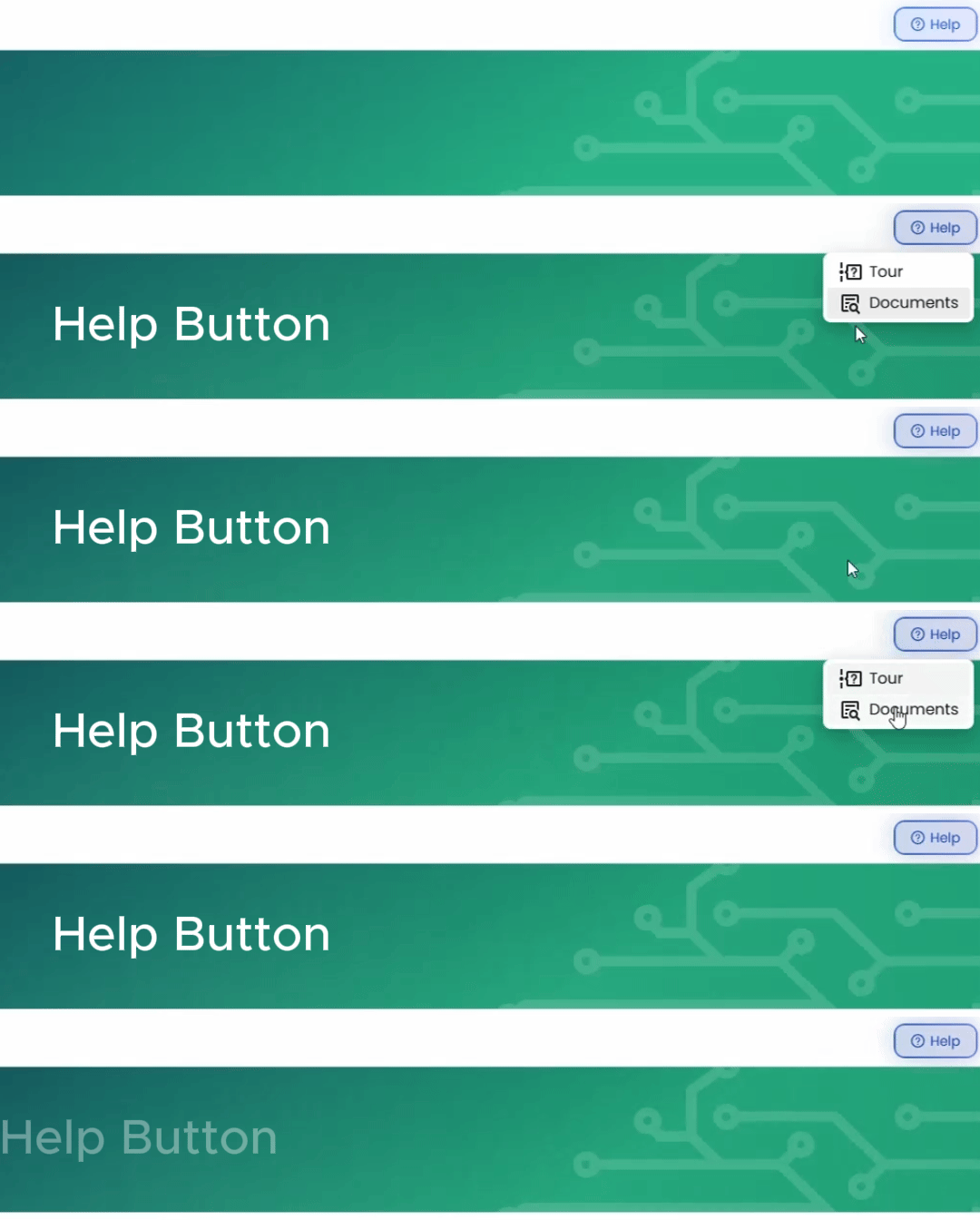
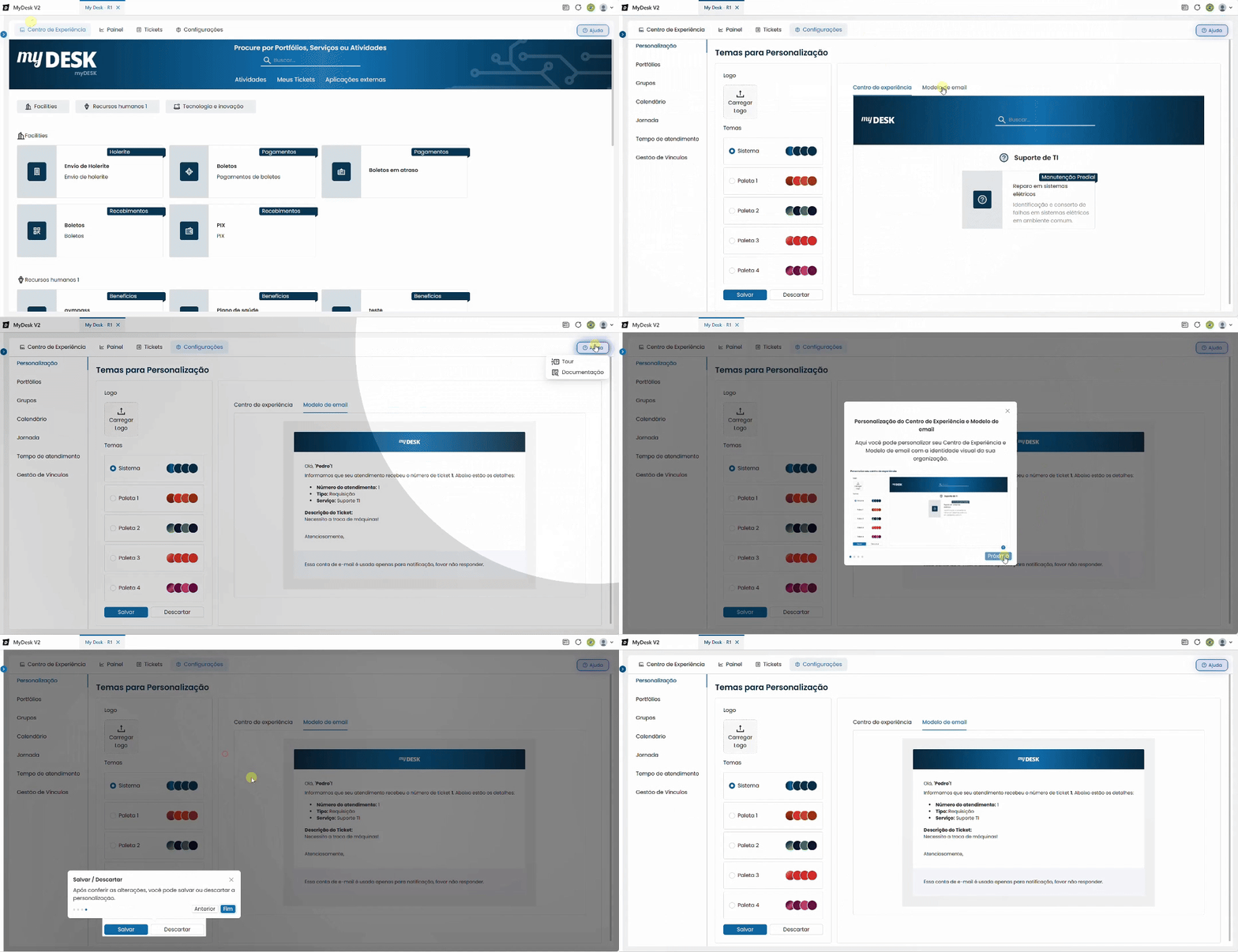
The Help button is located in the upper right corner of the screen and offers two functions that will support you at any time:
- Virtual Tour;
- Documentation.
See below for a detailed explanation of each function.
Support Documents

This button will allow you to easily find the My Desk documentation.
To access it, follow the steps below:
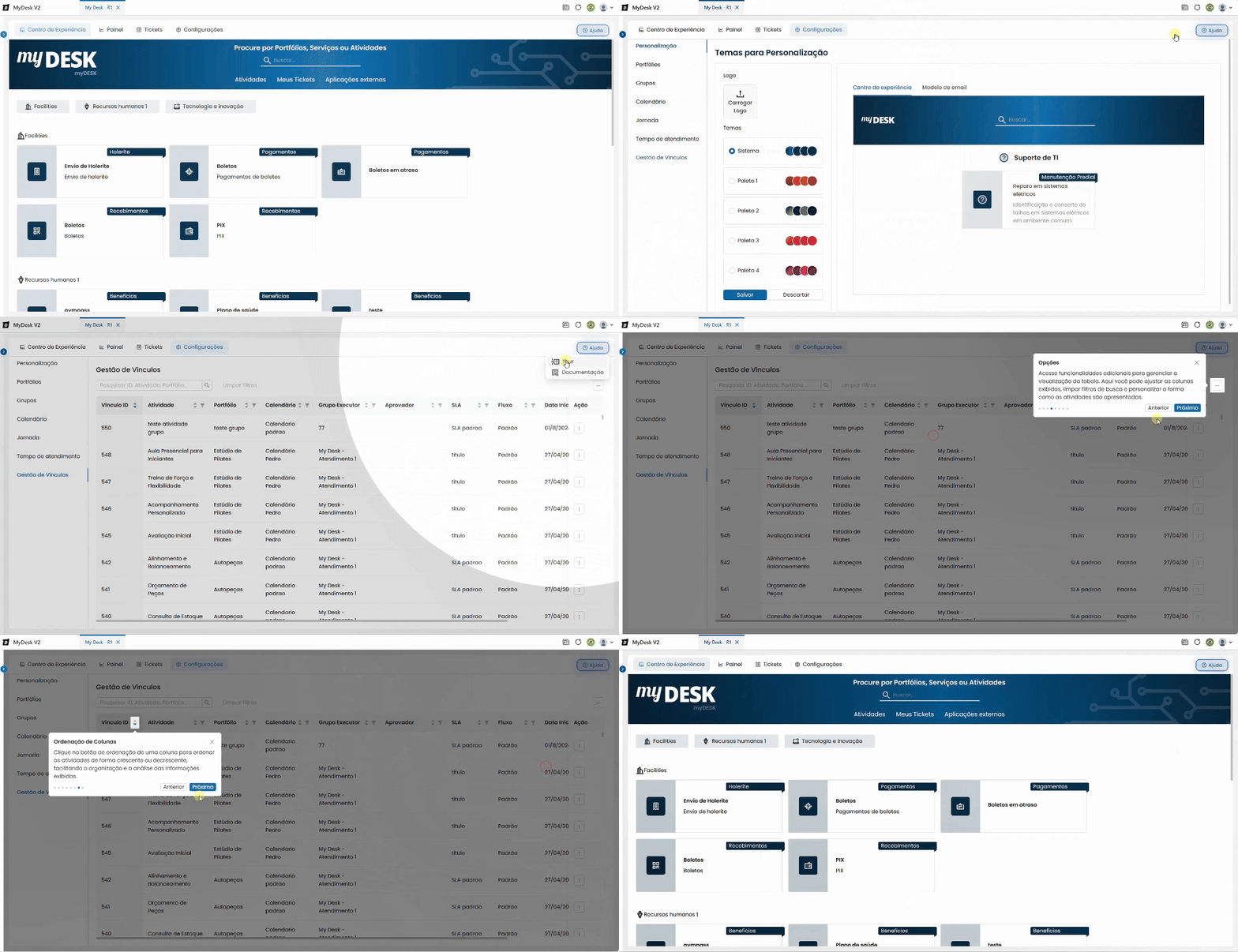
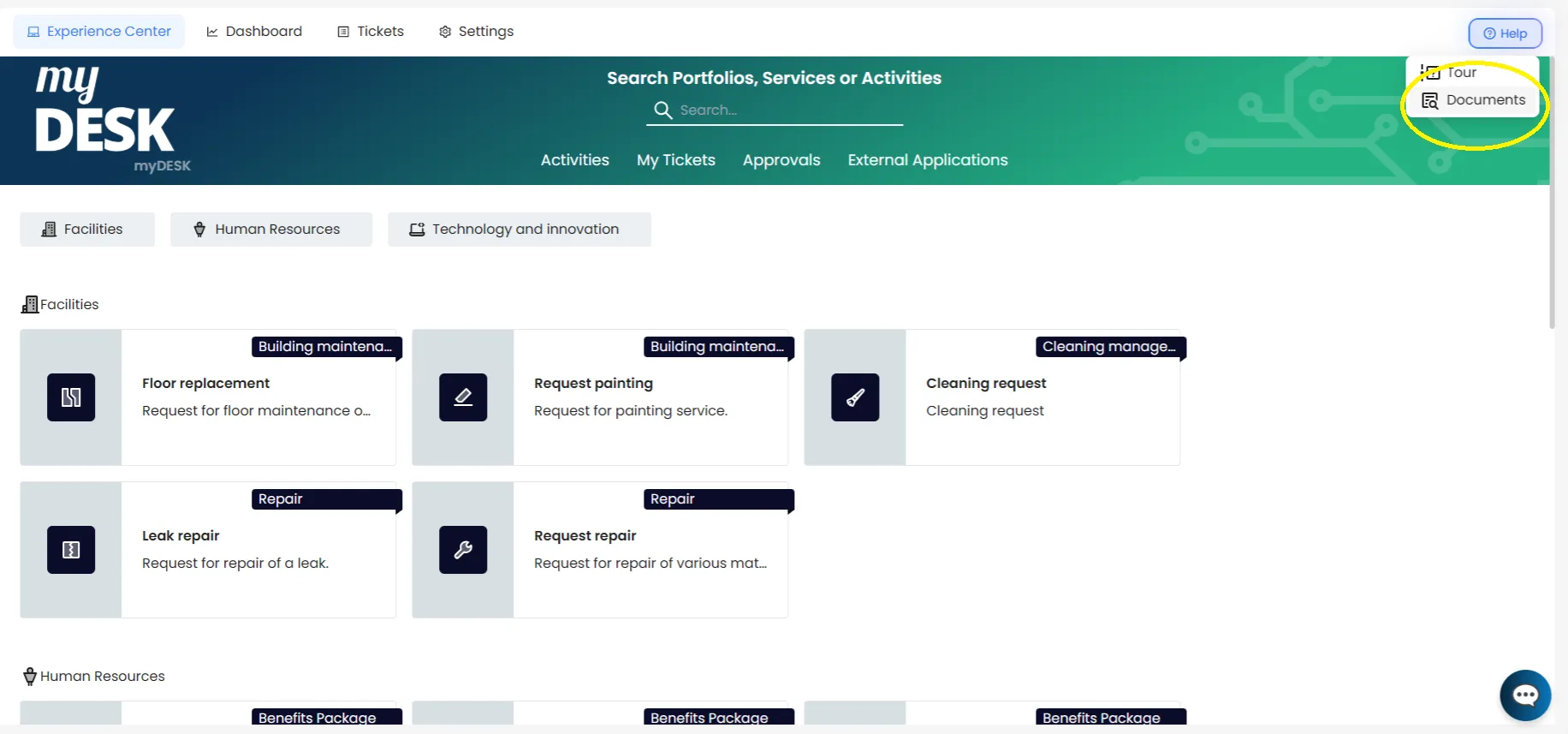
Access the Help button.
Click the blue Help button with a question mark symbol in the upper right corner of the screen;
Access the Documentation
- Two options will emerge:
- Tour;
- Documentation.
- Click on Documentation.
At that same moment, a new tab will load in your internet browser, and you will be able to browse through all the My Desk documentation.
Virtual Tour

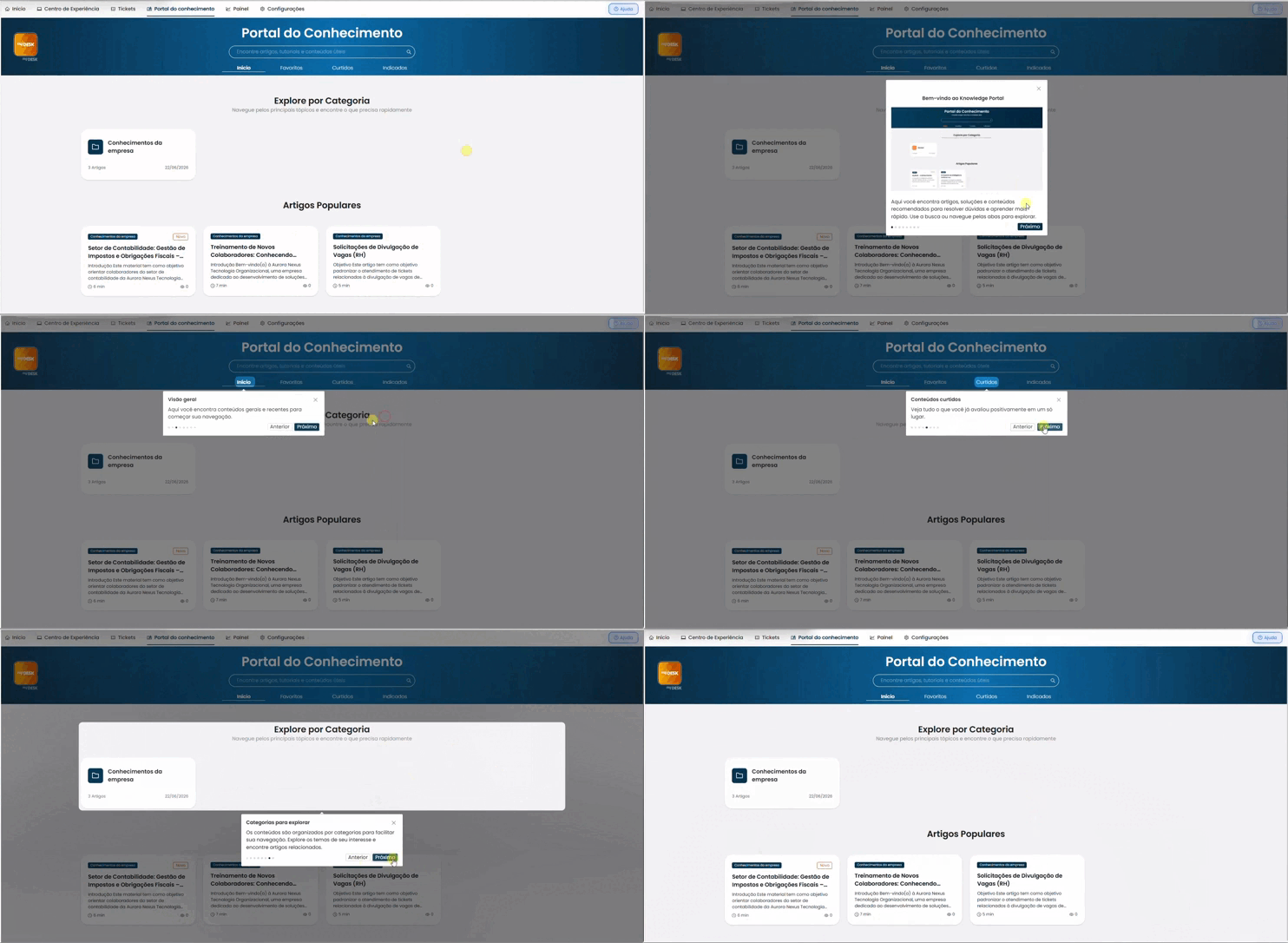
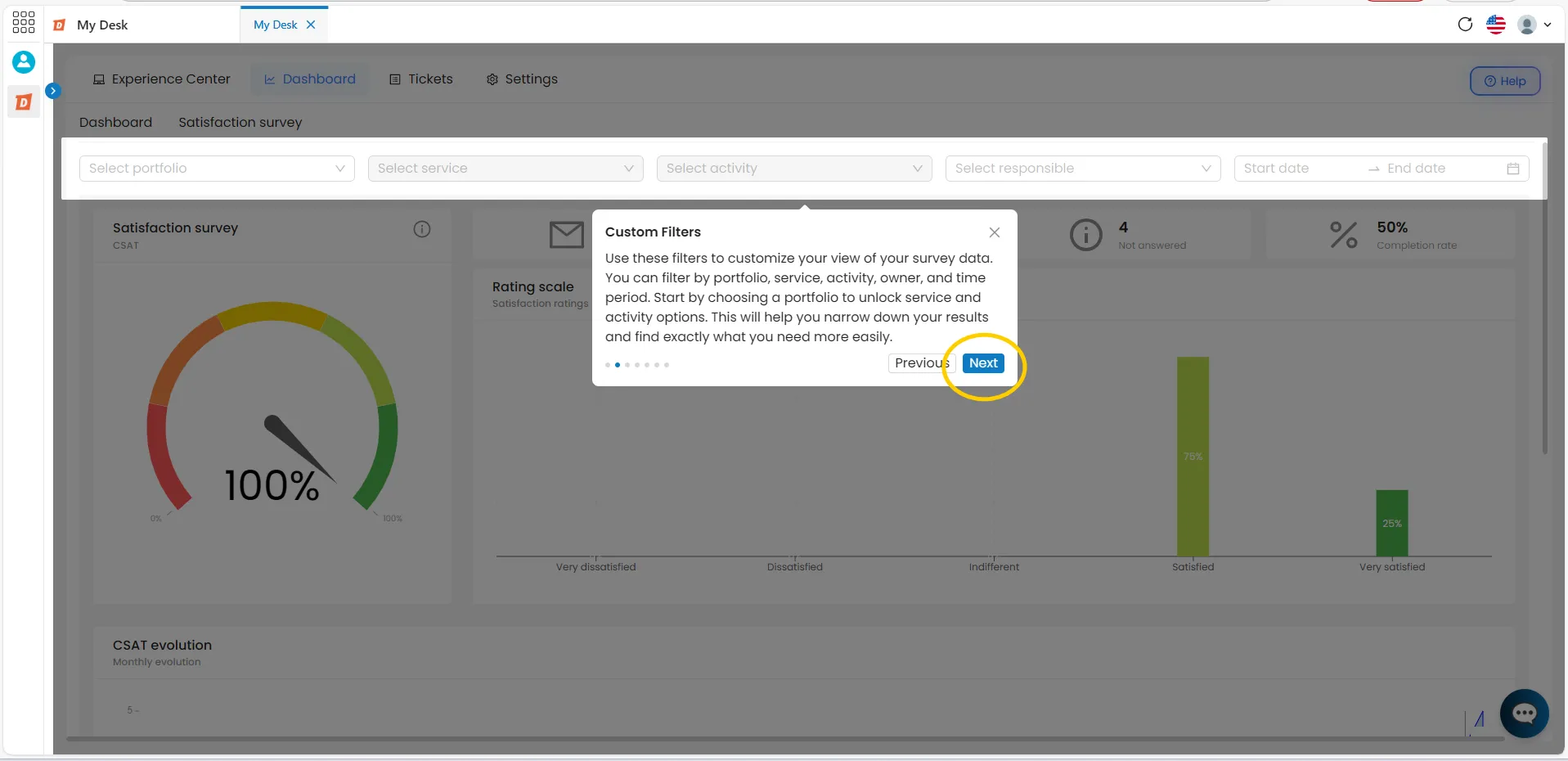
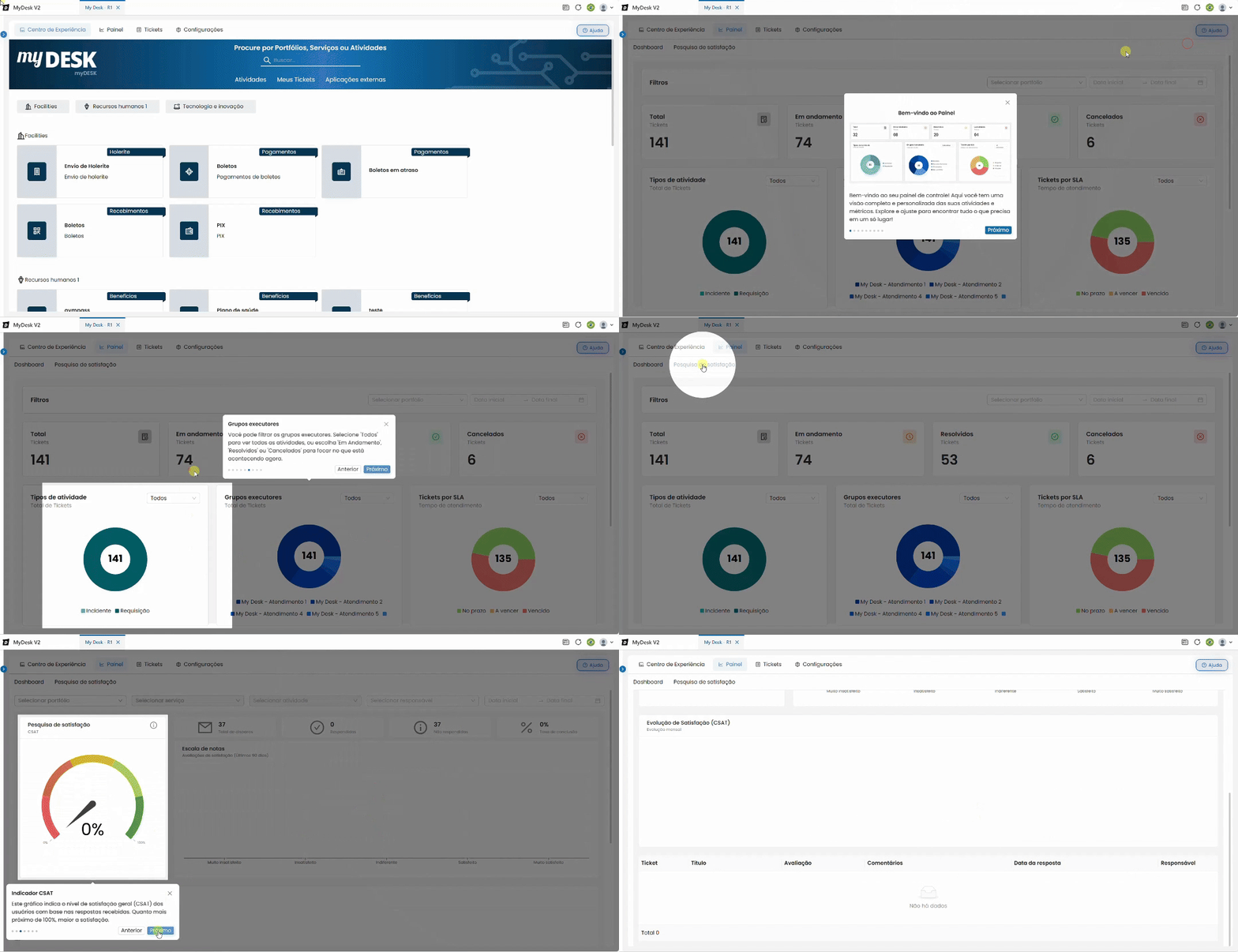
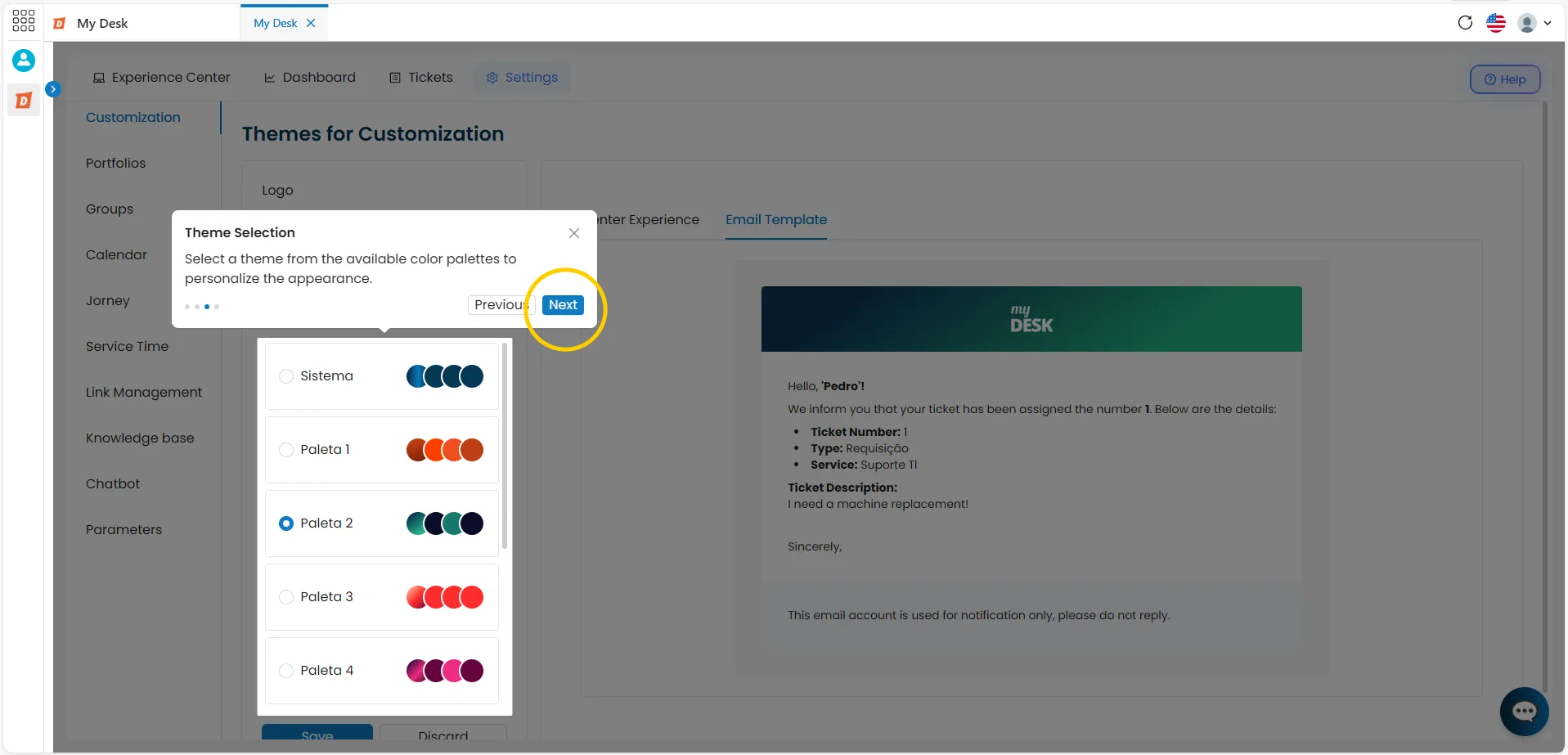
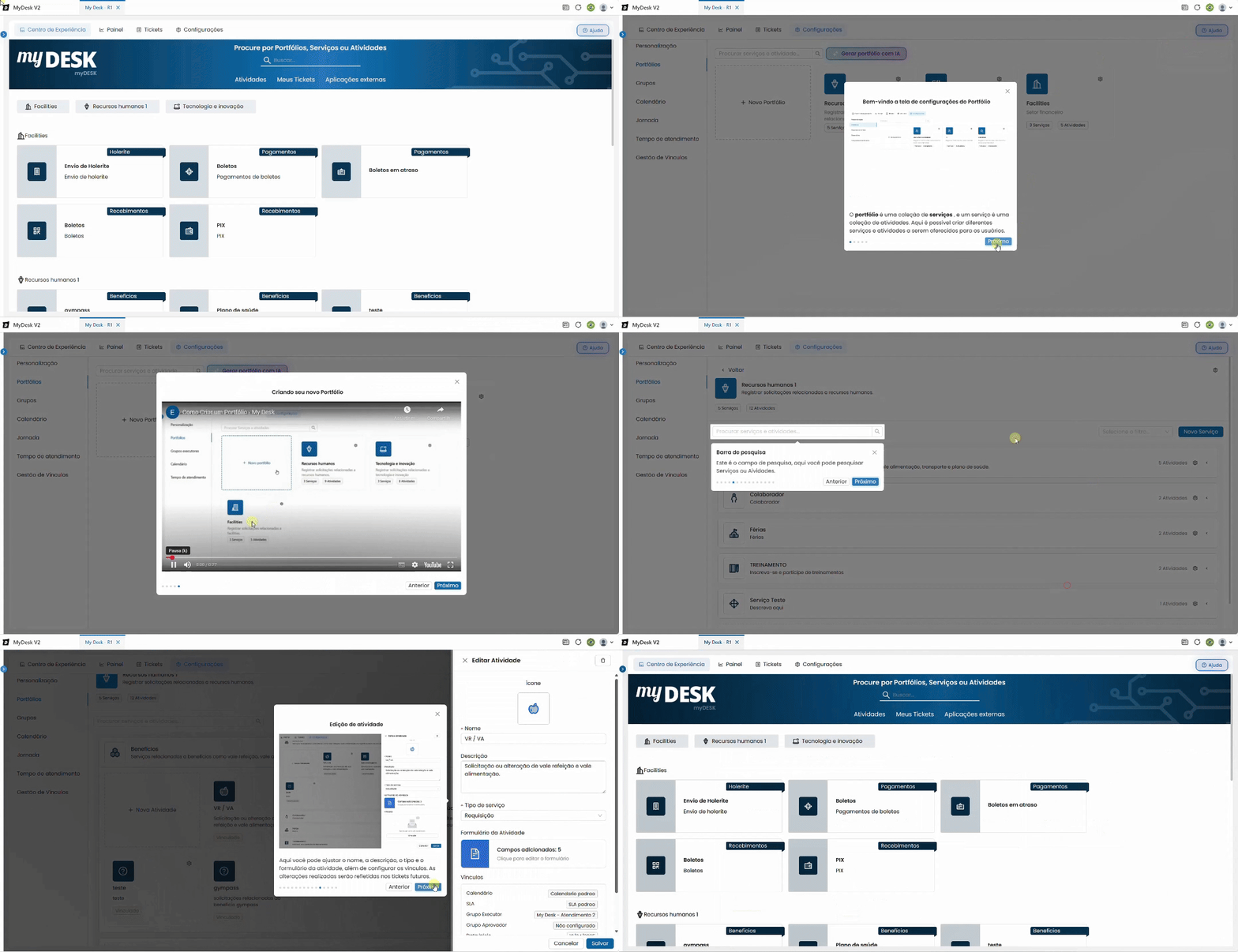
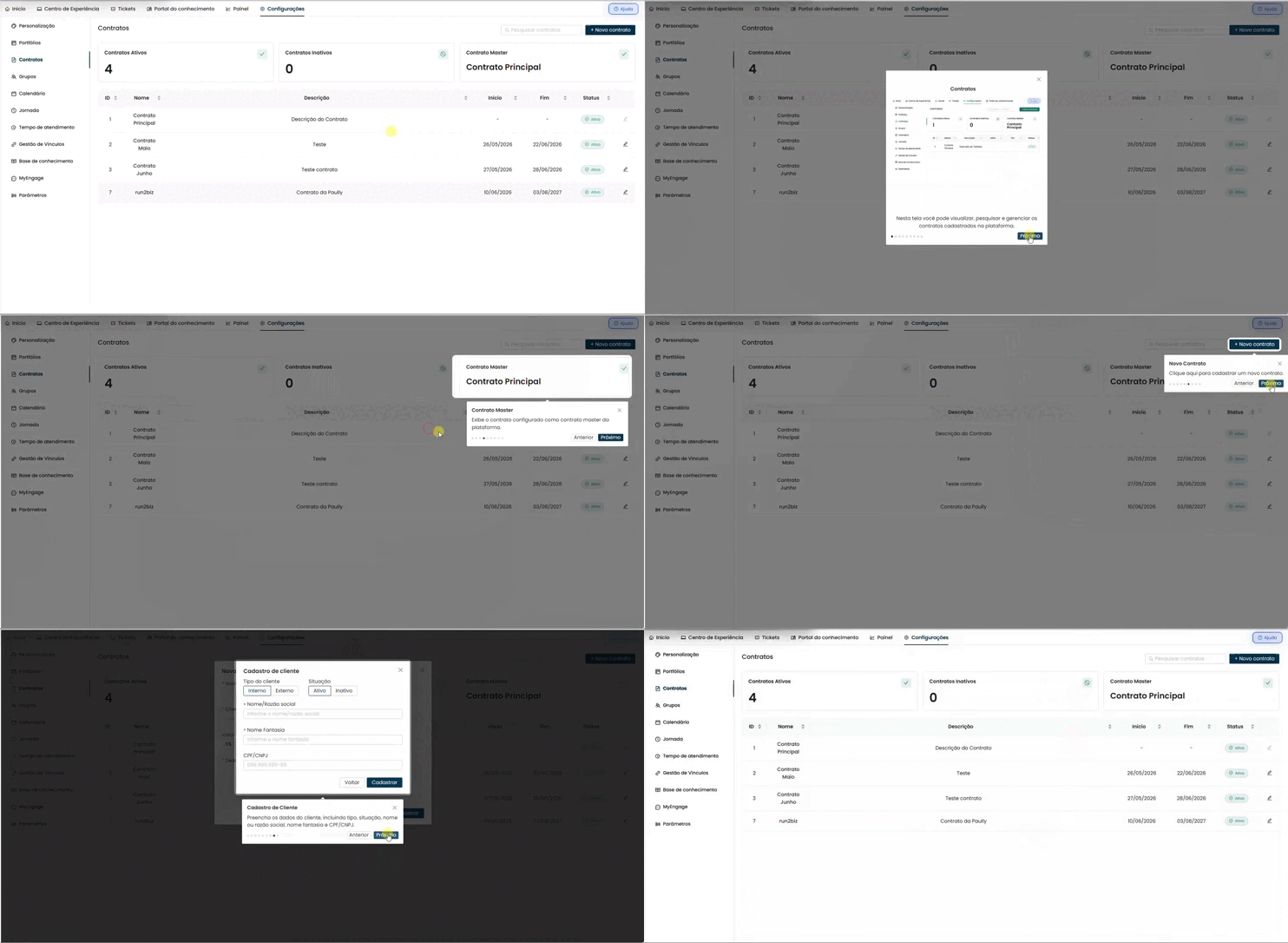
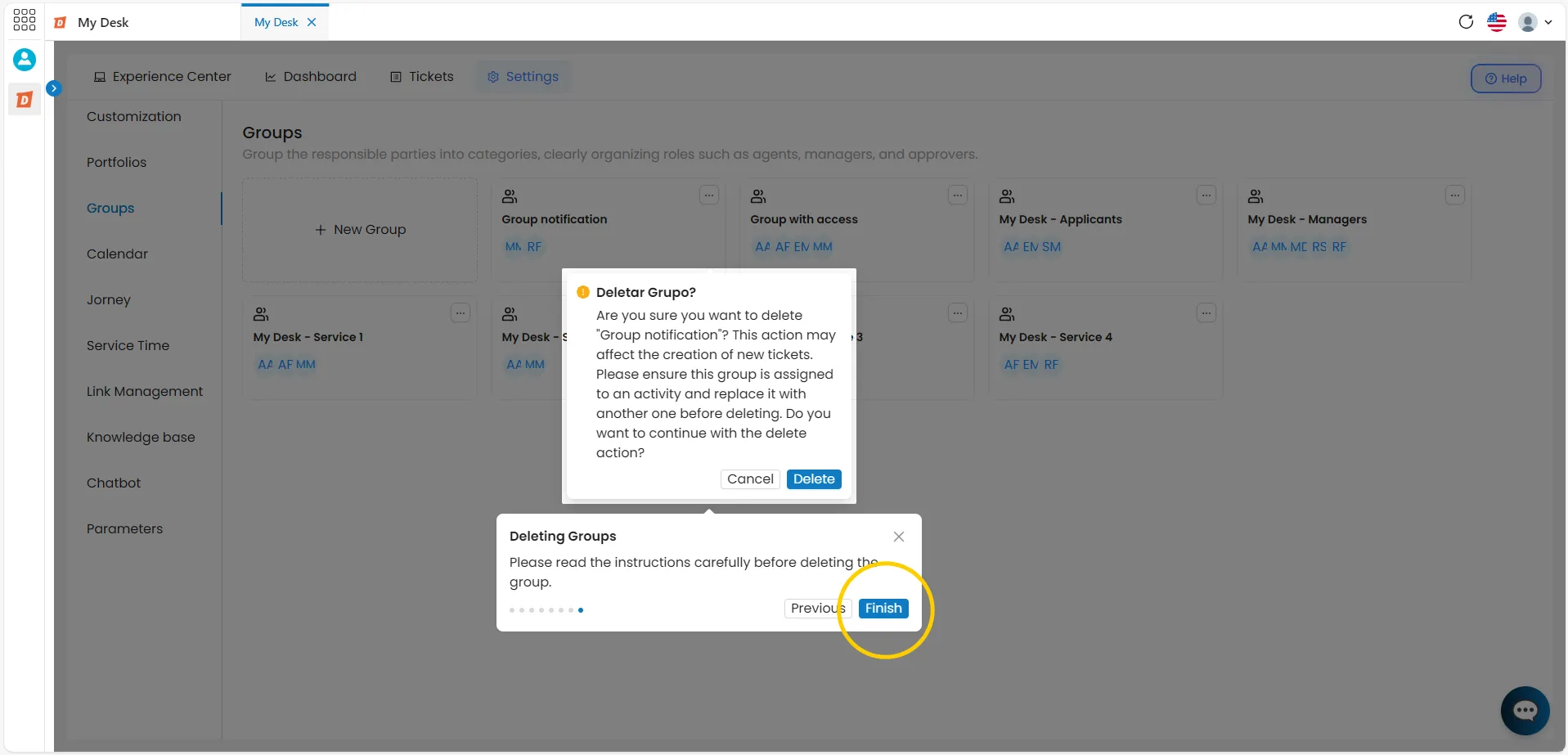
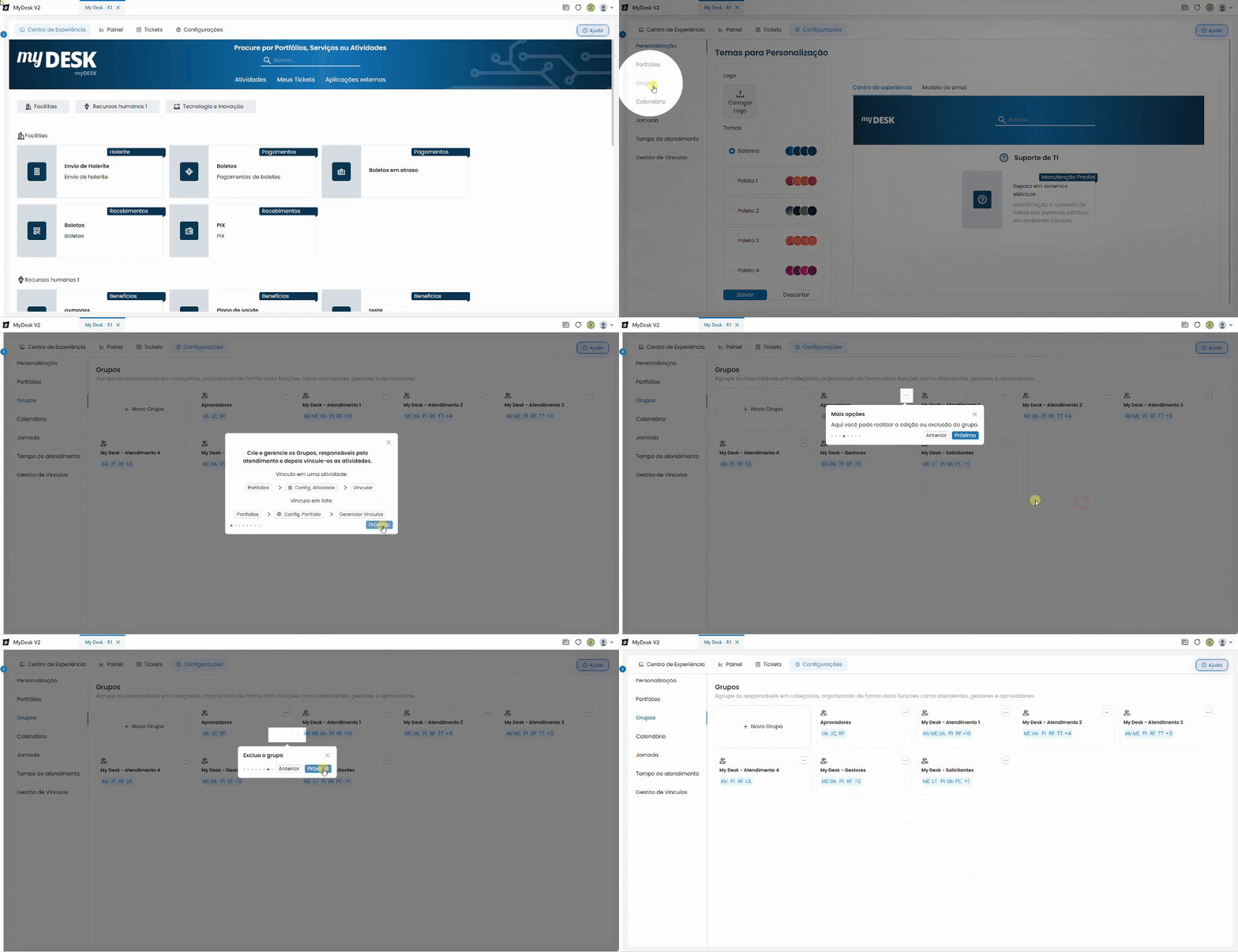
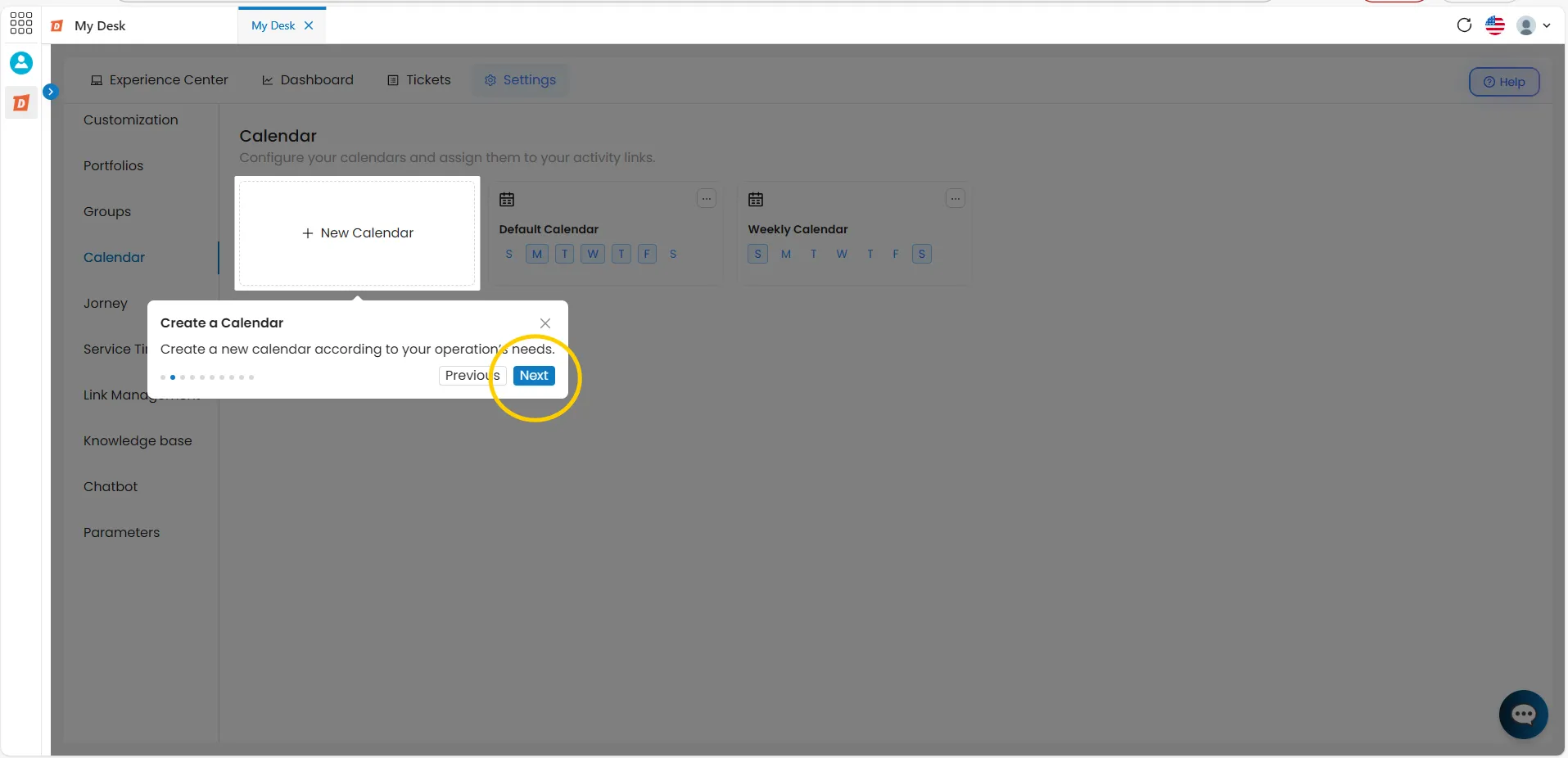
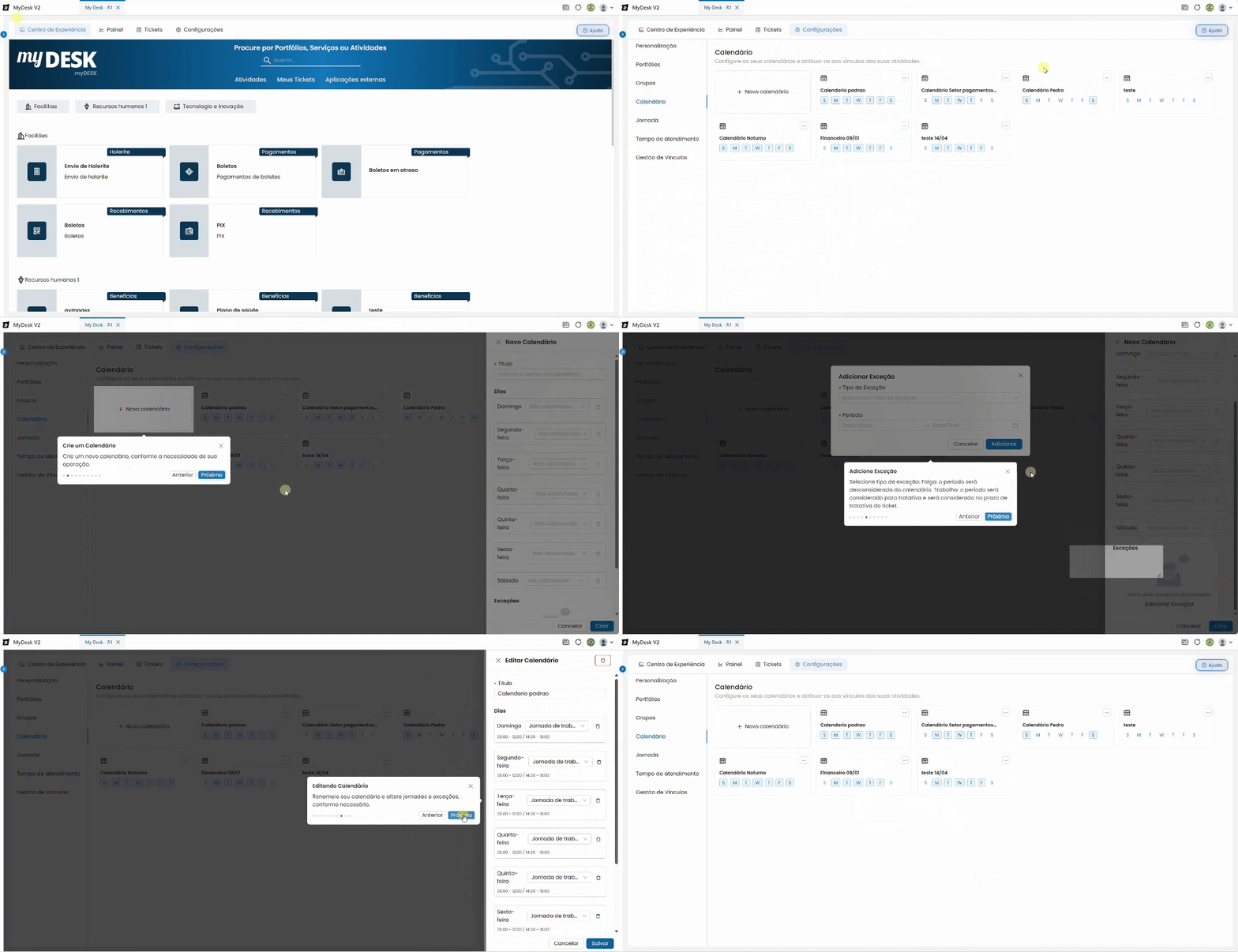
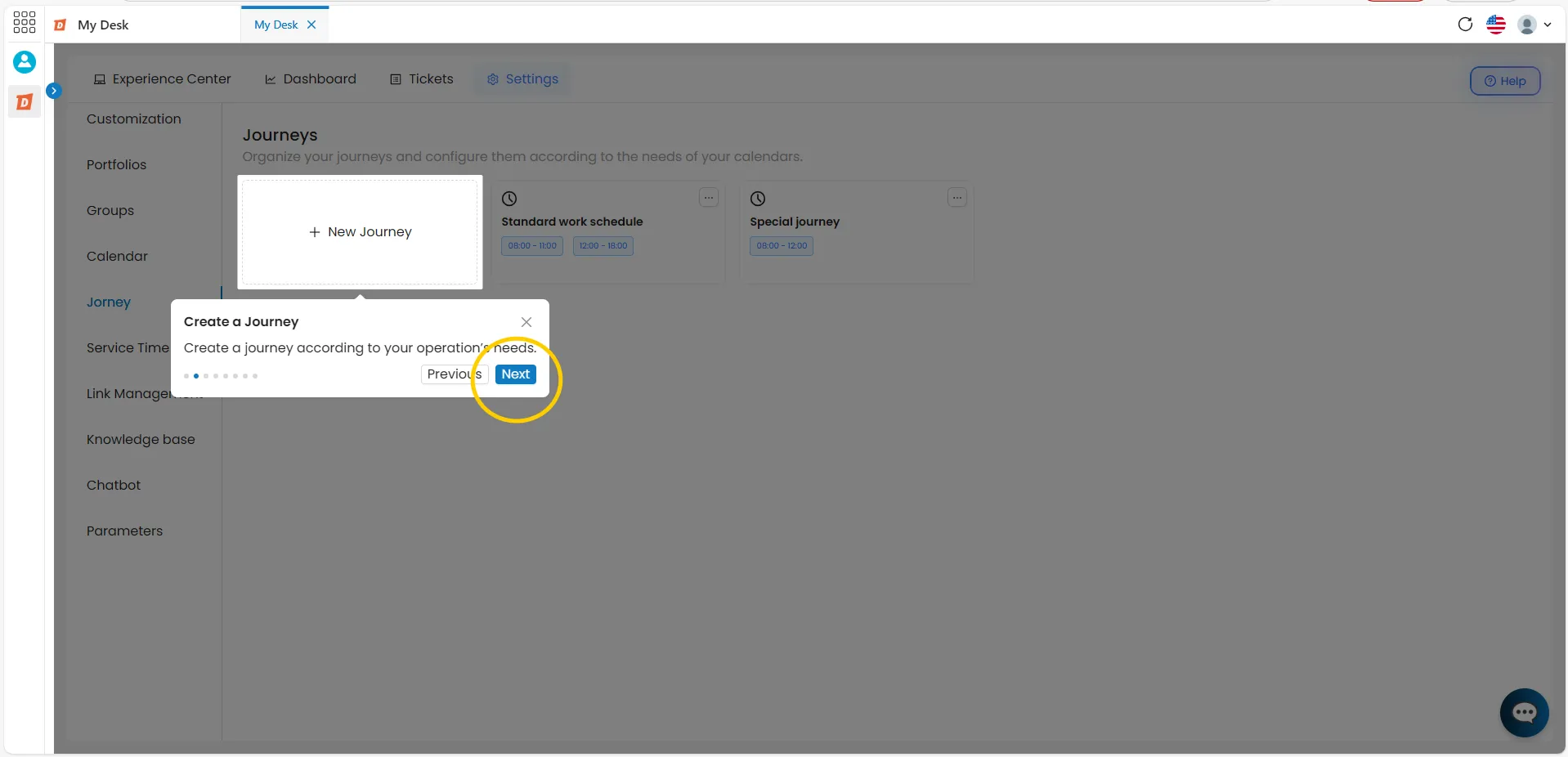
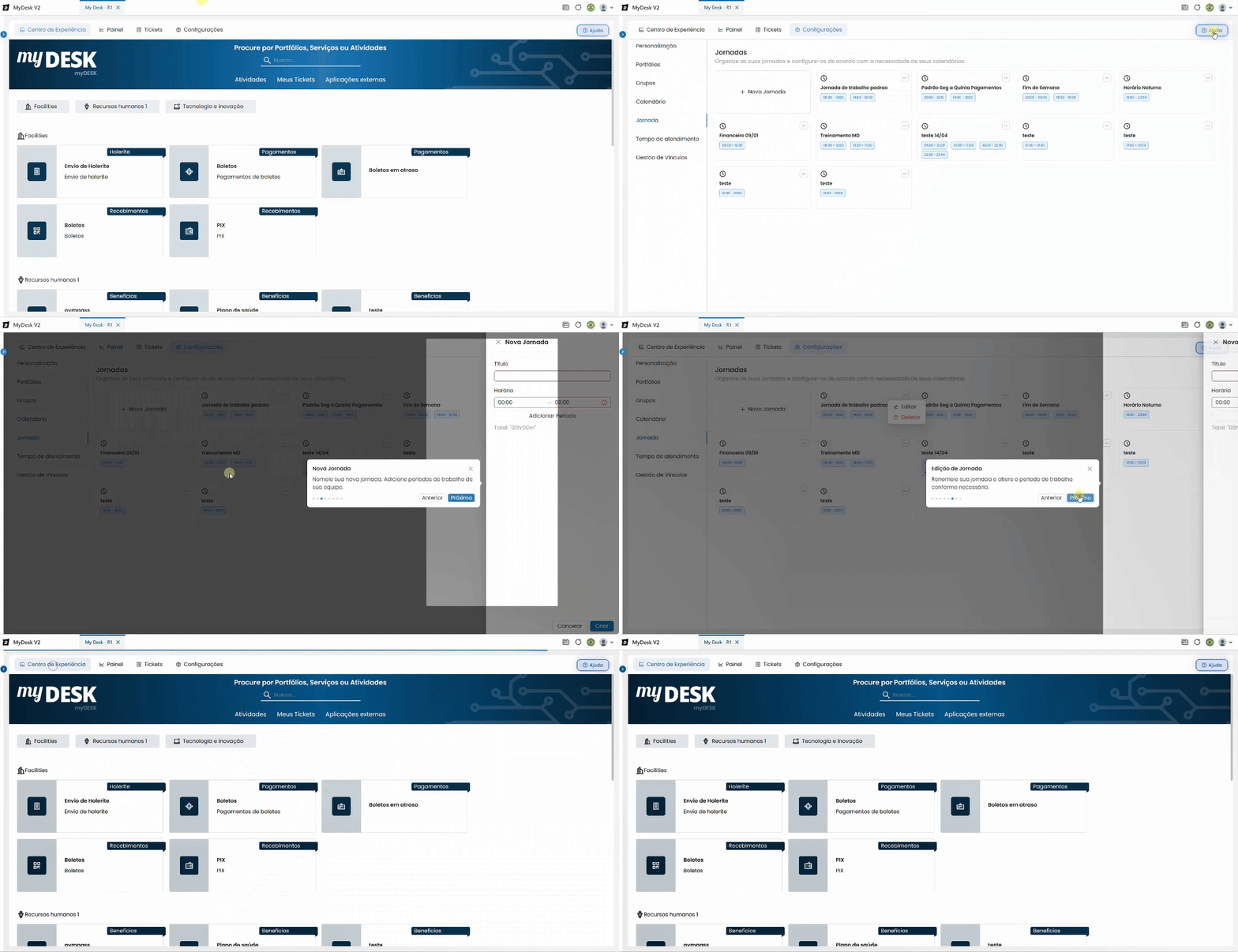
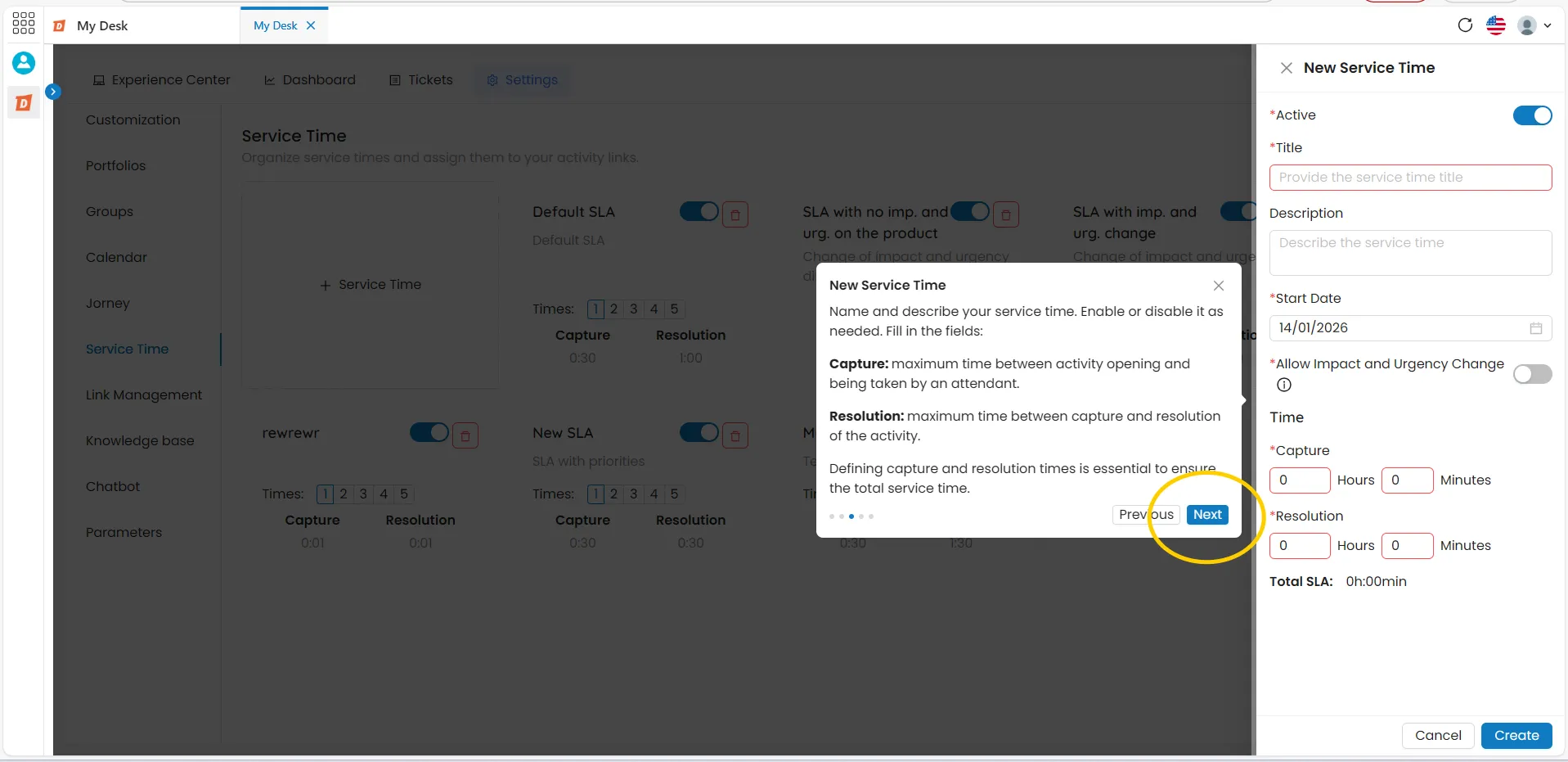
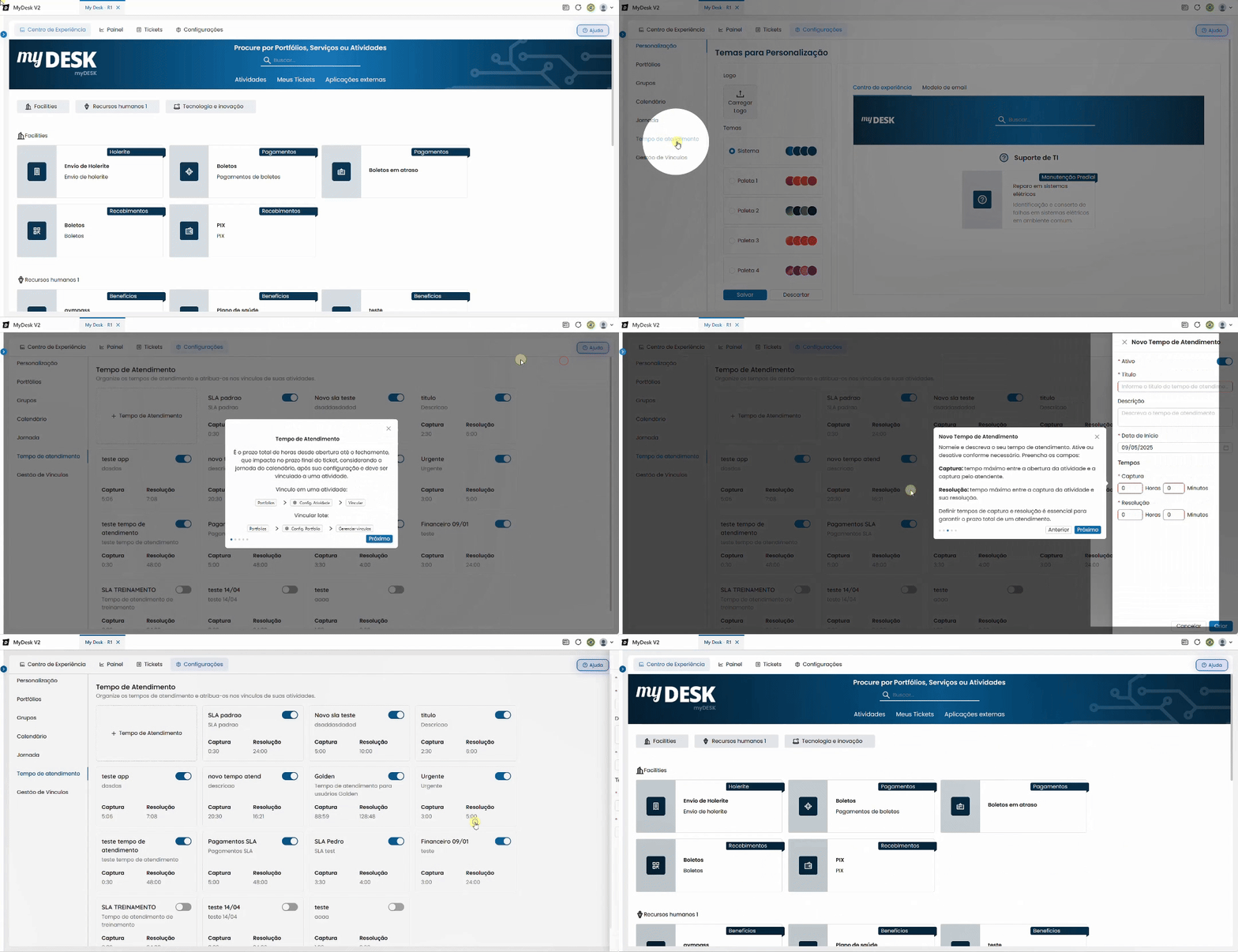
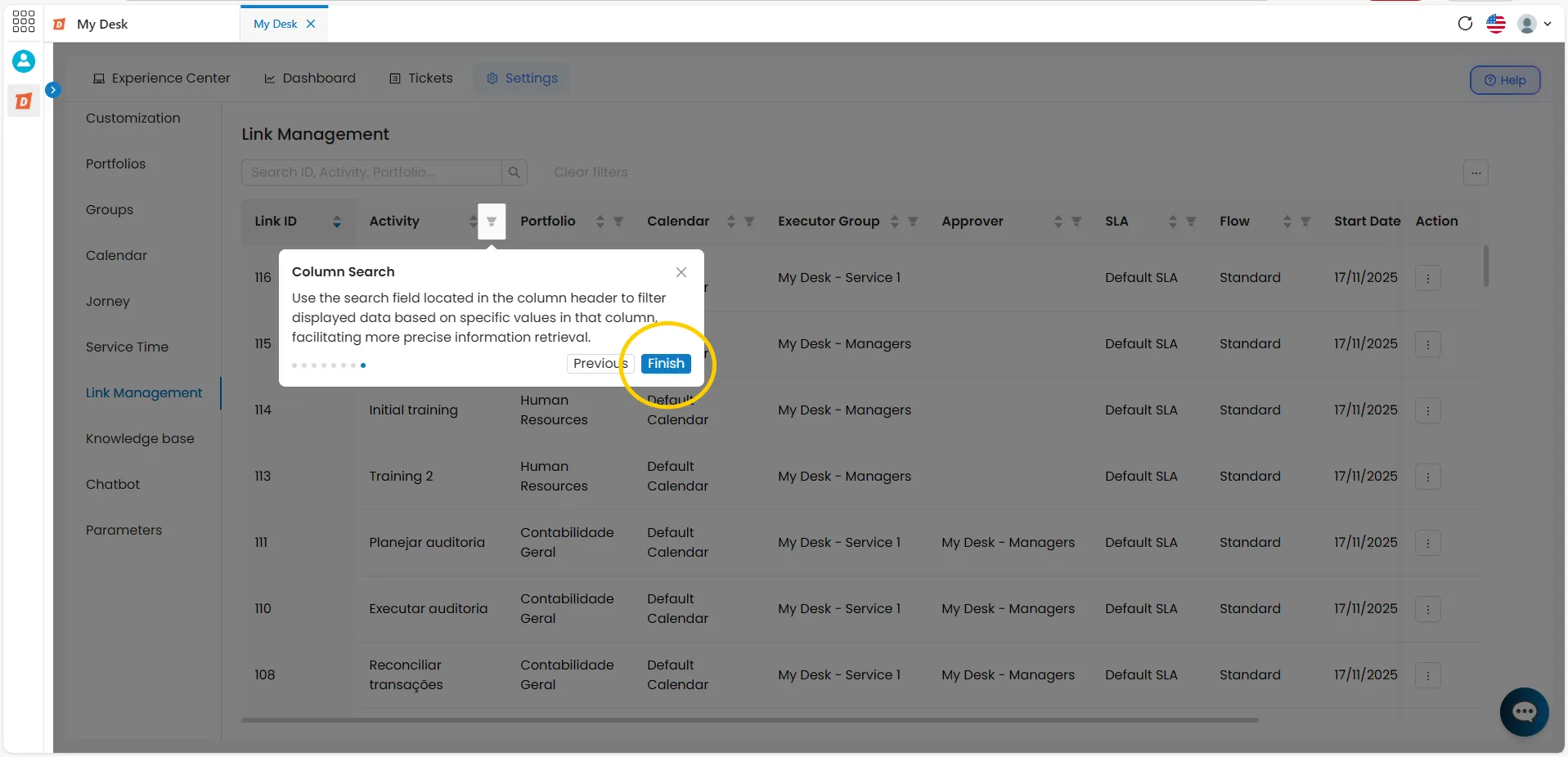
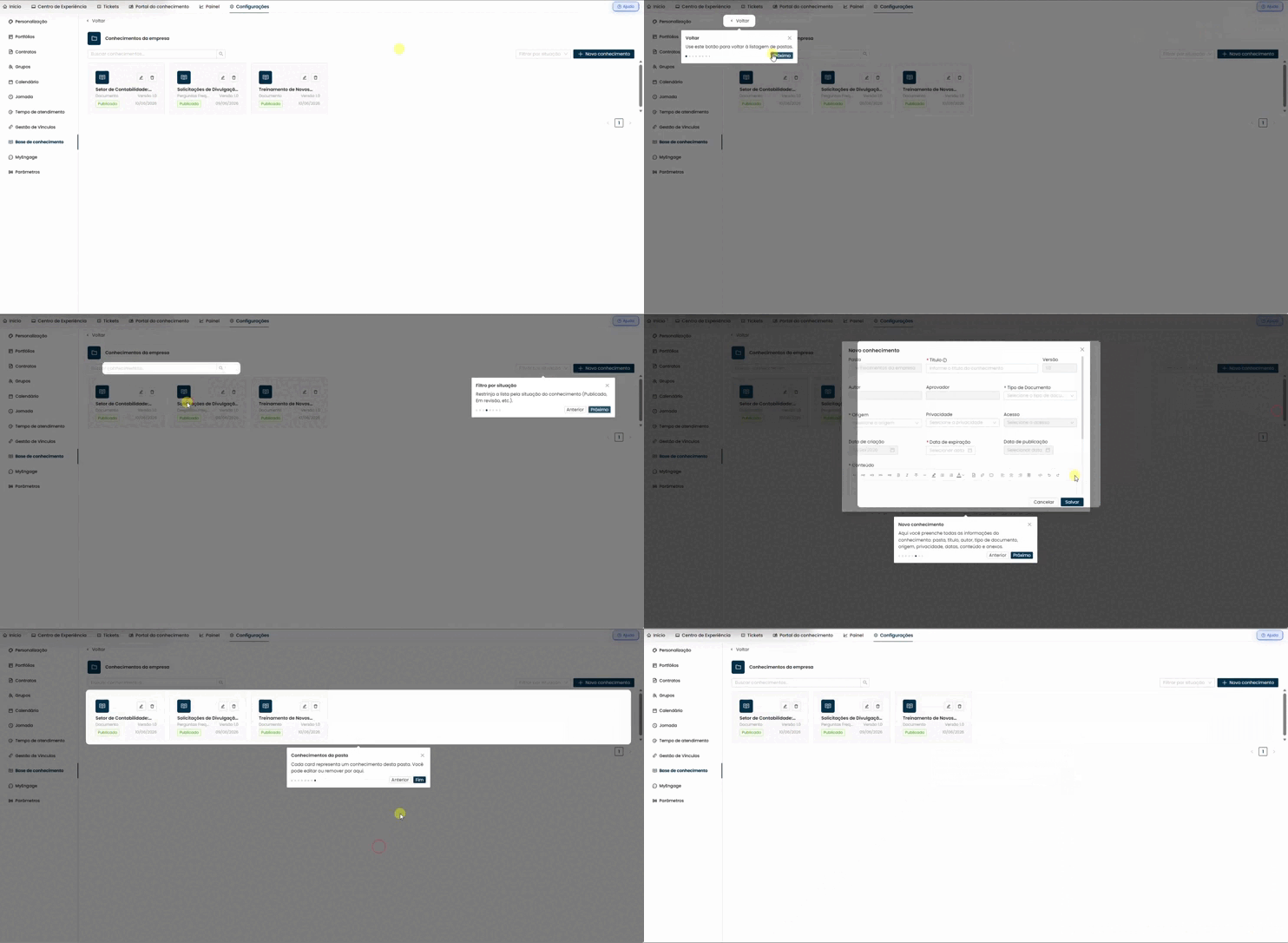
The Virtual Tour offers an immersive and interactive experience, allowing you to explore My Desk before actually using it. It uses images and/or videos to create a virtual tour of the entire screen, as if you were actually using that function. Each My Desk function, in addition to its documentation, has a virtual tour that shows the details of that page. To access the virtual tour, follow the steps below:
Access the Help button
- Click on blue Help buttonwith a question mark symbol in the upper right corner of the screen;
Access the Tour
- Two options will emerge:
- Documentation;
- Tour.
- Click on Tour.
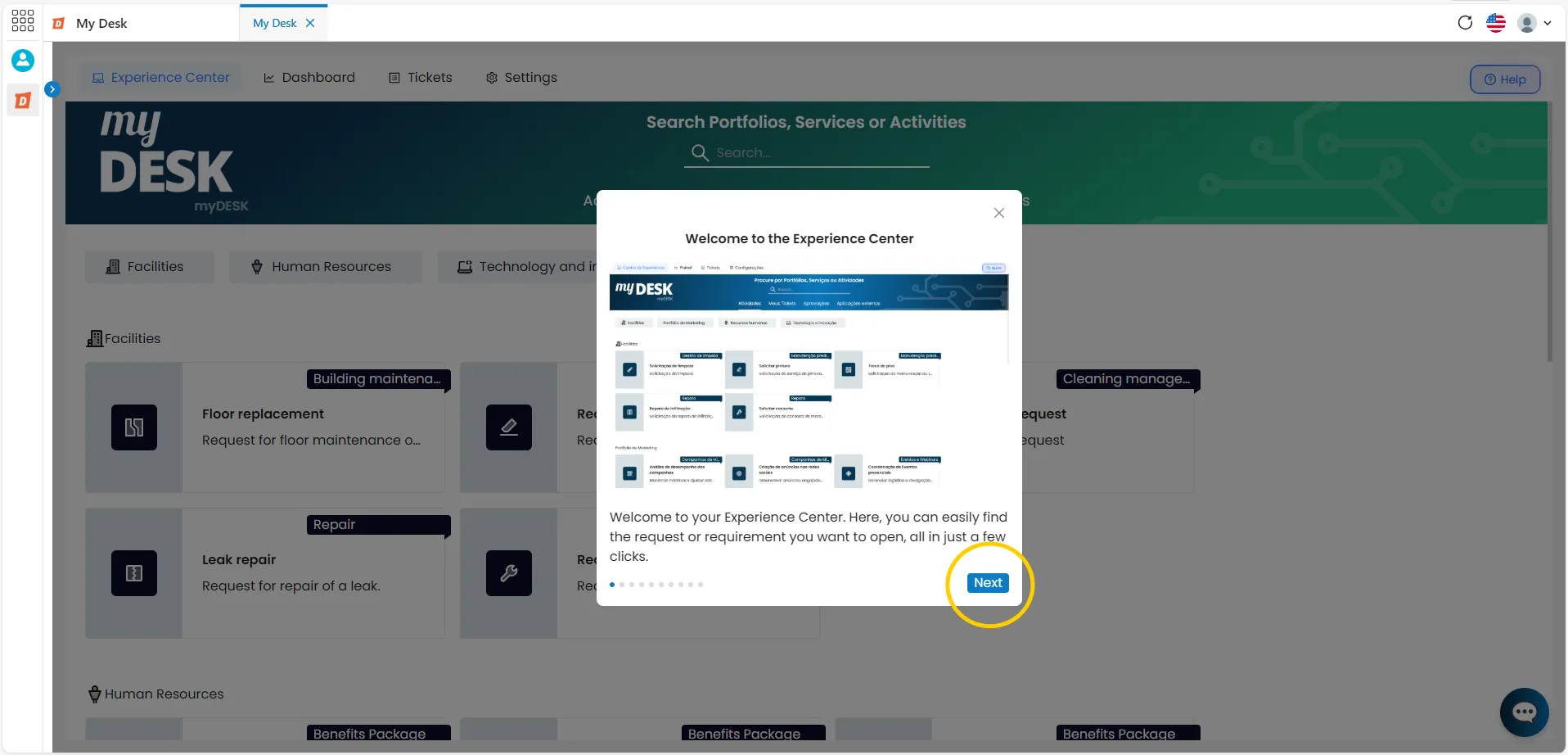
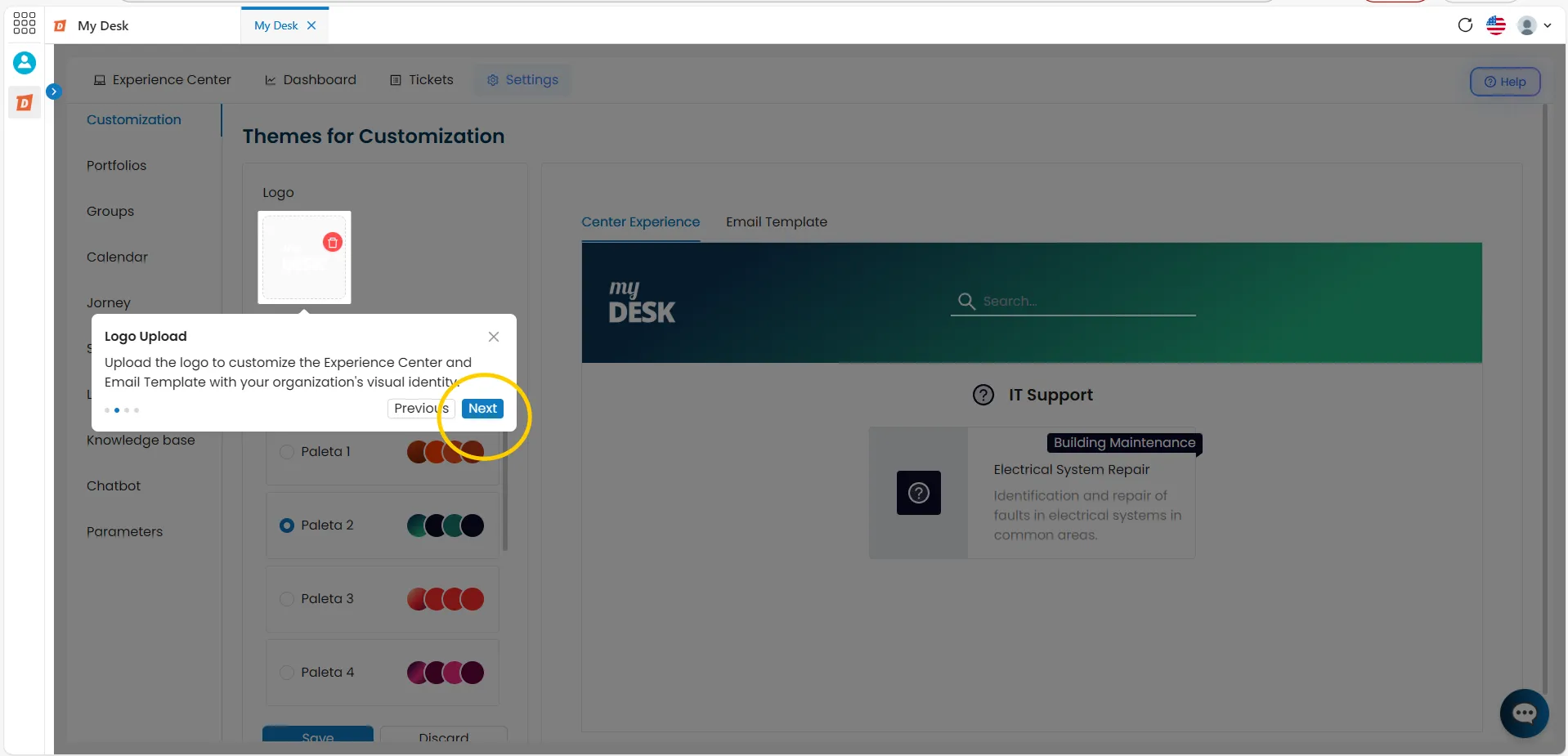
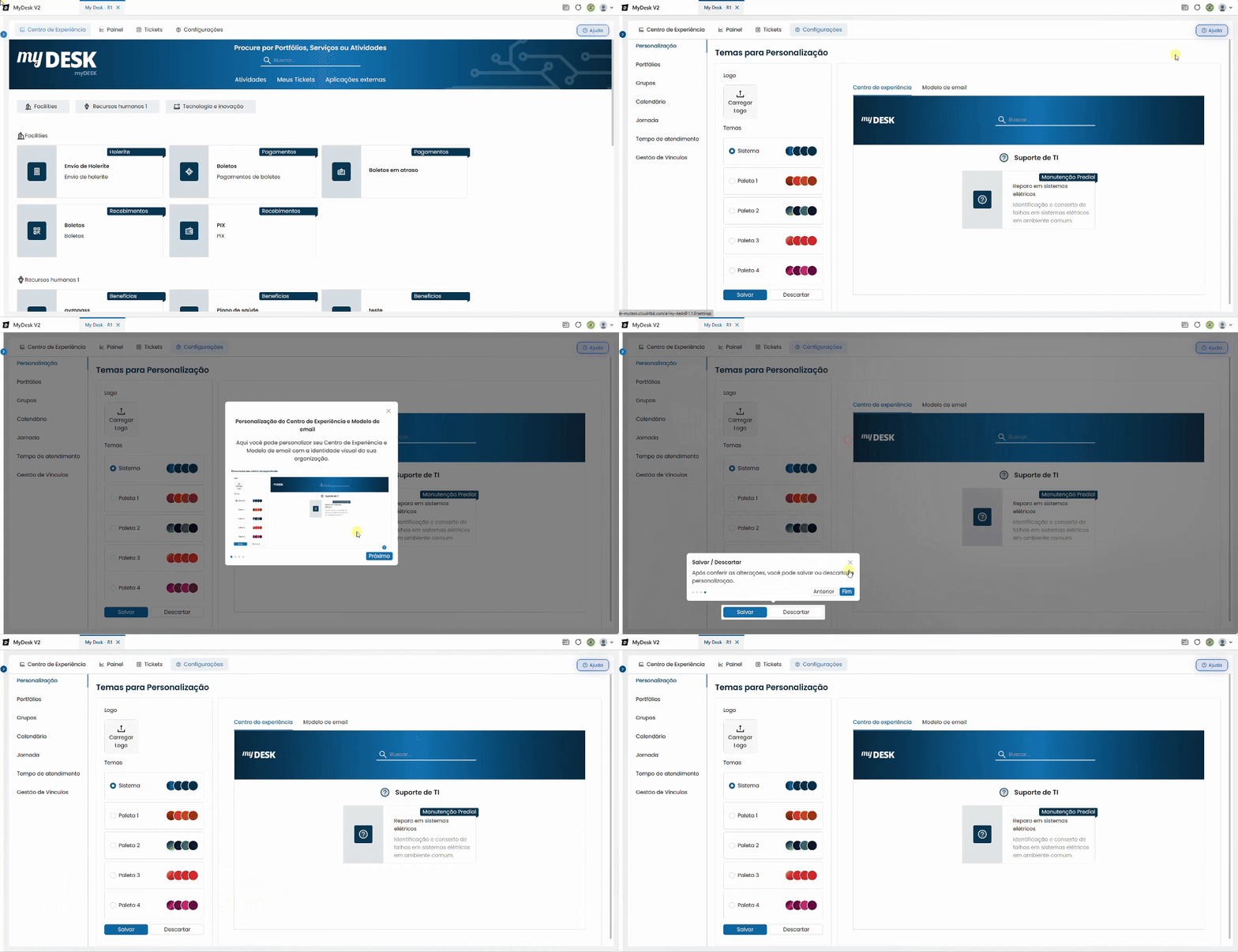
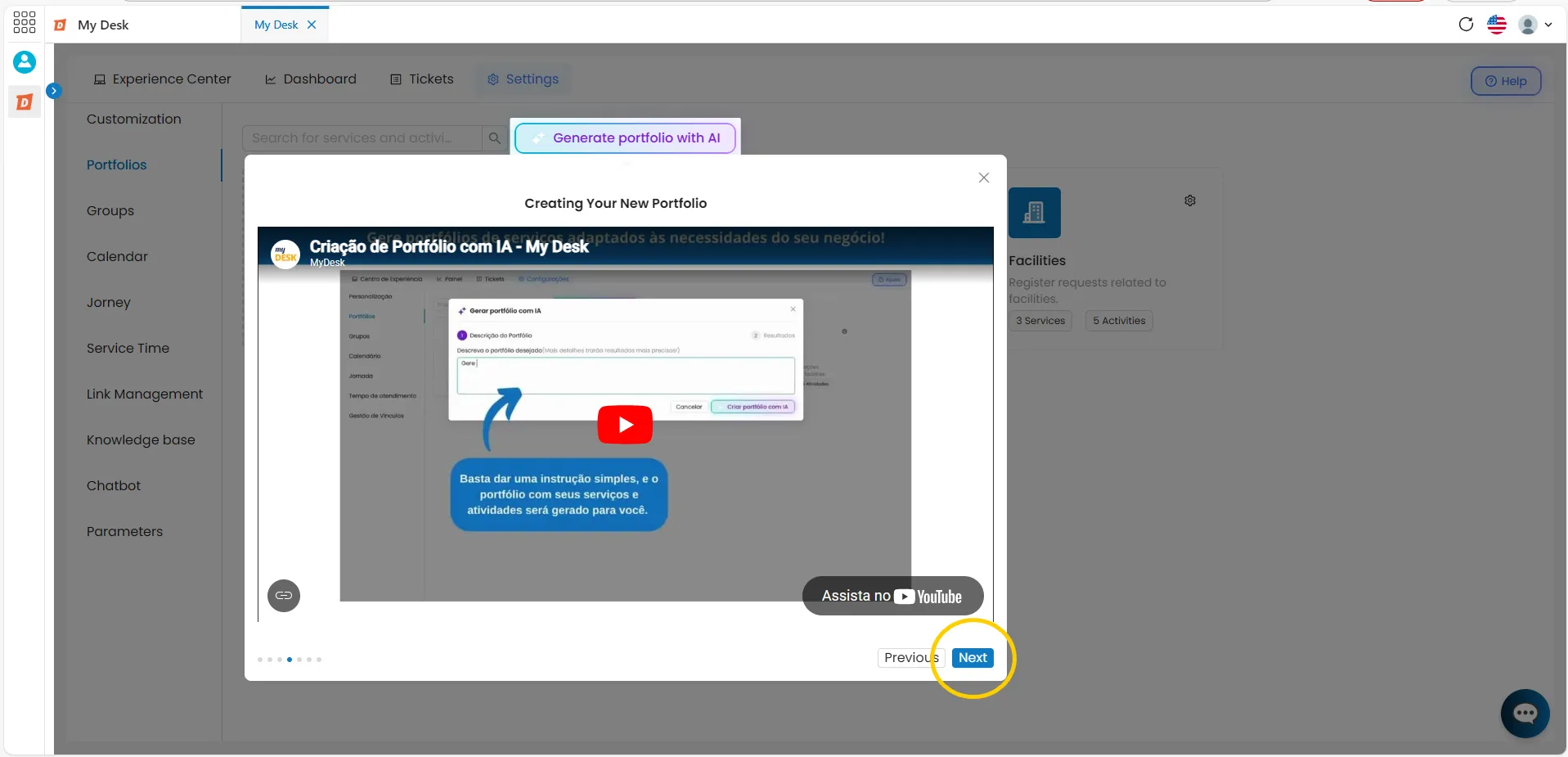
- At that same moment, a window will appear in the center of the screen, starting the tour.
- Click next, and then next again, until you are finished and have viewed all the features of this page.