External Applications
Administrator Attendant Applicant

The External Applications menu allows you to add links to online tools or websites in the External Applications tab of the Experience Center. Use this space to gather the links you frequently access in your daily work, all in one place.
1 - Applications List

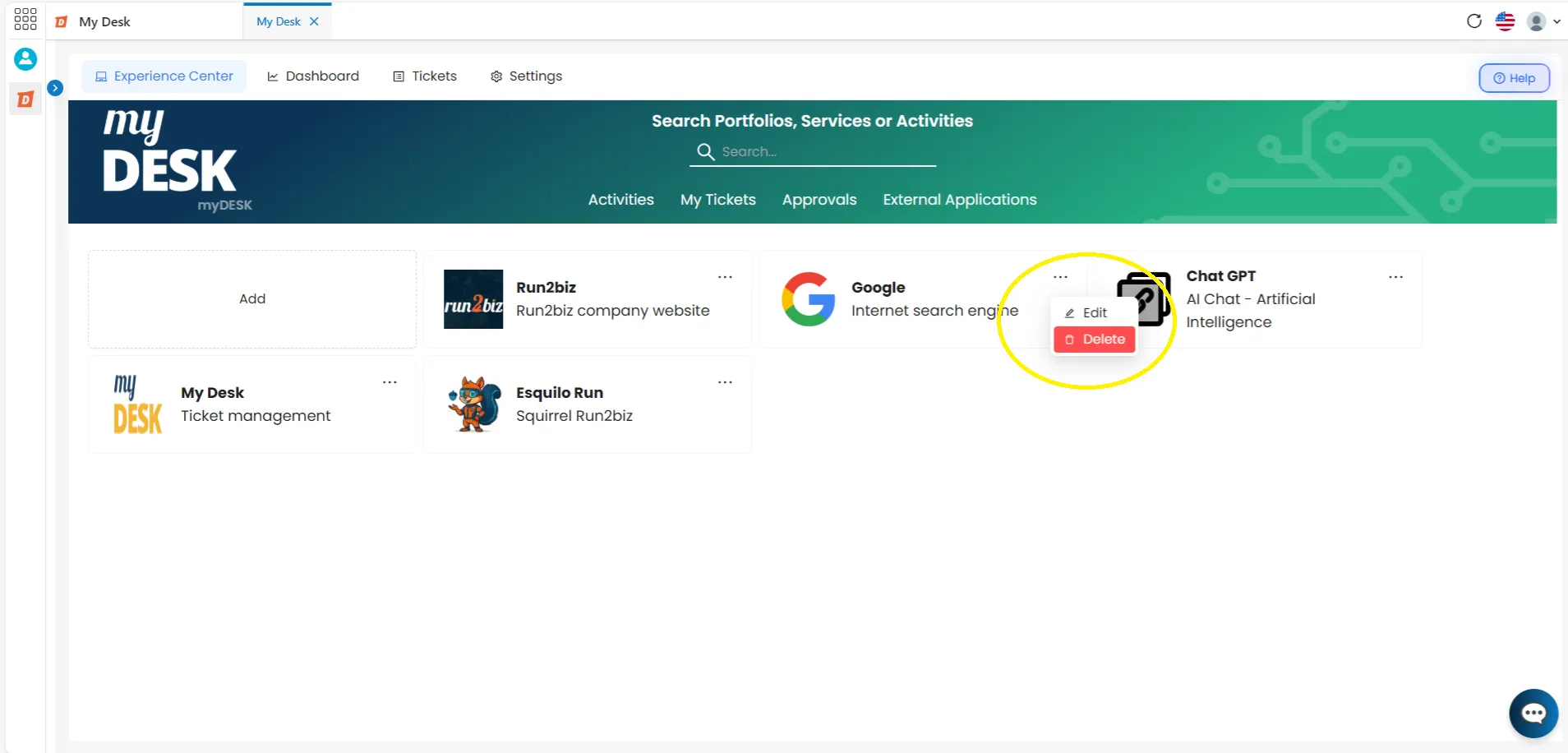
The External Applications page displays a block list of links relevant to your daily work. Each block in the list shows the following information:
Logo
- An image chosen to represent the link. It can be the website's logo or any other image.
Título
- The name of the website the block links to.
Descrição
- A short text describing the application.
Ações
Buttons to edit or delete the application.
2 - Create a New Application

To add new links, follow these steps:
Access My Desk
Open the My Desk application.
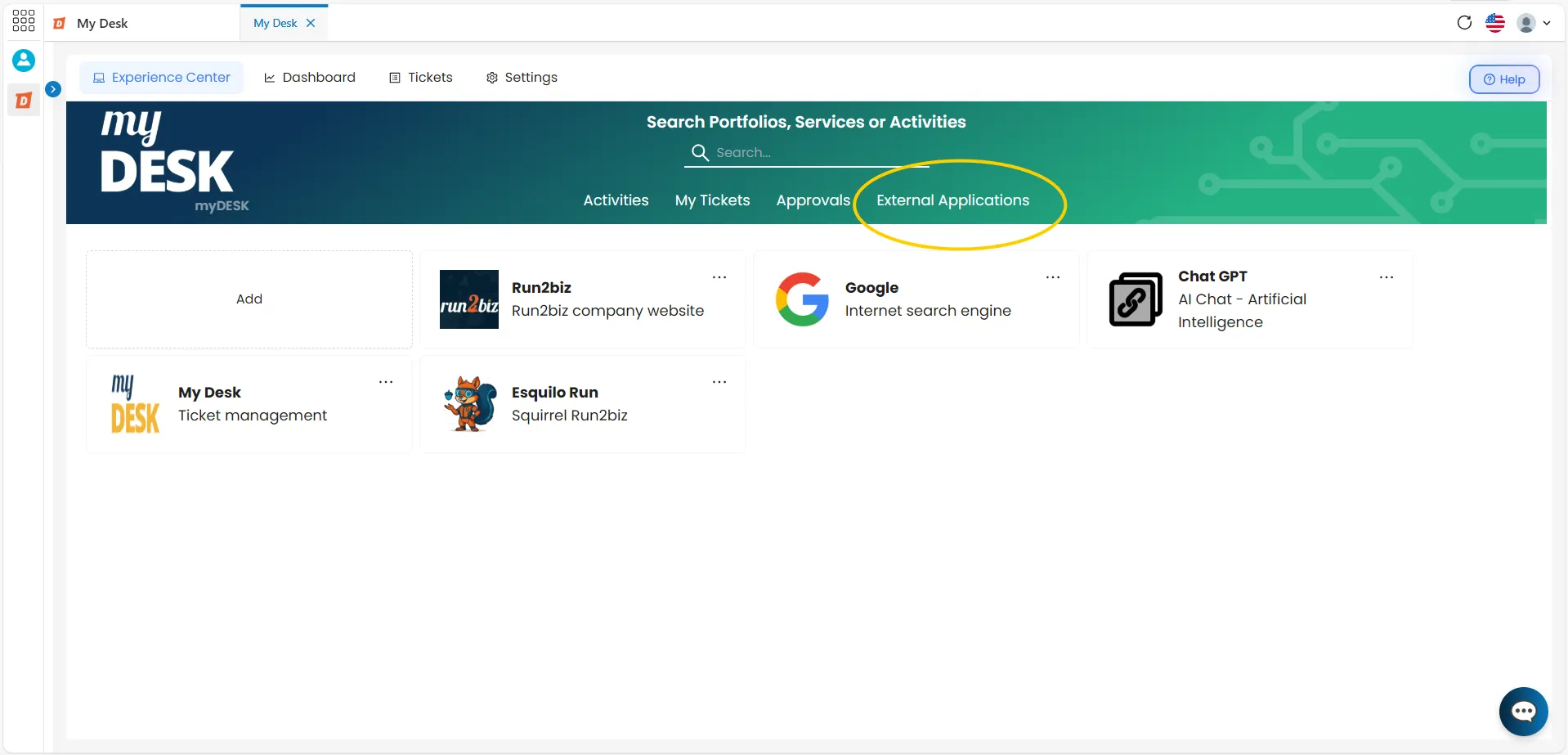
Access External Applications
In the top navigation menu, click on External Applications
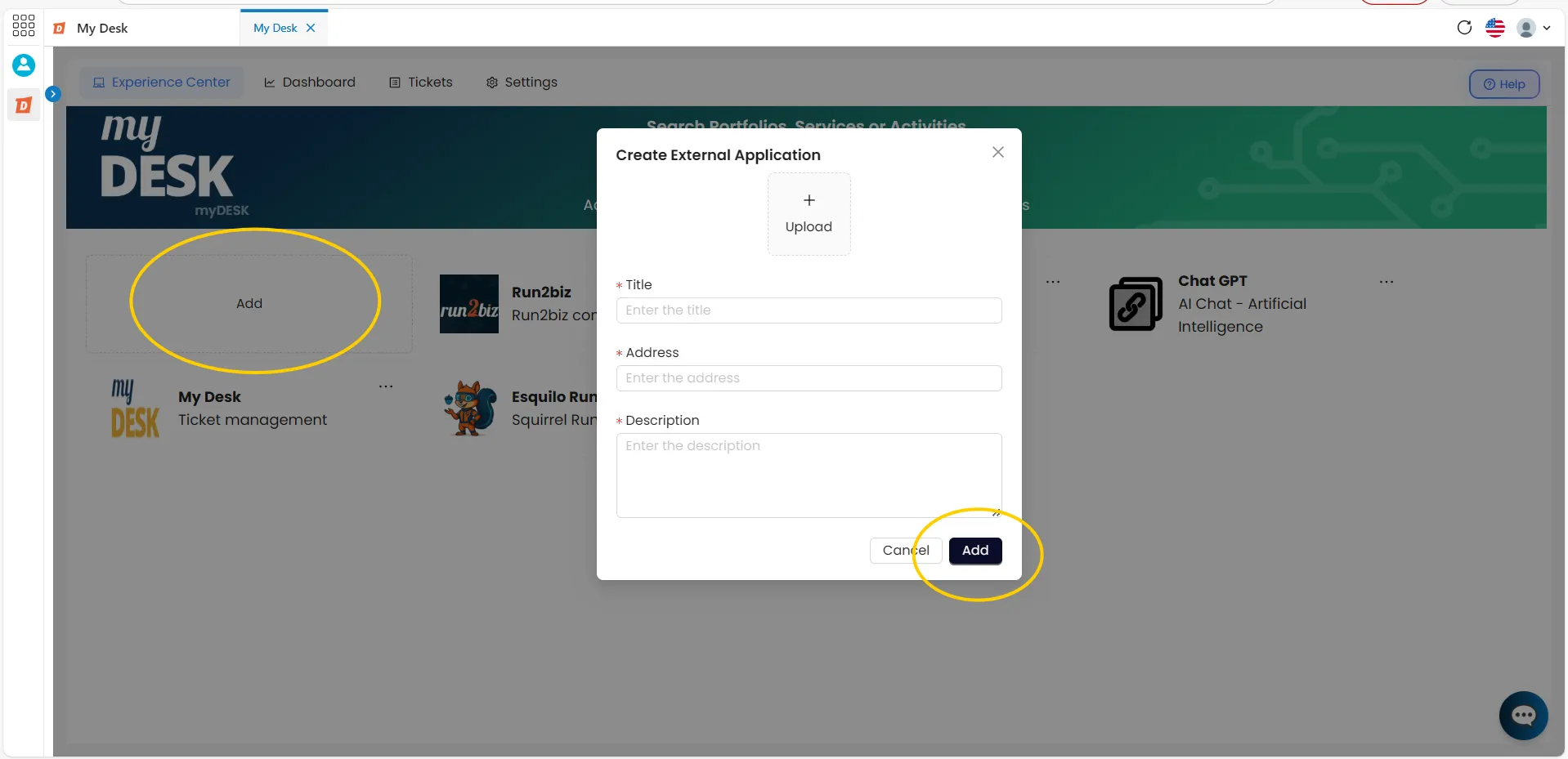
Click Add
In the first block on the left, click Add. A new window will appear in the middle of the screen for creating the link
Fill in the details
Please fill in the fields of the form, as described below
Click Add
Finish and add the new application to the list. Or click Cancel to return to the list of applications without saving.
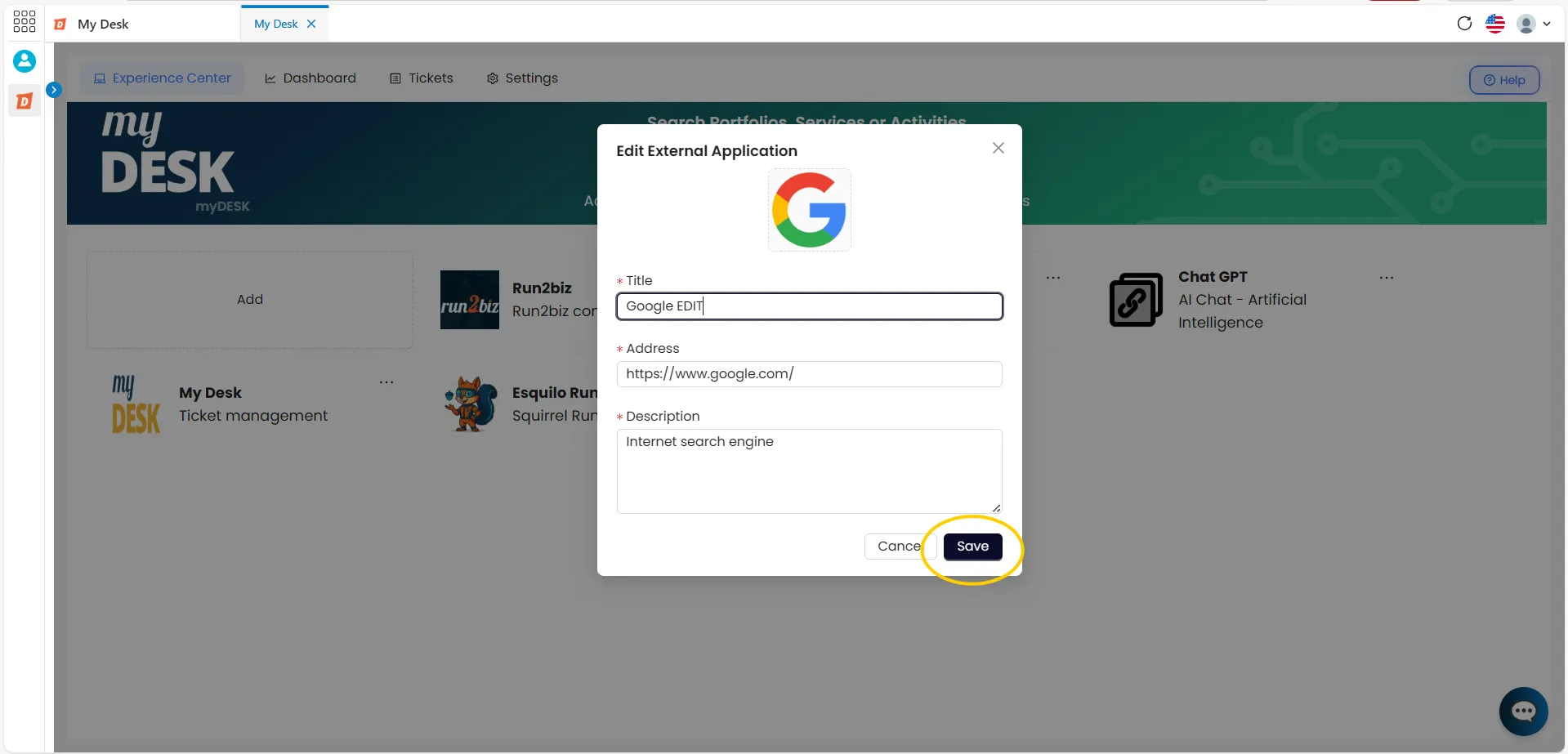
3 - Edit an application

To edit an external application, follow these steps:
Click on the three dots.
In the upper right corner of the application block you want to edit, click the three-dot button ( ··· ).
Click Edit
An editing window will open in the center of the screen.
Edit the information
Change the desired data.
Click Save
Finish editing. Or click Cancel to return to the screen with the unsaved applications
4 - Delete an application

To delete an external application, follow these steps:
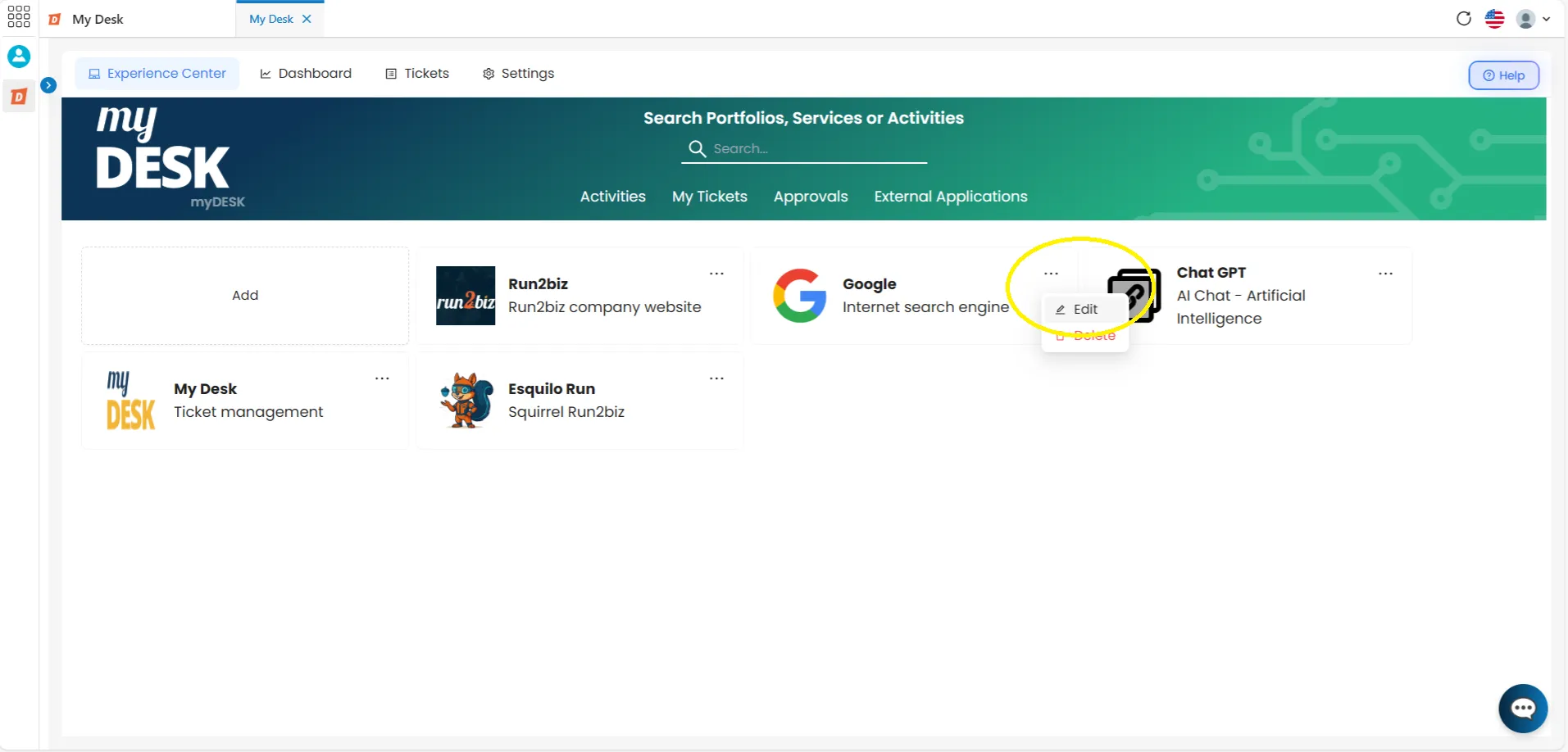
Click on the three dots
In the upper right corner of the application block you want to delete, click the three-dot button ( ··· ).
Click Delete
A message will appear at the top of the screen: "Application successfully removed."
⚠️ Atention:
The exclusion of an external application cannot be undone. Please check before confirming.