Listing Tickets
1 - Listing Tickets
Administrator Attendant

1.1 - How to access
To access the queue with all tickets, follow the steps below:
Access My Desk
Select the My Desk application from the applications menu.
Click on Tickets
In the top menu, click on Tickets. A list of all open tickets will be displayed.
💡 Navigation:
You can navigate the list using the scroll bar or the numbered page buttons in the bottom right corner of the screen.
You can navigate the page using the scroll bar or the numbered page buttons in the bottom right corner.
1.2 - Listing columns
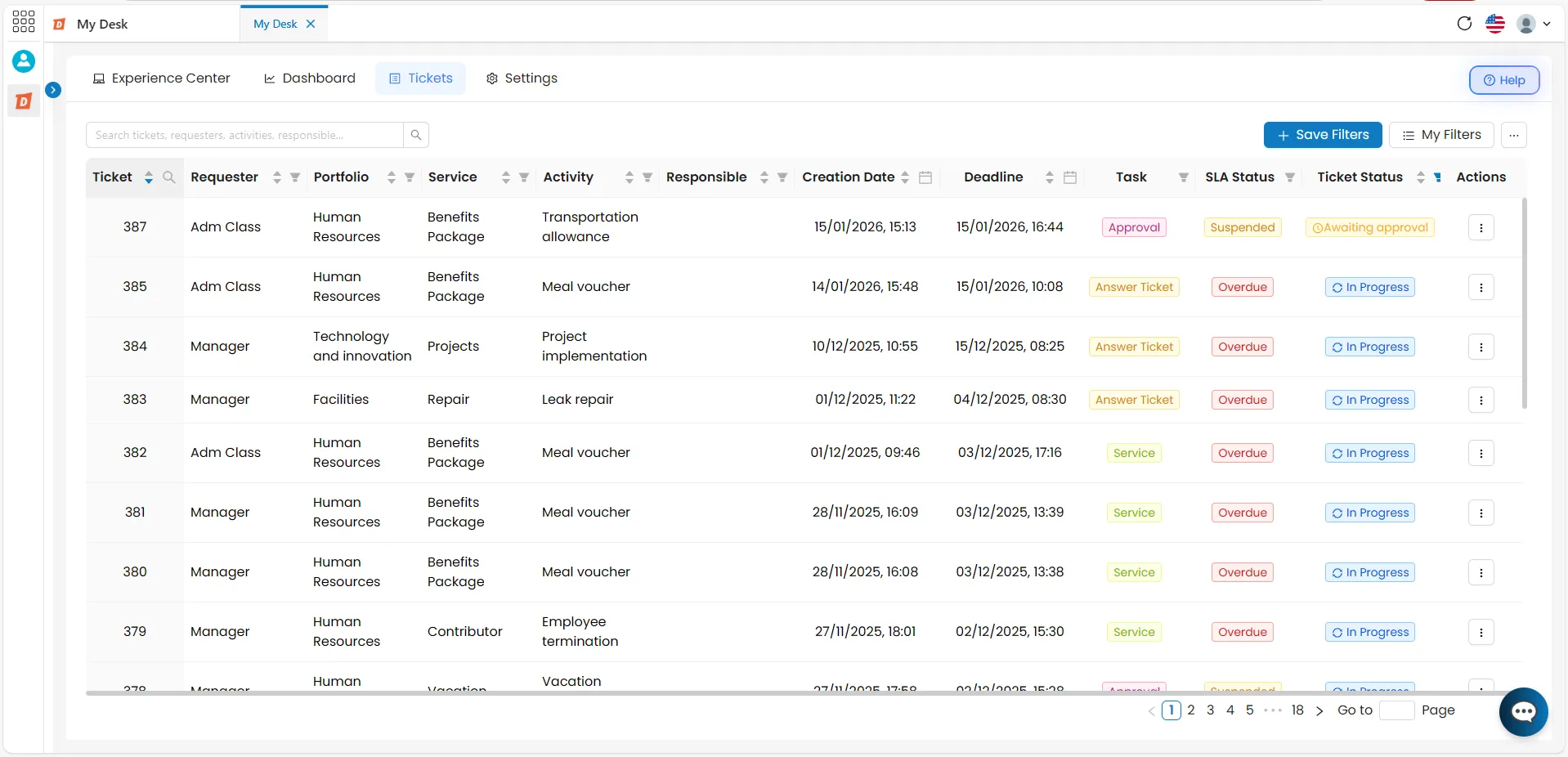
The ticket information is divided into columns, which are:
- Ticket: Ticket identifier number in the system;
- Description: Beginning of the descriptive text of the request.
- Requester: Name of the user who opened the ticket;
- Portfolio: Portfolio used when opening the ticket;
- Service: Name of the service the activity belongs to;
- Activity: Name of the ticket’s activity;
- Responsible: User responsible for resolving the ticket;
- Creation Date: Date when the ticket was created;
- Deadline: Final date for completing the request;
- Capture Date: The date on which the ticket was captured by an agent.
- Capture Deadline: The deadline for capturing the ticket.
- Task: which could be:
- Avaliable;
- In progress;
- Executed.
- SLA Status: SLA situation, which can be:
- Suspended;
- Overdue;
- On time.
- Ticket Status: Ticket situation, which can be:
- In Progress;
- Suspended;
- Resolved;
- Reopened;
- Cancelled;
- Closed:
- OBS.: For Closed and Cancelled tickets, a creation date range must be specified. Selecting "Ticket Status" in the filter automatically displays the period for the last 3 months..
- Actions: Action button with the following option:
- Create SubTicket . (Click on the link to see full content) A subticket will be created if the status is In Progress, Suspended, Resolved, or Reopened.
- Reopen Ticket: Reopens the ticket and places it back in the service queue. Available only when the status is Closed or Cancelled.
- ⚠️ Warning: Tickets with a Cancelled status cannot be reopened. The reopen option is only available for tickets with a Closed status.
- Botões de navegação: Below the list, navigation buttons are displayed for browsing through the pages. If there are many tickets in the selected filter, they will be shown across multiple pages. Use the arrows at the bottom of the screen to navigate between pages.
2 - Icons

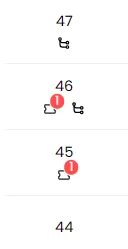
In the first column of the table—the ticket number—icons may appear that identify the ticket's relationship to other calls.
See the meaning of each one:
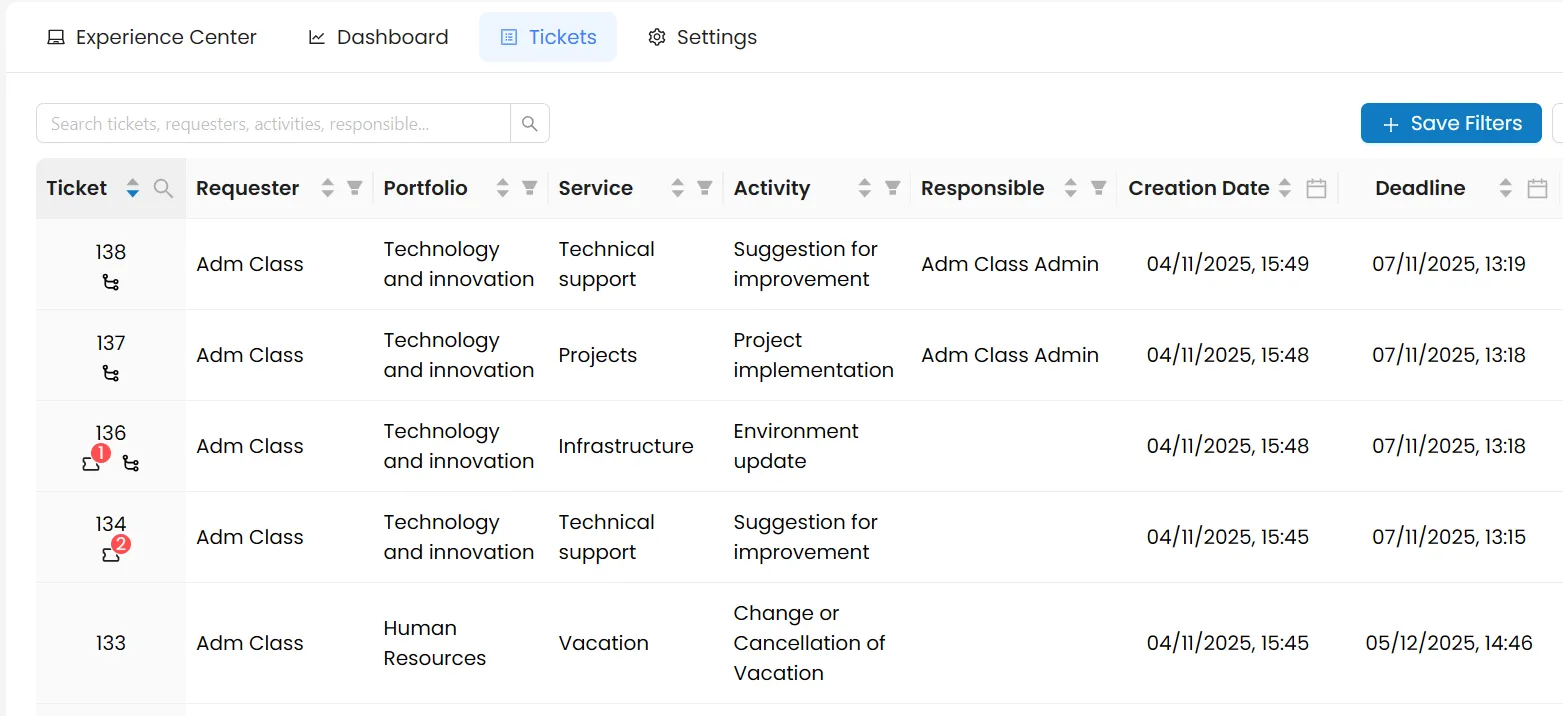
In the image above, we see examples of 4 open tickets/sub-tickets with different icons. See below the meaning of each one, based on their numbers:
Ticket Information

When you click on a ticket from the list, a window opens in the center of the screen displaying all the ticket details.
The ticket information window is divided into four sections:
Area 1 — Header
Displays key ticket information and action buttons. Remains visible regardless of the selected menu.
Area 2 — Side menu
A series of buttons on the left side of the window that alternate the content displayed in areas 3 and 4. There can be up to 6 options depending on the ticket type, which are:
- Informações;
- Comments;
- History;
- Events;
- Subticket;
- Approval history.
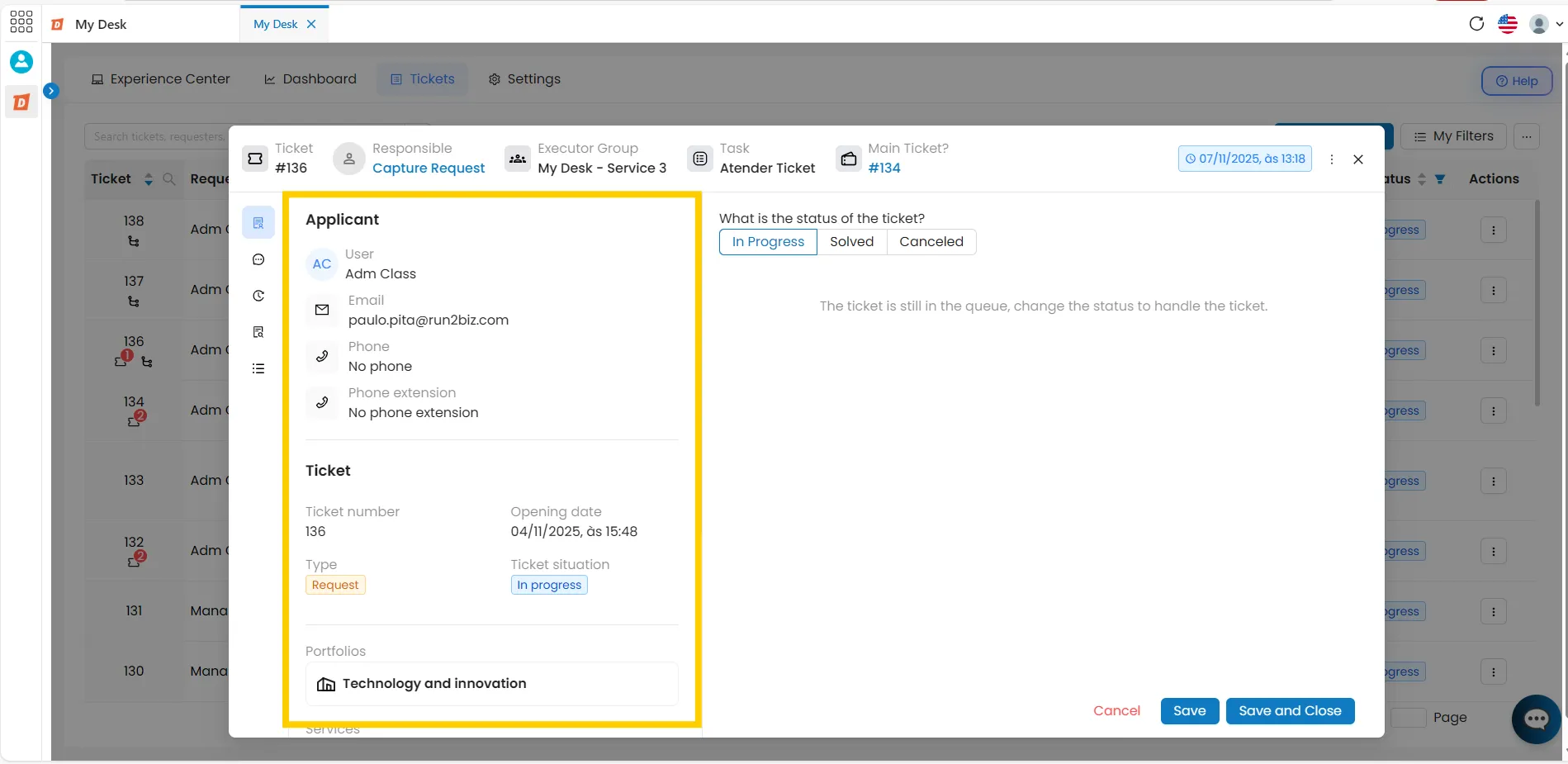
Area 3 — Ticket information
Displays the applicant and request details according to the selected menu.
Area 4 — Ticket status
Area for editing the ticket: mark status, approve workflow, attend, finalize or cancel.
Area 1 - Header
The Header contains the initial information about the Ticket. It comprises the first line at the top of the window, as shown in the highlighted image below:
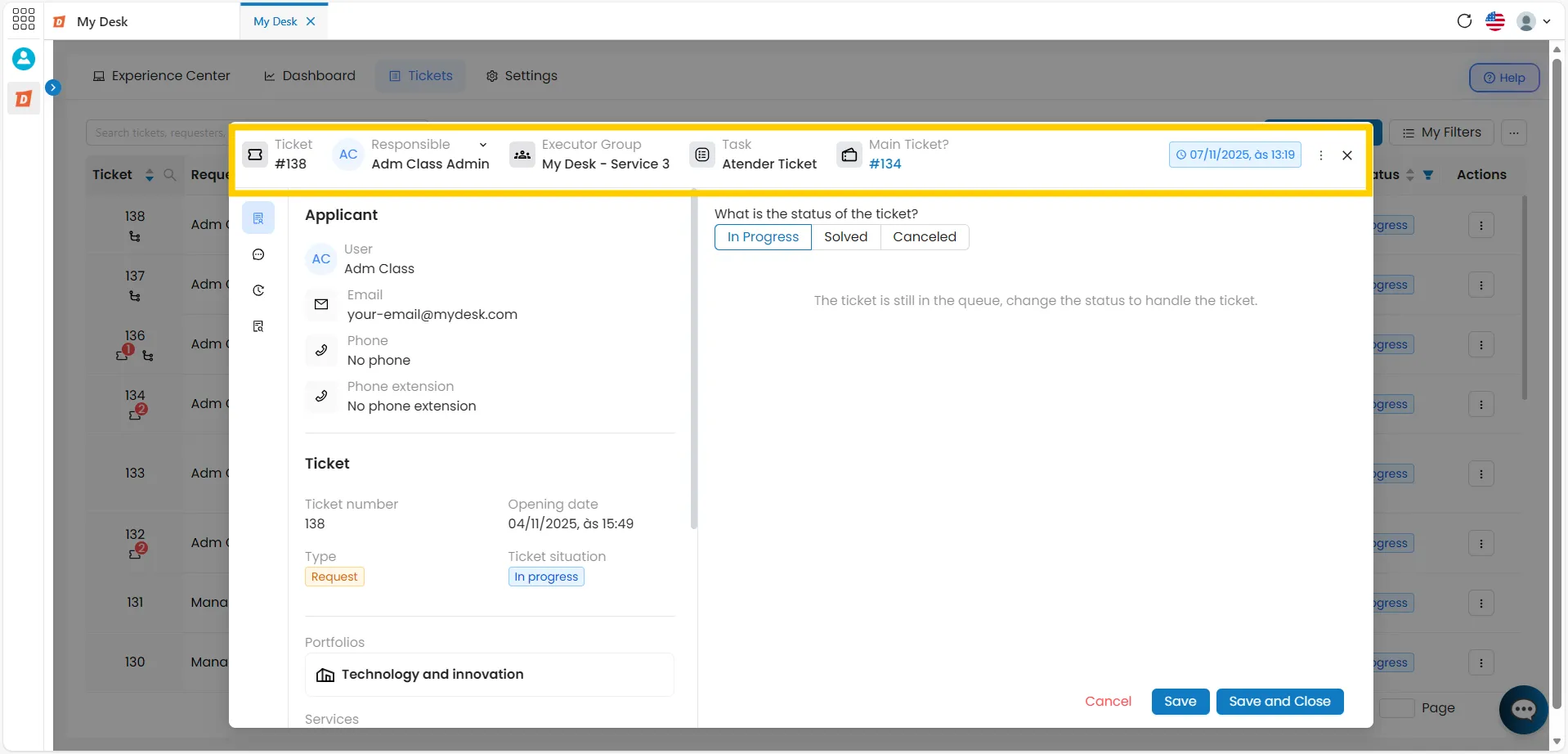
Still in the first row of the Ticket window, you will find the following information:
Ticket:
The caller's unique identifier number.
Responsible: Displays who is assigned to the ticket. It can appear in three ways:
- Capture Request: A link to assign the ticket to a user. Click it, and a message will appear: Are you sure you want to Capture this request? By clicking Yes, you take responsibility for resolving the request.;
- Username: when a responsible party has already been assigned, with two options, accessible via the button
- Delegate: Change the responsibility for handling customer service; you can transfer it to another user within the same group or to users in other groups;
- Unassign: To cease being responsible for the ticket, leaving it without any user to be captured again.
Executive Group:
Group responsible for handling Ticket requests.
Applicant:
Username of the person who made the request.
Task status:
Displays the current status, which can be: Available, In Progress, or Running.
Main ticket:
Displays the parent ticket number, if it is a subticket.
Action Button [...]:
- Suspend: Suspends the ticket and stops the closing deadline from counting down;
- Reactivate: Reopens and returns the ticket to the service queue. This option only appears if it is suspended;
- Reopen: Reopens and returns the ticket to the service queue. This option can only be used if the status is Closed and if you are the ticket holder. The Cancelled status cannot be reopened.
- Subticket: Button for creating a new Subticket;
- Change SLA: This button opens a window to change the existing SLA.
X :
Close the window.
Area 2 - Side Menu
The Side Menu highlights a series of buttons on the left side of the window, which can vary in number depending on the ticket type, with a maximum of 5 buttons. See the highlighted section in the image below:
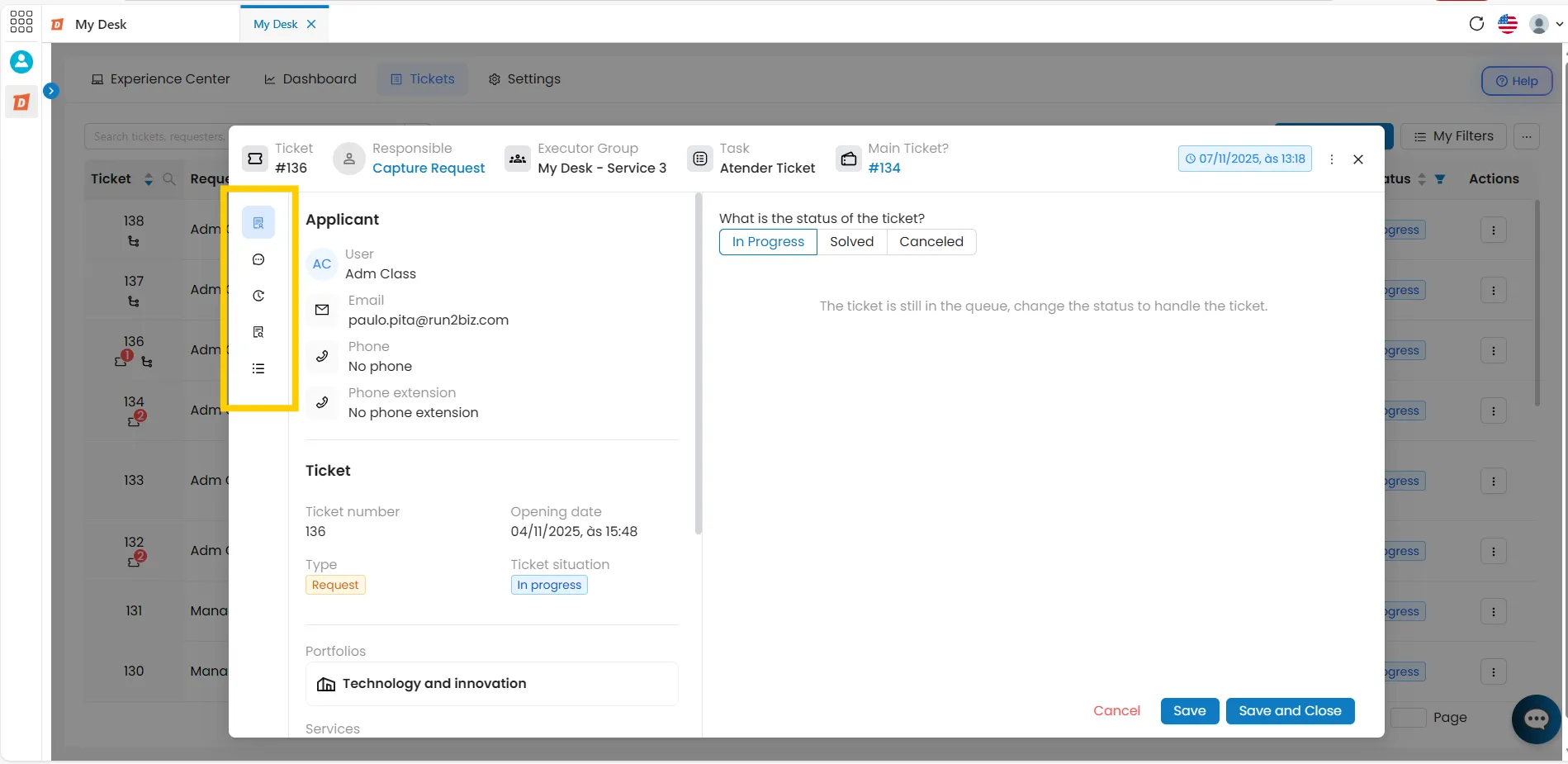
The buttons in the Side Menu cause the content of fields 3-Information and 4-Editing to change to display their information. See below for the content of each button:
2.1 - Information
-- 2.1 .1 - Ticket Information
The ticket window is divided into two parts. One with the information and another with tabs for editing and finalizing the ticket. In the information section, we can see the following data:
Description:
It contains the request described by the applicant.
Attachments:
An area containing attachments, if the applicant has uploaded any. You can add more by clicking on + Attachments.
Ticket: All ticket information:
- Ticket Number;
- Opening date;
- Type;
- Ticket Status;
- Contract;
- Portfolio:
- Services;
- Activities.
Applicant: All the information about who requested the service:
- User;
- Email;
- Telefone;
- Telephone extension.
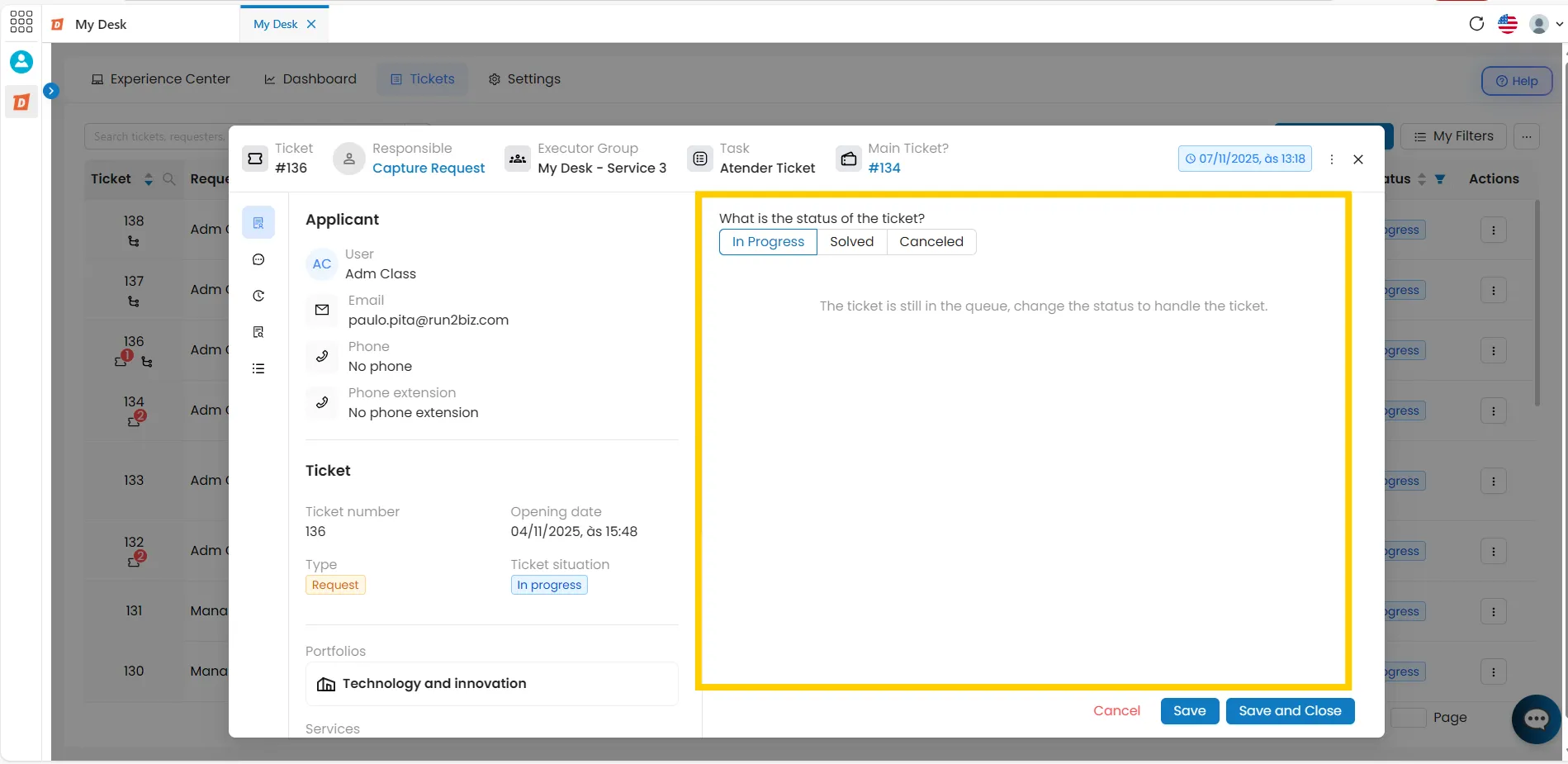
-- 2.1. 2 -Ticket Status
This area is for editing tickets, marking their current status, approving workflows, providing support, finalizing, or canceling them. See below for details on two functionalities:
Approval workflow: This workflow will only appear if the activity has been configured to require pre-approval.
- Status do Fluxo:
- Approve ticket;
- Reject ticket.
Ticket Status: This is where you should indicate the status for handling or completion..
- In progress: This shows that the ticket is still in the queue waiting to be served.
- Resolved: This is a field to mark the ticket resolution; to do this, check and fill in the fields below.:
- Was it a temporary solution? Check Yes or No.;
- Solution: Describe the solution used to resolve the ticket issue.
- Cancelled: This field allows you to cancel the ticket, if necessary. To do this, check and fill in the fields below.:
- Was it a temporary solution? Check Yes or No.;
- Solution: Write what the solution is for the ticket.;
- Justification: Describe a justification.;
- Note: A cancelled ticket cannot be reopened and will retain its Cancelled status..
- Buttons:
- Cancel: Cancels the ticket editing, returning it to the list of tickets without any action being taken;
- Save: Saves the Status edit without closing the ticket, leaving it with the Resolved status;
- Save and Close: Saves the edit and closes the ticket, leaving it with the status Closed.
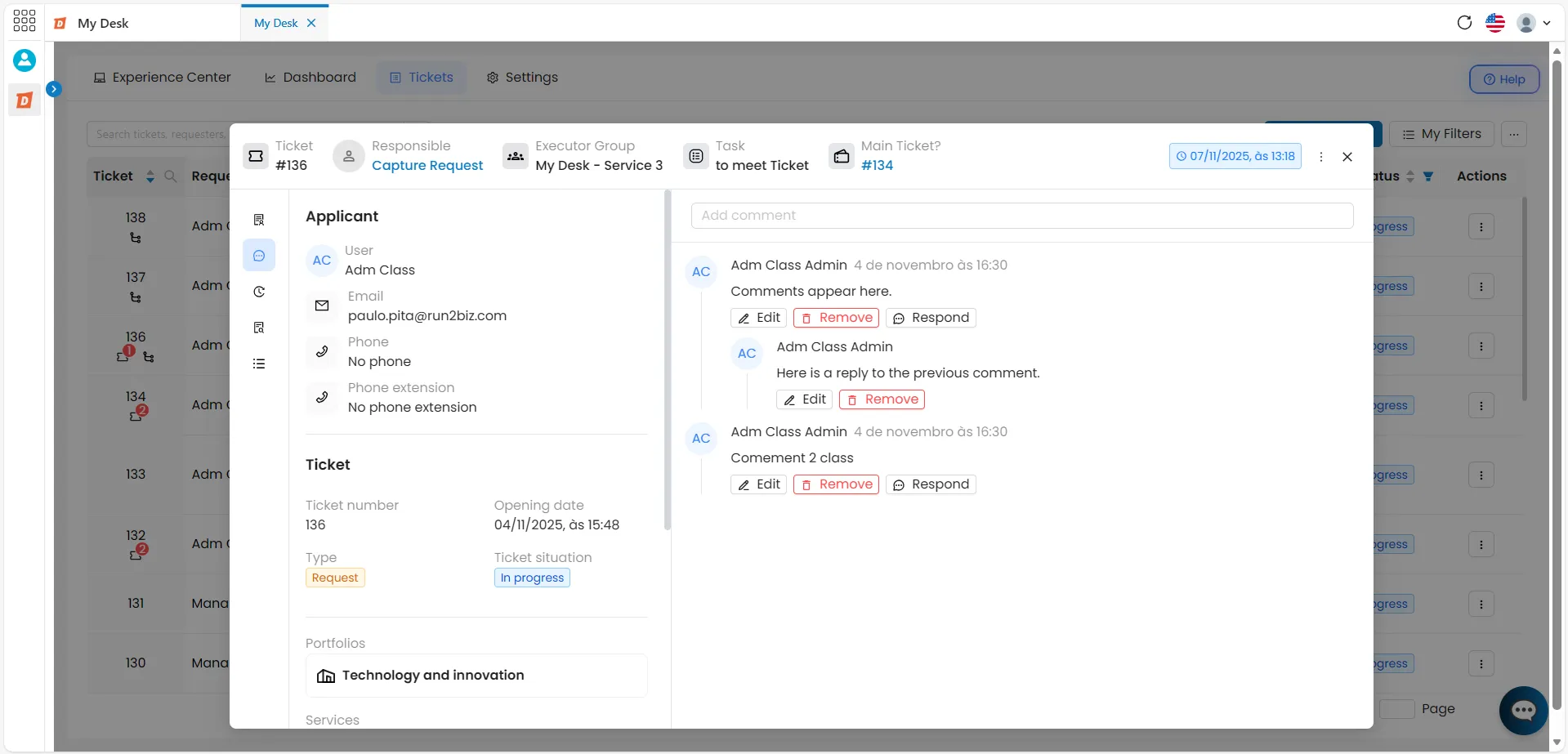
2.2 - Comments
Displays previously registered comments and allows you to add new ones. The comments box can be used to add information, report on the progress of the task, or request more details.
If you are the author of the comment, you can:
- Edit;
- Remove;
- To respond.
If you are not the author, you can simply:
- To respond.
Note: Closed tickets only display the comment history — it is not possible to add new comments..
2.3 - History
The history function displays the Customer Experience in two tabs:
- 2.3.1 - Health Score;
- 2.3.2 - Customer tickets.
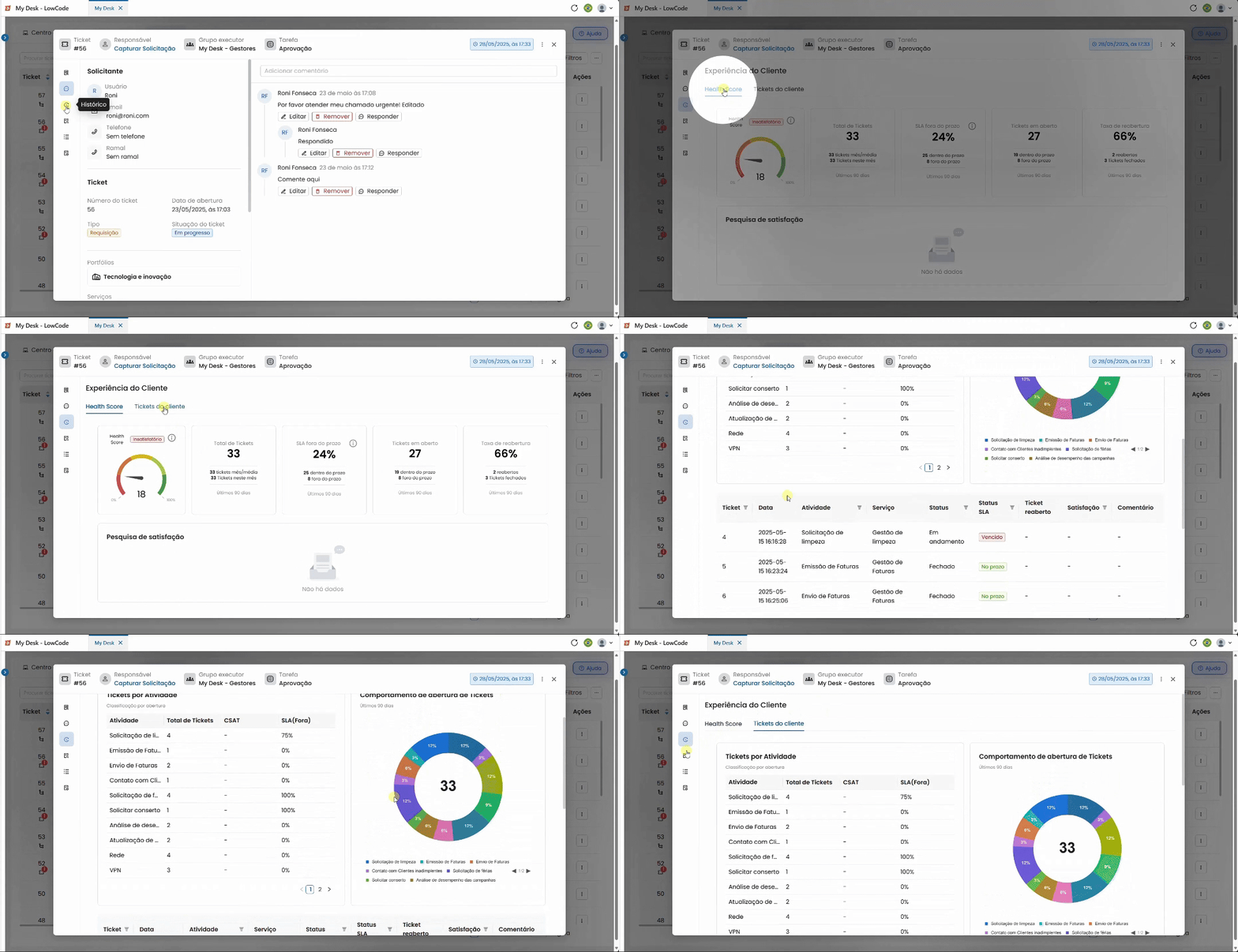
-- 2.3.1 - Health Score
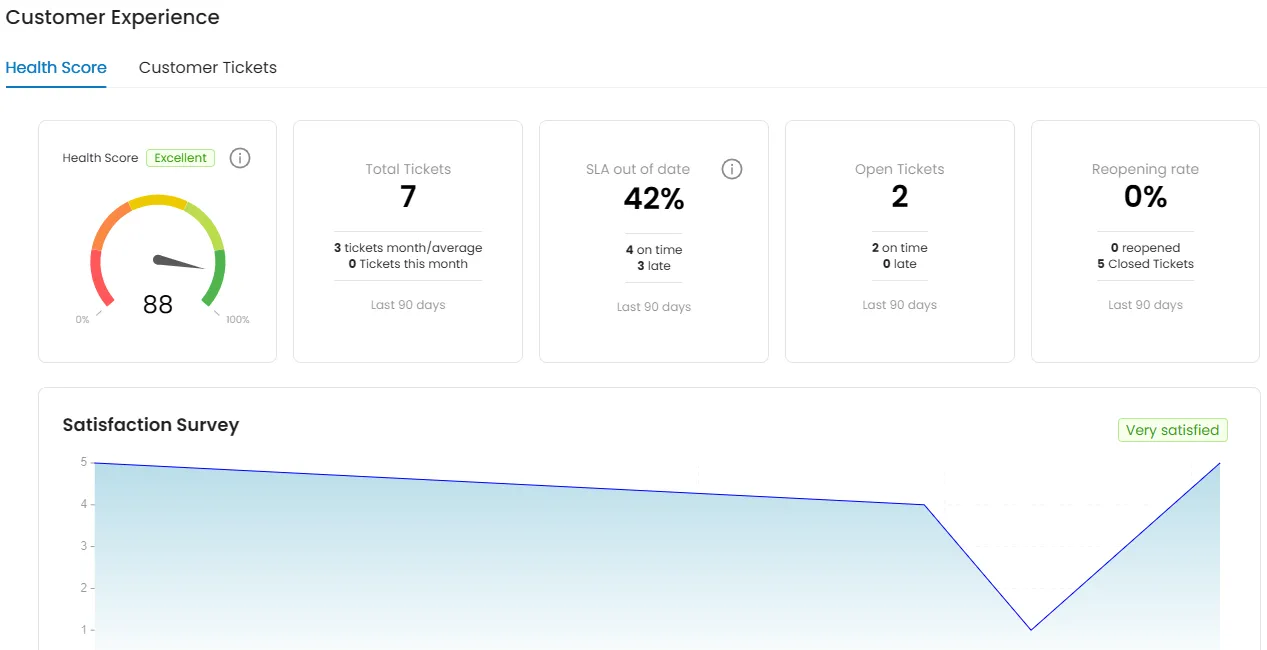
The Health Score is a metric that assesses customer satisfaction and engagement over a specific period of their journey. Each customer interaction is scored based on specific criteria, resulting in a rating that ranges from Unsatisfactory, Fair, and Excellent.
How are the results of a customer satisfaction survey calculated?
📊 Classificação do Health Score:
HS < 50
Unsatisfactory
HS >= 50
Fair
HS >= 80
Excellent
* HS = Health Score
Calculation formula:
HS Calculation = (SLA + Reopening Fee + CSAT) ÷ 10
The Health Score calculation is composed of three main factors, each with a specific weight:
1 - SLA Calculation (Weight: 2)
0%: 100 pontos
1% a 20%: 80 pontos
21% a 40%: 60 pontos
41% a 60%: 40 pontos
61% a 80%: 20 pontos
>80%: 0 pontos
2 - Reopening Rate (Weight: 3)
0%: 100 pontos
1% a 20%: 80 pontos
21% a 40%: 60 pontos
41% a 60%: 40 pontos
61% a 80%: 20 pontos
> 80%: 0 pontos
3 - CSAT (Weight: 5)
Notas 4 e 5: 100 pontos
Notas < 4: 0 pontos
This metric is essential for identifying opportunities for improvement, retaining customers, and ensuring a positive customer journey.
Numbers
Cards with the following numbers are also displayed:
Total Tickets
Shows the amount opened in the last 90 days, average per month and for the current month
SLA
Shows the percentage of tickets with an out-of-date SLA in the last 90 days. Also shows the amount within and outside the deadline
Open tickets
Shows the number of tickets open for this same user within the last 90 days. It also shows the number of tickets open within and outside the deadline
Reopen rate
Shows the percentage of tickets reopened within the last 90 days. It also shows the number of reopened tickets and how many reopened tickets are already closed
Satisfaction Survey
Shows an area chart with the scores of all surveys completed in the last 90 days.
-- 2.3.2 - Customer Tickets
Here you will see a series of important data about the tickets opened by this same user.
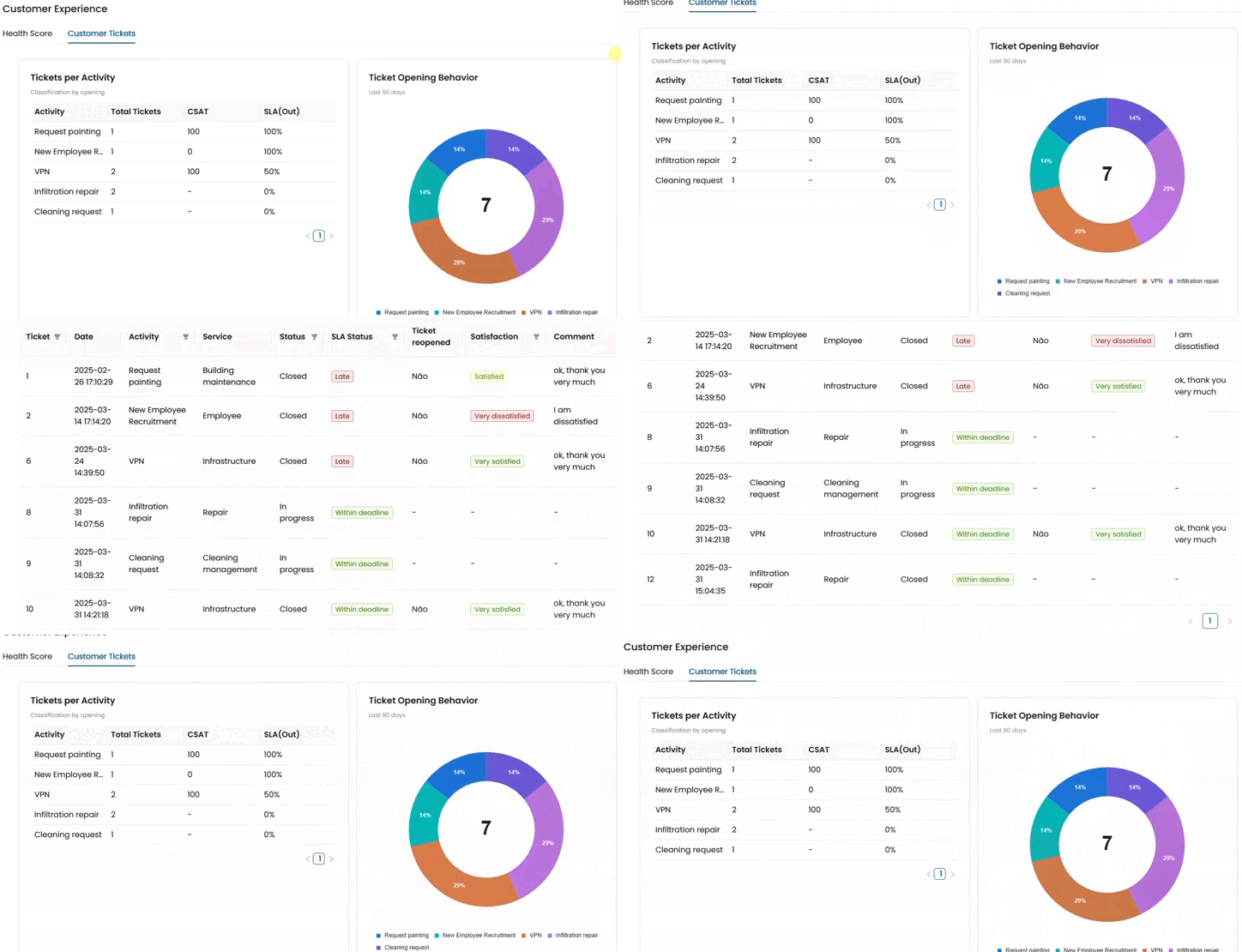
Tickets per Activity
In this table you can follow:
- The number of tickets opened in each existing activity;
- The score given in the satisfaction survey is calculated through the CSAT in each activity;
- The percentage of SLA out of date.
Ticket opening behavior
In a pie chart you will see the percentage of tickets opened in each activity over the last 90 days, and in the center the total number of tickets opened during this period.
Ticket List
Scrolling down the page you will find a list of all tickets opened by this same user in the last 90 days. The tickets are listed in a table with details arranged in the following columns:
- Ticket: Ticket Number;
- Date: The opening date;
- Activity: What is the related activity?;
- Service: What is the related service?;
- Status: The current status of the Ticket;
- SLA Status: The current status of the SLA;
- Ticket reopened: Shows whether the ticket has been reopened (Yes or No);
- Satisfaction: Satisfaction survey response;
- Comment: Shows the comment left by the customer in the satisfaction survey;
- Number buttons: If there are more than 10 tickets in the history, they will be divided into pages. Use the buttons at the bottom of the window to navigate between pages.
2.4 - Events
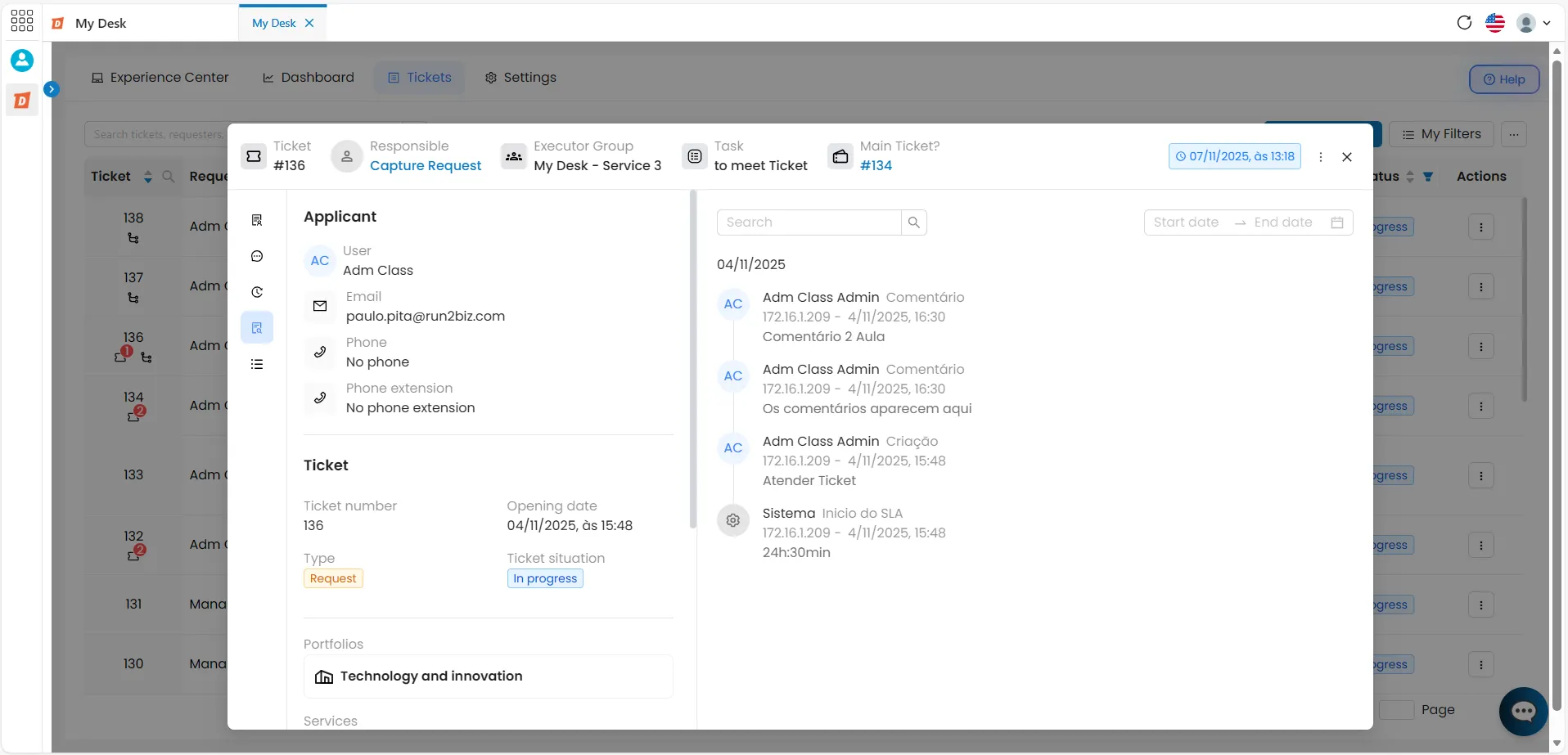
The Events function displays the activity history of the ticket, organizing the information by date.
For each date, a record is created for every action taken on the ticket.
Above the events list, there is also a search box and a date filter.
2.5 - Subticket
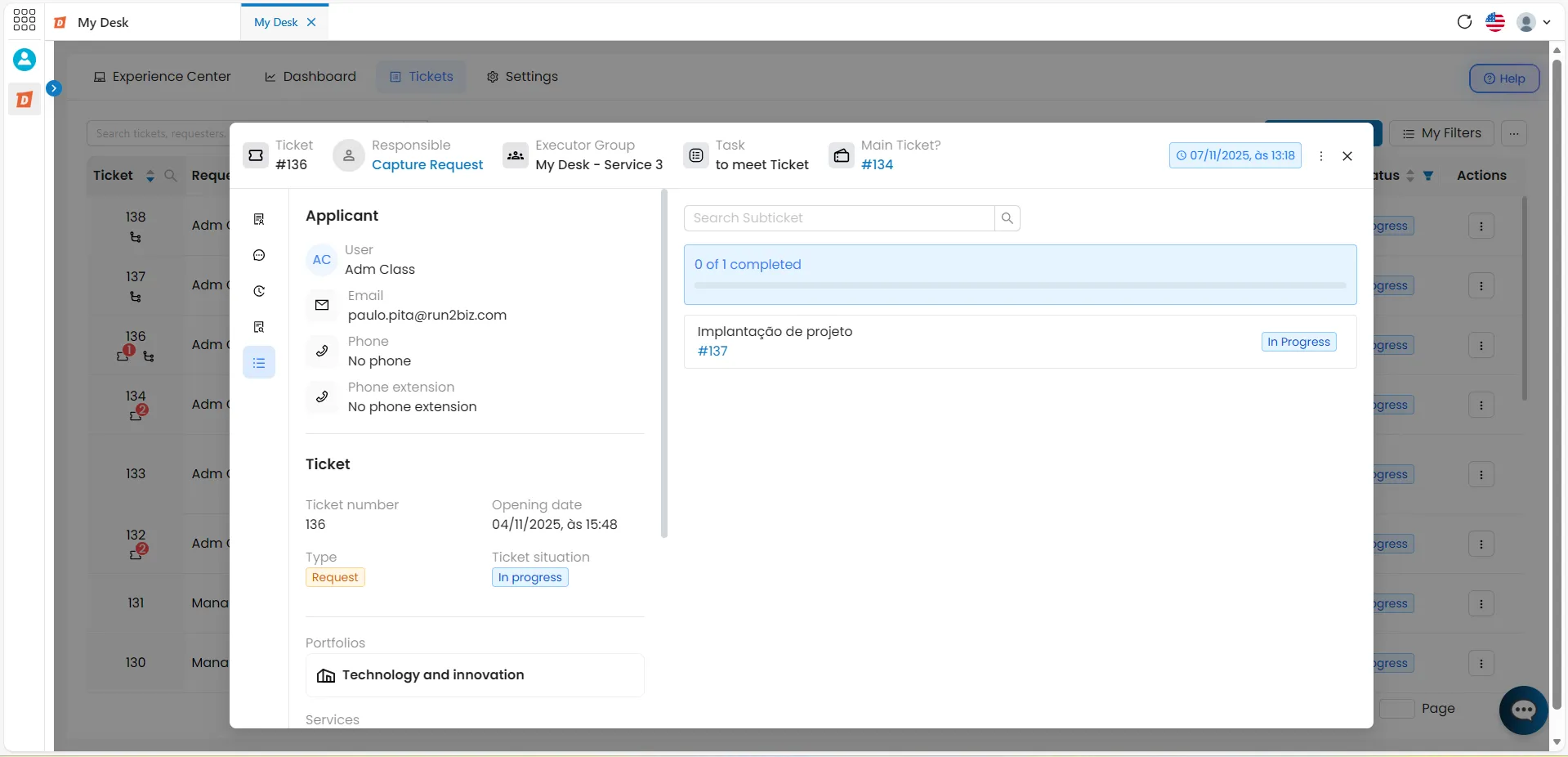
The Information Window is also divided into two sections: one displaying the same ticket details with no changes and another showing the created subtickets.
In the Subtickets section, you will find the following fields:
- Search Box
- Status Bar, which shows the progress of closing Subticket
- Subtickets List, including the following details:
- Service
- Status
- Subticket Number:
- Click on the number to open the subticket. When you access it, the header will show the main ticket number so you can return if you wish.
2.6 - Approval History
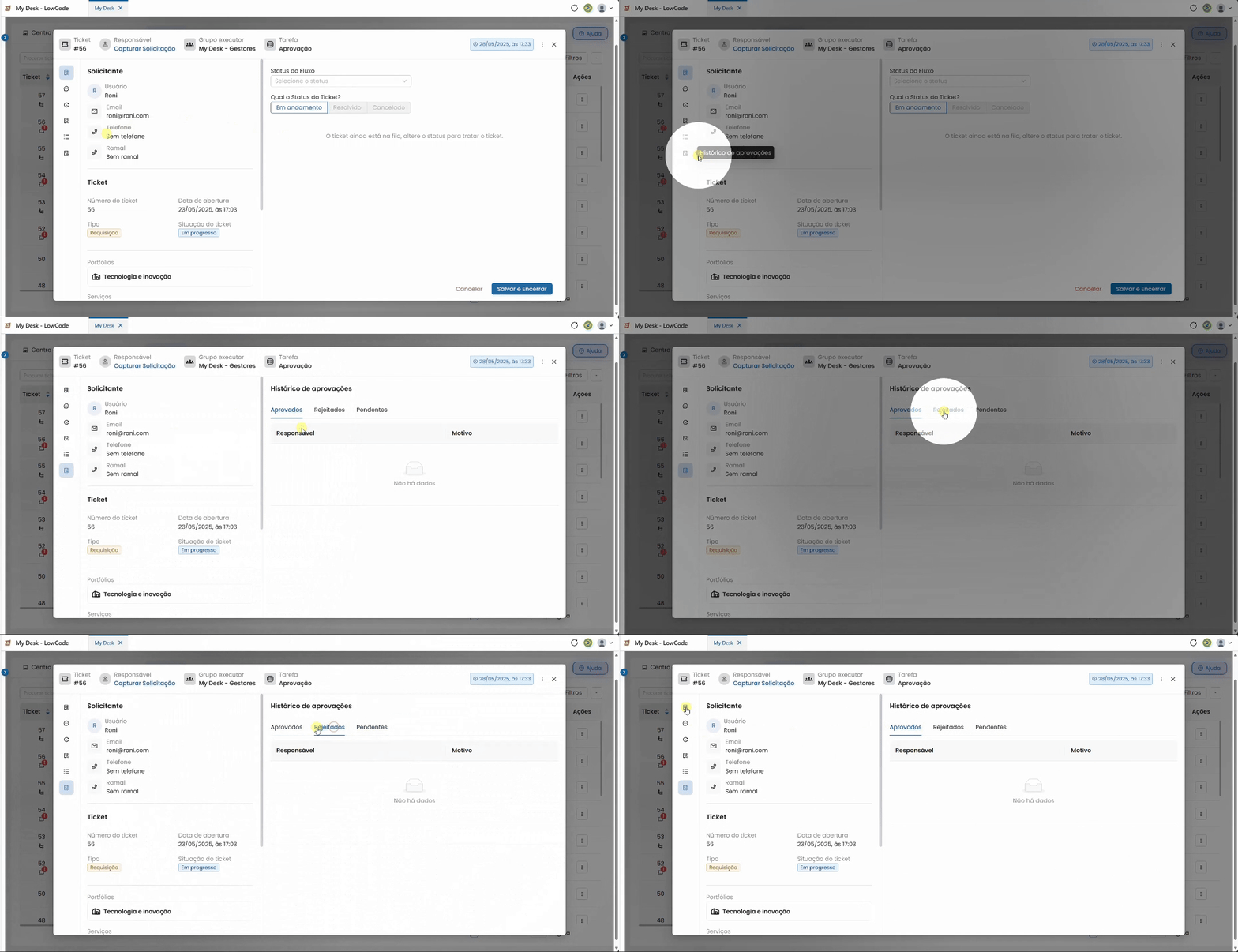
This menu displays the approval history of tickets, showing the responsible party, the reason given, and is separated into the following tabs:
- Approved: shows who approved the ticket;
- Rejected: shows who approved the ticket;
- Pending: It shows those that are still awaiting approval.
4 - Ticket Search

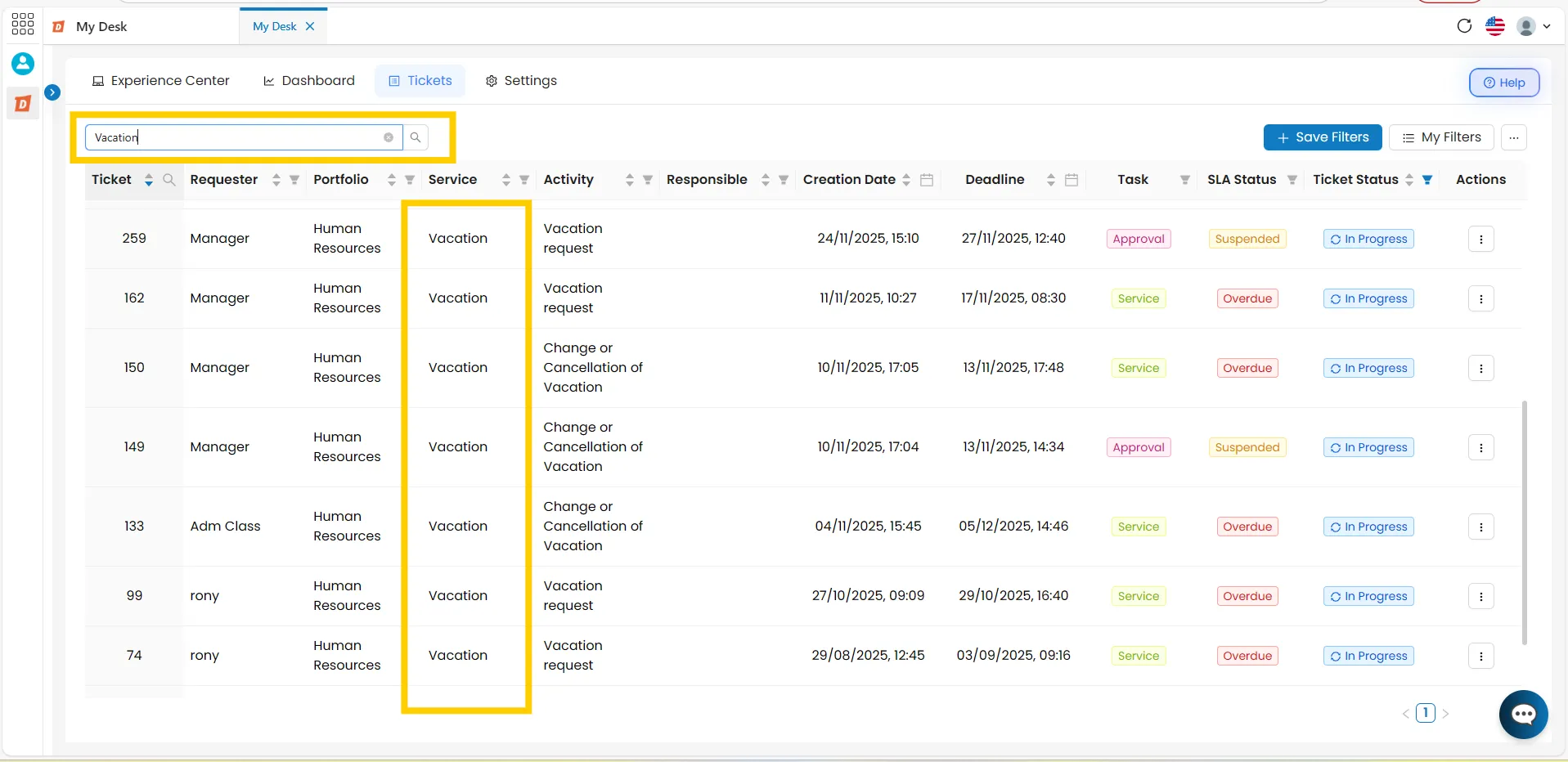
To search for a specific ticket, follow these steps:
Click on the search bar
Located in the top left corner of the screen.
Enter the desired attribute
Such as a term or number. Example: Activity = "Invoice"
Press the Enter key on your keyboard or click the Magnifying Glass Icon [ ]
The magnifying glass icon is located at the end of the search bar.
To clear the search and return to the full ticket list
Cclick the (X) icon next to the Magnifying Glass Icon [ ].
5 - Filters

5.1 - Create a New Filter
You can create and save a filter to make your searches easier whenever needed.
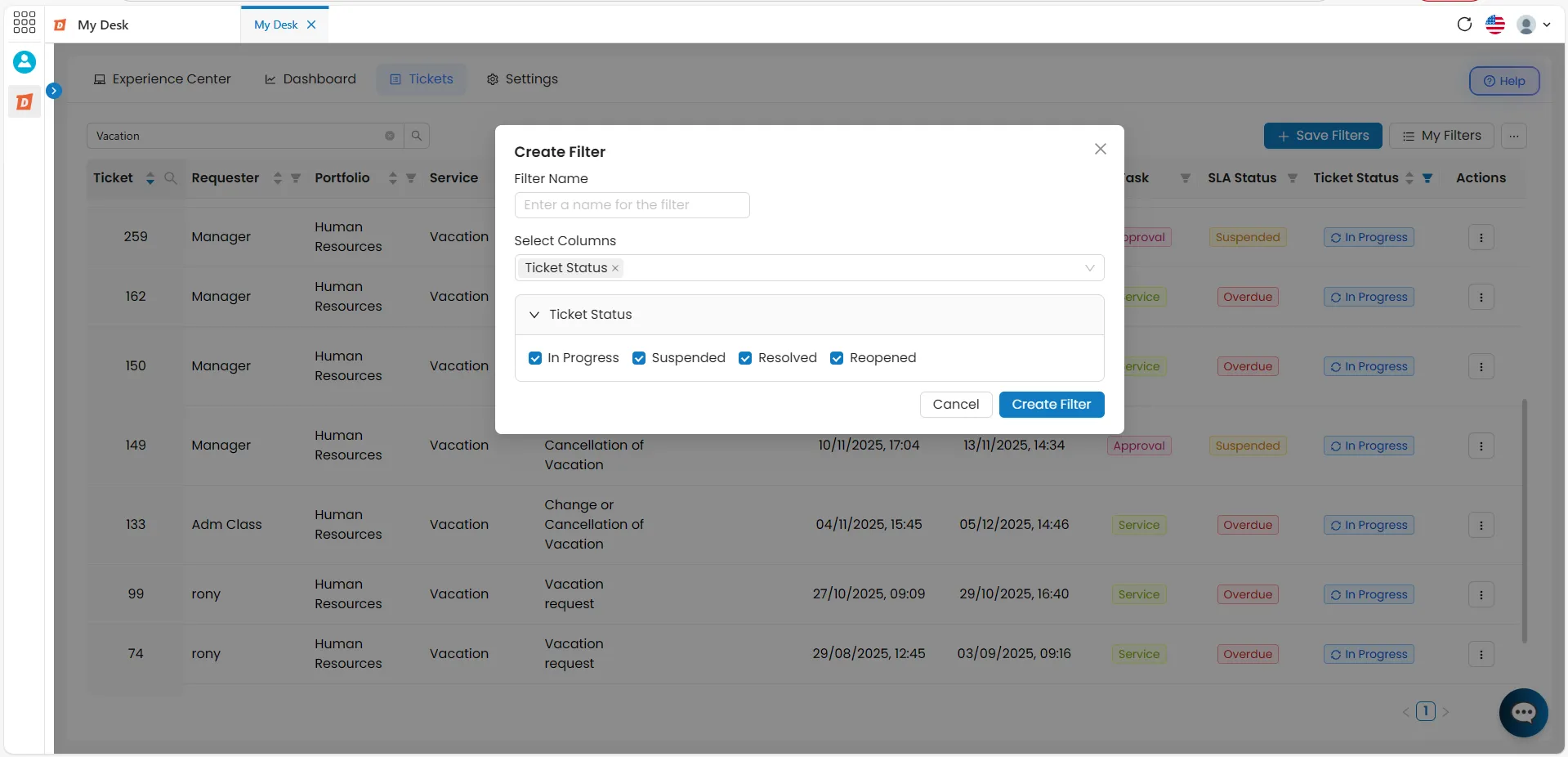
To create a new filter, follow these steps:
Click the button: + Save Filters
Button in the upper right corner of the screen. A window will appear in the center of the screen.
Fill in the information
- Filter name: enter a short name.
- Select Columns:
- Click the bar under this title to open a dropdown list with all available columns.
- Select one or more columns you want to include. The selected columns will appear below.
- Click the arrow before the desired column name.
- Use the search bar to find the item you want to add to the filter.
Click Create New Filter
The filter will be saved, applied immediately, and highlighted next to the search bar.
To remove the active filter, click the (X) next to the filter button.
The newly saved filter will be immediately applied, appearing highlighted next to the search bar. It will also be saved in the Filters List, accessible via the My Filters button .
To remove the filter, click the ( X ) icon on the right side of the filter button. The full ticket list will be restored, and the filter will still be saved under My Filters .
Another Way to Create a New Filter – Using "My Filters"
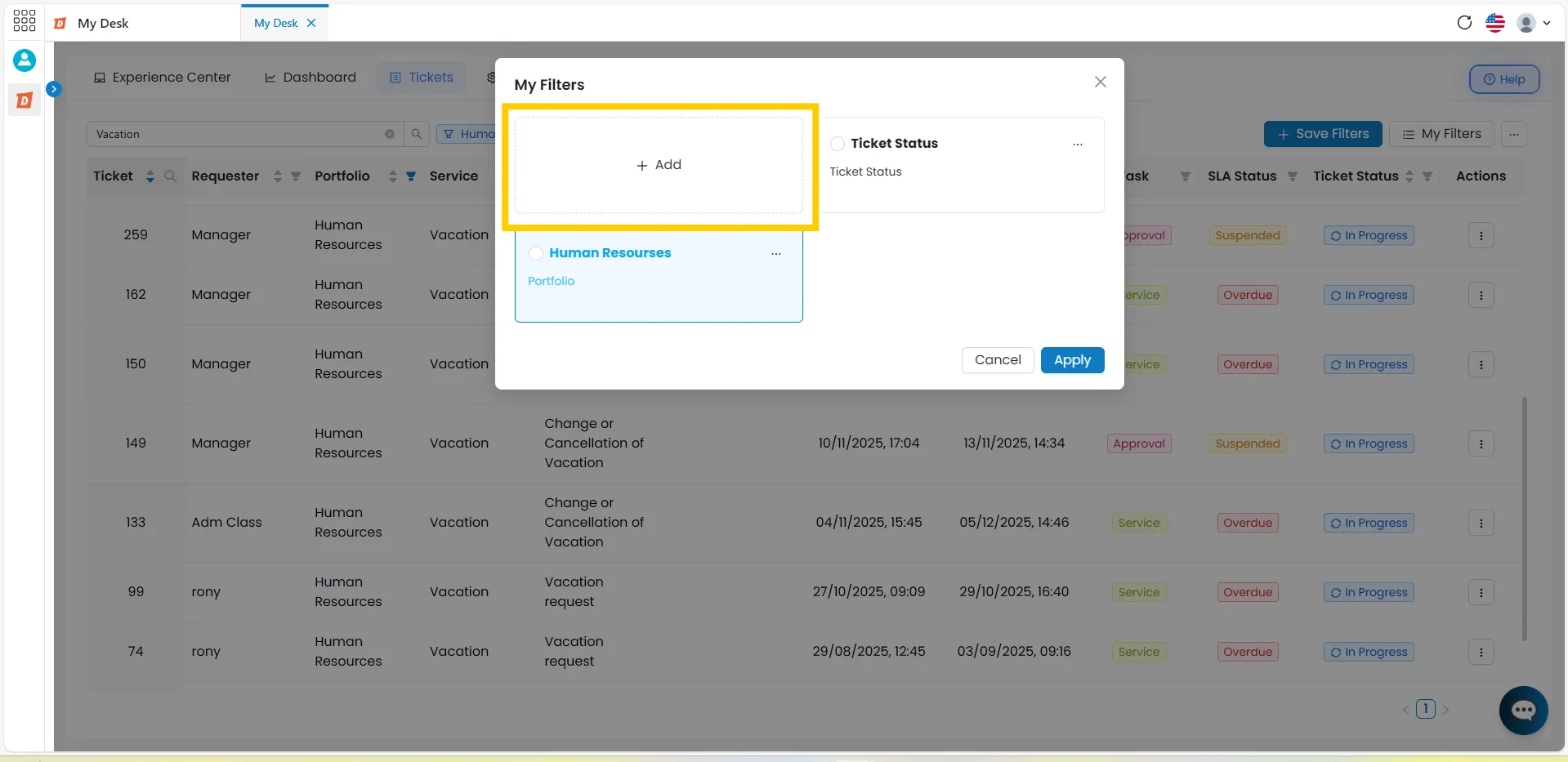
You can also create a new filter from the My Filters section.
To do this, follow these steps:
Click the My Filters
button in the top right corner of the screen.
A window will appear in the center of the screen, displaying all previously created filters. In the top right corner of this window, you will see a button to add a new filter.
+ Add
Click the + Add button
A new window will appear in the center of the screen, identical to the one described in the previous step-by-step guide.
Fill in the information
Fill in the necessary information in the same way as befor.
5.2 - Edit Filter
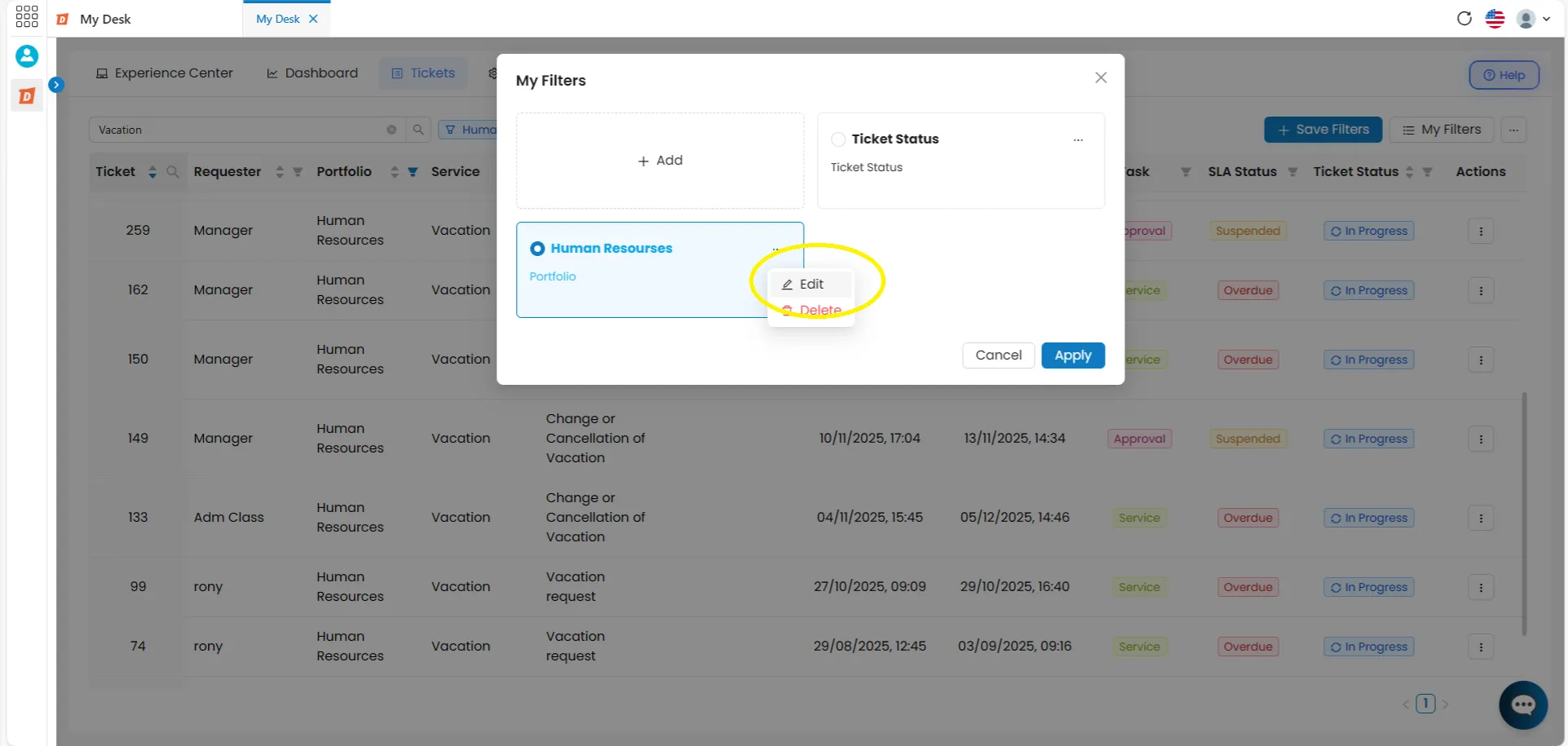
To edit a filter, follow the steps below:
Click the My Filters button
In the top right corner of the screen.
A window will appear in the center of the screen, displaying all previously created filters in blocks. Each block has an action button [...] (three dots).
Click the action button [...]
Clique no botão de ação, de três pontinhos [...] do filtro desejado.
Select the Edit option.
Edit the information
Make the desired changes.
Click Save Filter to apply the edits.
Click Cancel to return to the list without saving any changes.
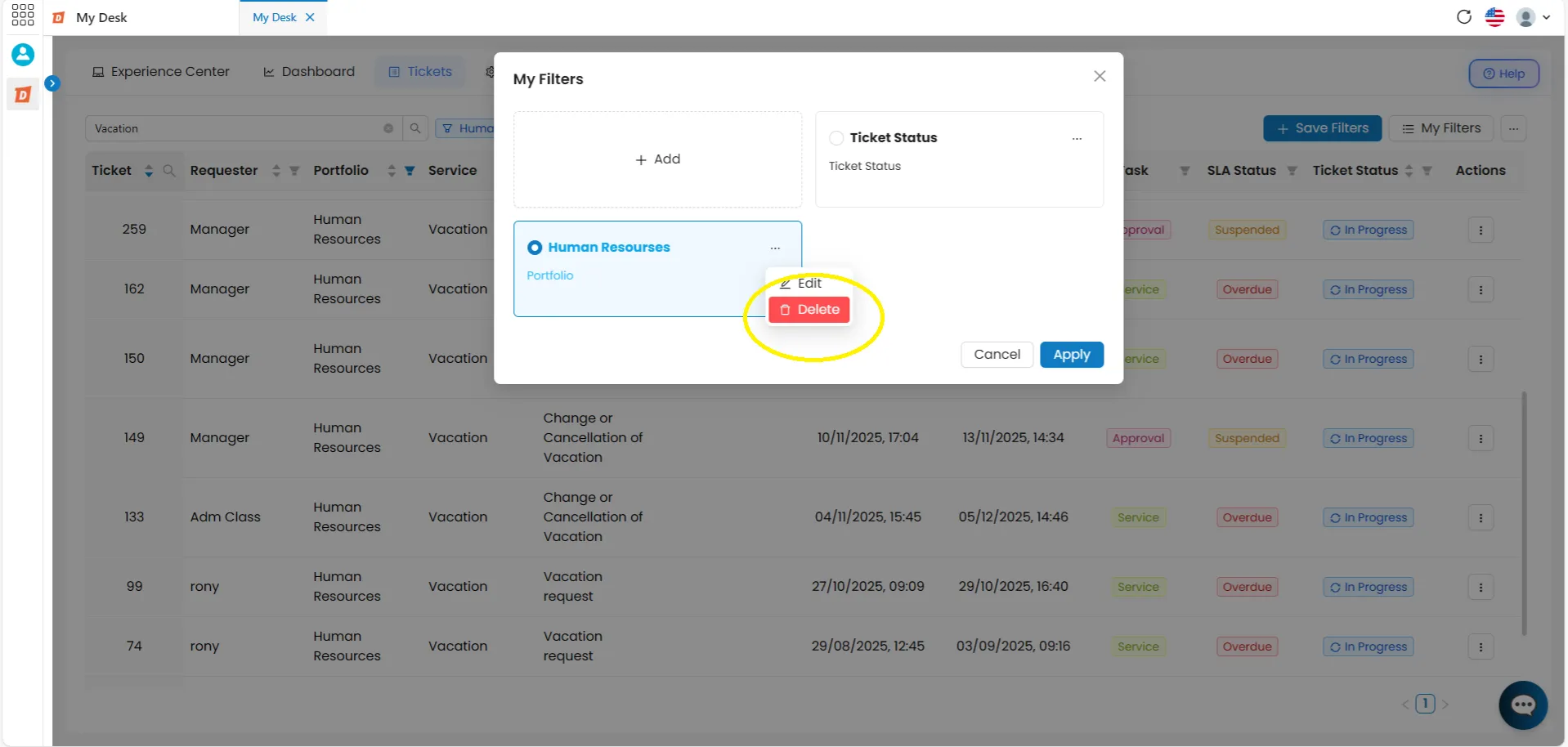
5.3 - Delete Filter
To delete a filter, follow these steps:
Click the My Filters button
Select the filter you want to delete.
Click the action button [...]
Click the button with three dots [...] in the upper right corner of the filter you want to delete.
Select the Delete option.
A confirmation message will appear asking if you are sure you want to delete the filter.
Confirm by clicking Delete
Click Delete if you are absolutely sure you want to delete it.
Warning: This action cannot be undone.
Warning: This action cannot be undone.
Or click Cancel to return without deleting.
5.4 - My Filters
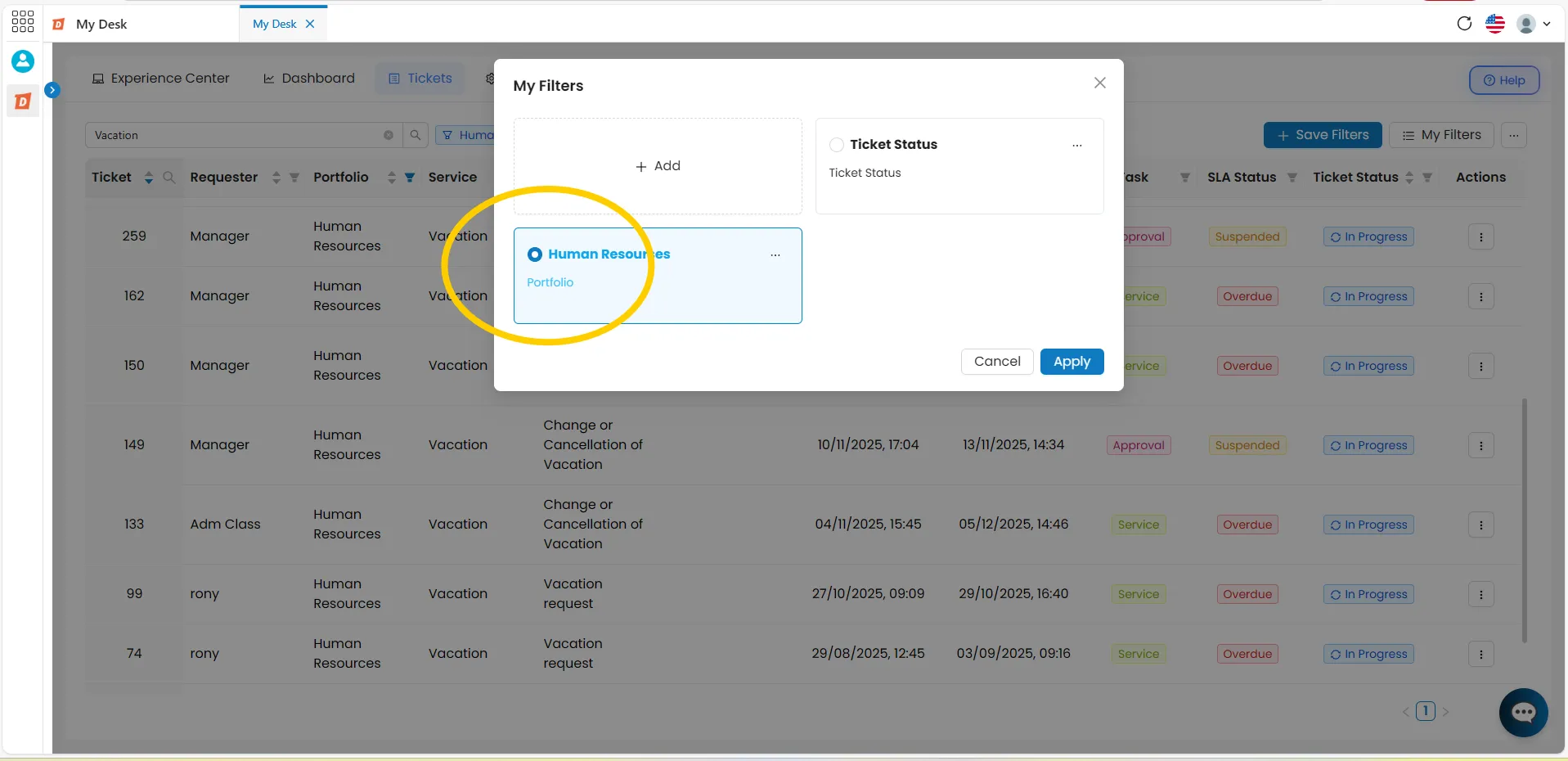
To use your saved filters, follow the steps below:
Click the My Filters button
In the upper right corner of the screen.
Select the desired filter
Click and select the filter you want to apply.
Click the Apply button.
The filter will be applied to the ticket list and will appear highlighted next to the search box.
5.5 - Filter Table
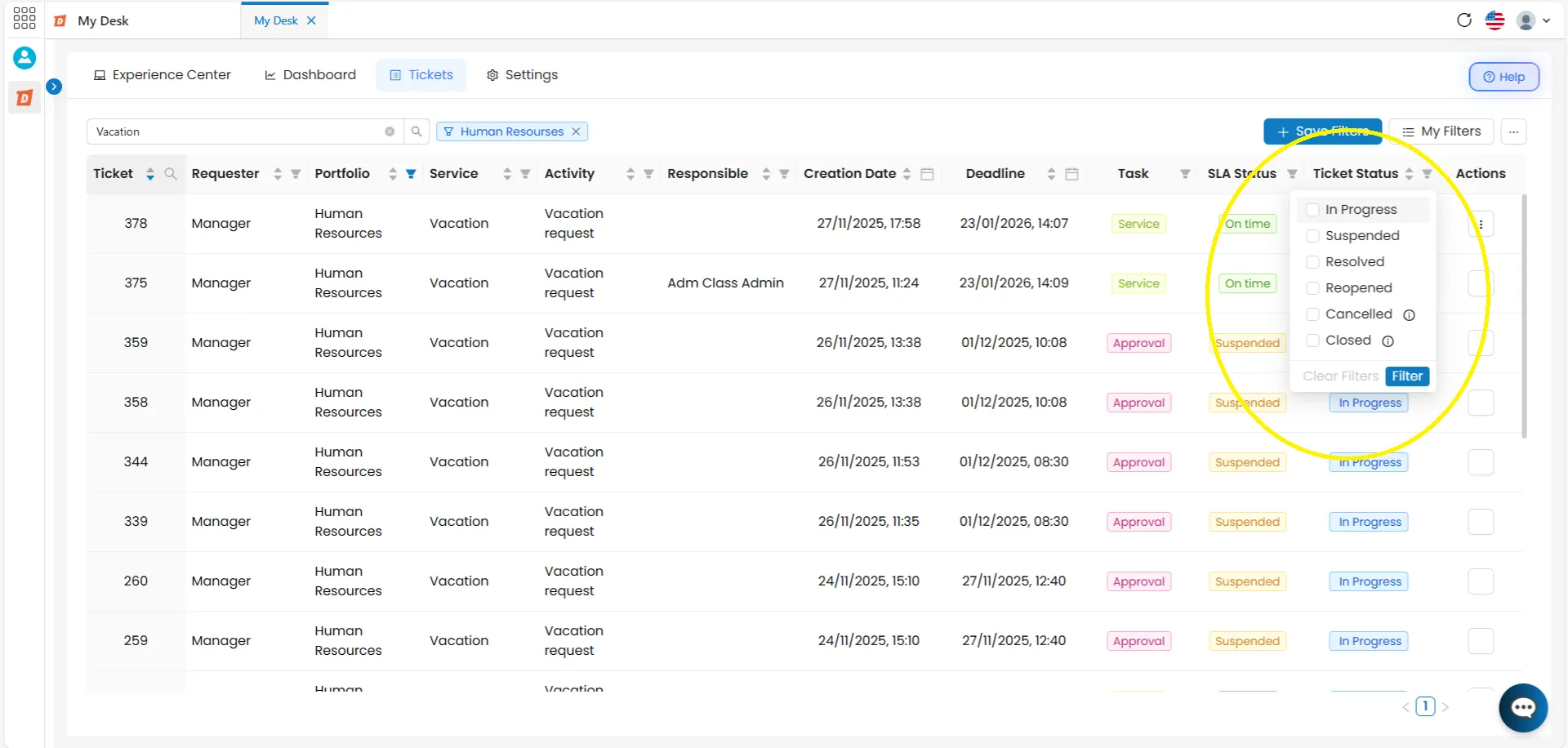
Each column in the table has a filter icon next to its name. Click it to filter directly by that attribute. The available options per column are:
Ticket
Search by specific number.
Applicant
Filter by one or more names.
Portfolio
Filter by one or more portfolios.
Service
Filter by one or more services
Activity
Filter by one or more activities.
Responsible
Filter by one or more responsible parties.
Creation Date
Filter by period: start and end date.
Term
Filter by period: start and end date.
SLA Status
Filter by one or more SLA types.
Ticket Status
Filter by one of the available statuses.
💡 How to clean the column filter:
Click the column filter icon again, click Clear filters, and then click Filter — or click outside the checkbox.
To use a filter for a specific column, follow the steps below:
- Click the filter or date icon , located next to the name of each column with this option;
- Select one or more attributes to activate the filter;
- Click the Filter button..
To remove the direct filter:
- Click the filter or date icon ;
- Click Clear Filters;
- Click Filter or click outside the checkbox.
5.6 - [ ] Sorting
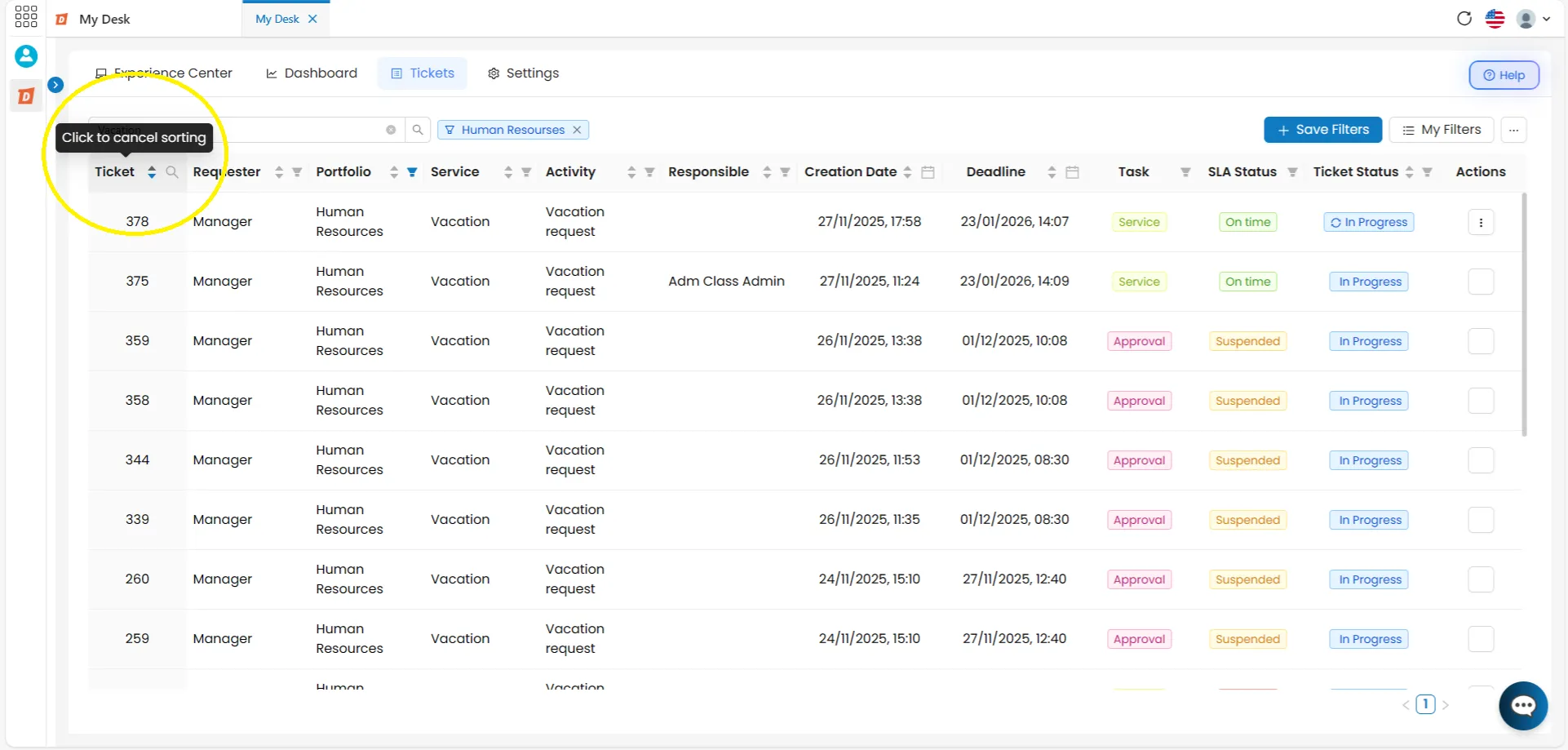
Sorting can be applied directly to the Tickets table.
- Click on the icon to sort in ascending or descending order, adjusting the list's display.
- You can change the sorting order for any column.
5.7 - Customize Table [...]
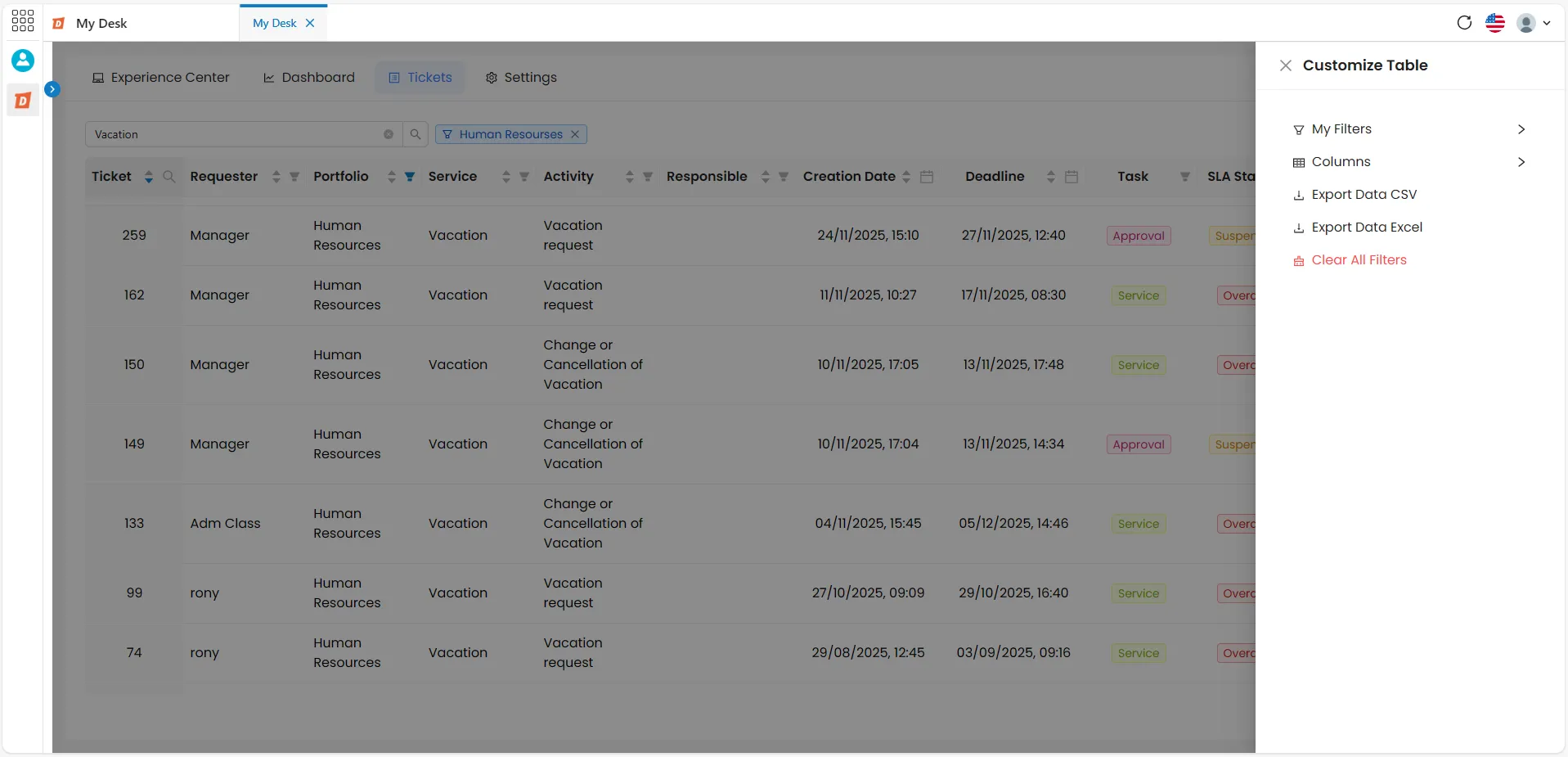
The Action Button [...] (three dots), located in the upper right corner of My Desk, offers several options to facilitate viewing the list of tickets.
Clicking the button will bring up a small window on the right side of the screen with the following options:
- My Filters;
- Columns;
- Export data CSV or Excel;
- Clear all filters.
5.7.1 - - My Filters
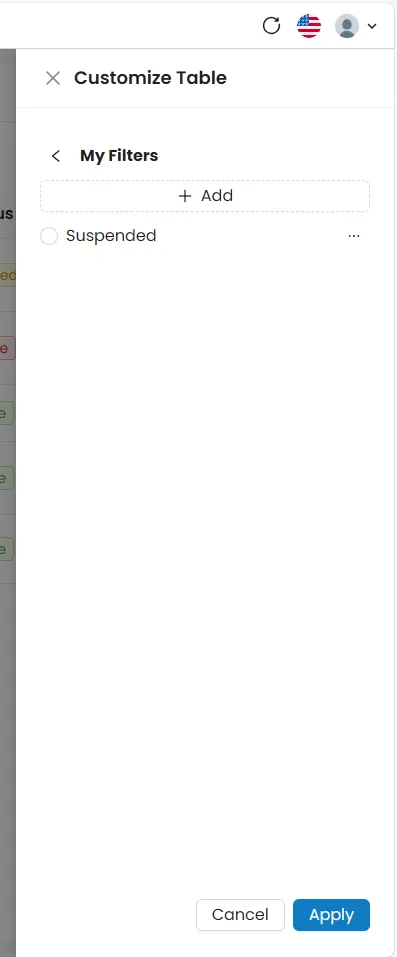
From this option, you can:
- Create a new filter
- Apply an existing filter
- Edit a filter
- Delete a filter
5.7.2 - - Columns
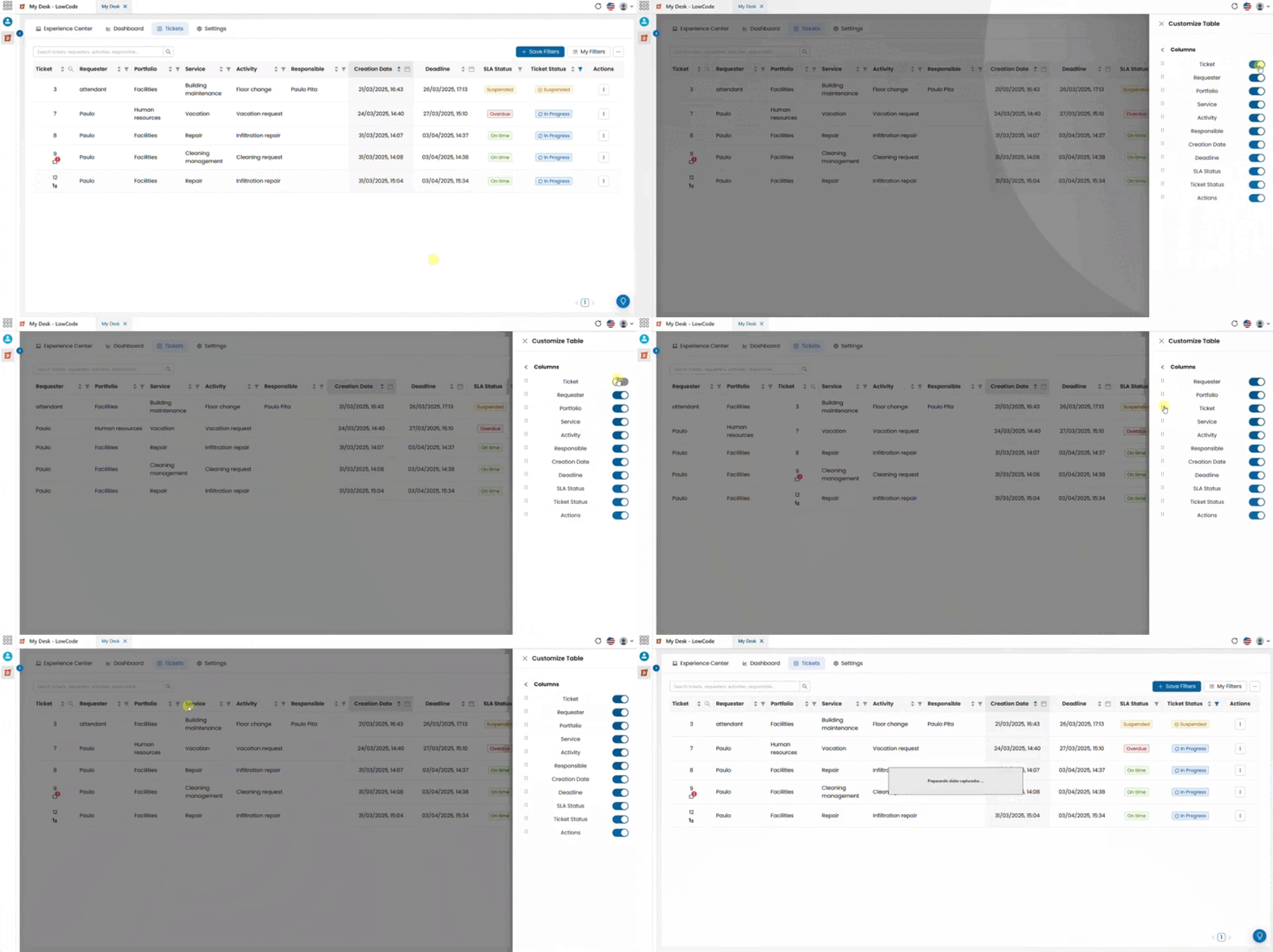
From this option, you can customize the column display in the ticket list. The changes you can make are:
- Enable column: Keep the column visible in the ticket list.
- Disable column: Hide the column from the ticket list.
- Reorder columns: Change the column order by clicking and dragging the desired option up or down using the "six dots" button, adjusting its position in the final ticket list view.
5.7.3 - - Export data
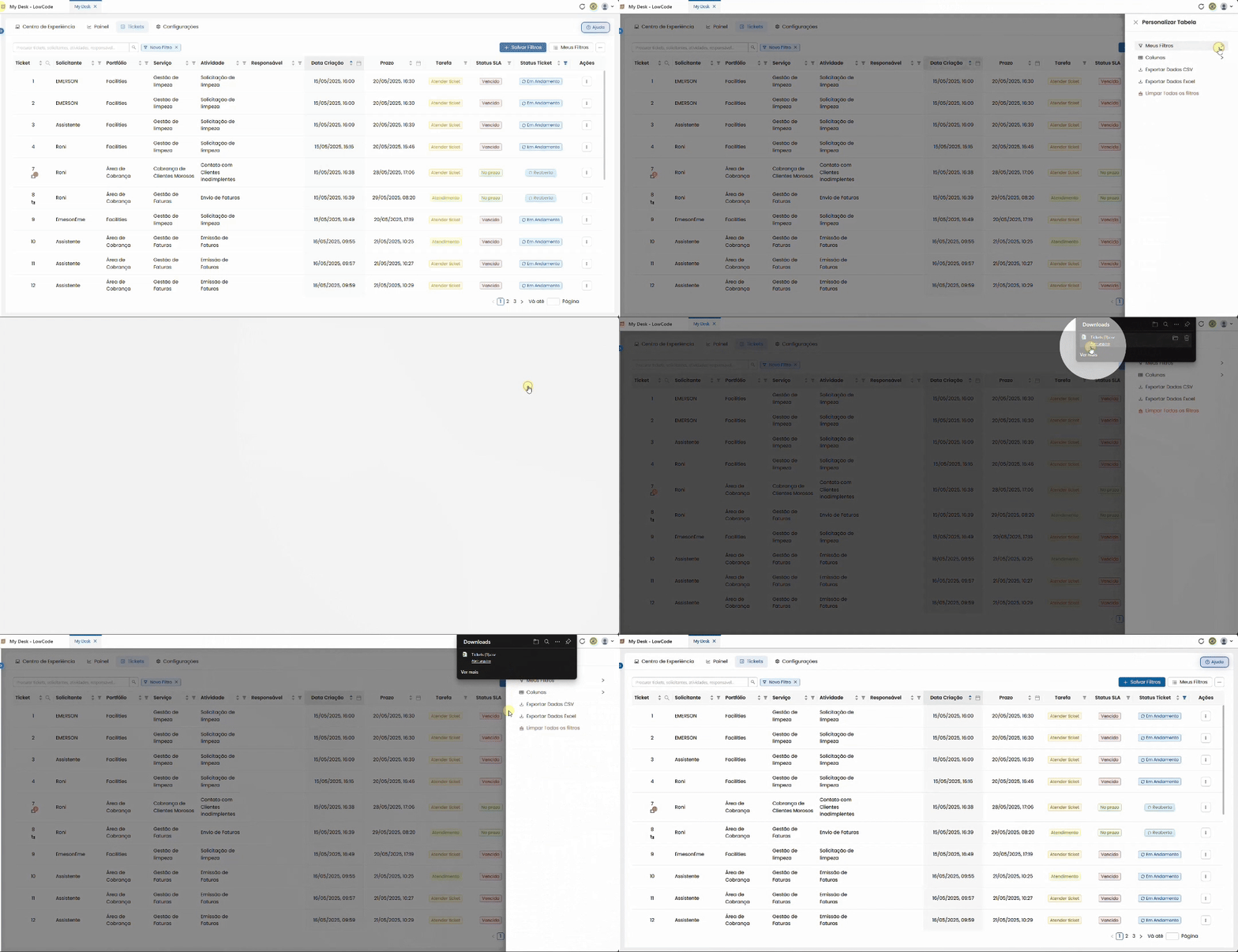
Export the table data to either Excel or CSV.
Clicking will automatically download the chosen file.
5.7.4 - - Clear All Filters
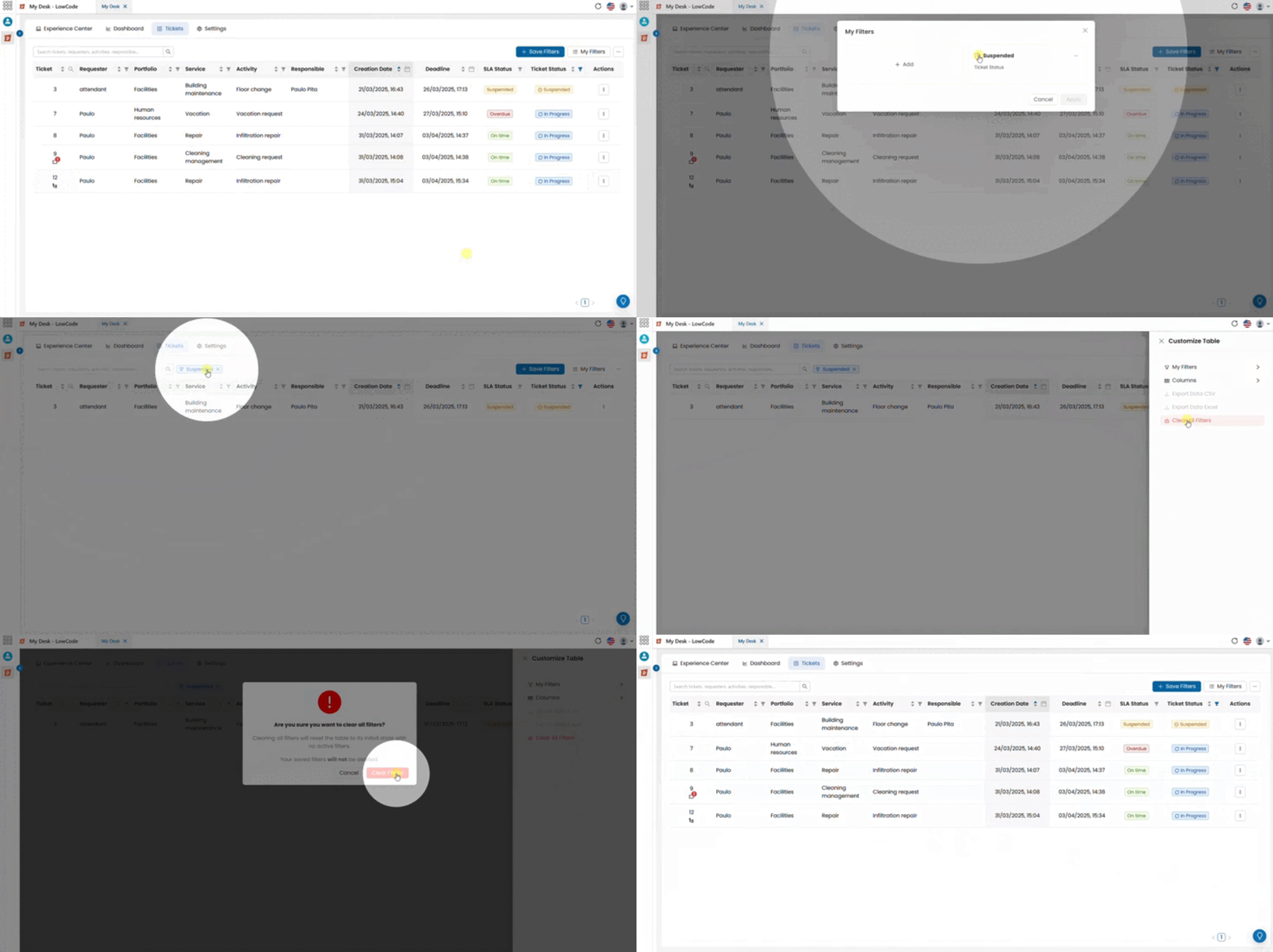
This option clears all filters, restoring the ticket list to display 100% of the tickets with no active filters. To use this function, follow the steps below:
- Click on the Action Button […] (three dots) in the upper right corner of My Desk.
- Click on Clear All Filters.
- A window will appear in the center of the screen asking for confirmation.
- Click the red Clear button to remove the applied filter.
- Click Cancel to return to the list without making any changes.
Note: This action does not delete saved filters.