Personalization
Customize the Experience Center
Administrator

My Desk allows you to customize the Experience Center to reflect your organization's visual identity and services. Color and logo changes made here are also automatically applied to the email template sent to users.
1 - How to access
Access My Desk
Select the My Desk application from the applications menu.
Click on Settings
In the application's top menu.
Click on Customization
In the left-hand sidebar menu, the customization screen will be displayed with the real-time preview panel.
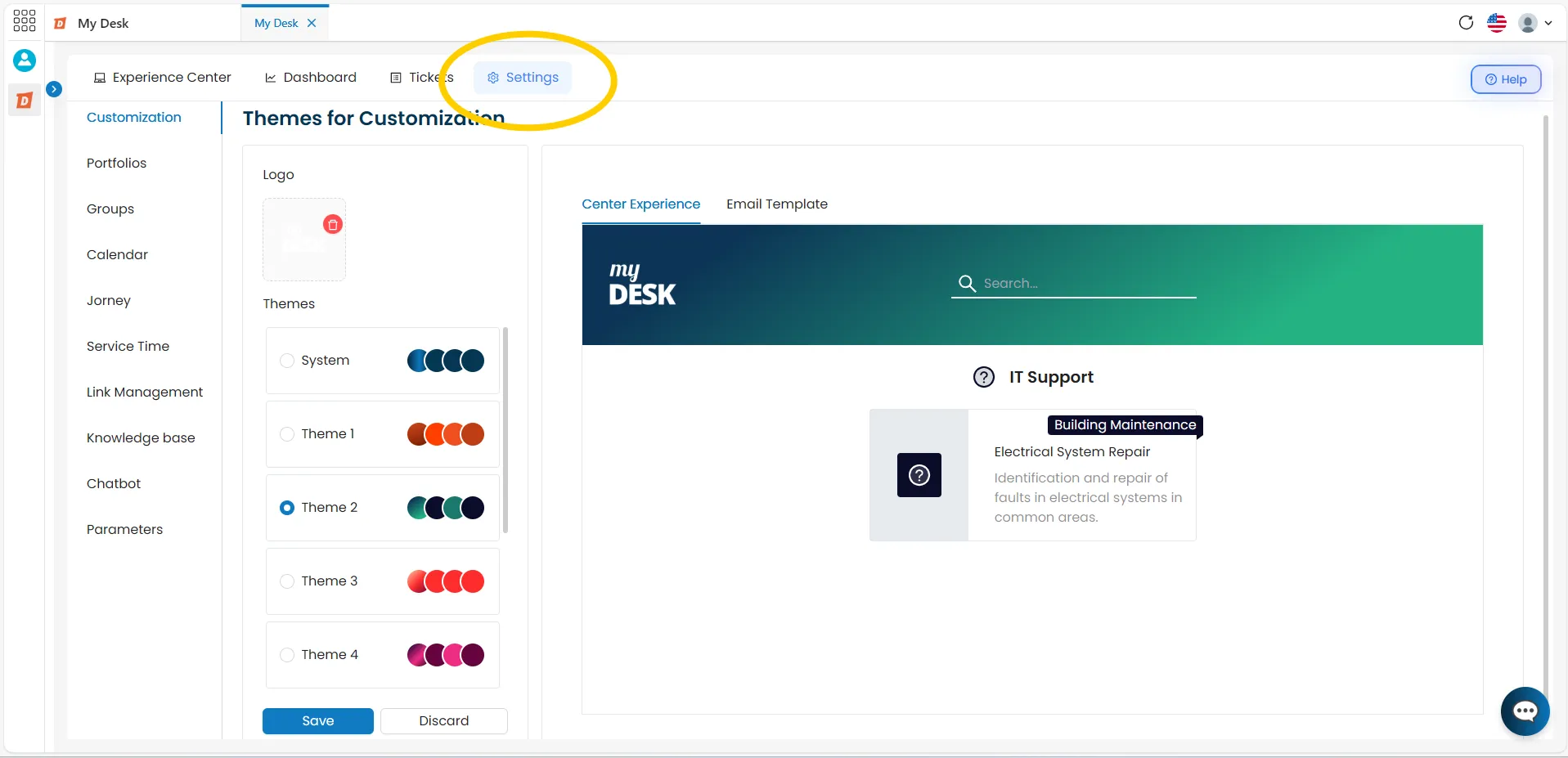
2 - Choosing a color theme
A tela de personalização permite definir a paleta de cores de exibição do Centro de Experiência. As alterações são refletidas no painel de visualização em tempo real, antes mesmo de salvar.
Click on the color palette
A color picker will appear. Choose the desired color by clicking on it or entering a hexadecimal color code.
Click Save
The changes will be applied to the Experience Center. The system will display a message confirming that the experience center has been successfully updated.
💡Real-time preview:
The preview panel next to the color picker reflects the changes immediately, even before you click Save. Use this to see how the color will look in the Experience Center.
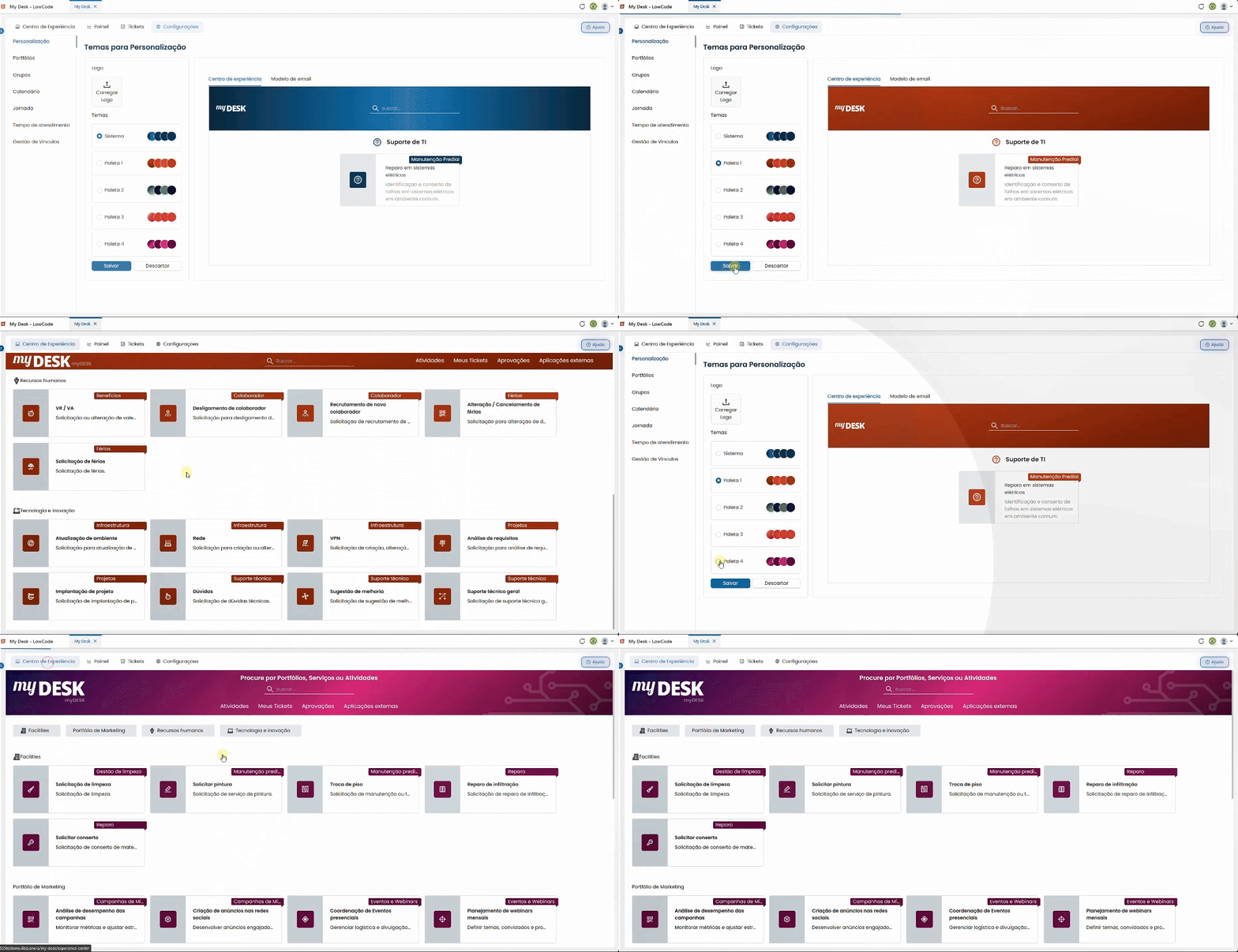
See in the image below a change reflected in the Experience Center with a new color palette.
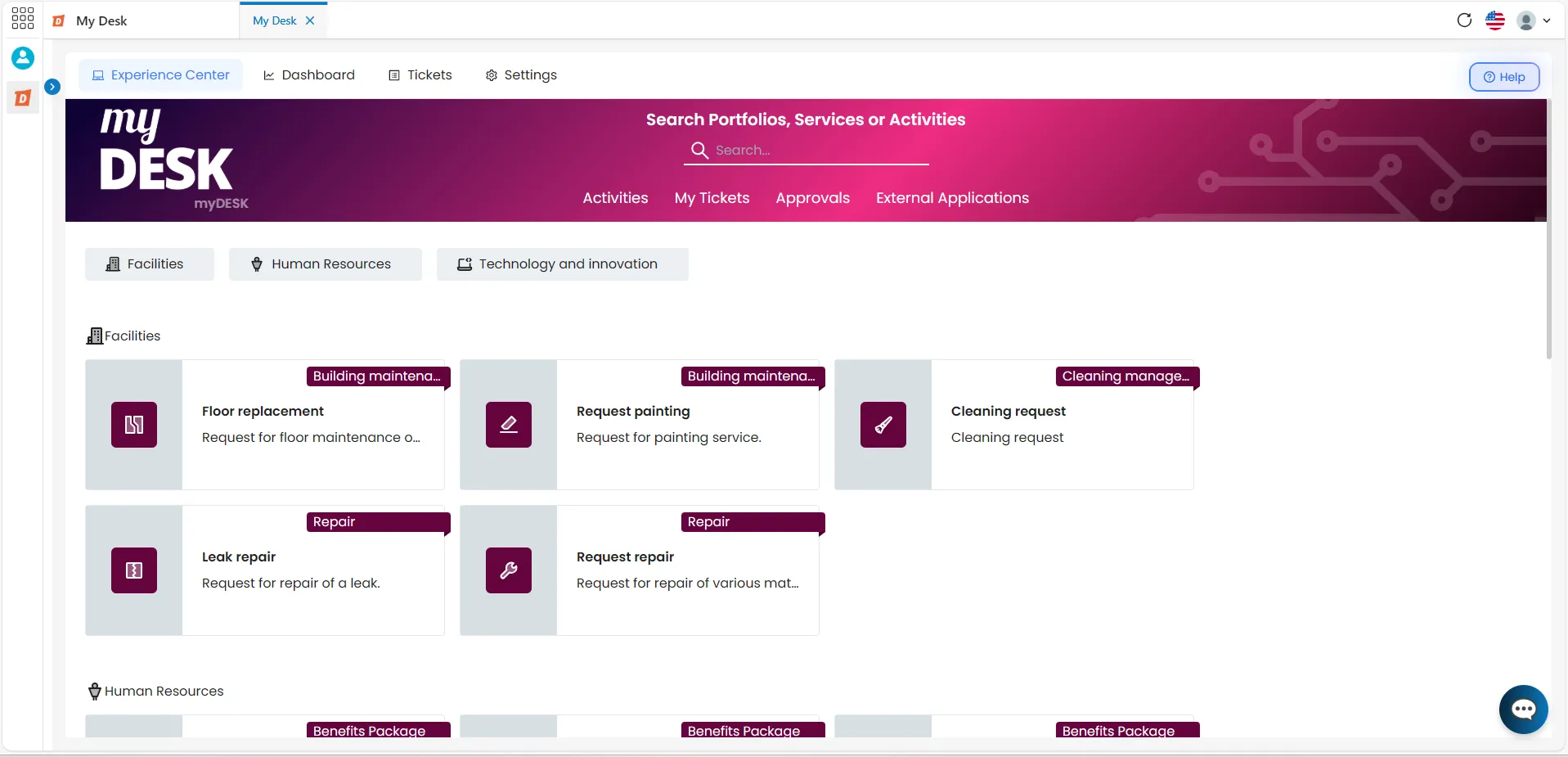
3 - Change the Logo
You can upload a custom image — such as your company logo — to replace the system default in the Experience Center.
Click on Load logo
The button is located at the top of the display panel.
Select an image file
A window will open in the center of the screen. Navigate to the desired image file on your computer and select it.
Click Open
The image will be displayed as a thumbnail and shown alongside in the preview panel.
Click Save
The logo will be applied to the Experience Center. The system will display a message confirming that the experience center has been successfully updated.
See the image below for an example of a color change applied to the Experience Center.
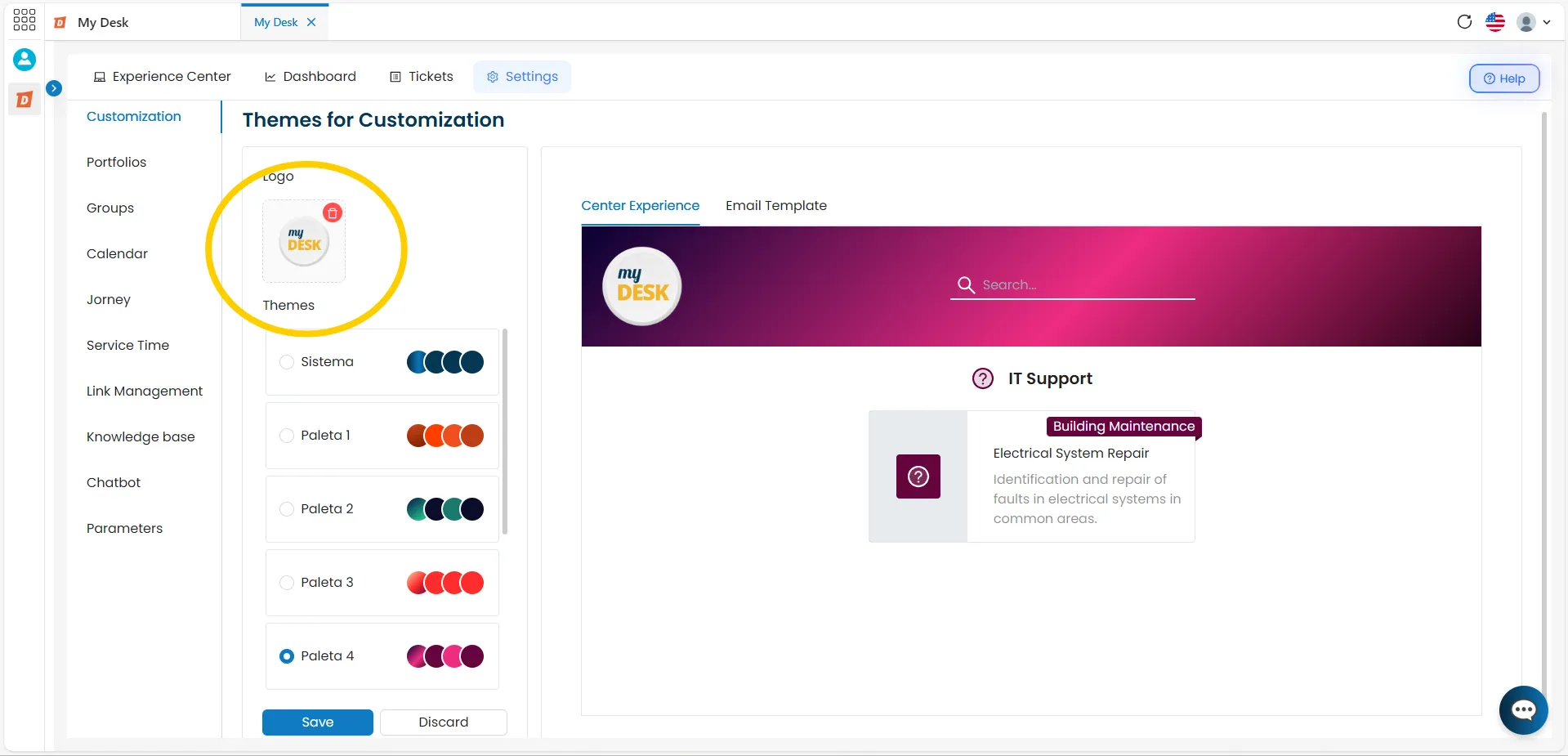
If you wish to discard the changes and revert to the initial color scheme, click Discard.
After clicking Save, the system will display a message confirming that the Experience Center has been successfully changed.
4 - Customize Email Theme
Any changes made to the customization of the Experience Center are automatically reflected in the email template sent to users. The theme color and logo entered will also be reflected in the messages sent by the system.
📌 Sem personalização personalizada:
If no modifications are made to the My Desk customization and you prefer to use the system's initial color and logo, no custom theme will be applied to the email template—it will remain in its default white color.
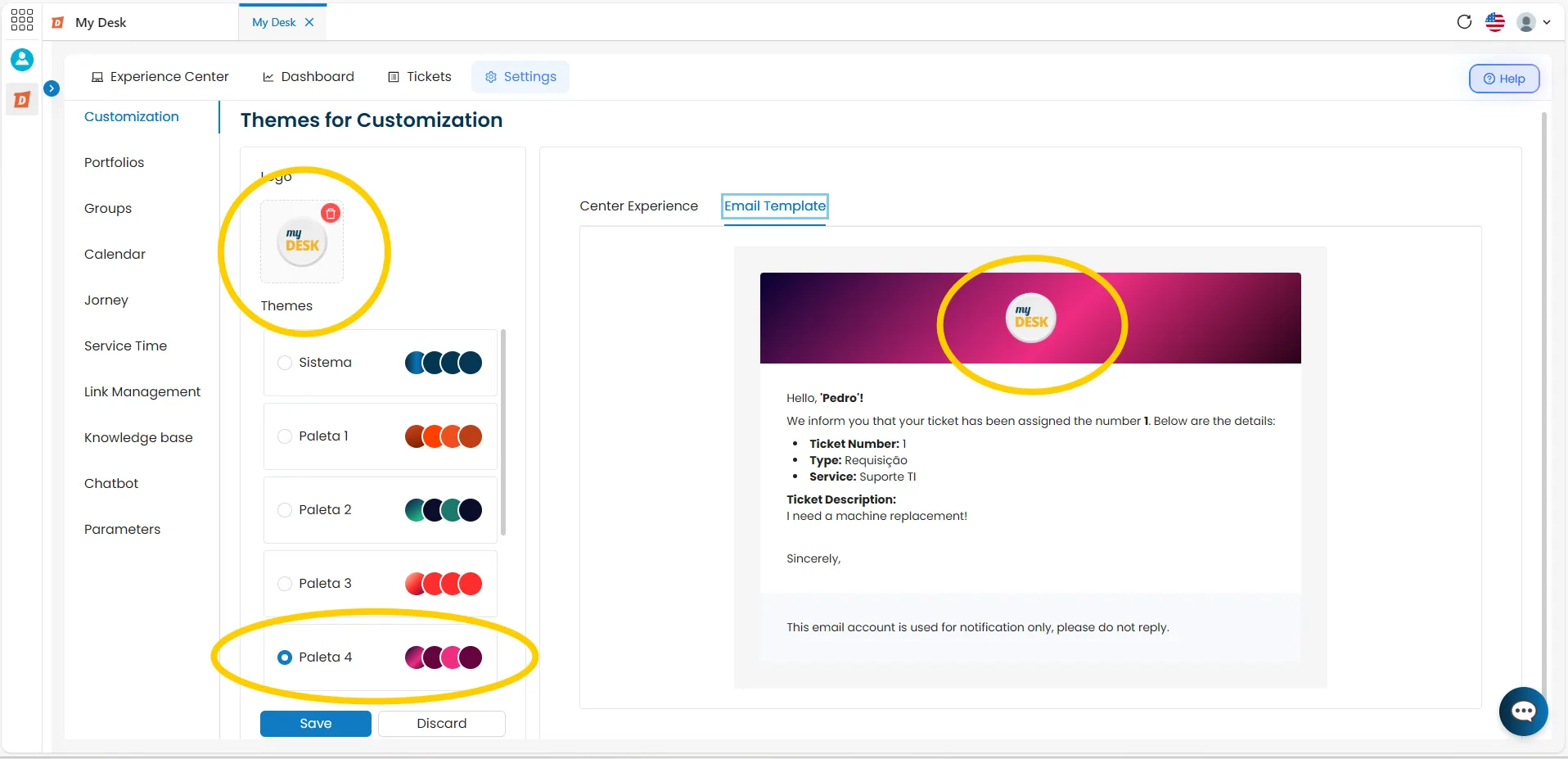
5 - Discard changes
If you wish to undo the changes made and return to the system's default color and logo settings, click the Discard button. Any unsaved changes will be removed, and the system will revert to its original appearance.
⚠️ Atention:
The Discard button removes both the color changes and the uploaded logo. This action cannot be undone after confirmation.