Calendar
Administrator
The calendar defines the days and hours of operation for your organization or each customer service team. It is necessary for the correct functioning of the workflow of activities and services in the portfolios—without it, the SLA calculation does not work correctly.
📌 Prerequisite:
Before creating a calendar, make sure that there are already registered work schedules. Each day of the week in the calendar needs to be associated with a work schedule.
1 - Accessing the Calendar

To access the calendar function, follow the steps below:
Access My Desk
Select the My Desk application from the applications menu.
Click on Settings
In the application's top menu.
Click on Calendar
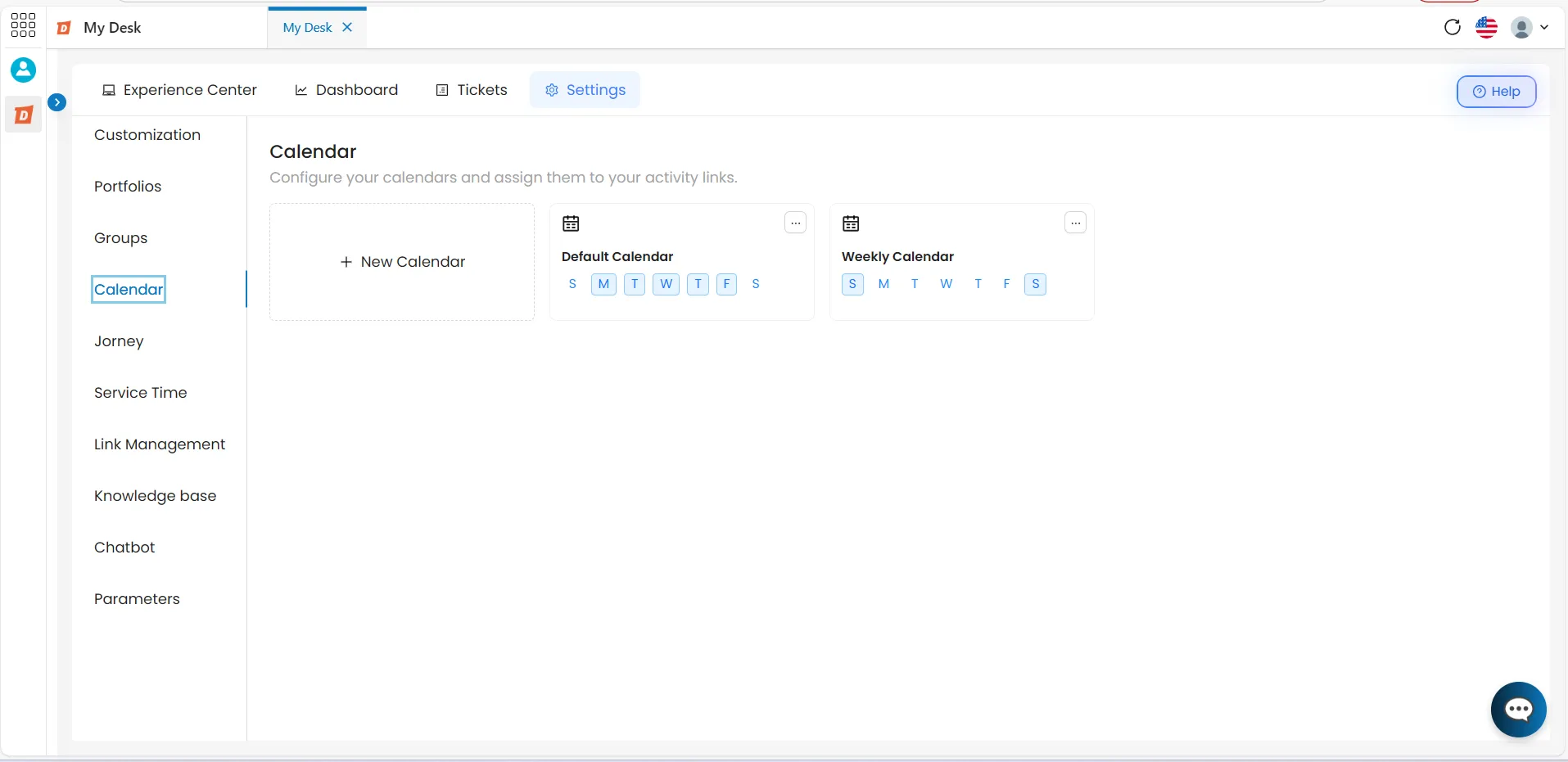
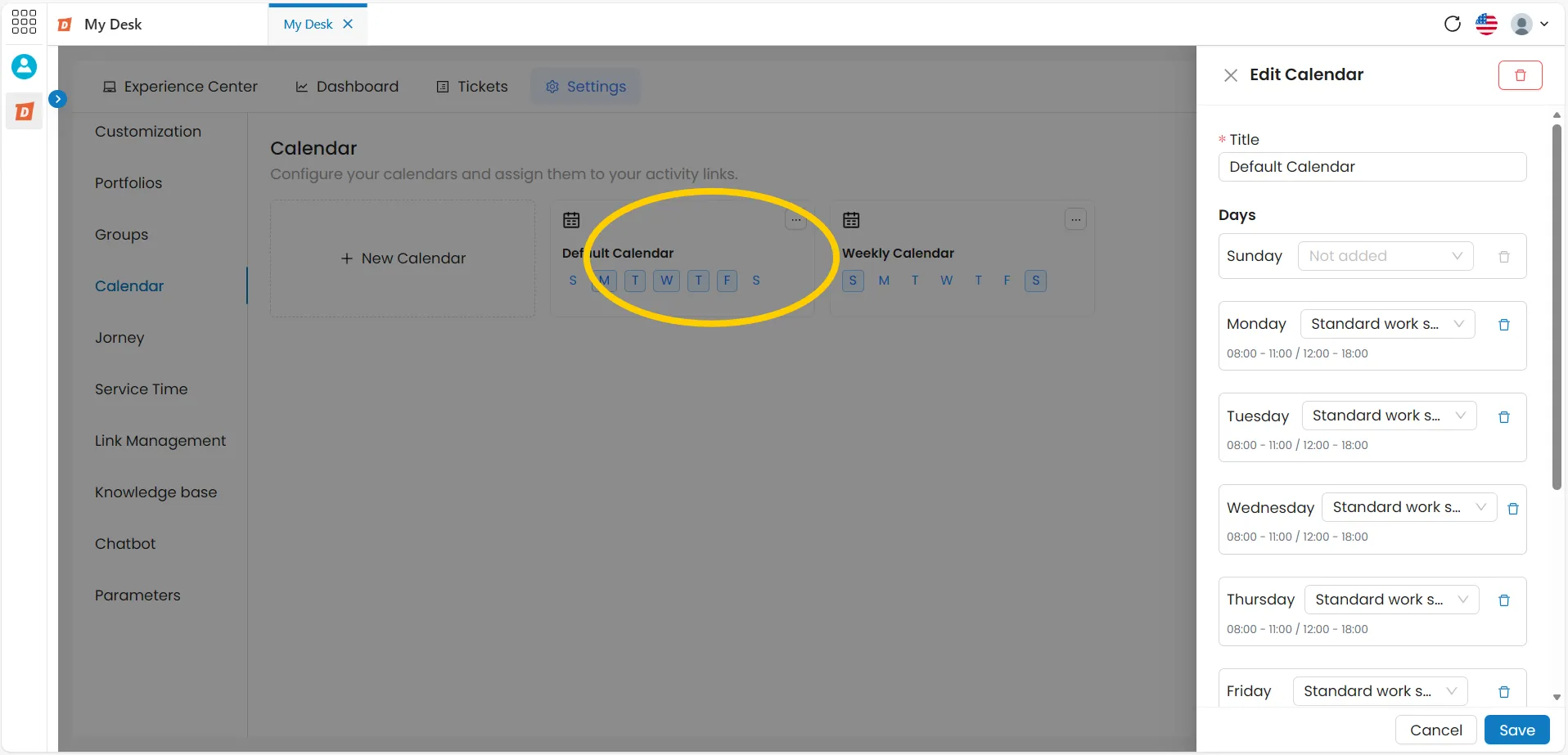
In the left sidebar menu. The list with all registered calendars will be displayed in blocks, showing the days of the week with the configured schedules and the action button ( ··· ) to edit and delete.
2 - Create a New Calendar

To create a new calendar, follow the steps below:
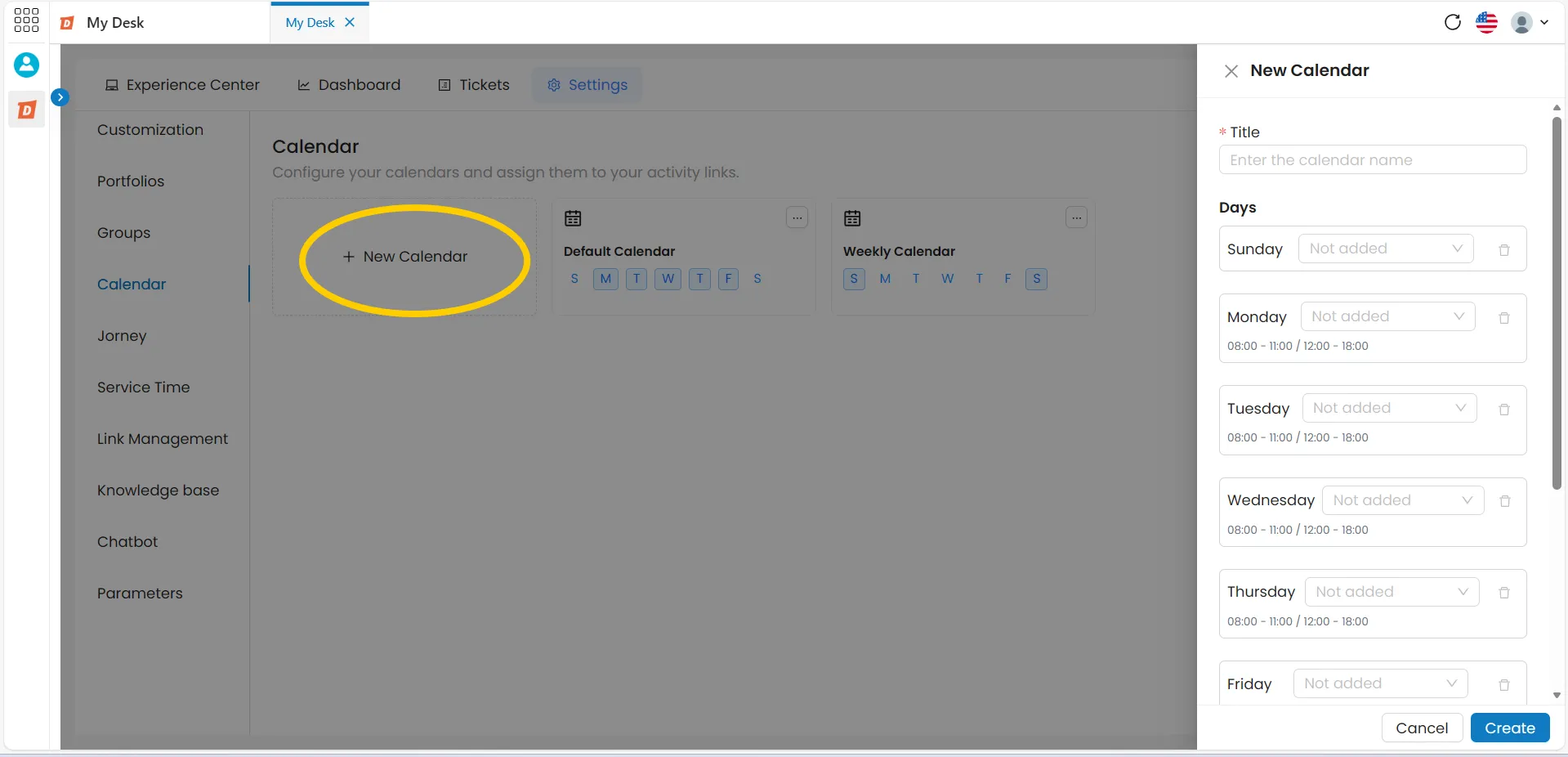
Click on + New calendar
Located in the upper left of the list. A new creation window will appear on the right side of the screen.
Fill in the title
Give the calendar a short, descriptive name. Example: Standard Calendar, IT Support — Shift A.
Set up the days of the week
For each day, select the corresponding work schedule from the dropdown list. Leave the field blank for non-working days—such as Sunday, for example. The trash can icon next to each field deletes the selected schedule for that day.
Click Save
The calendar will be added to the list. Click Cancel to return without saving.
3 - Create a New Jorney

É possível criar uma nova jornada sem sair da tela de criação do calendário. Isso é útil quando a jornada necessária ainda não foi cadastrada.
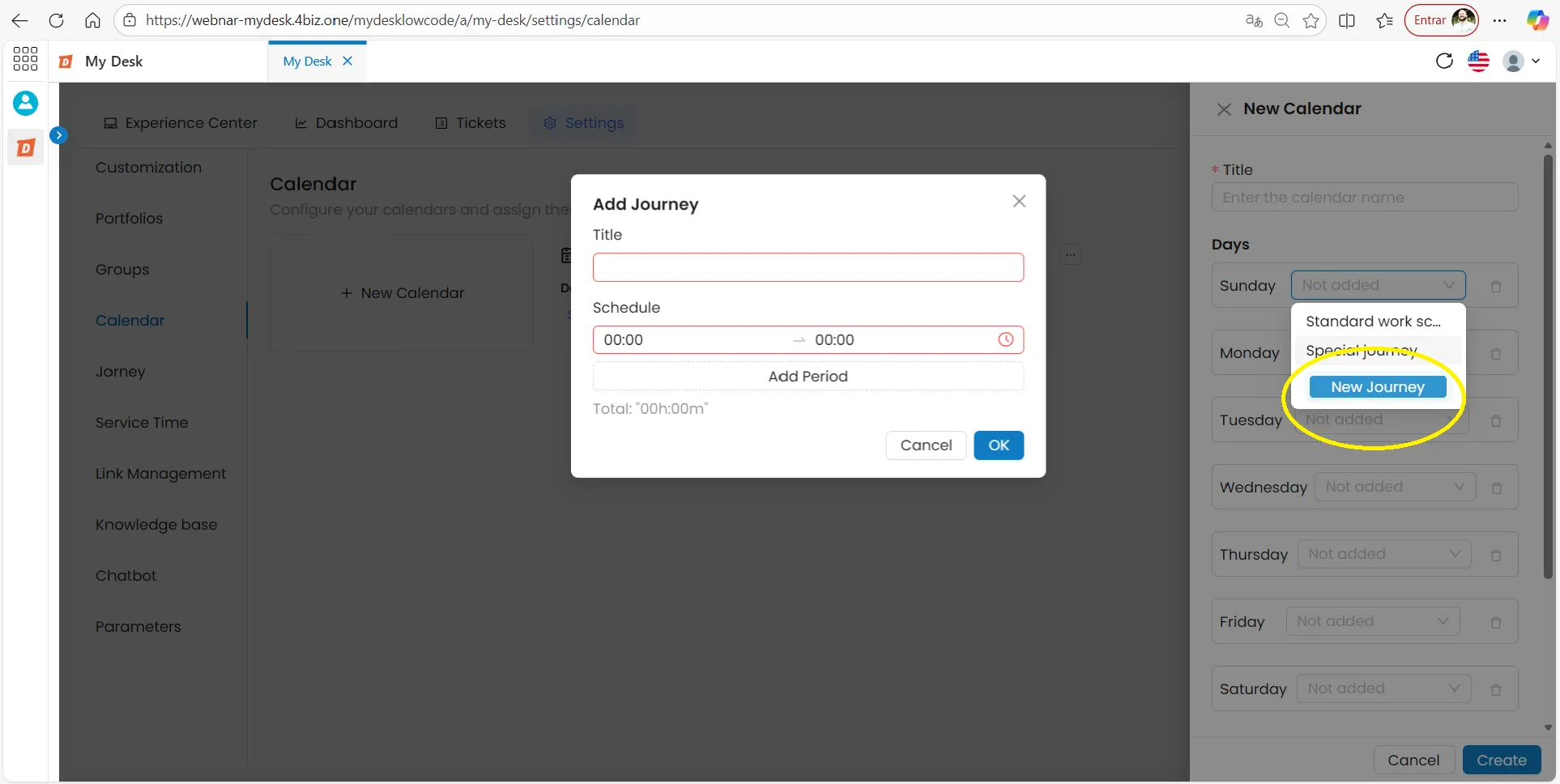
Click on the dropdown list for one of the days
Scroll to the bottom of the list of available options.
Click on + New journey
A new window will open in the center of the screen.
Fill in the journey details
Title
Add a short name to the shift. Example: Sales, Night Shift.
Time
Define a work schedule. Example: 8:00 AM to 6:00 PM.
Add period
Allows you to include more than one time slot in the same workday — useful for teams with a lunch break. Example: 8:00 AM to 12:00 PM and 1:00 PM to 6:00 PM.
💡 Good practice:
Create the journeys in advance on the Journey page , before setting up the calendar. This makes the setup faster and more organized.
Click Save
The new schedule will be created and will be available for selection in the weekday fields
4 - Exceptions

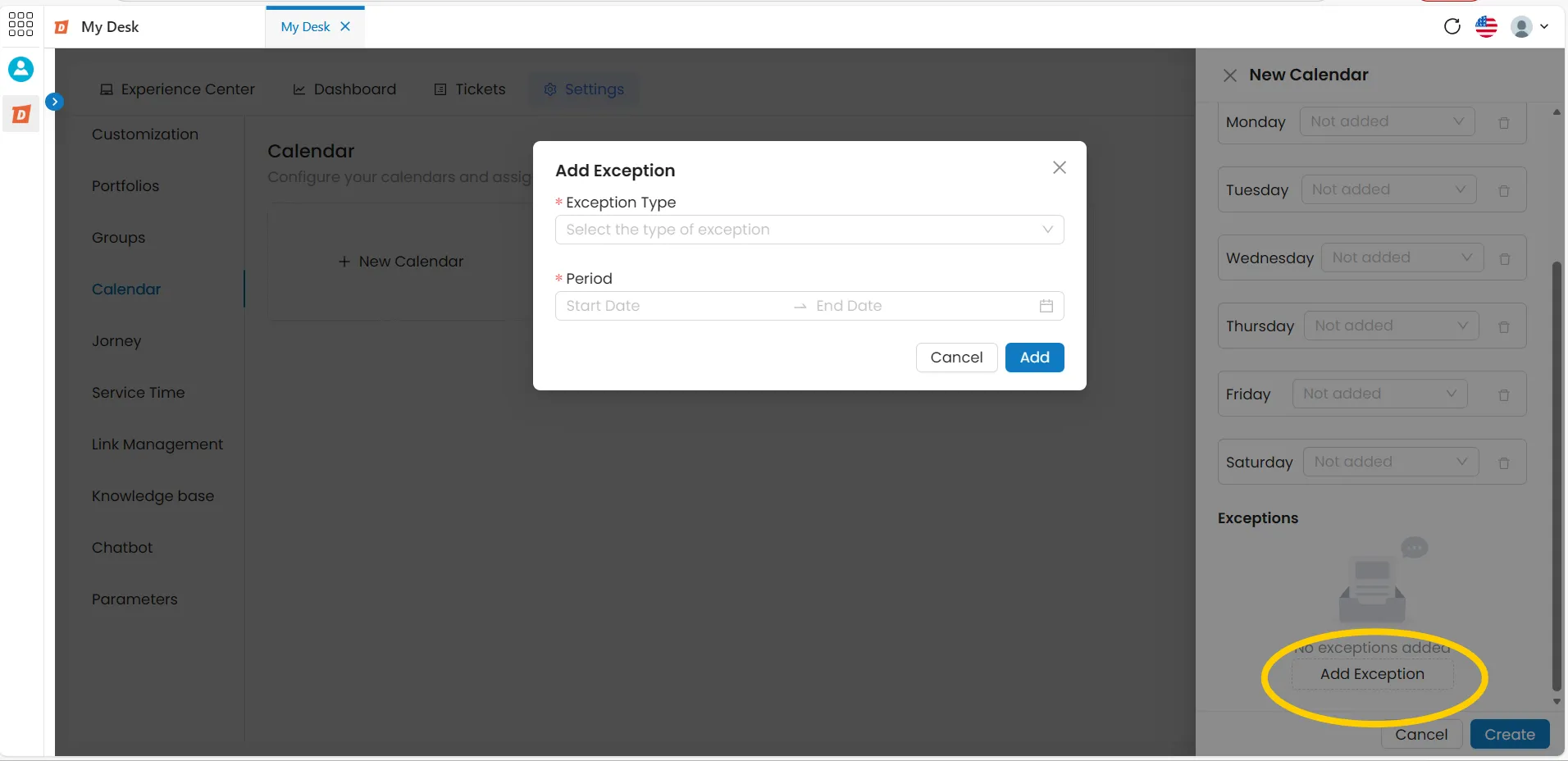
Exceptions allow you to define days when operations will differ from the standard calendar—such as holidays, recesses, or special shifts. They appear at the bottom of the calendar creation or editing window.
To add a new exception, follow the steps below:
Click on + Add exception
At the end of the calendar creation or editing window, a new window will open in the center of the screen.
Choose the type of exception
Select between Day Off or Work from the dropdown list
Day off
Define a day or period when there will be no service — such as holidays or recesses.
- Period — enter the start and end dates of the leave.
Work
Define a day or period with non-standard service hours — such as an on-call shift on a holiday.
- Period — enter the start date and the end date.
- Work schedule — select the work schedule that will be applied during this period.
Fill in the details and click Add.
Or click Cancel to return without saving the exception.
5 - Edit Calendar

To edit a calendar, follow the steps below:
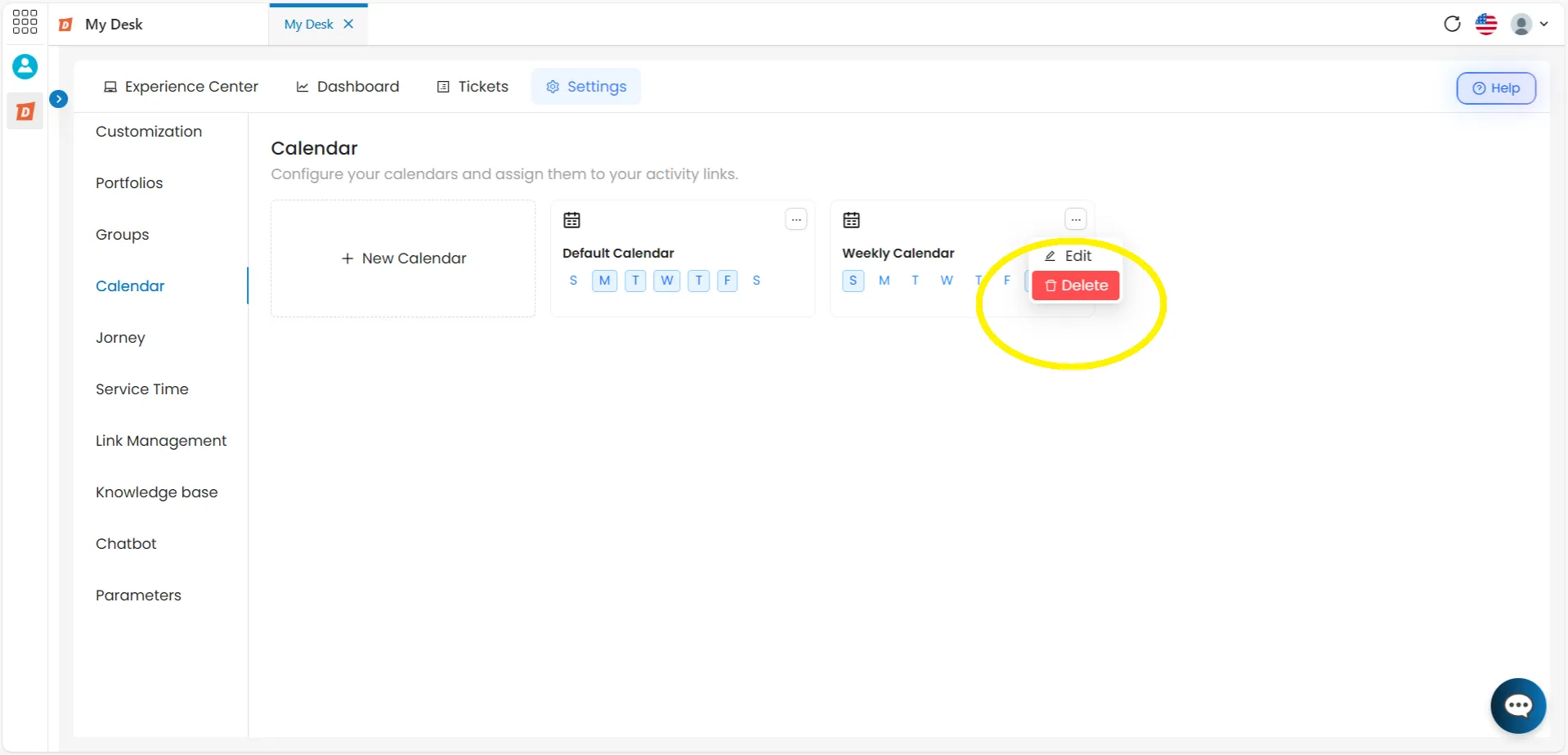
Click the action button ( ··· ) on the calendar
Located in the upper right corner of the desired calendar block.
Click Edit
An editing window identical to the creation window will appear in the right corner of the screen.
Make the desired changes
Edit the title, days, schedules, or exceptions.
Click Save
The changes will be applied. Click Cancel to return without saving.
6 - Delete Calendar

To delete a calendar, follow the steps below:
Click the action button ( ··· ) on the calendar
Located in the upper right corner of the desired calendar block.
Click Delete
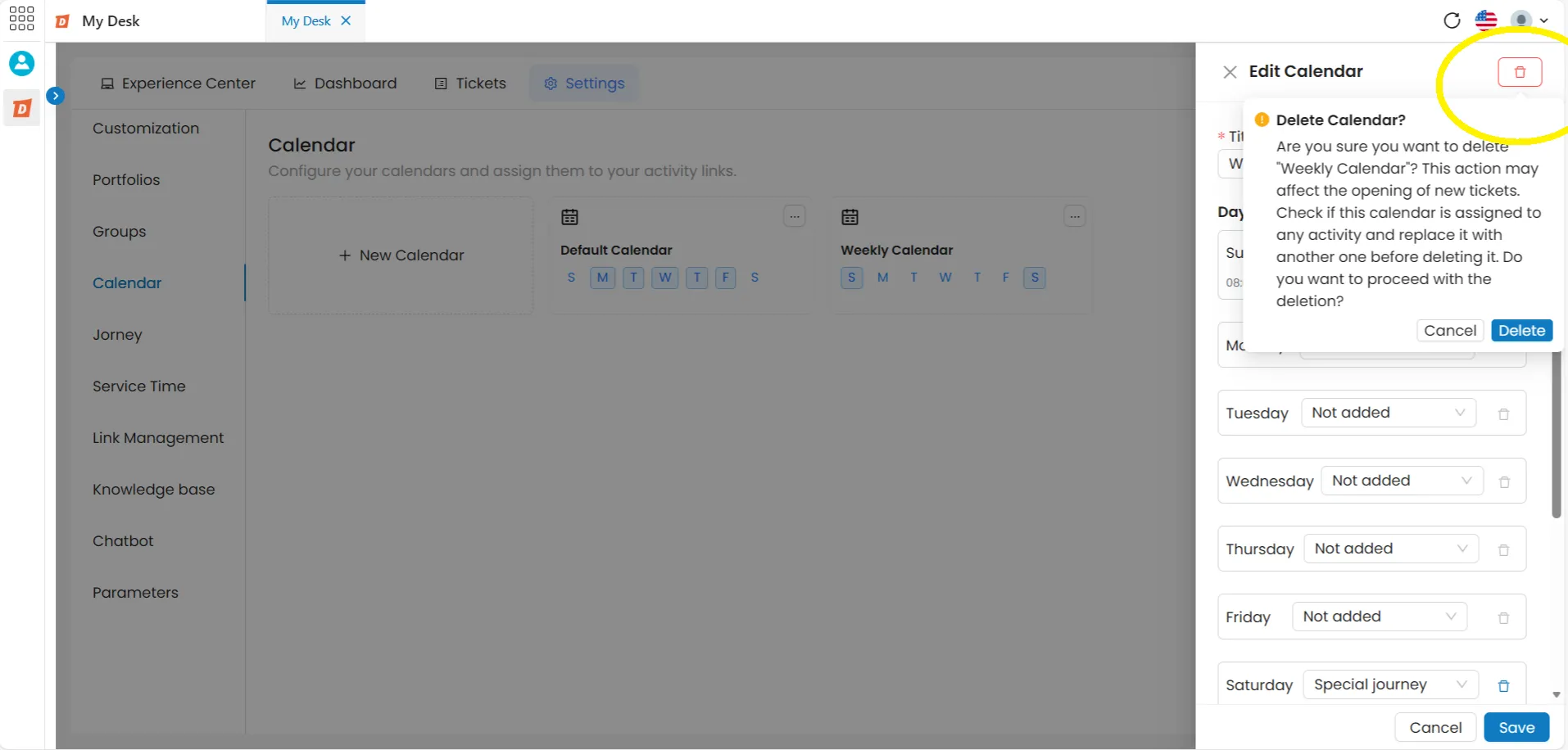
A confirmation window will appear in the center of the screen, informing you that the action cannot be undone.
Click Delete to confirm
A confirmation message will appear at the top of the screen. Click Cancel to return to the list without deleting anything.
⚠️ Attention:
Deleting a calendar is permanent. First, check if it's linked to any SLA in Response Time or any activity in Link Management. If so, replace it with the correct calendar before deleting.