Each activity can have a customized form with specific fields that will be filled out by the requester when opening a ticket. This feature allows you to define exactly what information will be requested — making the service more precise and organized.
1 - Forms
See below for step-by-step instructions on how to access it:
1
Go to Settings → Portfolios
In the top menu and then in the side menu.
2
Click on the desired portfolio
The related services will be displayed below.
3
Click on the desired service
As atividades do serviço serão exibidas.
4
Click on the desired activity
A window will open on the right side of the screen.
5
Click on Activity Form
A new window — Customize Form — will open in the center of the screen, with the tabs Form and Guidelines.
2 - Create a Form with AI
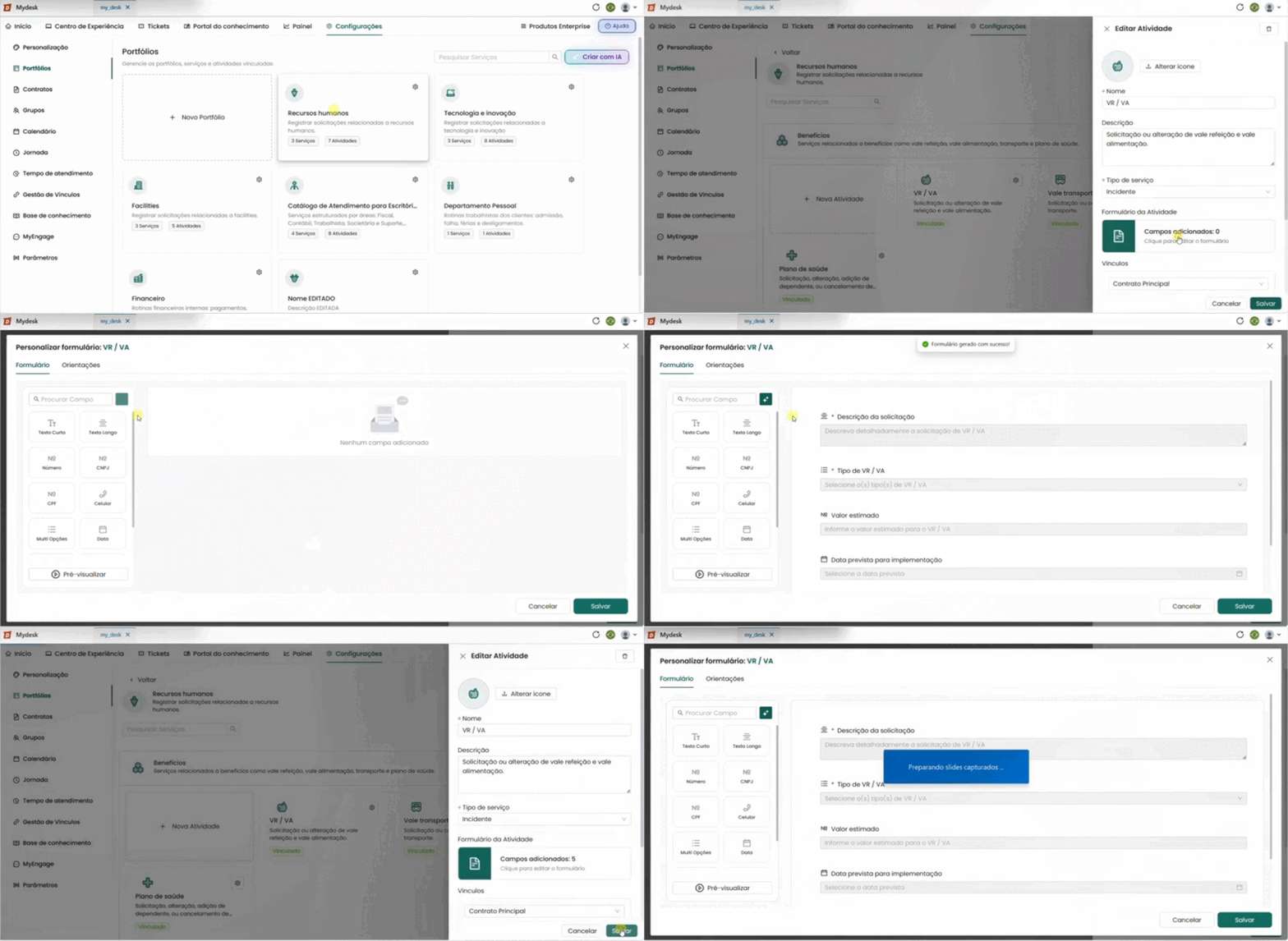
My Desk uses artificial intelligence to simplify form creation. Unlike portfolio creation—where you need to describe in detail what you want—form generation automatically suggests fields based on the activity and service name with a single click. See below for a step-by-step guide on how to request form generation using AI:
1
Access the Customize Form window
Follow the steps in section 1 above to reach the form window.
2
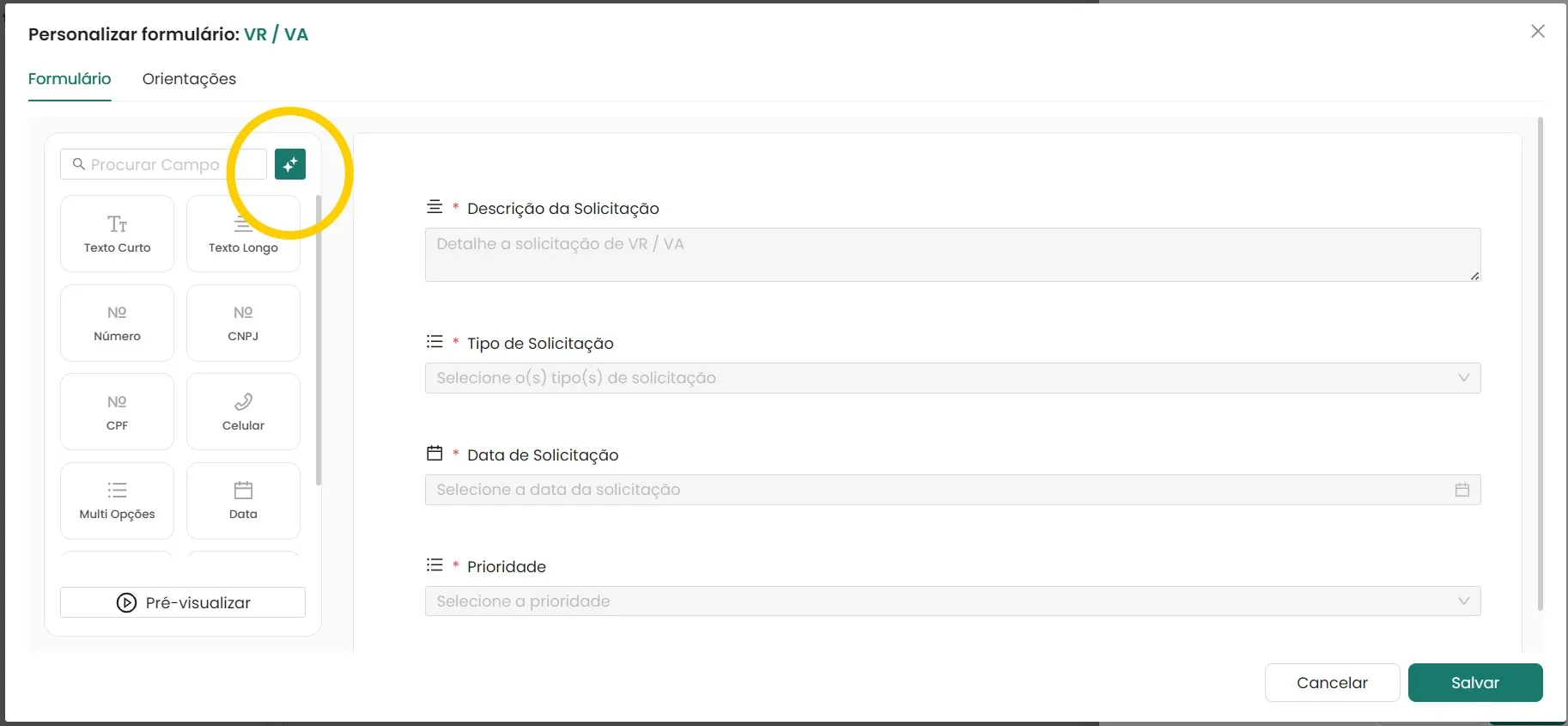
Click on Suggest form with AI
The button is located to the right of the search bar. Please wait a few seconds while the AI processes the suggestion.
3
Review the generated suggestion
Edit, add, or delete fields from the suggested form, if necessary.
4
Click Save
The button is located in the bottom right corner of the screen.
3 - Creating a New Form
The Customize Form window has two parts: on the left are the available field types, and in the center is the preview area with the fields already added.
To manually create a form, follow the steps below:
1
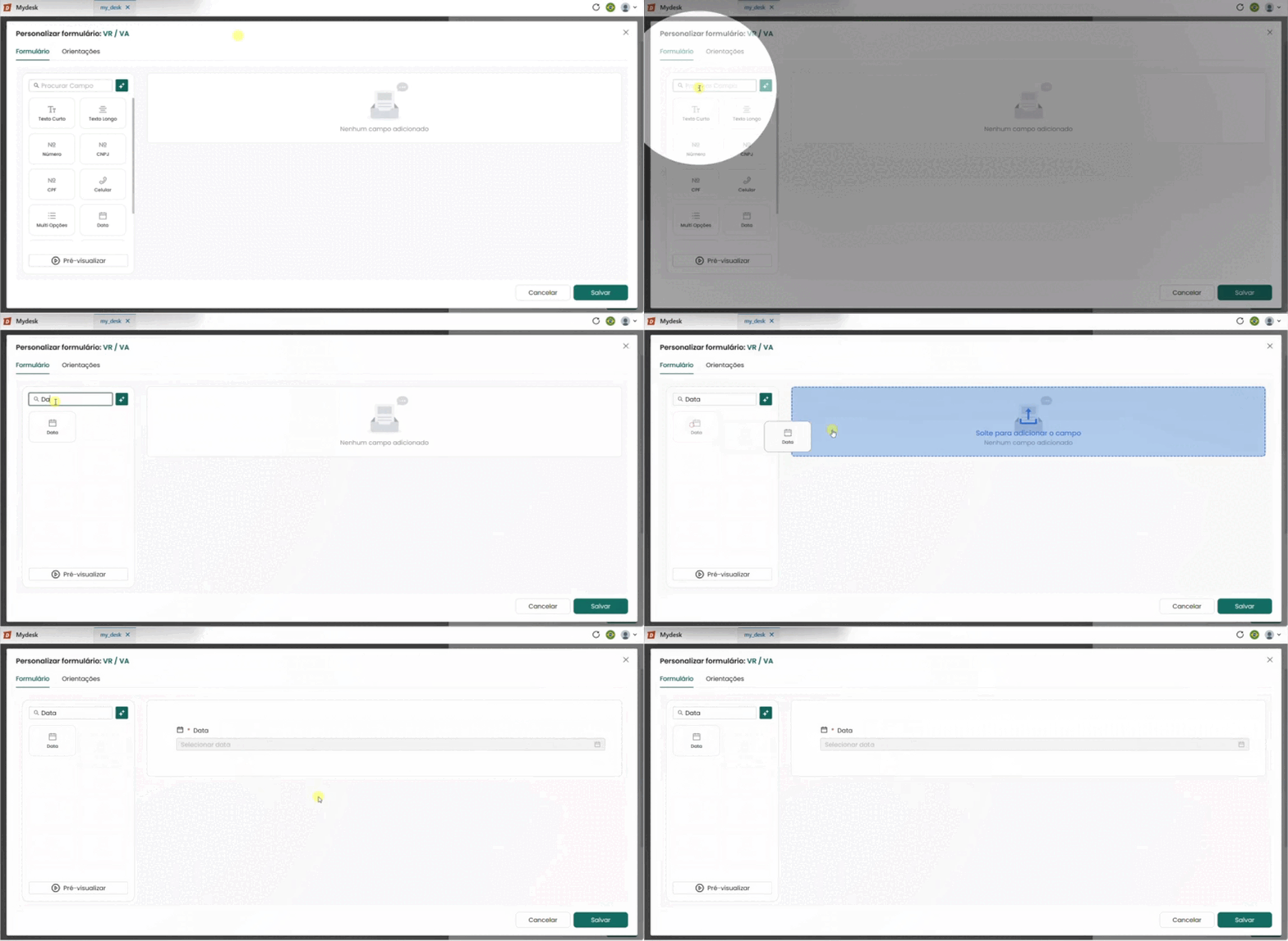
Locate the desired field
Use the search bar in the left panel to find a field by name, or browse the list of available types.
2
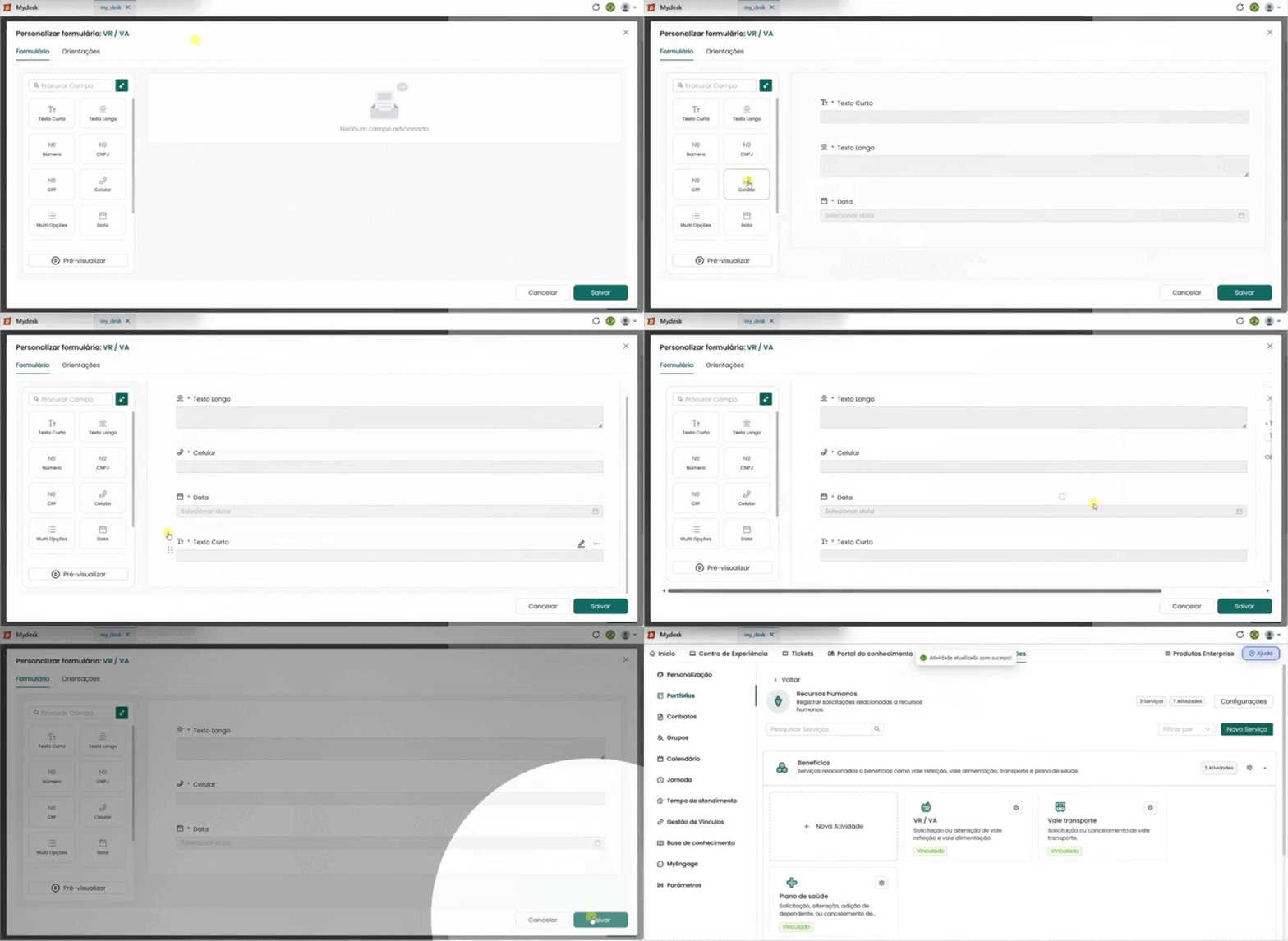
Add the field to the form
Click on the field or drag it to the preview area in the center. The field will be added to the form's list.
3
Configure the field
Click the pencil icon or the three dots (···) in the upper right corner of the field to edit its properties.
4
Click outside the editing window to save
The field settings will be maintained automatically.
5
Reorder the fields if necessary
Click and drag the button with 6 dots on the left side of each field to change the order.
6
Click Save
The form will be saved and will be available when you open a ticket for this activity.
The creation window is divided into two sections:
Form;
Instructions.
See below for details on each.
4 - Form Section
In this section, you can actually create or edit your forms.
The available field types are displayed on the left side of the menu, and the list of fields added to the form will be displayed in the center.
To add a new field to your form, click on the corresponding field and drag it to the preview screen; a new field will be added to the center of the screen.
Below is a description of all available fields and a step-by-step guide to customizing them.
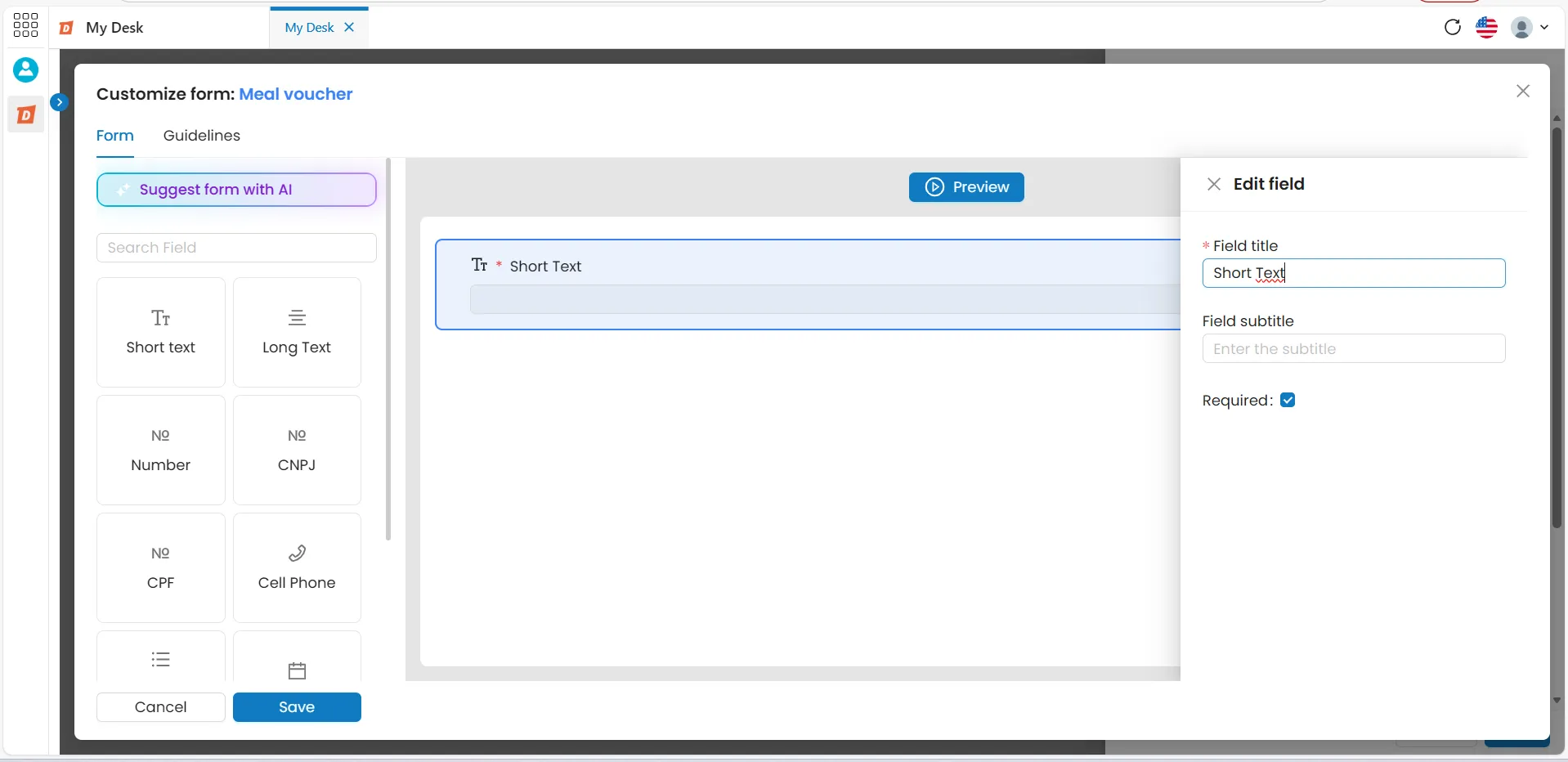
Search bar where you can find the fields you need to create your form.
This field allows users to input a short text.
To use this field in your form, follow these steps:
Click on the Short Text field in the left panel, hold and drag it to the preview area.
Click on the pencil icon or the three dots (...) in the top right corner of the field to edit or delete it.
Edit the following fields:
Field Title – Enter a short name.
Field Subtitle – Provide a brief description or subtitle.
Required – Check the box to make the field mandatory for users, or leave it unchecked to make it optional.
Cancel/Save – Click Cancel to return to the preview section without saving changes, or click Save to apply and keep the changes.
To move or reorder the field, click the six-dot button ⠿ on the left side of the field.
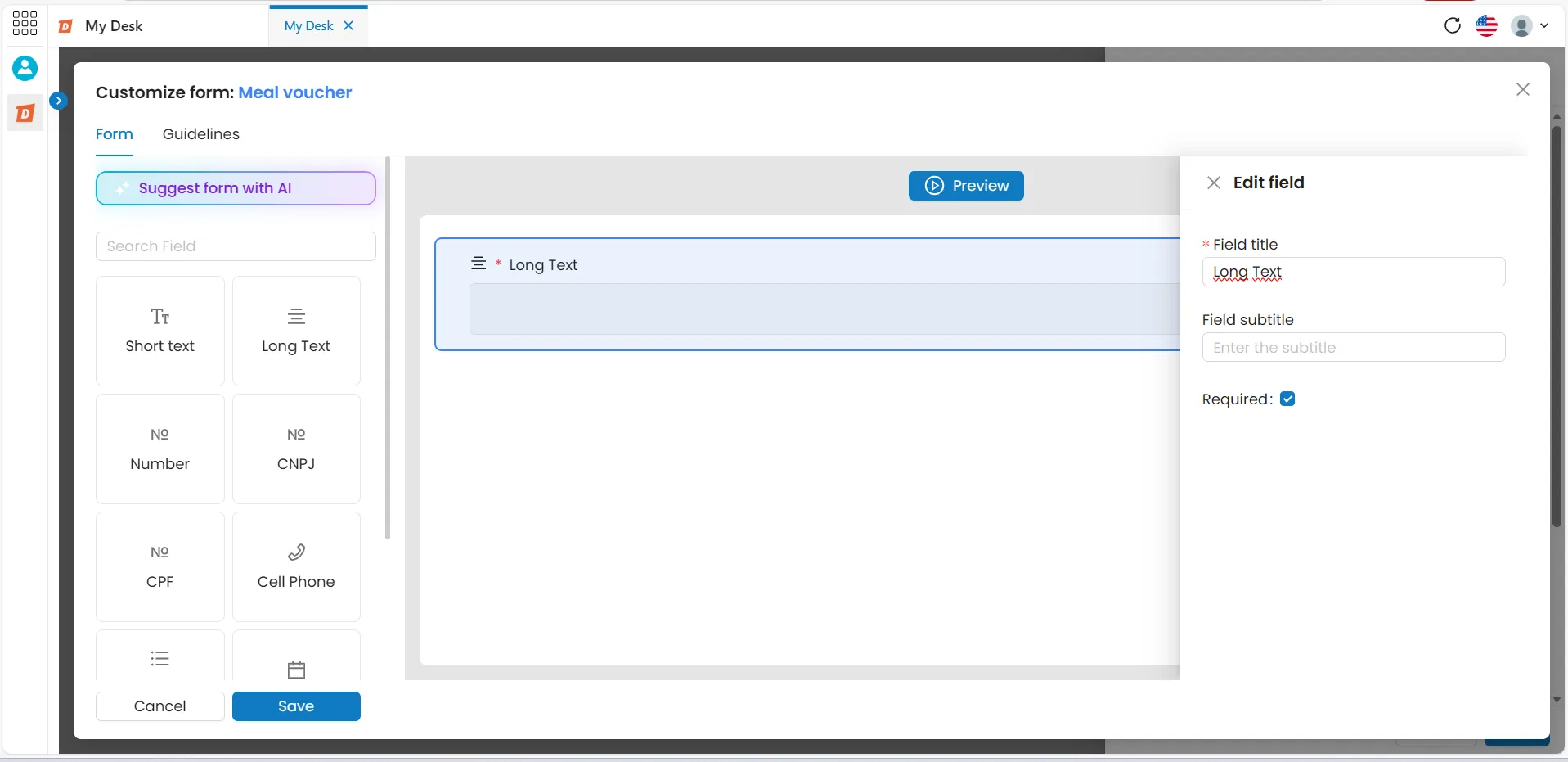
Este campo aceita um input de texto longo do usuário.
How to Use This Field in Your Form
Click on the Short Text field on the left side of the window, hold and drag it to the preview area.
Click the pencil icon ✏️ or the three dots (...) in the top-right corner of the field to edit or delete it.
Edit the following fields:
Field Title – Give it a brief name.
Field Subtitle – Add a short subtitle or description.
Required – Check the box to make it mandatory or leave it unchecked to keep it optional.
Cancel/Save:
Click Cancel to return to the preview section without making changes.
Click Save to finalize and apply your edits.
To move or change the field’s order, click and drag the six-dot button ⠿ on the left side of the field.
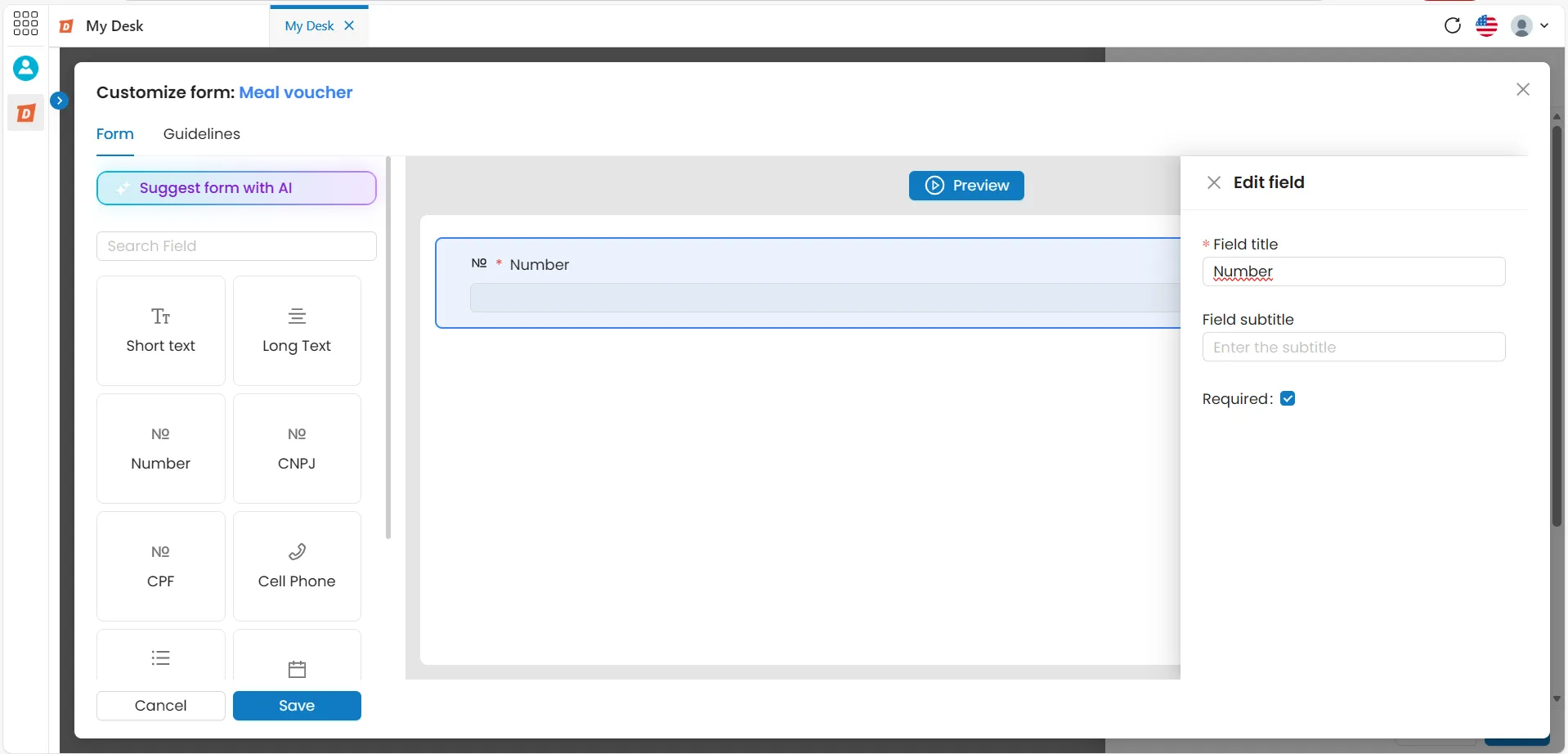
This field allows users to input numbers only.
How to Use This Field in Your Form
Click on the Number field on the left side of the window, hold and drag it to the preview area.
Click the pencil icon ✏️ or the three dots (...) in the top-right corner of the field to edit or delete it.
Edit the following fields:
Field Title – Give it a brief name.
Field Subtitle – Add a short subtitle or description.
Required – Check the box to make it mandatory or leave it unchecked to keep it optional.
Cancel/Save:
Click Cancel to return to the preview section without making changes.
Click Save to finalize and apply your edits.
To move or change the field’s order, click and drag the six-dot button ⠿ on the left side of the field.
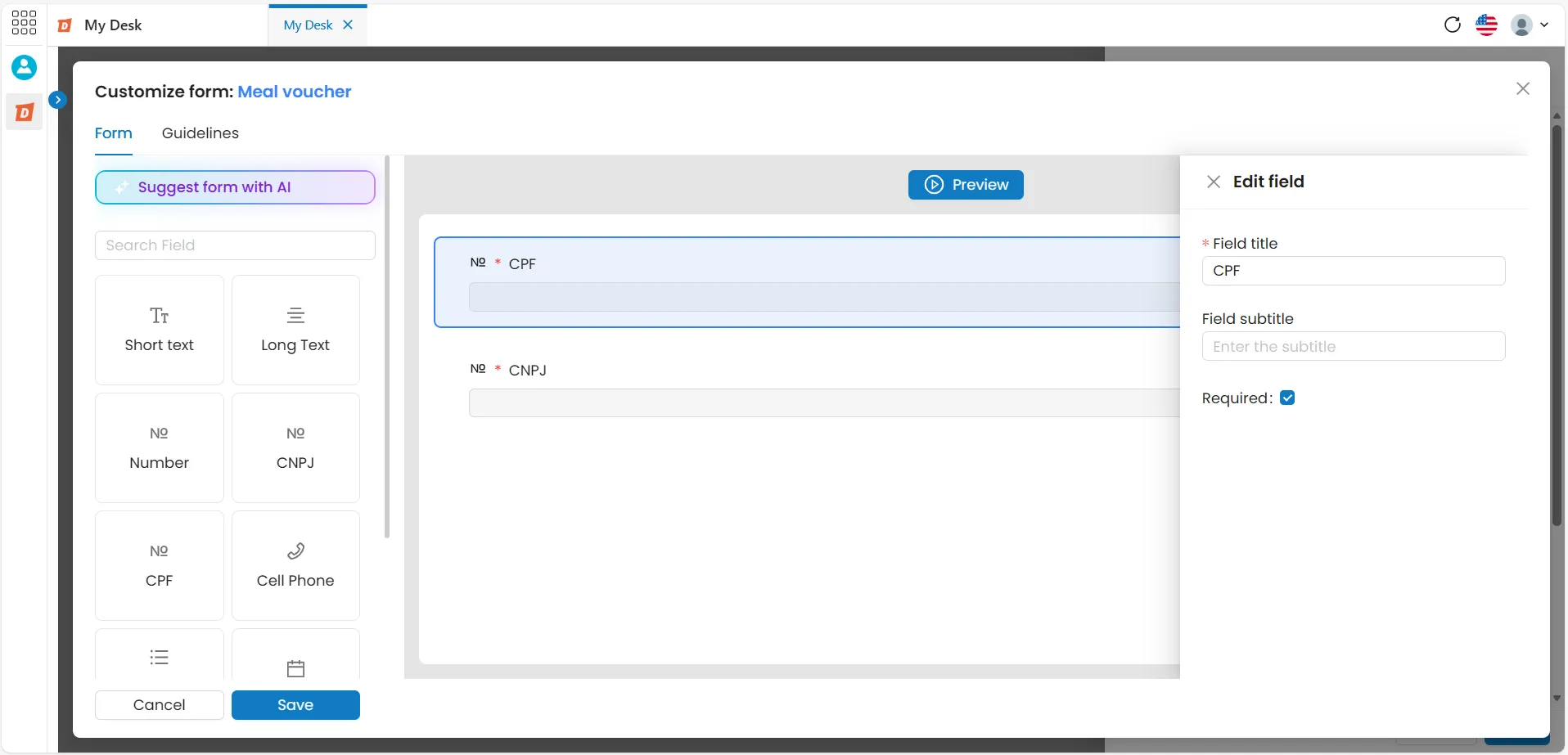
This field allows users to input numbers only, with validation for either CPF or CNPJ. There is a separate field for each option: one for CPF and another for CNPJ.
How to Use This Field in Your Form
Click on the CPF or CNPJ field on the left side of the window, hold and drag it to the preview area.
Click the pencil icon ✏️ or the three dots (...) in the top-right corner of the field to edit or delete it.
Edit the following fields:
Field Title – Give it a brief name.
Field Subtitle – Add a short subtitle or description.
Required – Check the box to make it mandatory or leave it unchecked to keep it optional.
Cancel/Save:
Click Cancel to return to the preview section without making changes.
Click Save to finalize and apply your edits.
To move or change the field’s order, click and drag the six-dot button⠿ on the left side of the field.
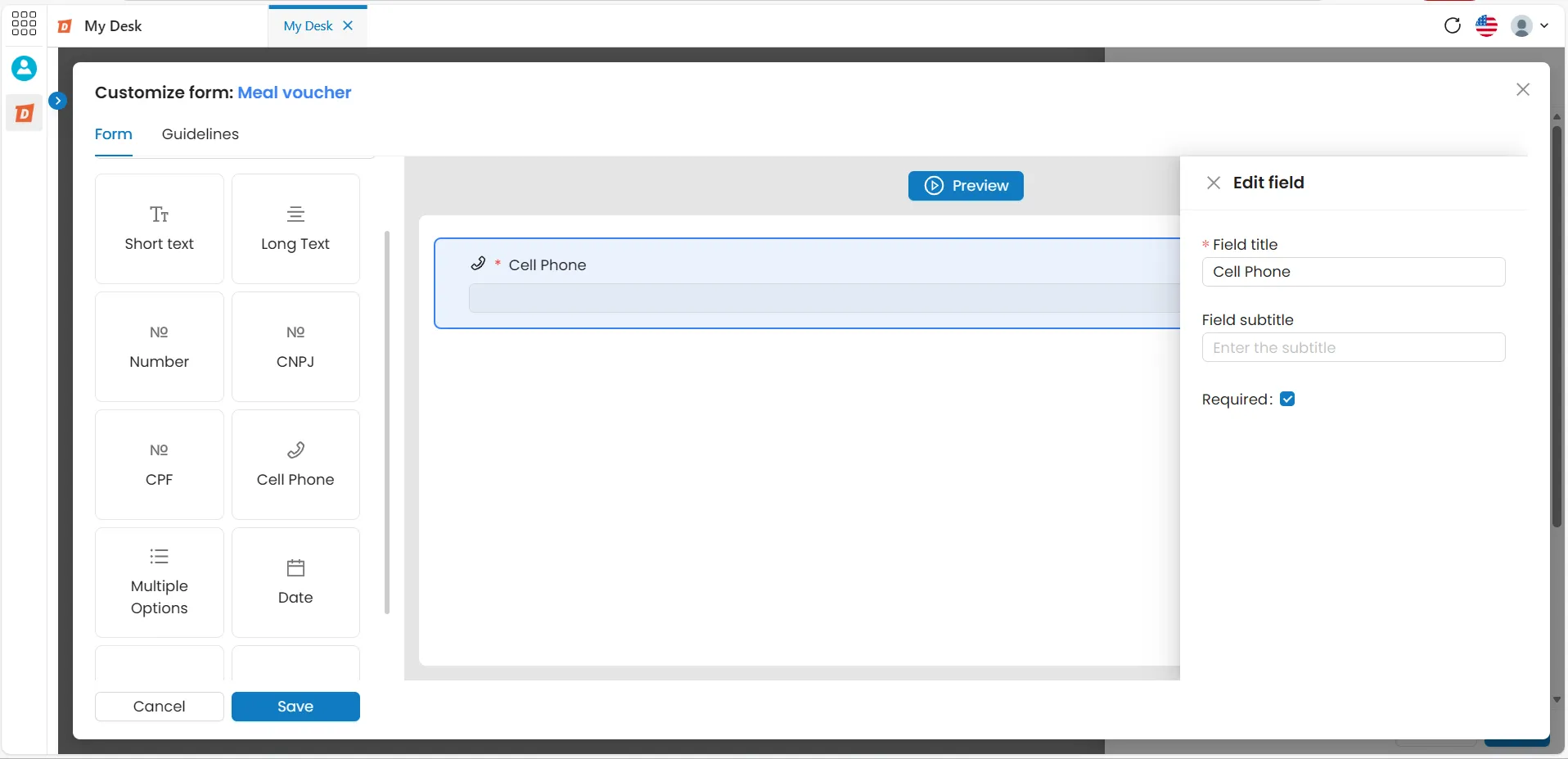
This field allows users to input numbers only.
How to Use This Field in Your Form
Click on the Phone Number field on the left side of the window, hold and drag it to the preview area.
Click the pencil icon ✏️ or the three dots (...) in the top-right corner of the field to edit or delete it.
Edit the following fields:
Field Title – Give it a brief name.
Field Subtitle – Add a short subtitle or description.
Required – Check the box to make it mandatory or leave it unchecked to keep it optional.
Cancel/Save:
Click Cancel to return to the preview section without making changes.
Click Save to finalize and apply your edits.
To move or change the field’s order, click and drag the six-dot button ⠿ on the left side of the field.
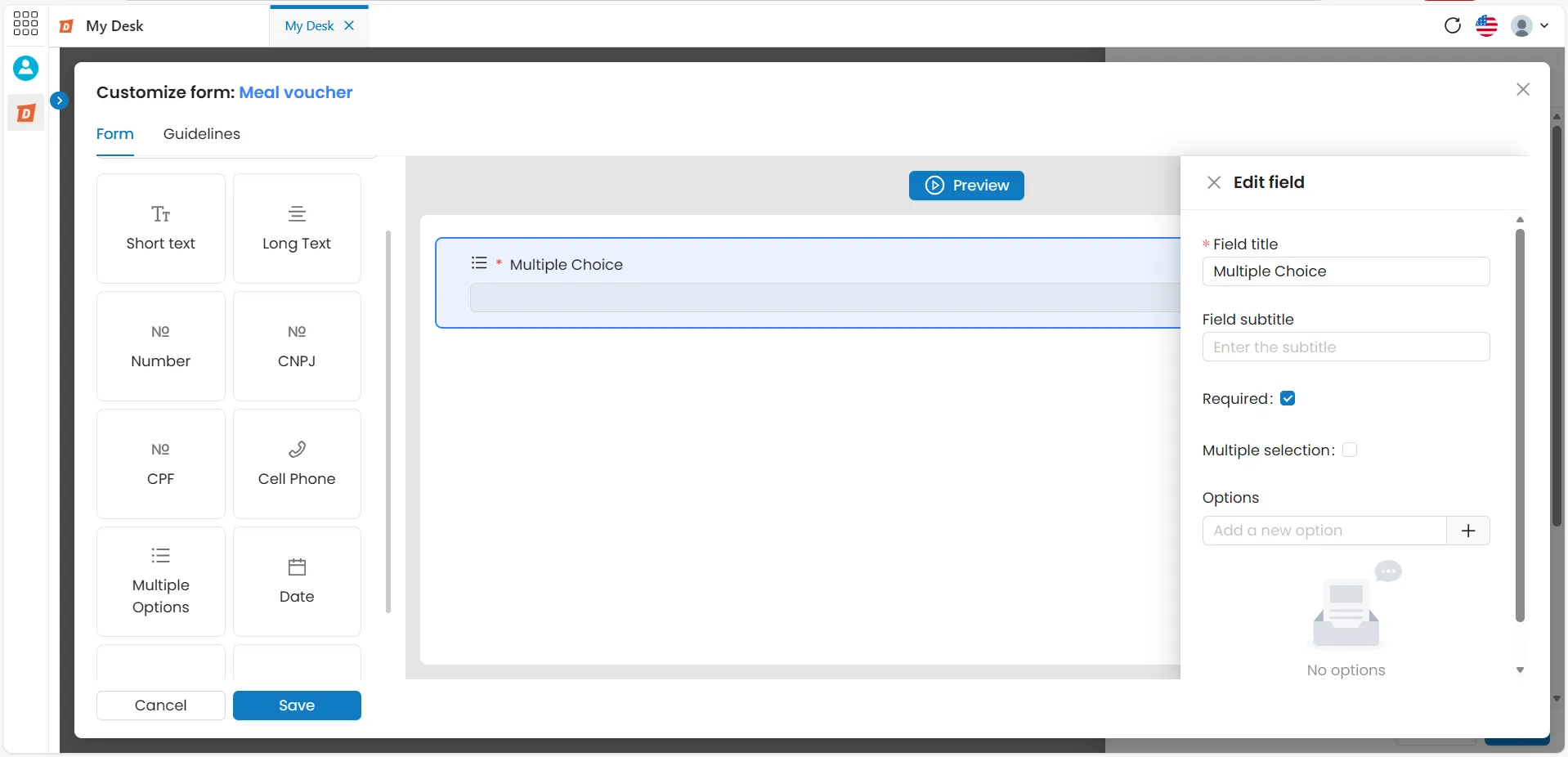
This field allows users to select from a dropdown list, with either single-selection or multiple-selection options.
How to Use This Field in Your Form
Click on the Multiple Choice field on the left side of the window, hold and drag it to the preview area.
Click the pencil icon or the three dots (...) in the top-right corner of the field to edit or delete it.
Edit the following fields:
Field Title – Give it a brief name.
Field Subtitle – Add a short subtitle or description.
Required – Check the box to make it mandatory or leave it unchecked to keep it optional.
Multiple Selection – Check this box to allow users to select multiple options or leave it unchecked for single selection only.
Options – Add one or more options:
Type the desired option text in the box and click [+] to add it.
Click the six-dot button⠿ and drag an option up or down to rearrange the order.
Click the trash icon to delete an option.
Cancel/Save:
Click Cancel to return to the preview section without making changes.
Click Save to finalize and apply your edits.
To move or change the field’s order, click and drag the six-dot button⠿ on the left side of the field.
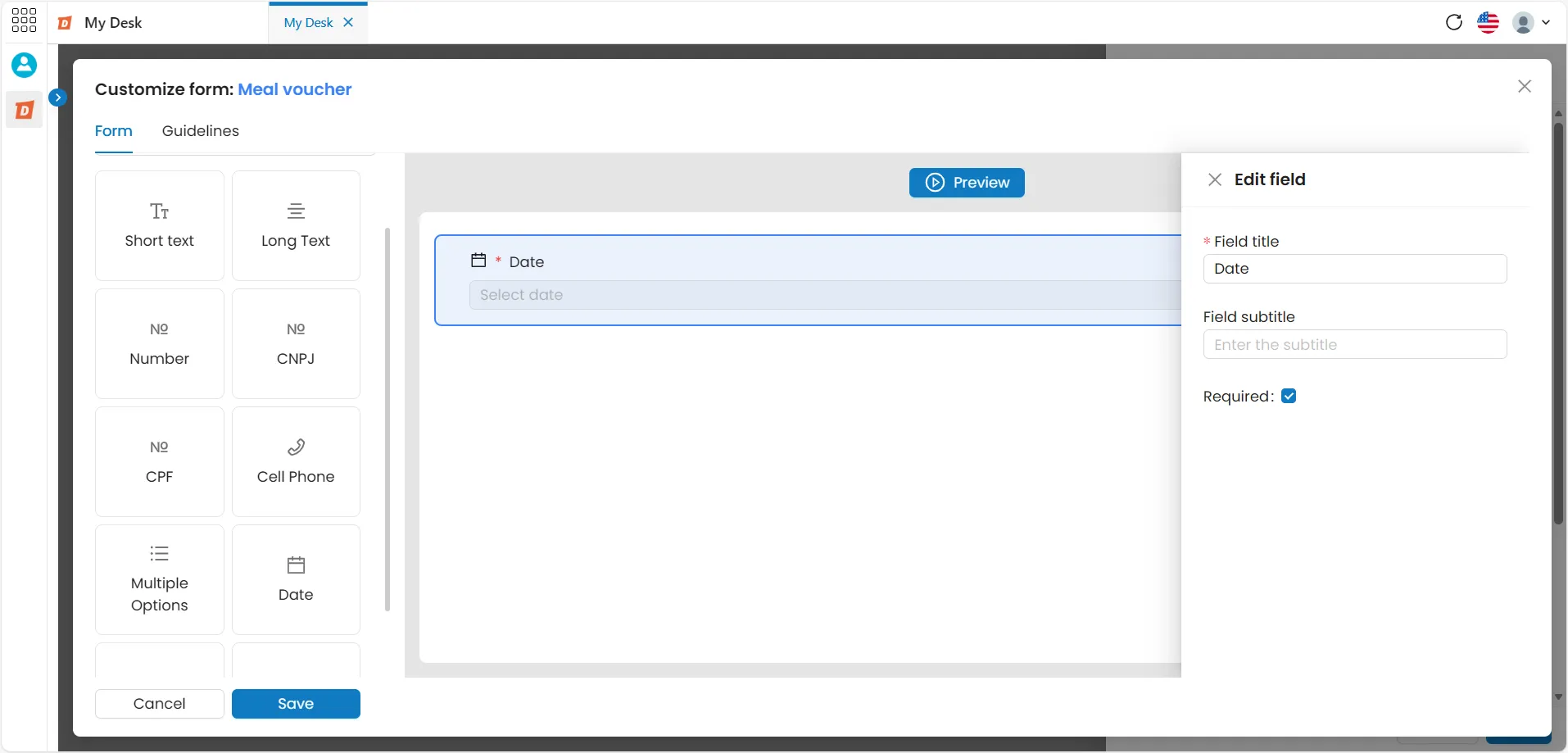
This field allows users to input a date.
How to Use This Field in Your Form
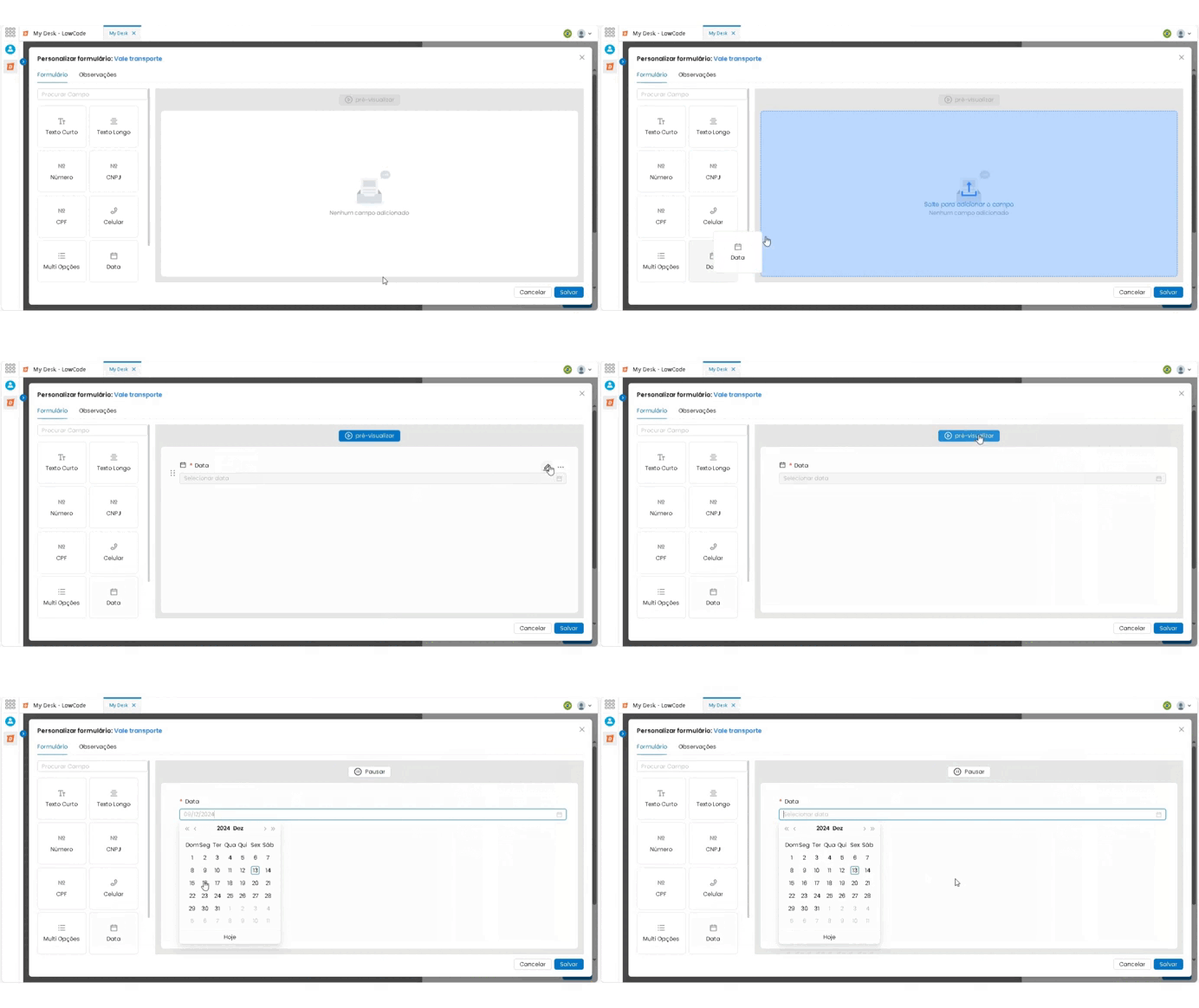
Click on the Date field on the left side of the window, hold and drag it to the preview area.
Click the pencil icon or the three dots (...) in the top-right corner of the field to edit or delete it.
Edit the following fields:
Field Title – Give it a brief name.
Field Subtitle – Add a short subtitle or description.
Required – Check the box to make it mandatory or leave it unchecked to keep it optional.
Cancel/Save:
Click Cancel to return to the preview section without making changes.
Click Save to finalize and apply your edits.
To move or change the field’s order, click and drag the six-dot button ⠿ on the left side of the field.
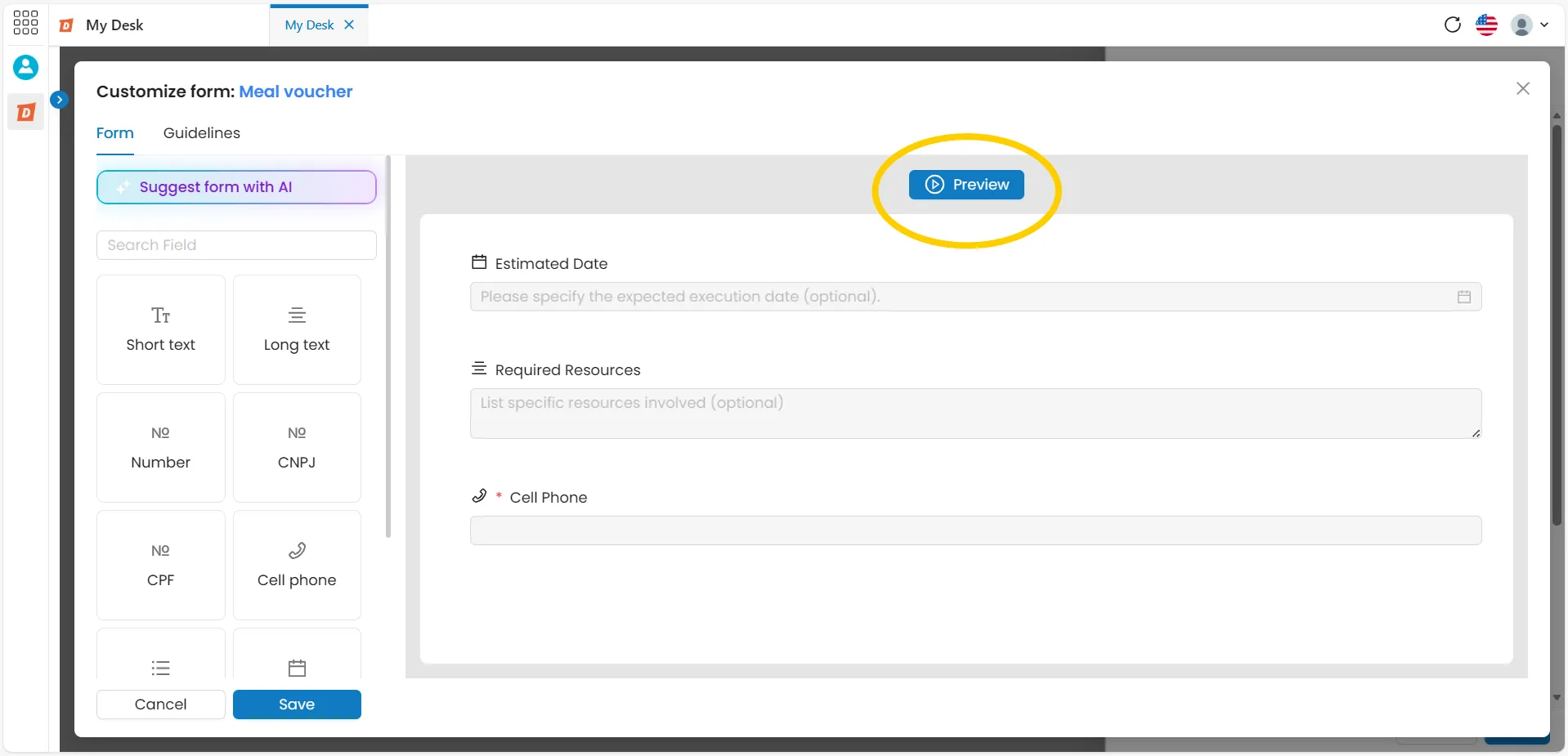
Note: The date selection field in calendar format can only be viewed by the user when opening a ticket or by clicking the Preview button at the top of the page.
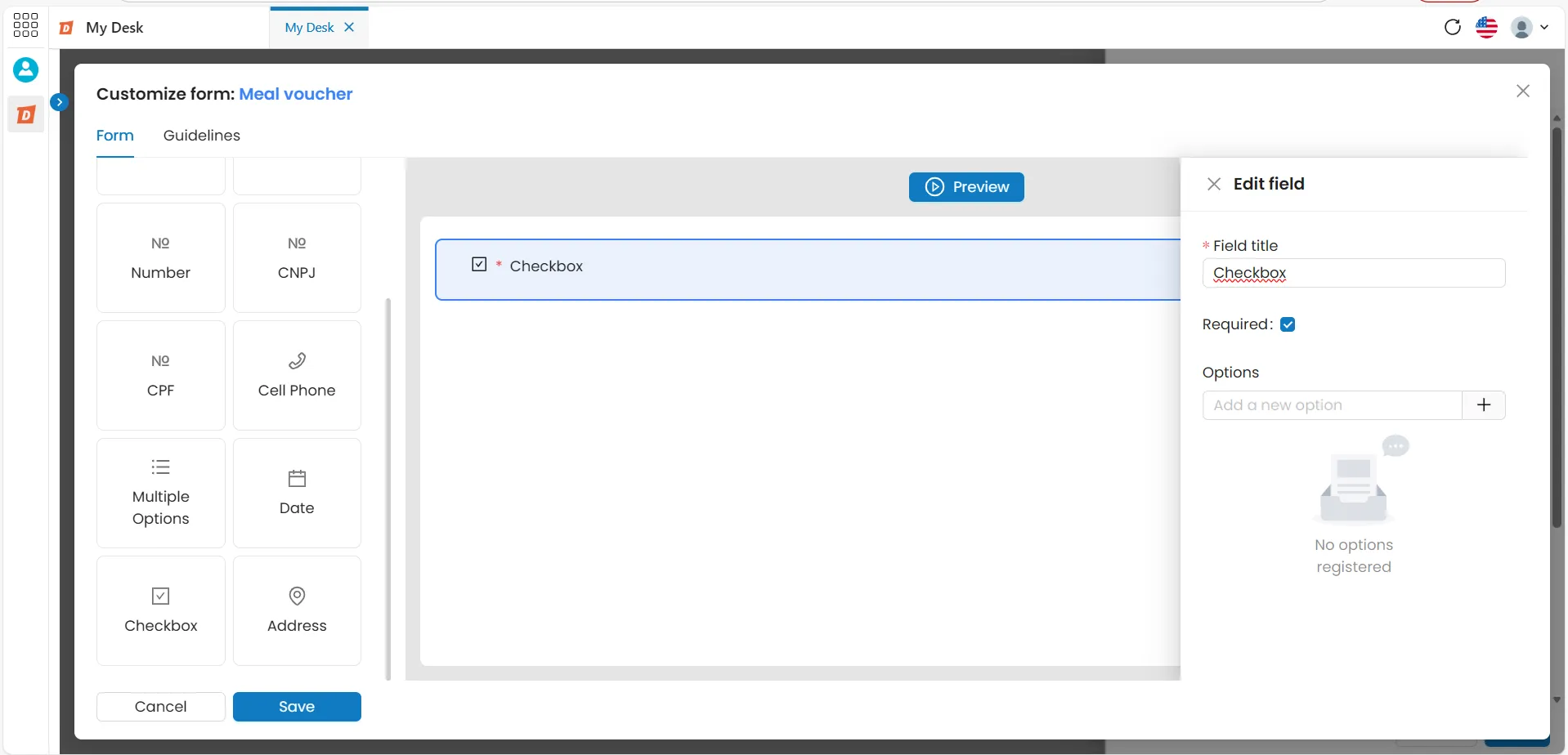
This field allows users to select one or more options.
In the form options list, the checkbox displays:
Title
Options
To use this field in your form, follow these steps:
Click on the Checkbox field in the left panel, hold and drag it to the preview area.
Click on the pencil icon or the three dots (...) in the top right corner of the field to edit or delete it.
Edit the following fields:
Field Title – Enter a short name.
Field Subtitle – Provide a brief description or subtitle.
Required – Check the box to make the field mandatory for users, or leave it unchecked for an optional field.
Options – Add one or more options:
Type the option text into the box and click [+] to add it.
Click the six-dot button ⠿ and drag the option up or down to reposition it.
Click the trash bin icon to delete an option.
Cancel/Save – Click Cancel to return to the preview section without saving changes, or click Save to apply and keep the changes.
To move or reorder the field, click the six-dot button ⠿ on the left side of the field.
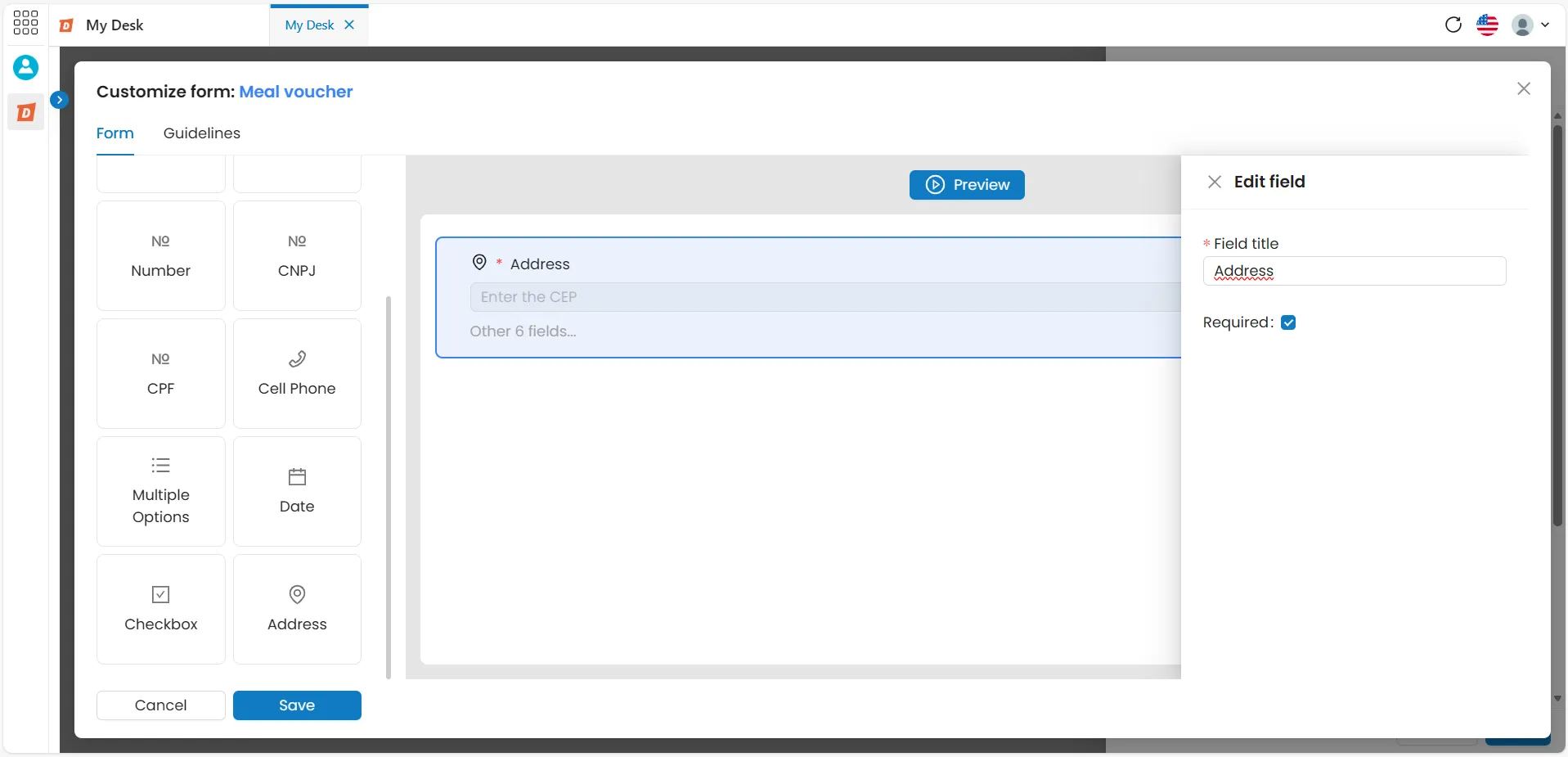
This field accepts a short address input from the user.
Click on the Address field in the left panel, hold and drag it to the preview area.
Click on the pencil icon or the three dots (...) in the top right corner of the field to edit or delete it.
Edit the following fields:
Field Title – Enter a short name.
Required – Check the box to make the field mandatory for users, or leave it unchecked to make it optional.
Cancel/Save – Click Cancel to return to the preview section without saving changes, or click Save to apply and keep the changes.
To move or reorder the field, click the six-dot button ⠿ on the left side of the field.
Note: The address field includes seven options for users to fill out:
ZIP Code
Street
Neighborhood
City
State
Number
Additional Details.
5 - Guidelines Section:
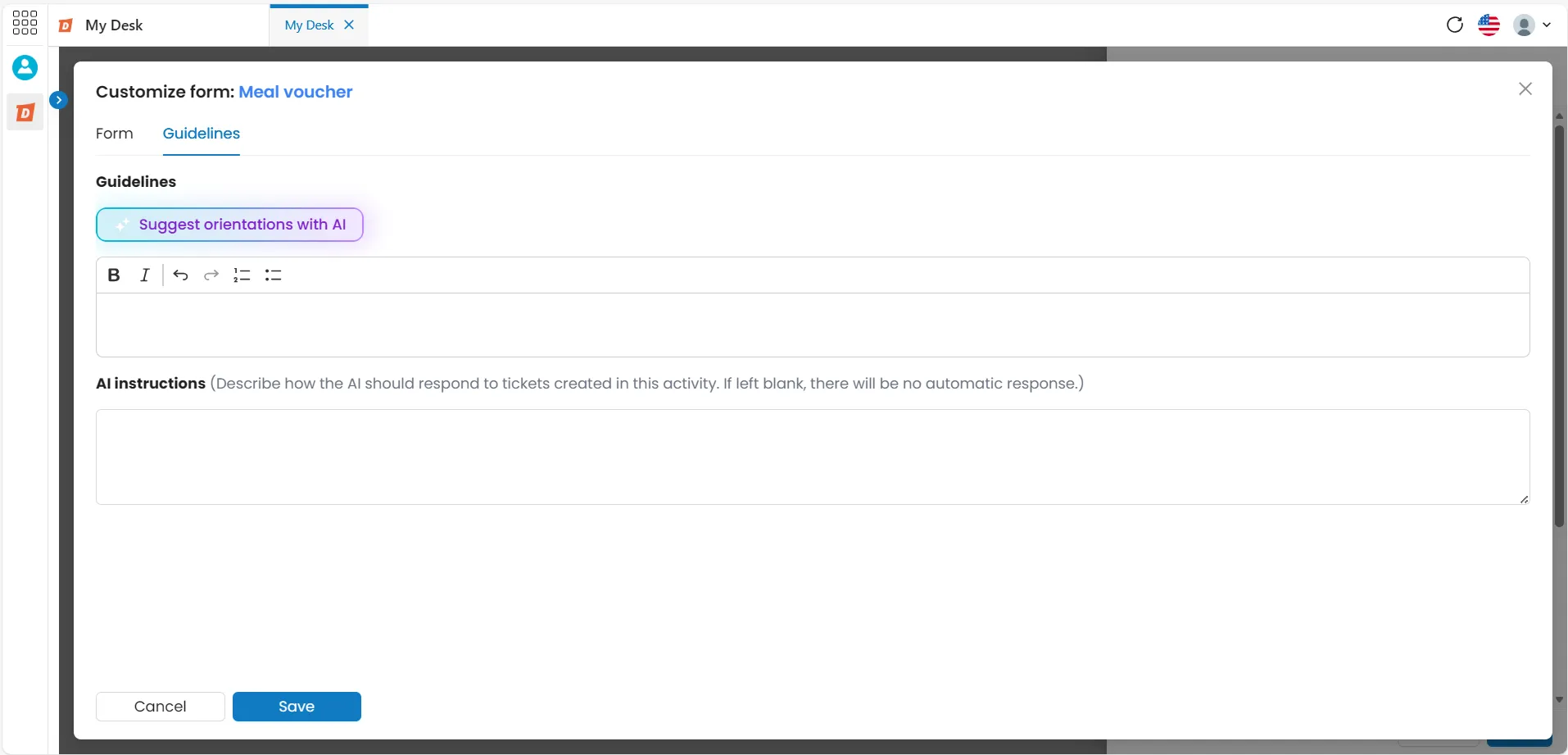
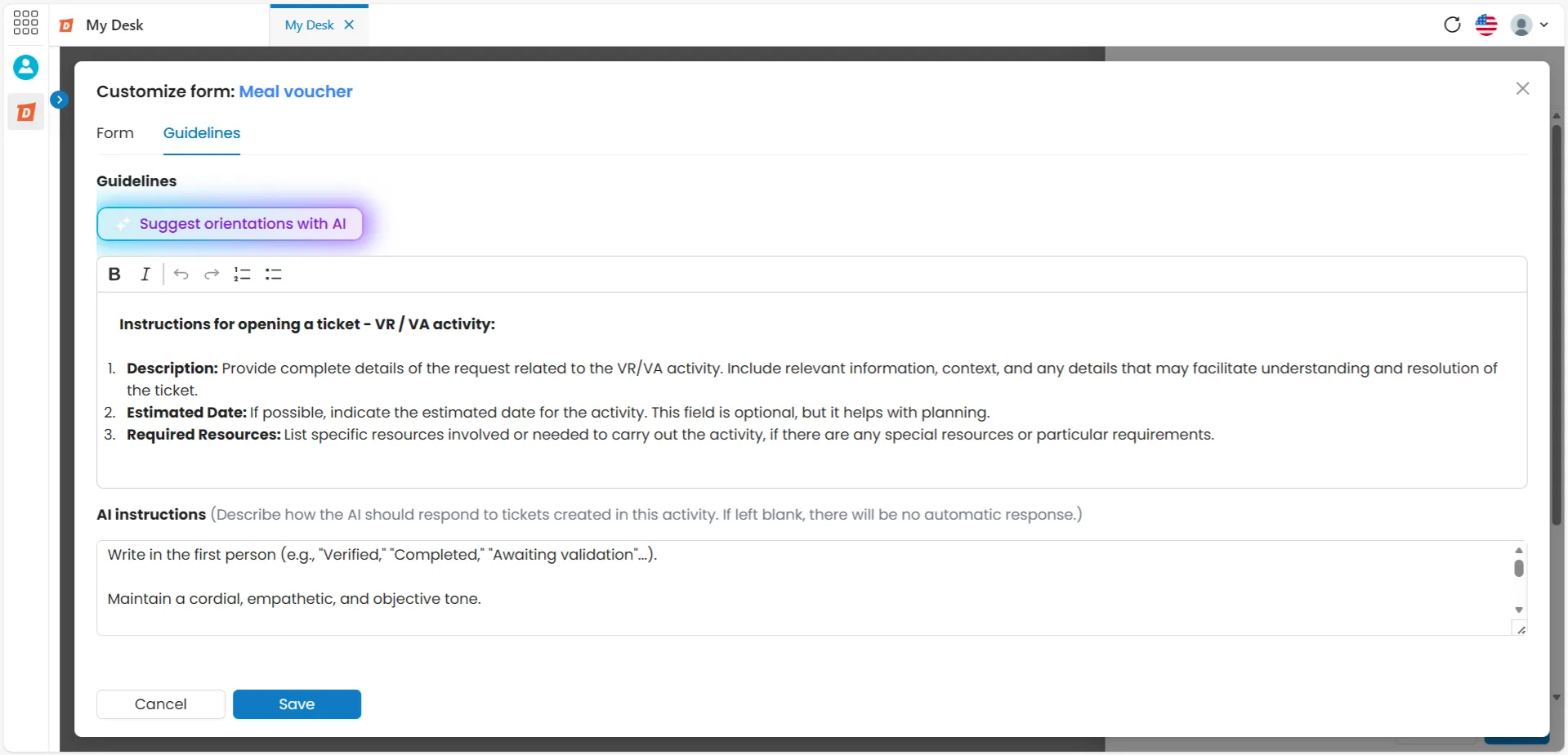
The Guidelines tab allows you to add a description or instruction that will be displayed to the applicant when they open the form in the Experience Center — before filling in the fields.
5.1 - Generate Form Guidelines with AI
Você também Gerar orientações para seus formulários utilizando a IA. Para isso siga os passos abaixo:
1
Access the Customize Form window
Follow the steps in section 1 to reach the form window.
2
Click on the Instructions tab
In the upper left corner of the window.
3
Click on Suggest AI-powered directions
The AI will generate a suggested direction based on the activity.
4
Edit the suggestion if necessary
Adjust the generated text to suit your organization's needs.
5
Click Save
The instructions will be saved and displayed to the applicant when they open the form.
5.2 - Attach knowledge base
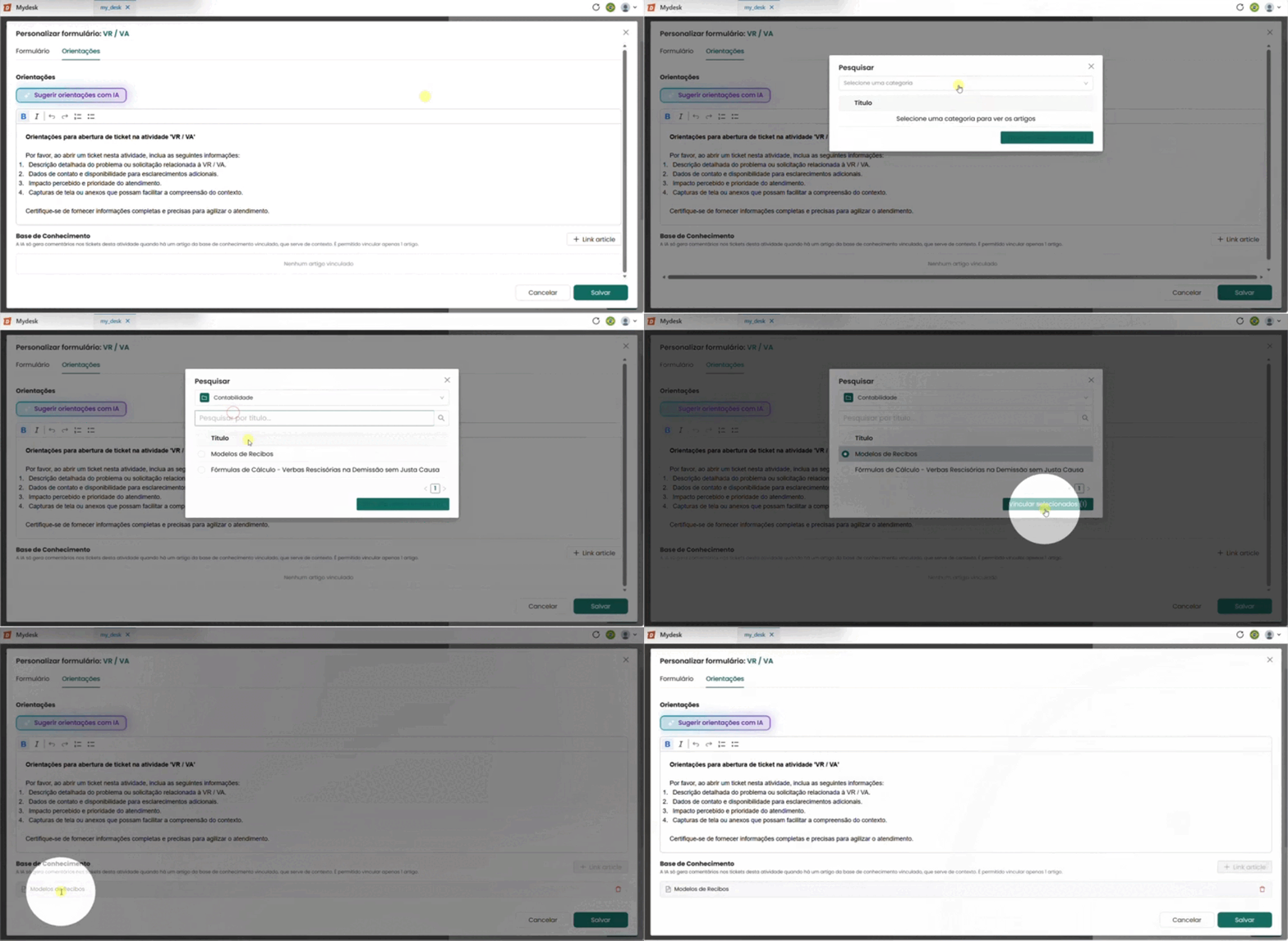
You can attach a knowledge base document so that the AI can generate comments on the ticket. By reading the document, the AI can, for example, provide tips on how to resolve the issue.
The AI only generates comments on tickets for this activity when there is a linked knowledge base article that serves as context. Only one article can be linked.
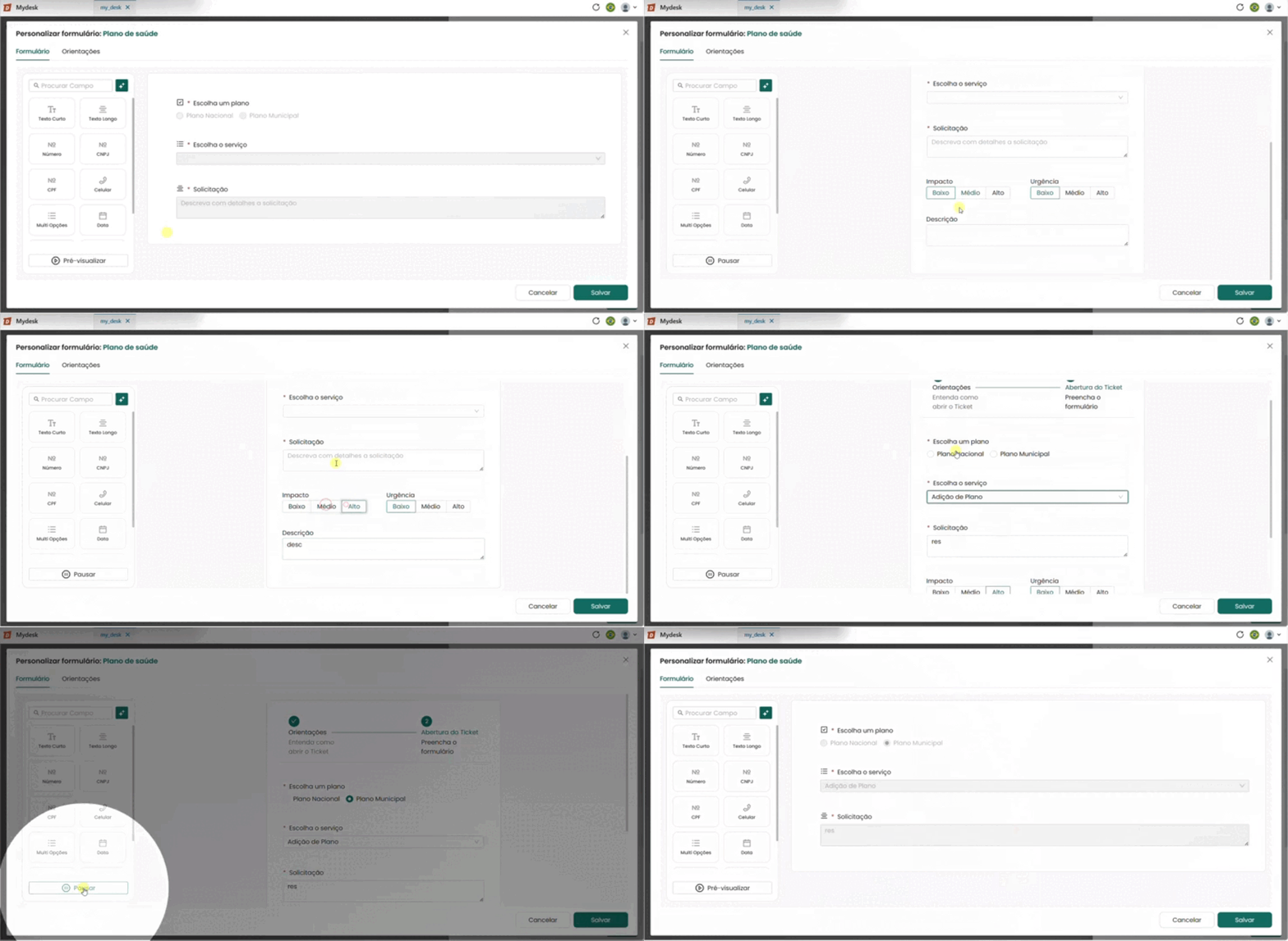
6 - Preview
To view and test the form before publishing it, click the Preview button located in the lower left corner of the form customization window. A sample preview will open with all fields configured, exactly as the requester will see when opening a ticket.