Activities
Administrator
An activity is the most specific item within a portfolio—it represents a type of request that a user can open in the Experience Center. Each activity belongs to a service and can have its own form, workflow type, and links to groups and SLAs.
1 - Accessing Activities

To access the activities, follow the steps below:
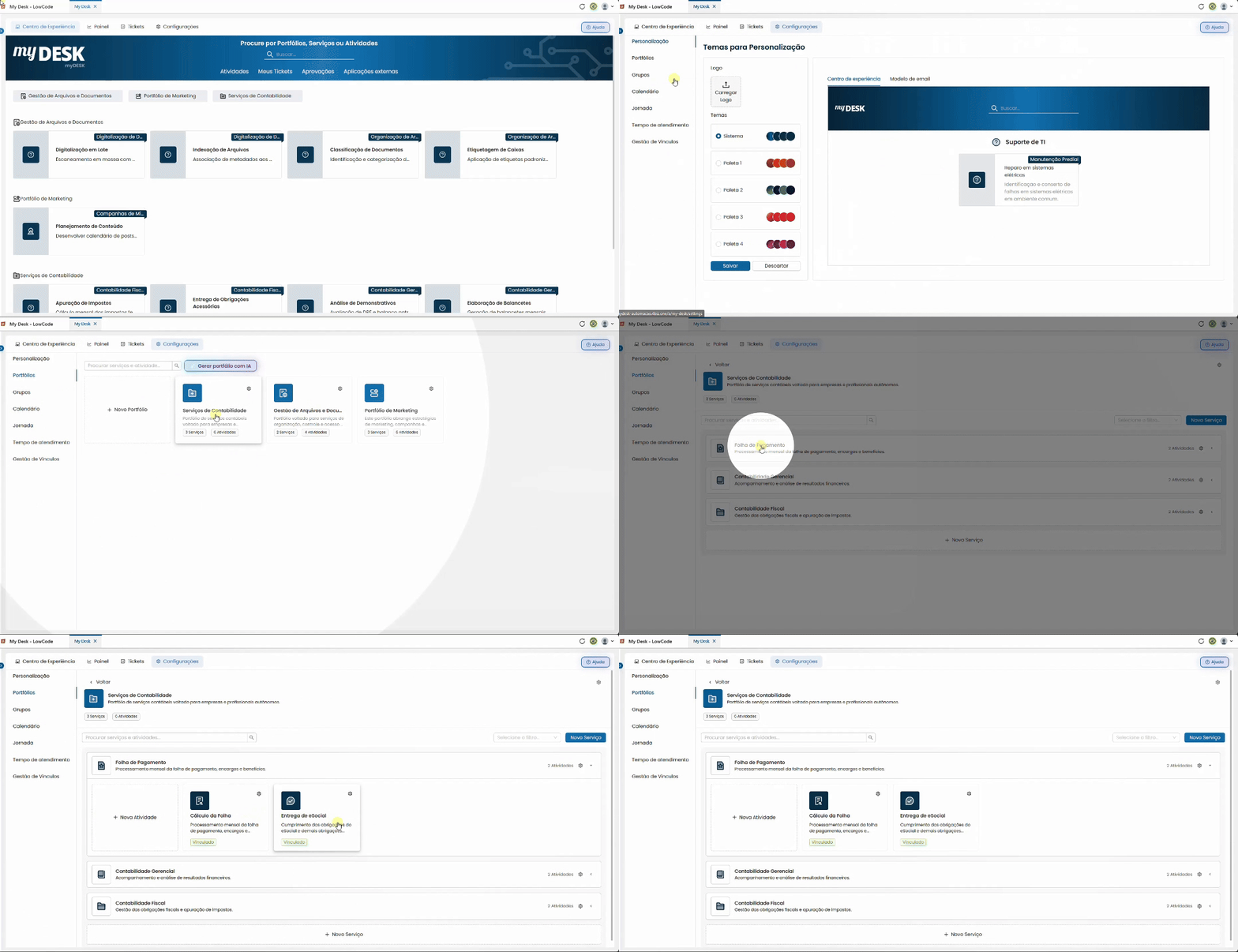
Access My Desk
Select the My Desk application from the applications menu.
Click on Settings
In the application's top menu.
Click on Portfolios
In the left sidebar menu.
Click on a portfolio from the list
The services related to the portfolio will be displayed below.
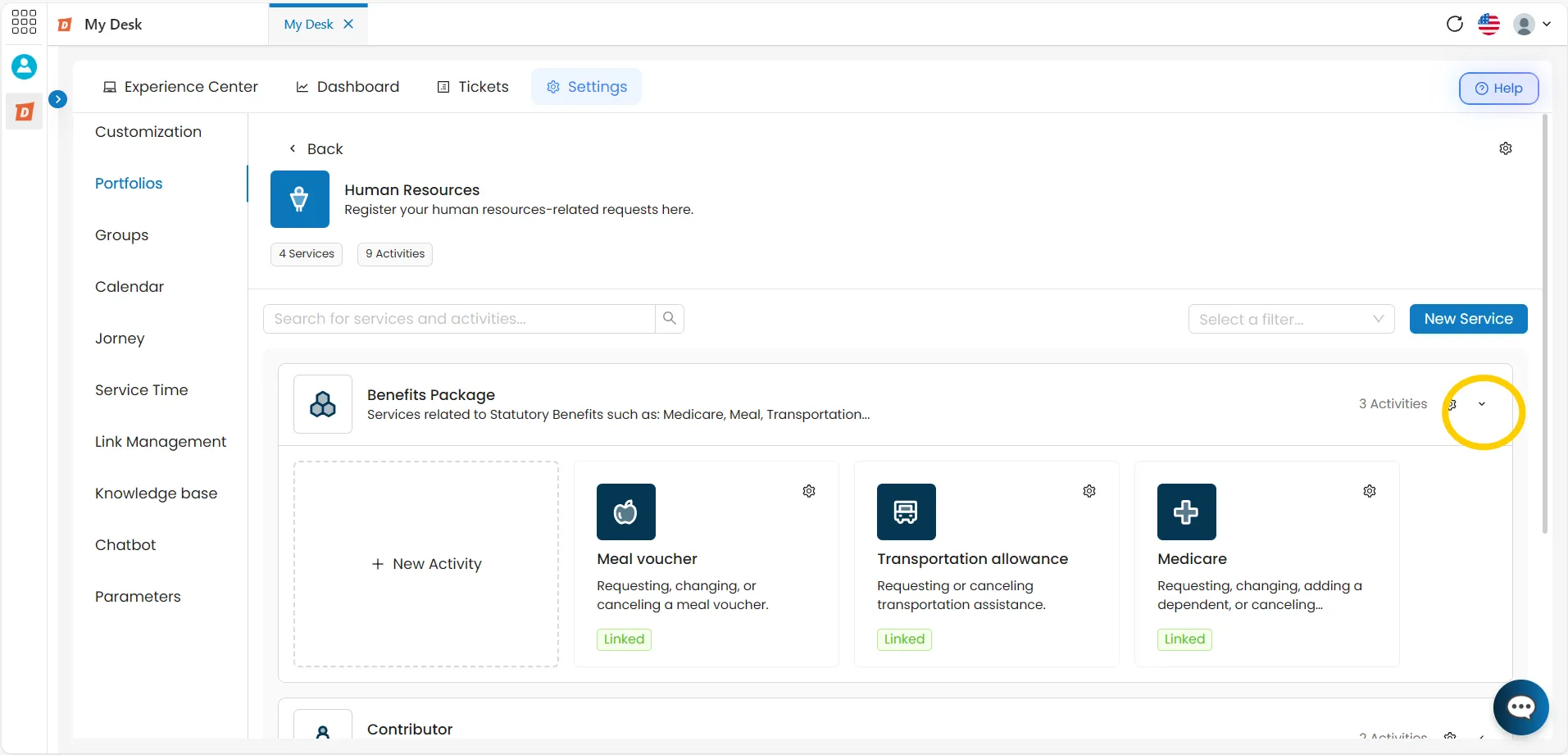
Click the expand arrow for a service
Click the down arrow next to the desired service. The list of activities registered for that service will be displayed below.
2 - Activity List

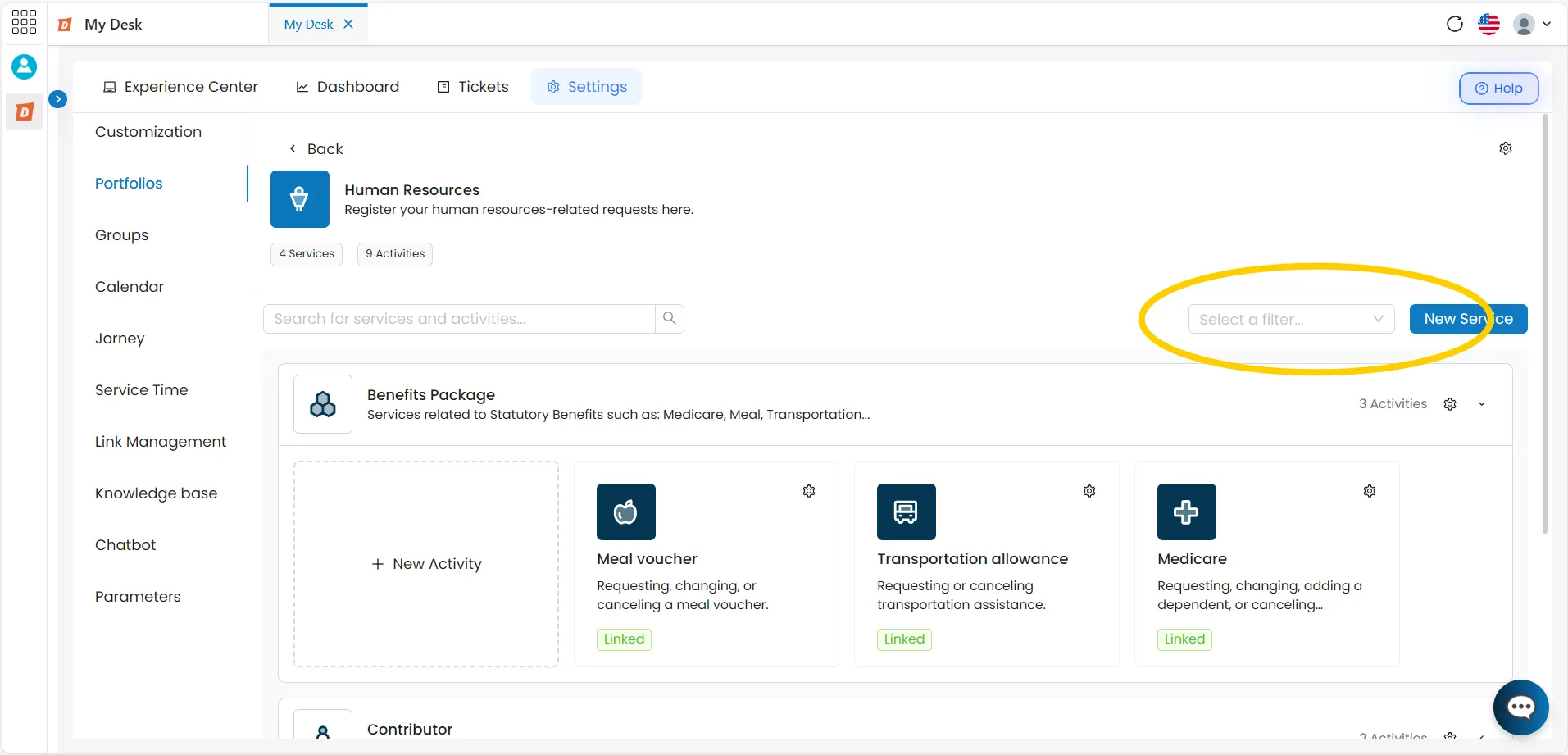
Clicking the arrow to expand the view of a service will display the list of activities for that service. The activity list shows all registered activities.
By clicking on the gear icon⚙️, a screen similar to the activity creation screen will be displayed, allowing you to edit any information or delete that activity. You can edit any of the following items:
Icon
Icon representing the activity.
Name
Name of the activity.
Type of service
Request or Incident.
Gear button
Access the edit and delete options.
2.1 - Search Activities
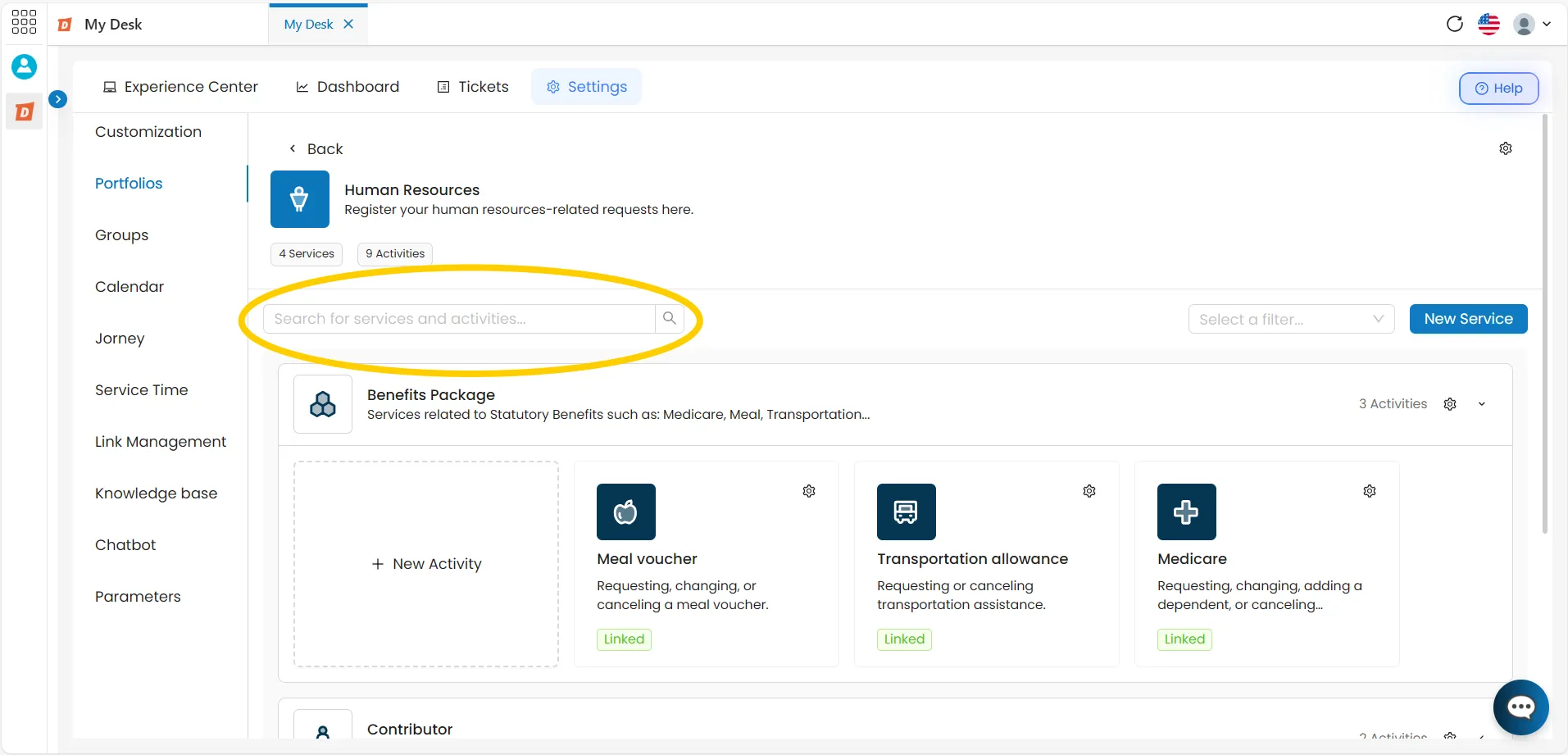
Use the search bar in the upper left corner of the screen to search for services and activities simultaneously. The list can also be filtered by employment status.
Linked Unlinked
2.2 - Filter Activities
On the right side of the New Service button, you can filter activities by Linked and Unlinked.
💡 Tip:
The filter is available next to the + New activity button, on the right side of the screen.
3 - Create an activity

To create an activity, follow the steps below:
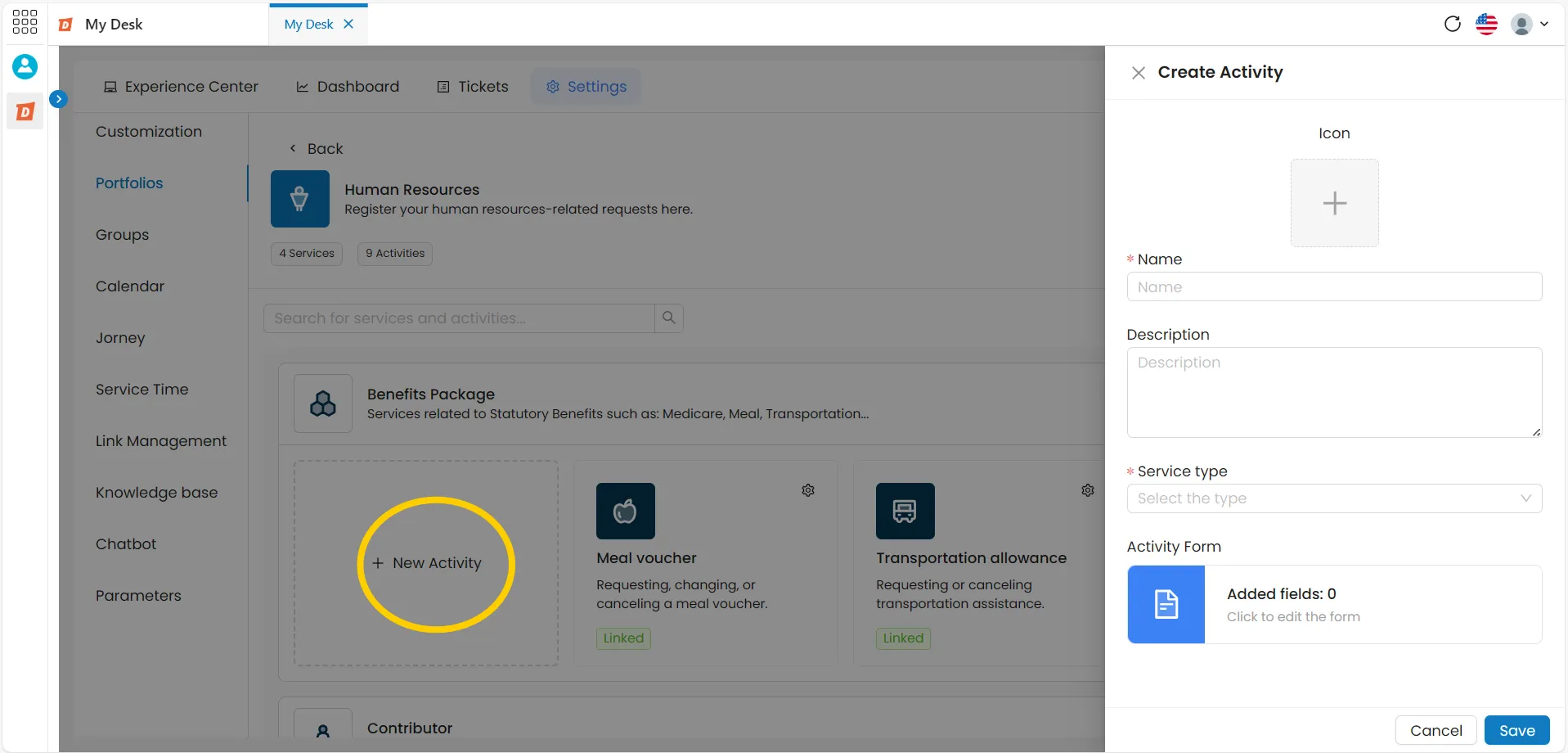
Click on + New activity
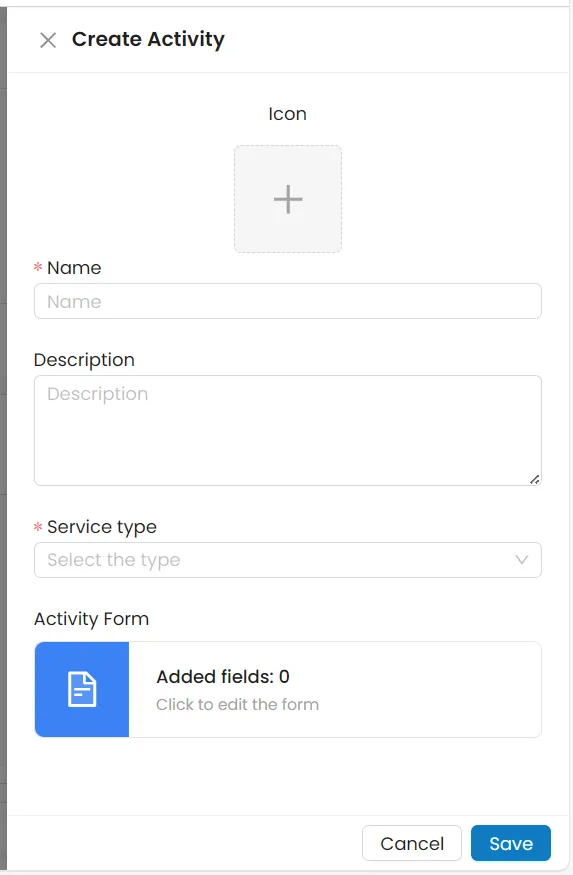
A new window will open on the right side of the screen.
Fill in the information
See the available fields below.
Icon
Choose an icon from the database. You can browse by category or use the search field by typing the icon's name in English.
Name
Give the activity a short and descriptive name.
Description
Describe the function and objective of the activity.
Type of service
Select the activity type from the dropdown menu:
Request Incident
Activity form
Allows you to create a form for the activity now or later. See the FormForm page for more details.
Click Save
The new activity will be created and will appear in the list. Click Cancel to return without saving.
4 - Edit an Activity

To edit an activity, follow the steps below:
Click on the desired activity
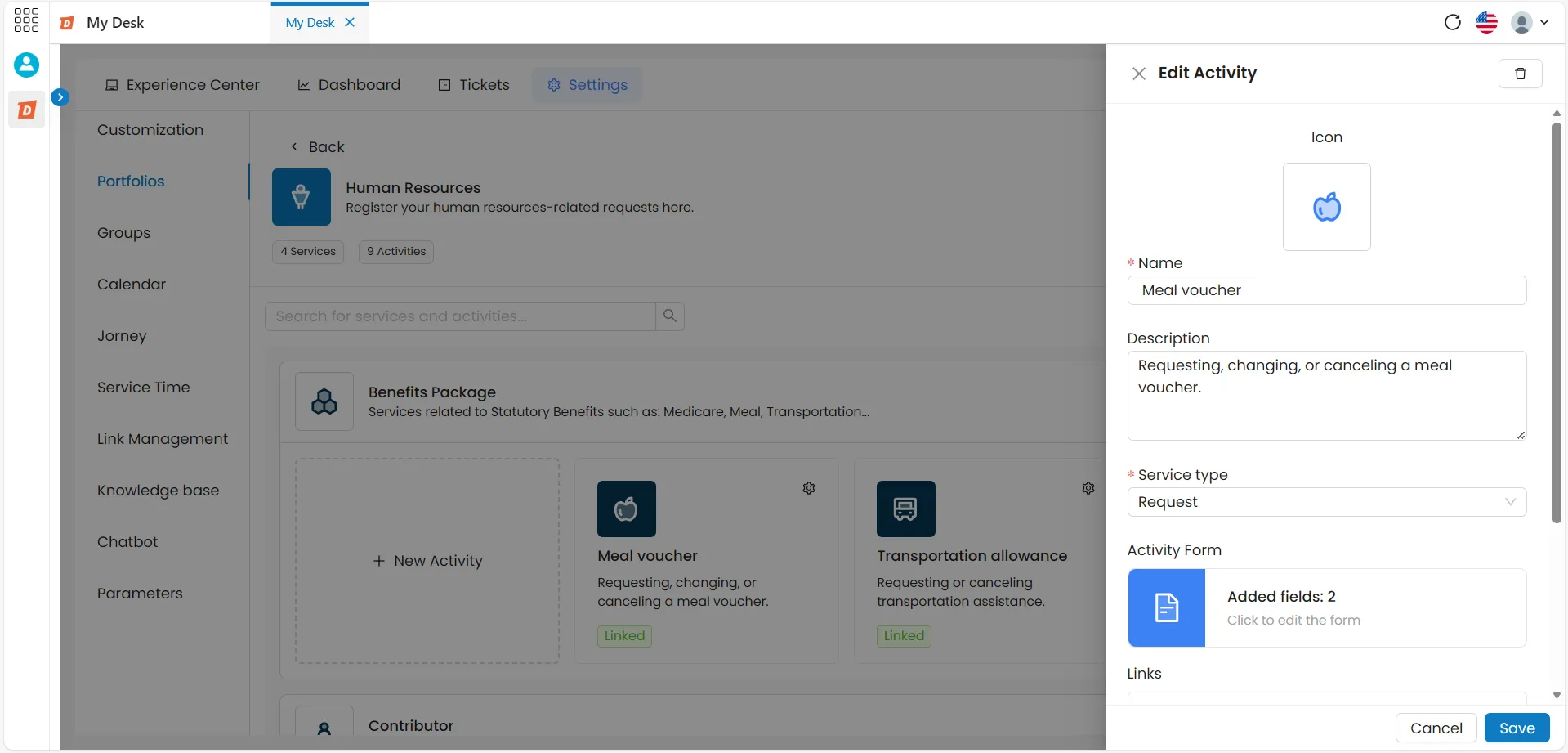
An editing window will open on the right side of the screen.
Edit the desired information
Icon, name, description, or type of service.
To see how to modify forms or links, go to the corresponding pages: FormForm and Activity LinkActive
Click Save
The changes will be applied immediately. Click Cancel to return without saving.
5 - Delete an Activity

To delete an activity, follow the steps below:
Click on the desired activity
An editing window will open on the right side of the screen.
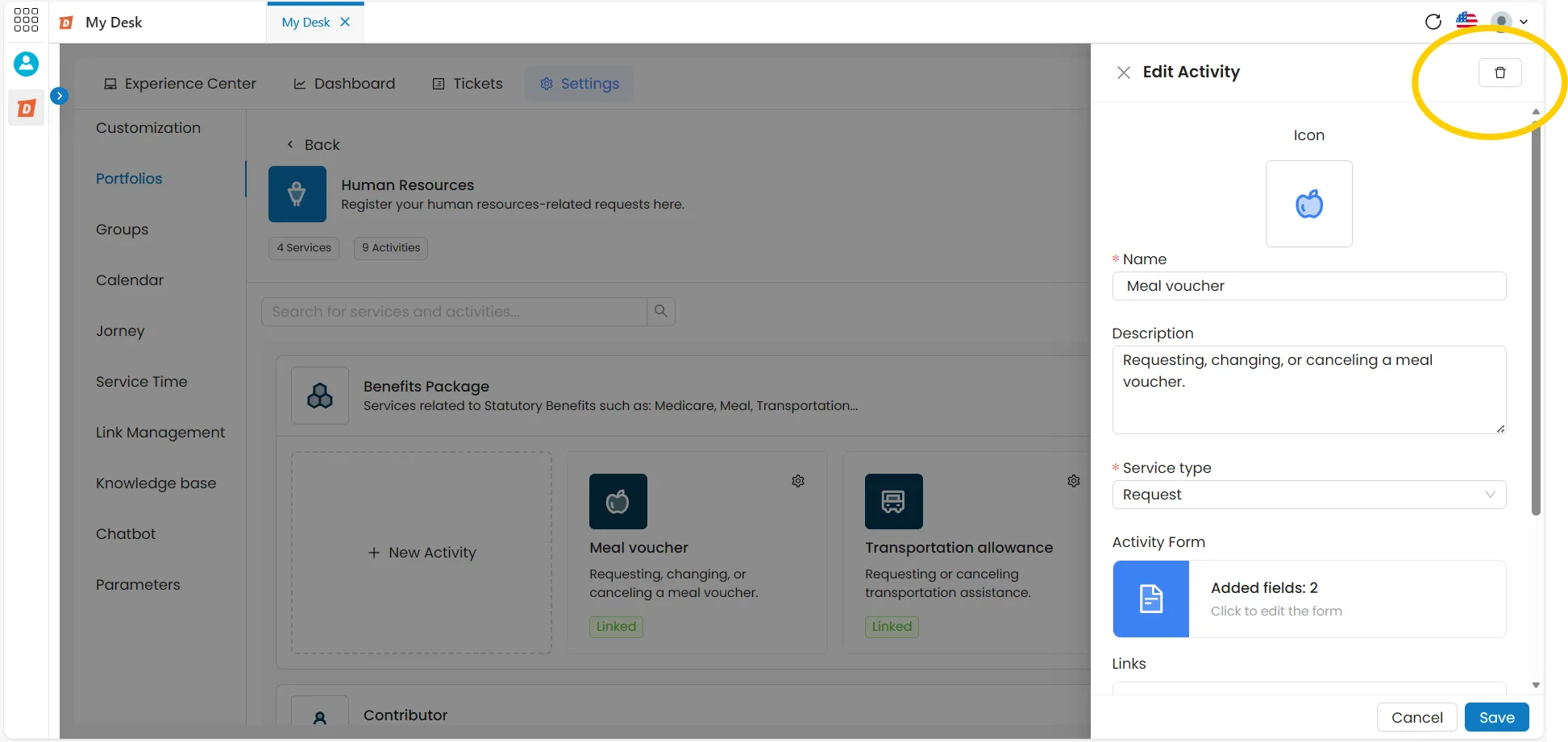
Click on the trash can icon
Located in the upper right corner of the window. A message will appear asking if you are sure about the deletion — this action cannot be undone.
Click Delete
A confirmation message will appear at the top of the screen informing you that the activity has been successfully deleted.
⚠️ Atention:
A exclusão de uma atividade é permanente e não pode ser desfeita. O formulário e os vínculos associados a ela também serão removidos.