My tickets
Administrator Attendant Applicant
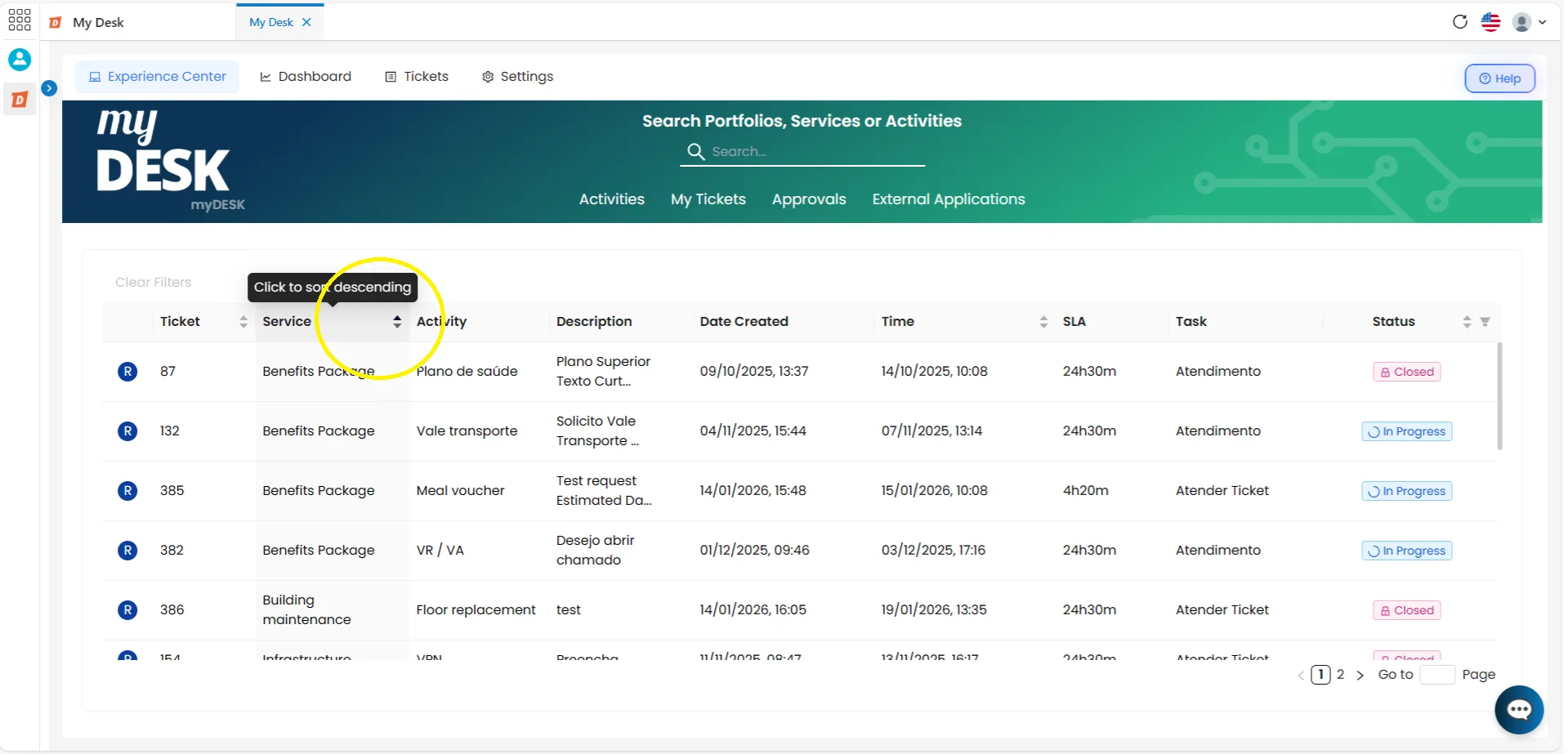
This screen lists all the tickets you have opened. You can track the progress of each ticket created from the Experience Center, view the complete history, and see all the recorded information.
Viewing My Tickets
To access the My Tickets screen, follow the steps below:
Access My Desk
Click and select the My Desk application from the applications menu.
Access the Experience Center
In the top menu, click on Experience Center.
Click on the My Tickets tab.
A list of all your tickets will be displayed.
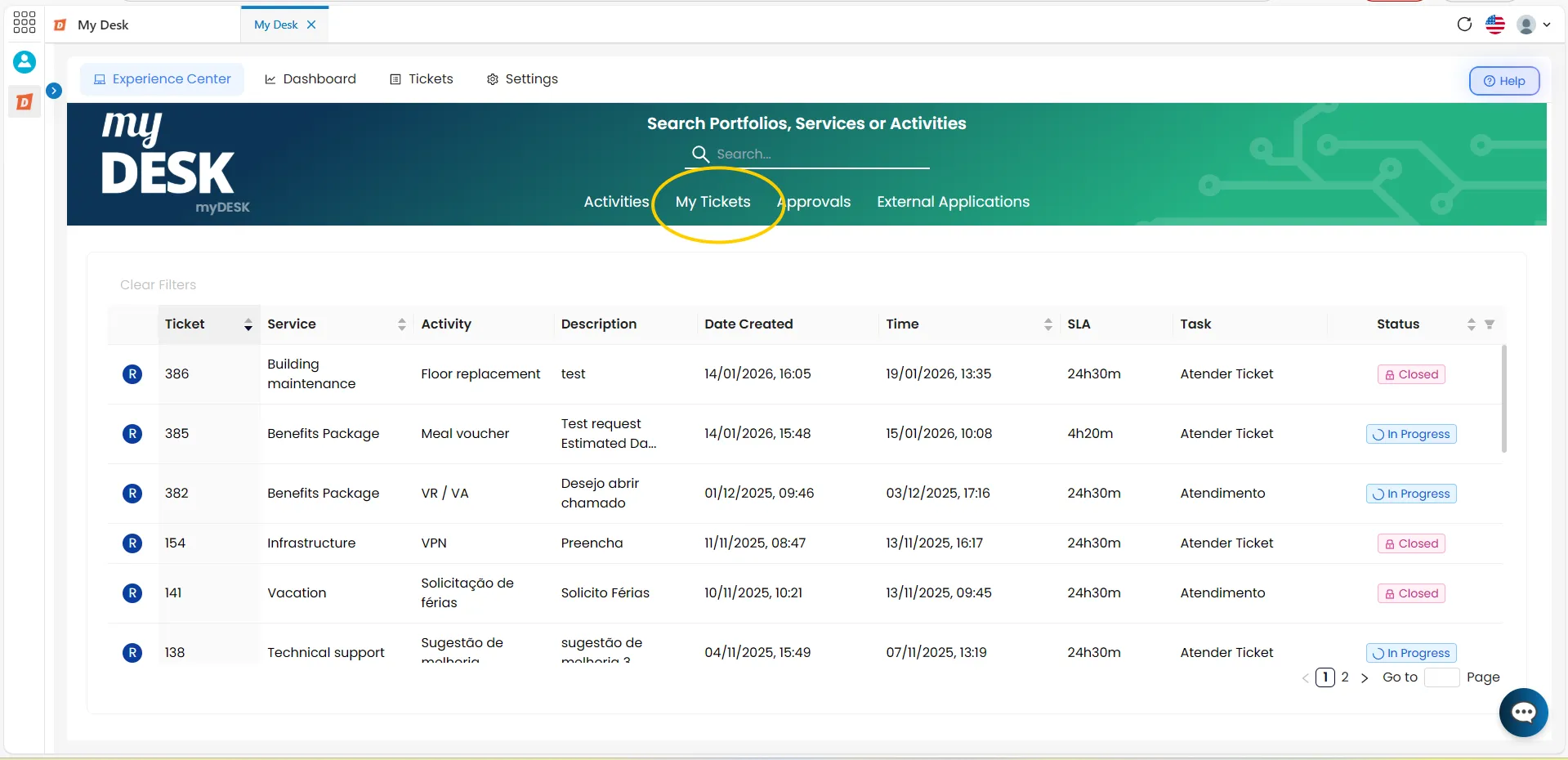
Ticket List
The list displays all tickets. Each ticket displays its information organized in the following columns:
- Ticket: The unique identifier number of the ticket in the system.
- Service: The type of service requested.
- Activity: The name of the requested activity.
- Description: The beginning of the request description.
- Creation Date: The date the ticket was created.
- Time: The final date for the request to be completed.
- SLA: The number of hours allocated for request completion.
- Task: The type of task to be performed.
- Status: The current status of the ticket, which can be:
- In Progress: Open tickets that have not yet been attended to.
- Suspended: Tickets paused by the agent. When a ticket is on hold, the remaining time until the deadline stops counting. Various reasons can lead to a ticket being put on hold, such as missing information or waiting for a response from the requester. Check with your organization for specific suspension rules.
- Canceled: Tickets canceled by the agent.
- Resolved: Tickets that have been completed.
- Reopened: Tickets that were previously resolved but have been reopened.
- Closed: Fully completed tickets that are no longer active.
📌Navigating between pages
Below the list, navigation buttons are displayed. If there are many tickets in the selected filter, they will be displayed on separate pages. Use the numbers and arrows at the bottom of the screen to navigate between pages.
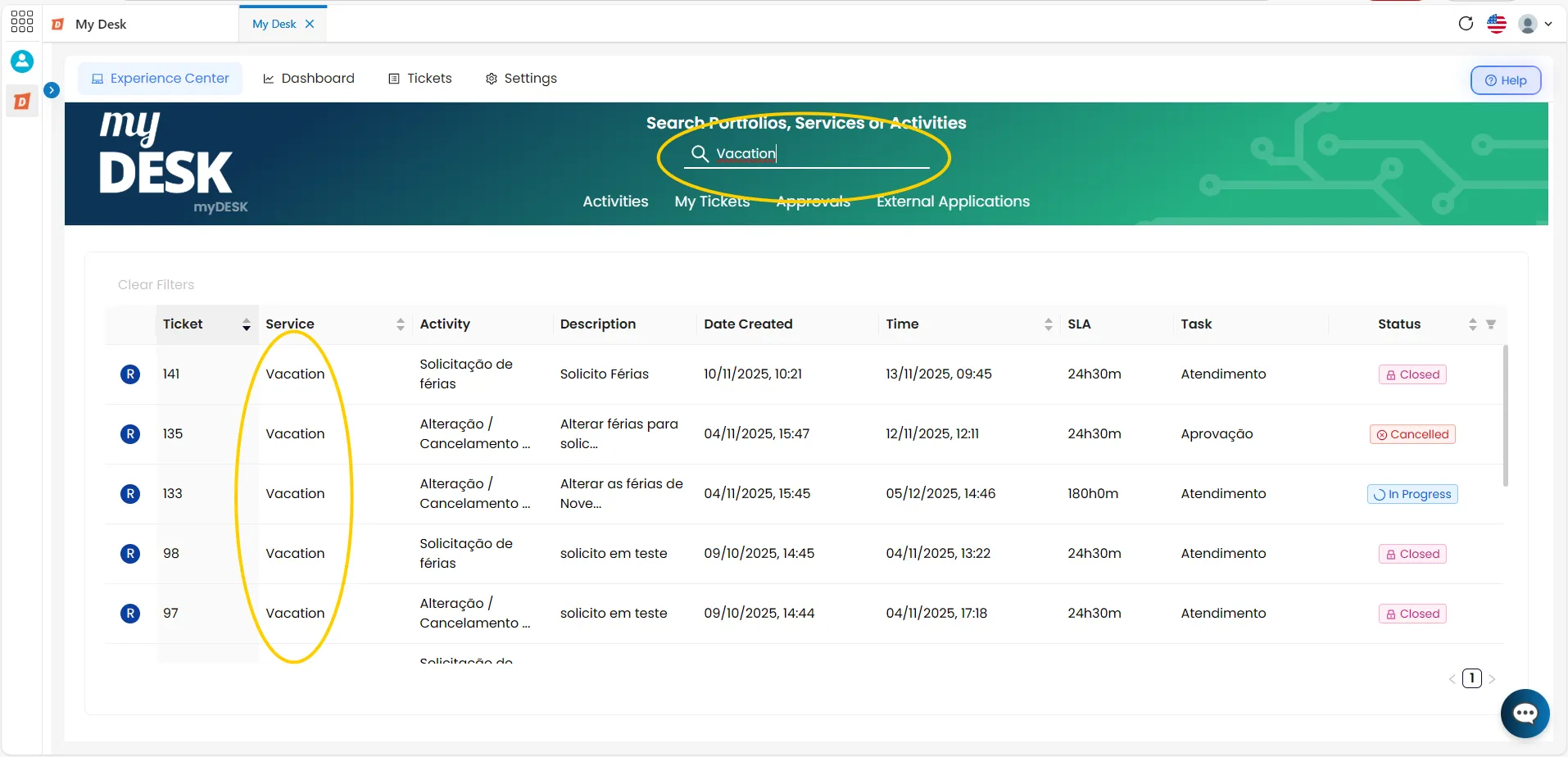
Ticket Search
A search box is displayed on the right side of the screen. This can be used to filter tickets by any of the table's column attributes.
Ticket Sorting
The Sorting Menu changes the order in which tickets are displayed in the list. You can switch between ascending and descending order.
This option can be found in the header title of each column in the ticket table, indicated by the "double arrow" icon .
Status Filter
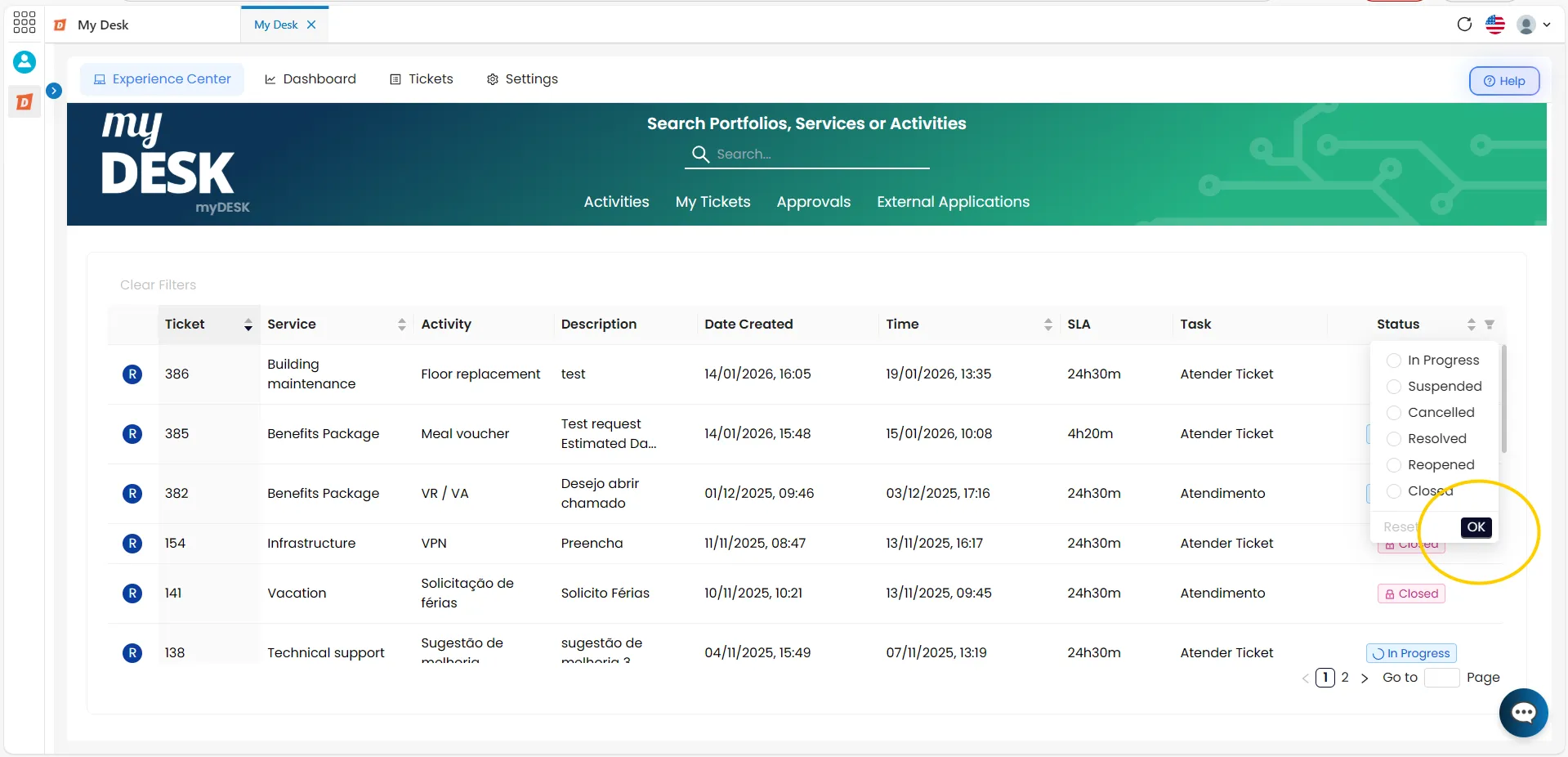
This filter can be found in the Status column, identified by the icon . Simply click on it to bring up a small drop-down list with the available options.
Choose the status
Select the status option you wish to view.
Click OK
The filter will be applied to the table.
💡 How to clean the filter:
To reset and return to the full ticket list, click the filter icon again, select Reset, and then OK — or click the Clear filters button in the upper right corner of the ticket list.
Ticket Information
To view complete ticket information, follow the steps below:
Click on a ticket from the list
A new window will appear with the data that was entered during creation.
Side menus
Organized into 3 Side Menus — represented by icons on the left side of the window
ℹ️ Information
- Applicant Information
- Ticket Number
- Description
- Attachments
- Opening Date
- Current Ticket Status
💬 Comments
Displays existing comments and allows you to add new ones.
- If you are the author of a comment, you can edit or remove it, as well as reply.
- If you are not the author, you can only reply.
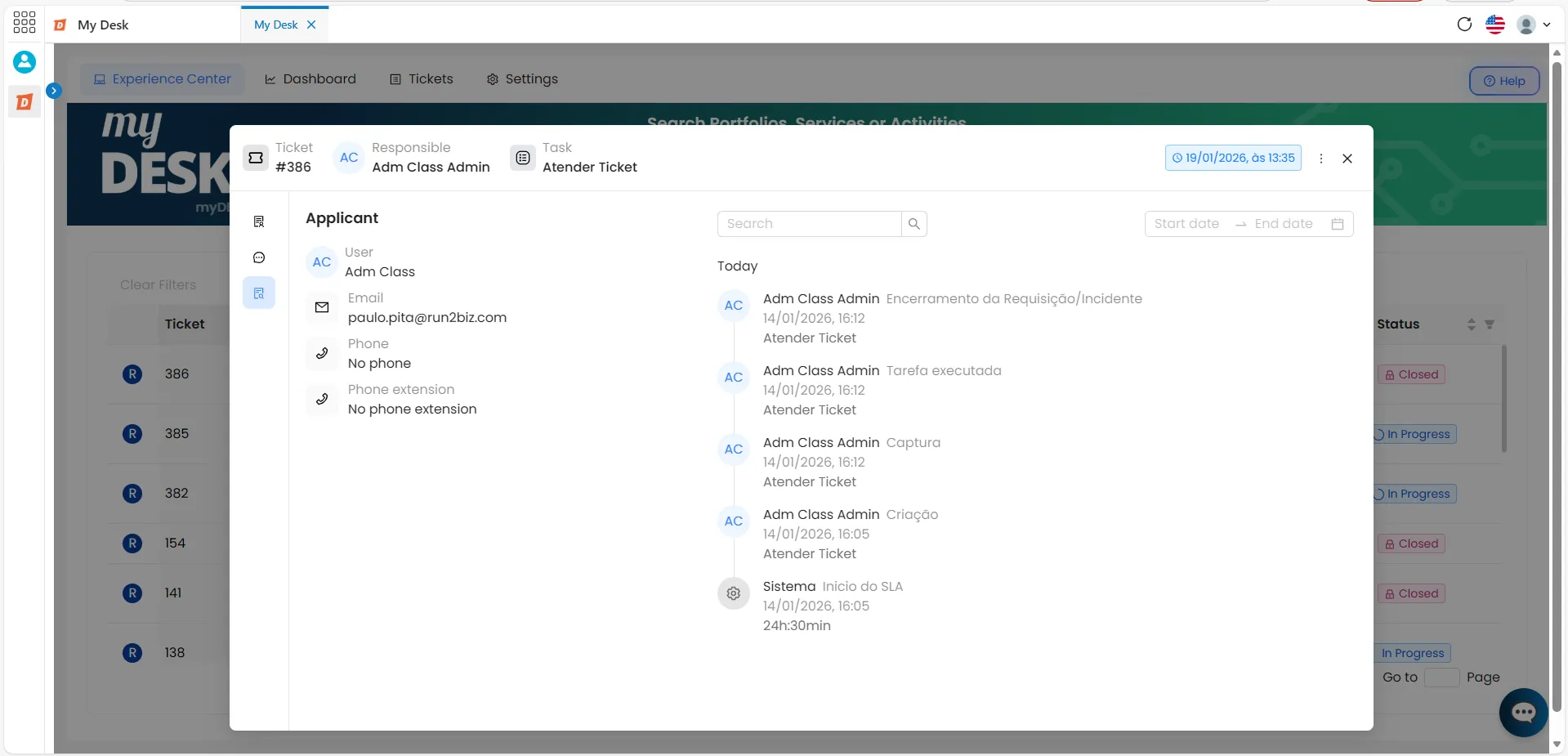
📅 Events
Displays all actions performed on the ticket since its creation.
Header Information
Header
The main ticket information is displayed in the window header, which remains visible regardless of the selected menu:
Ticket Number Responsible Task Term Close button